
Okwu mmalite
This user guide provides essential information for the HP OfficeJet Pro 8125e printer. It covers initial setup, connecting to networks, performing print, scan, and copy functions, routine maintenance, and troubleshooting common issues. Follow these instructions to ensure optimal performance and longevity of your device.
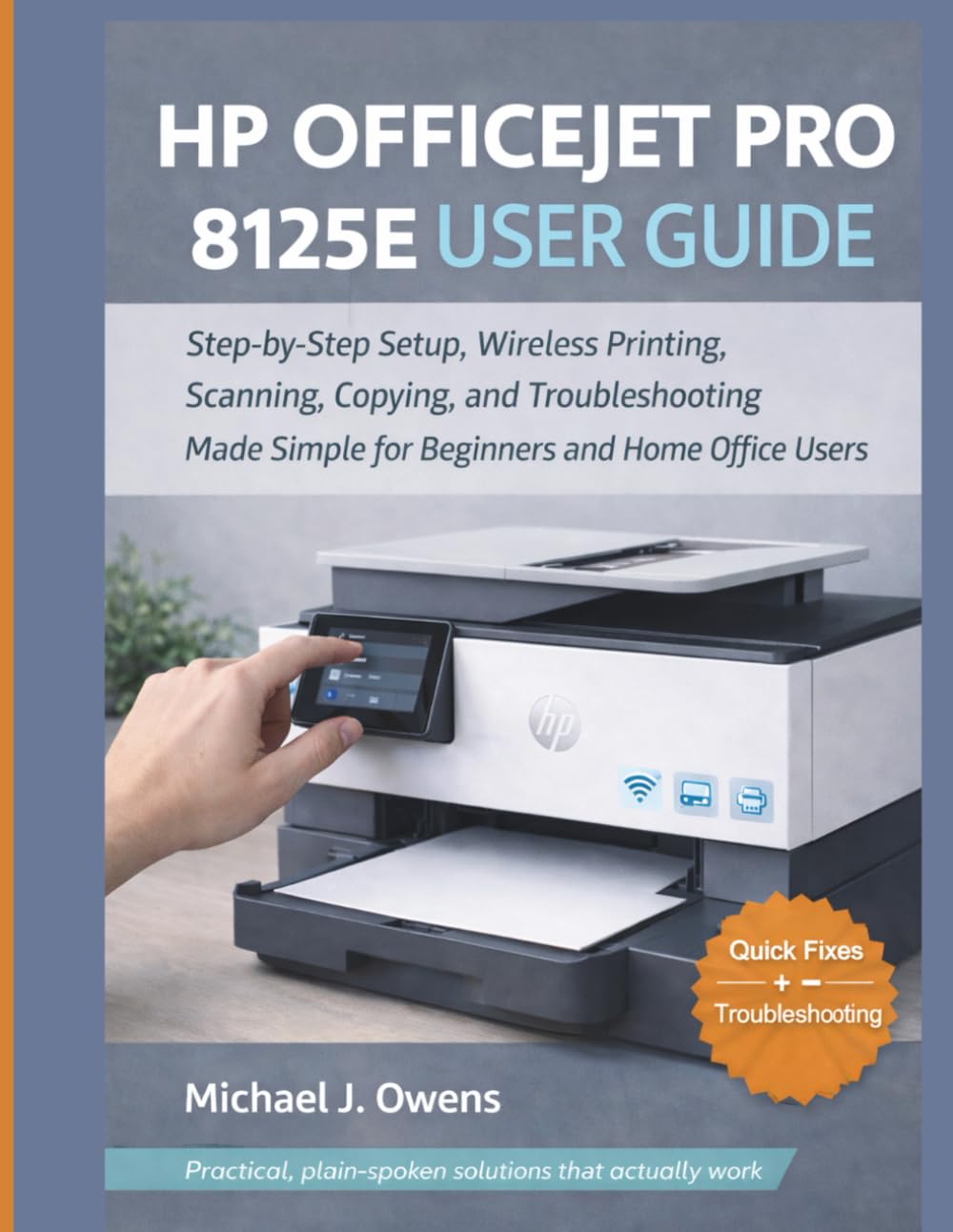
Image: Front cover of the HP OfficeJet Pro 8125e User Guide. This image represents the manual itself, designed to assist users with their printer.
1. Nhazi
1.1 Ịkpọghe igbe na Mmalite Ike-Ogwe
- Jiri nlezianya wepụ ihe nbipute na nkwakọ ngwaahịa ya.
- Wepu teepu nchebe na ihe nkwakọba ihe na mpụta na ime nke ngwa nbipute.
- Jikọọ eriri ike ahụ na ngwa nbipute wee jikọọ na oghere mgbidi.
- Pịa bọtịnụ ike ka ịgbanwuo ngwa nbipute.
- Follow the on-screen prompts on the printer's control panel to select your language and region.
1.2 Ịwụnye katrij ink
- Mepee ọnụ ụzọ ịnweta katrij ink.
- Chere ka ụgbọala e ji ebipụta ya gaa n'etiti.
- Unpack the new ink cartridges.
- Tinye katrij ọ bụla n'ime oghere ya, hụ na ọ na-abanye n'ọnọdụ ya.
- Mechie ọnụ ụzọ ịnweta katrij ink.
1.3 Mpempe akwụkwọ
- Wepụ traị ntinye.
- Adjust the paper guides to the correct paper size.
- Tinye otu nnukwu akwụkwọ ọcha n'ime tray ahụ, bipụta ya n'akụkụ ala.
- Pịa tray ntinye ahụ azụ n'ime ngwa nbipute ahụ.
- Confirm paper type and size on the printer's control panel if prompted.
1.4 Jikọọ na Wi-Fi
- Na njikwa nke ngwa nbipute ahụ, gaa na Wireless Setup Wireless.
- Họrọ netwọk Wi-Fi gị site na ndetu netwọkụ dị.
- Enter the Wi-Fi password (WPA key) when prompted.
- Confirm the connection. The wireless light on the printer should turn solid blue.
1.5 Nwụnye ọkwọ ụgbọala
For Windows and Mac computers, download the latest drivers and HP Smart software from the official HP support website. Follow the on-screen instructions during installation.
2. Na-arụ ọrụ na ngwa nbipute
2.1 Akwụkwọ mbipụta
- Site na Kọmputa: Open the document, select "Print," choose your HP OfficeJet Pro 8125e, and adjust settings as needed before printing.
- Site na Ngwaọrụ Mkpanaka (Ngwa Ekwentị HP Smart): Install the HP Smart app, add your printer, and use the app to print photos or documents directly from your smartphone or tablet.
- Email Print: If enabled, send documents to your printer's unique email address.
2.2 Akwụkwọ nyocha
- Place the document face down on the scanner glass or face up in the Automatic Document Feeder (ADF).
- On the printer's control panel or via the HP Smart app/software on your computer, select "Scan."
- Choose scan settings (e.g., color, resolution, destination).
- Bido nyocha ahụ.
2.3 Iṅomi akwụkwọ
- Tinye akwụkwọ mbụ na enyo nyocha ma ọ bụ na ADF.
- On the printer's control panel, select "Copy."
- Adjust settings such as number of copies, color/black & white, and size.
- Press the "Start Copy" button.
3. Nlekọta
3.1 Cleaning the Print Heads
If print quality degrades (streaks, faded colors), perform a print head cleaning from the printer's control panel or the HP Smart software. This process uses ink, so only perform it when necessary.
3.2 Dochie katrij ink
When an ink cartridge is low or empty, the printer will notify you. Follow the steps in Section 1.2 to replace cartridges. Use genuine HP ink cartridges for best results.
3.3 Nhicha izugbe
Jiri nwayọ hichaa mpụta nke ngwa nbipute, damp, lint-free cloth. Clean the scanner glass regularly with a glass cleaner applied to a cloth (not directly to the glass) to prevent smudges from affecting scan quality.
4. Nchọpụta nsogbu
| Nsogbu | Ngwọta |
|---|---|
| Printer Offline Message |
|
| Mpempe akwụkwọ |
|
| Ọdịmma Mbipụta adịghị mma |
|
| HP Smart App Issues |
|
5. Nkọwapụta
Note: The following specifications are typical for the HP OfficeJet Pro 8125e printer. For precise details, refer to the official HP product page or documentation.
- Ọrụ: Print, Copy, Scan, Fax (optional, depending on region/model)
- Teknụzụ mbipụta: Ihe Nlekọta Kwesiri HP
- Ọsọ Mbipụta (Ojii): Up to 22 ppm (ISO)
- Ọsọ Mbipụta (Agba): Up to 18 ppm (ISO)
- Print Resolution (Best): Ruo agba dpi kachasị mma ruo 4800 x 1200
- Scan Resolution (Optical): Ruo 1200 dpi
- Njikọta: Wi-Fi 802.11a/b/g/n, Ethernet, USB 2.0
- Ijikwa akwụkwọ: 250-sheet input tray, 60-sheet output tray, 35-sheet ADF
- Mbipụta Duplex: Akpaaka (ọkọlọtọ)
- Ngosipụta: Ihuenyo mmetụ agba
6. Akwụkwọ ikike na nkwado
For warranty information, please refer to the documentation included with your printer or visit the official HP support website. HP provides various support resources, including online FAQs, driver downloads, and contact options for technical assistance.
Image: Back cover of the HP OfficeJet Pro 8125e User Guide. This image provides additional information and ISBN details for the manual.