
Okwu mmalite
The Roku Hiro 32-inch 720p HD Smart TV offers an integrated Roku streaming experience. This television features an HD display for clear picture quality and speakers with enhanced audio. It supports Bluetooth for private listening with headphones and includes Wi-Fi for internet connectivity. The Roku operating system provides a customizable home screen, access to numerous streaming channels, and automatic updates, making it suitable for various living spaces.
Kedu ihe dị na Igbe ahụ
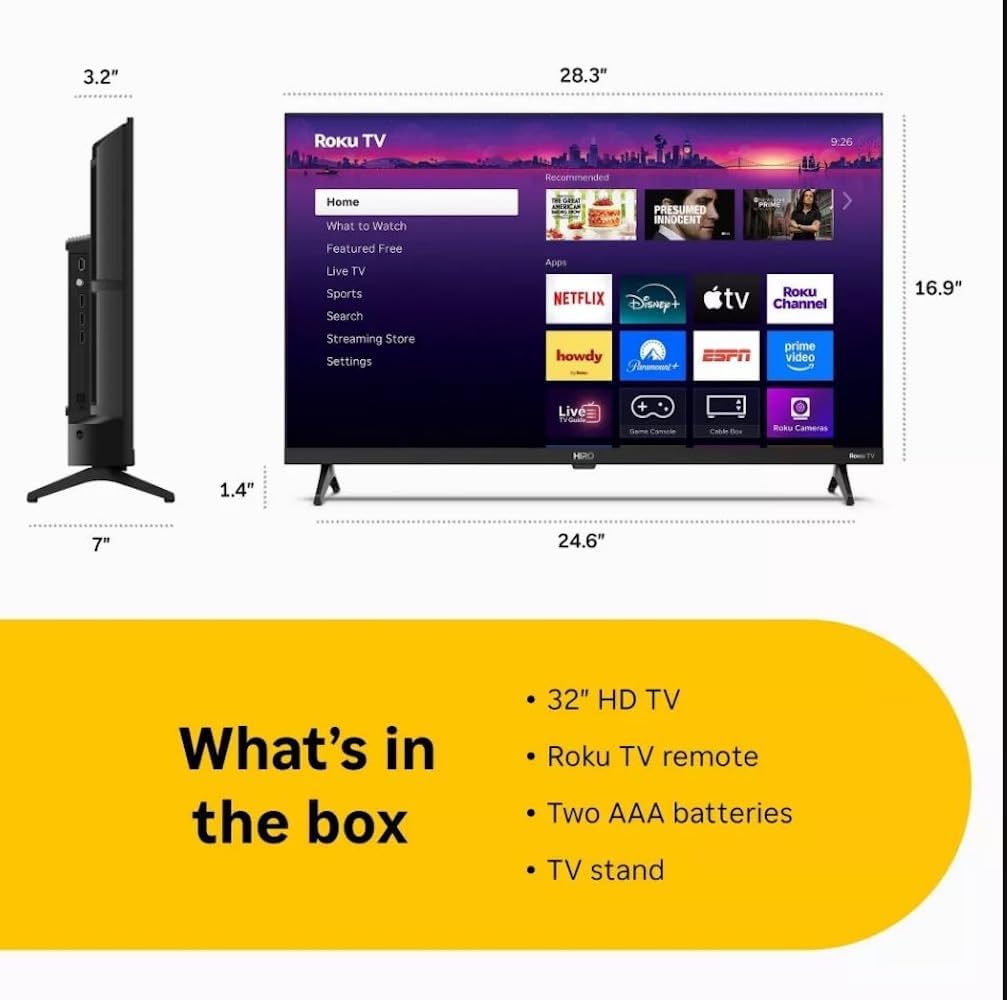
Diagram showing the dimensions of the Roku Hiro 32-inch TV and a list of included accessories: 32-inch HD TV, Roku TV remote, two AAA batteries, and TV stand.
- Hiro 32" 720p HD Smart TV Flat Screen LED Television with Roku TV
- Njikwa anya
- Ntutu TV
- Igwe ọkụ ọkụ
- Ntuziaka onye ọrụ
Melite
1. Guzosie nwụnye
Carefully place the TV screen-down on a soft, clean surface to prevent damage. Align the TV stand with the designated slots on the bottom of the TV. Secure the stand using the provided screws. Ensure the stand is firmly attached before proceeding.
2. Ijikọ Ngwaọrụ

N'azụ view of the Roku Hiro TV, showing the input/output ports including USB, HDMI, and antenna connections.
- Ike: Jikọọ eriri ọkụ na ntinye ike TV wee banye na mgbidi.
- HDMI: Connect external devices such as Blu-ray players, game consoles, or cable boxes to the HDMI ports. This TV features 3 HDMI ports.
- USB: Jiri ọdụ ụgbọ USB maka ịkpọghachi mgbasa ozi site na draịvụ USB.
- Audio ngwa anya: Connect an external sound system using an optical audio cable for enhanced sound.
- Antenna/Cable: Connect an antenna or cable TV feed to the RF input for over-the-air or cable channels.
3. Mbido Mbido
After connecting all necessary cables, power on the TV. Follow the on-screen instructions to:
- Họrọ asụsụ gị.
- Jikọọ na netwọk Wi-Fi gị.
- Activate your Roku account (or create a new one).
- Scan for available channels if an antenna is connected.
Ntuziaka ọrụ
Ọrụ njikwa anya

Close-up of the Roku TV remote control, highlighting buttons for TV power, volume, mute, sleep timer, instant replay, options, and app shortcuts.
- Bọtịnụ ike: Gbanyụọ ma ọ bụ gbanyụọ TV.
- Mpempe akwụkwọ ntuziaka (D-Pad): Na-agagharị menus wee họrọ ihe.
- OK bọtịnụ: Na-akwado nhọrọ.
- Bọtịnụ ụlọ: Na-alaghachi na ihuenyo ụlọ Roku.
- Bọtịnụ azụ: Na-alaghachi na ihuenyo gara aga.
- Elu elu/ala: Na-edozi olu TV.
- Oghere bọtịnụ: Mebie ma ọ bụ mebie ụda TV.
- Ngwa mkpirisi bọtịnụ: Direct access to popular streaming services (e.g., Netflix, Disney+, Apple TV+, Prime Video).
- Oge ụra: Na-edobe ihe ngụ oge ka TV gbanyụọ na akpaghị aka.
- Mkpọgharị ngwa ngwa: Jumps back a few seconds in supported content.
- Nhọrọ: Accesses additional settings or information for the current content.
Navigating the Roku OS

The Roku TV home screen interface, showing recommended content and various streaming applications.
The Roku home screen provides access to all your streaming channels, inputs, and settings. Use the D-Pad on your remote to navigate through the menu options on the left and the app grid on the right. You can customize the order of your channels by highlighting an app, pressing the * (Options) button, and selecting 'Move channel'.
Ọdịnaya gụgharia
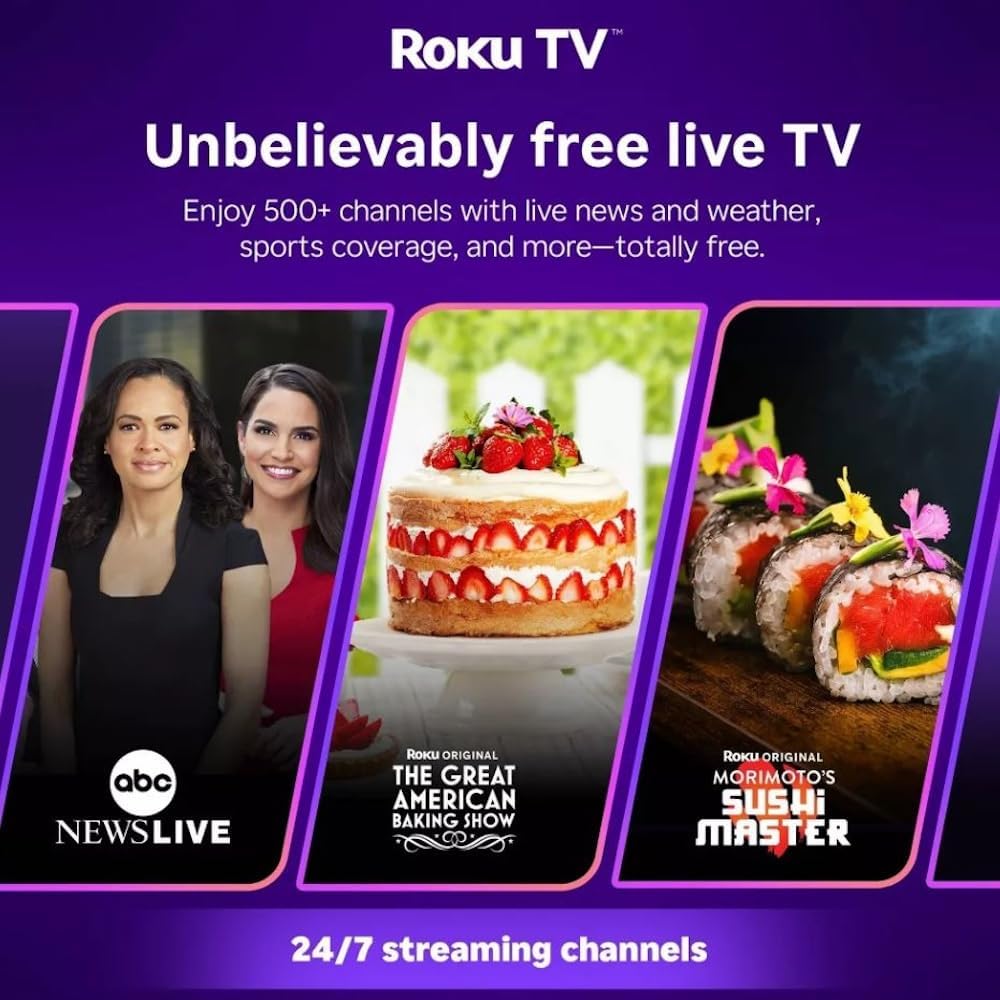
Roku TV interface promoting free live TV channels, featuring examples like ABC News Live, The Great American Baking Show, and Morimoto's Sushi Master.
Access a wide range of streaming services and free content through the Roku Channel Store. The Roku platform offers over 500 free channels, including live television, movies, and news. Use the 'Search' function on the home screen to find specific titles or channels.
Njirimara ọdịyo

Roku Hiro TV displaying the home screen with various streaming apps, emphasizing enhanced audio quality.
The TV features enhanced audio quality. For private listening, you can pair Bluetooth headphones directly with the TV. Navigate to Settings > Remotes & devices > Bluetooth devices > Pair new device to connect your headphones.
Nlekọta
Na-ehicha TV
- Kwupuo TV mgbe niile tupu ihicha ya.
- Jiri akwa dị nro, nke na-enweghị lint, jiri nwayọ hichaa ihuenyo na kabinet.
- Maka akara ndị isi ike, dị obere dampen akwa na mmiri ma ọ bụ dị nwayọọ, na-adịghị abrasive ihuenyo Cleaner. Afesakwala ihe nhicha ozugbo na ihuenyo.
- Zere iji kemịkalụ siri ike, mpe mpe akwa, ma ọ bụ ihe mgbaze.
Mmelite ngwanrọ
The Roku TV automatically checks for and installs software updates when connected to the internet. To manually check for updates, go to Ntọala > Sistemụ > Mmelite ngwanrọ.
Nchọpụta nsogbu
| Nsogbu | Ngwọta |
|---|---|
| Enweghị ike | Gbaa mbọ hụ na ejikọrọ eriri ọkụ na ma igwe onyonyo ma igwe eletrik na-arụ ọrụ. Gbalịa ụzọ ọpụpụ dị iche. |
| Enweghị foto, mana ụda dị | Lelee isi iyi ntinye. Pịa Ụlọ button on the remote and select the correct input. Ensure all HDMI cables are securely connected. |
| Enweghị ụda, mana foto dị | Check the volume level and ensure the TV is not muted. If using external audio, verify connections and settings. |
| Enweghị ike ijikọ na Wi-Fi | Verify your Wi-Fi password. Restart your router and modem. Go to Settings > Network > Set up connection to reconfigure. |
| Njikwa anya anaghị arụ ọrụ | Dochie batrị ndị dị na ime ime. Gbaa mbọ hụ na onweghị ihe mgbochi n'etiti ime ime na ihe mmetụta IR nke TV. |
Nkọwapụta
| Aha Nlereanya | H32C2C4 |
| Nha ihuenyo | 32 sentimita asatọ |
| Ngosipụta teknụzụ | Ikanam |
| Mkpebi | 720p |
| Ọnụego ume ọhụrụ | 60 Hz |
| Sistemụ nrụọrụ | Roku OS |
| Teknụzụ Njikọta | Bluetooth, HDMI, Optical Audio, USB, Wi-Fi |
| Ọnụọgụ niile nke ọdụ ụgbọ mmiri HDMI | 3 |
| Mgbakọta ọdụ ụgbọ mmiri USB | 1 |
| Akụkụ ngwaahịa (D x W x H) | 3.2"D x 28.3"W x 16.9"H |
| Ibu Ibu | 7.5 pound |
| Voltage | 120 volts (AC) |
| Ụdị nkwụnye | Ugwu okpokoro |
| Agba | Nwa |
Ozi akwụkwọ ikike
This Roku Hiro TV is covered by a 90-day Replacement Warranty. Please retain your proof of purchase for any warranty claims. For detailed terms and conditions, refer to the warranty documentation included with your product or visit the official Roku support websaịtị.
Nkwado
For further assistance, troubleshooting guides, or to contact customer support, please visit the official Roku support website. You can find comprehensive FAQs and contact information there.