PowerA Advantage Wireless Controller for Nintendo Switch 2 - Mario & Yoshi
Model: NSGP0569-01V
Okwu mmalite
This manual provides comprehensive instructions for the PowerA Advantage Wireless Controller, designed for use with the Nintendo Switch family of devices. It covers setup, operation, maintenance, and troubleshooting to ensure optimal performance and longevity of your controller.
Atụmatụ igodo
Hall Effect Modules: Equipped with contact-free magnetic sensors in the thumbsticks to prevent stick drift, offering smoother control, enhanced precision, and increased longevity.
Bọtịnụ Egwuregwu Dị Elu: Two mappable buttons can be programmed on the fly during gameplay without needing to access system settings.
Intuitive Motion Controls: Experience fluid and responsive motion controls for aiming, steering, flying, and other in-game actions.
Bọtịnụ C: Provides quick access to GameChat features.
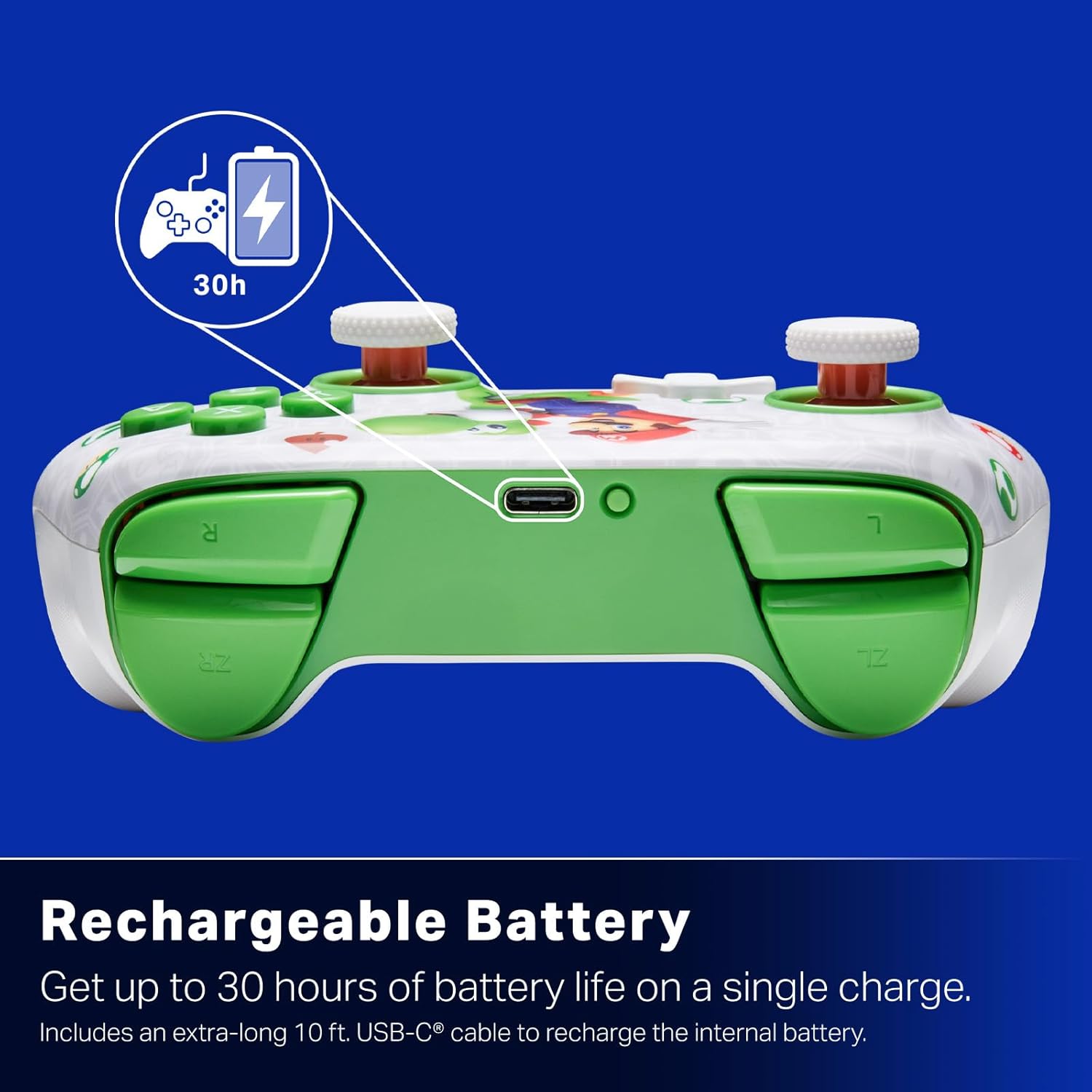
Batrị enwere ike ịchaji: Offers up to 30 hours of gameplay on a single charge. Includes a 10 ft. (3m) USB-C cable for recharging.
Nhazi Ergonomic: Crafted for comfort during extended gaming sessions, utilizing cutting-edge ergonomics and high-quality materials.
Nintendo Family Compatibility: Compatible with Nintendo Switch 2, Nintendo Switch, Nintendo Switch – OLED Model, and Nintendo Switch Lite.
Enyere ikike ikike: PowerA products undergo rigorous testing by Nintendo to ensure compatibility and quality.
Ntuziaka nhazi
1. Nchaji mbụ
Before first use, fully charge your PowerA Advantage Wireless Controller. Connect the included 10 ft. (3m) USB-C cable to the controller's USB-C port and the other end to a powered USB port on your Nintendo Switch dock or a USB wall adapter.
Figure 1: Controller connected via USB-C for charging, highlighting the rechargeable battery feature.
2. Ijikọ na Nintendo Switch
Hụ na agbanyere ma melite njikwa Nintendo Switch gị na ngwanrọ sistemụ kachasị ọhụrụ.
Site OMlọ menu, họrọ Ndị njikwa, mgbe ahụ Gbanwee njide/usoro.
On the PowerA Advantage Wireless Controller, press and hold the Bọtịnụ SYNC located on the top edge of the controller for at least three seconds. The player indicator LEDs on the bottom of the controller will begin to flash.
Once the controller successfully pairs, the player indicator LED(s) corresponding to the controller number will remain lit.
Pịa A bọtịnụ to confirm and exit the pairing screen.
For subsequent uses, simply press the HOME button on the controller to wake it up and automatically reconnect to your Switch console.
Ntuziaka ọrụ
Njikwa ntọala
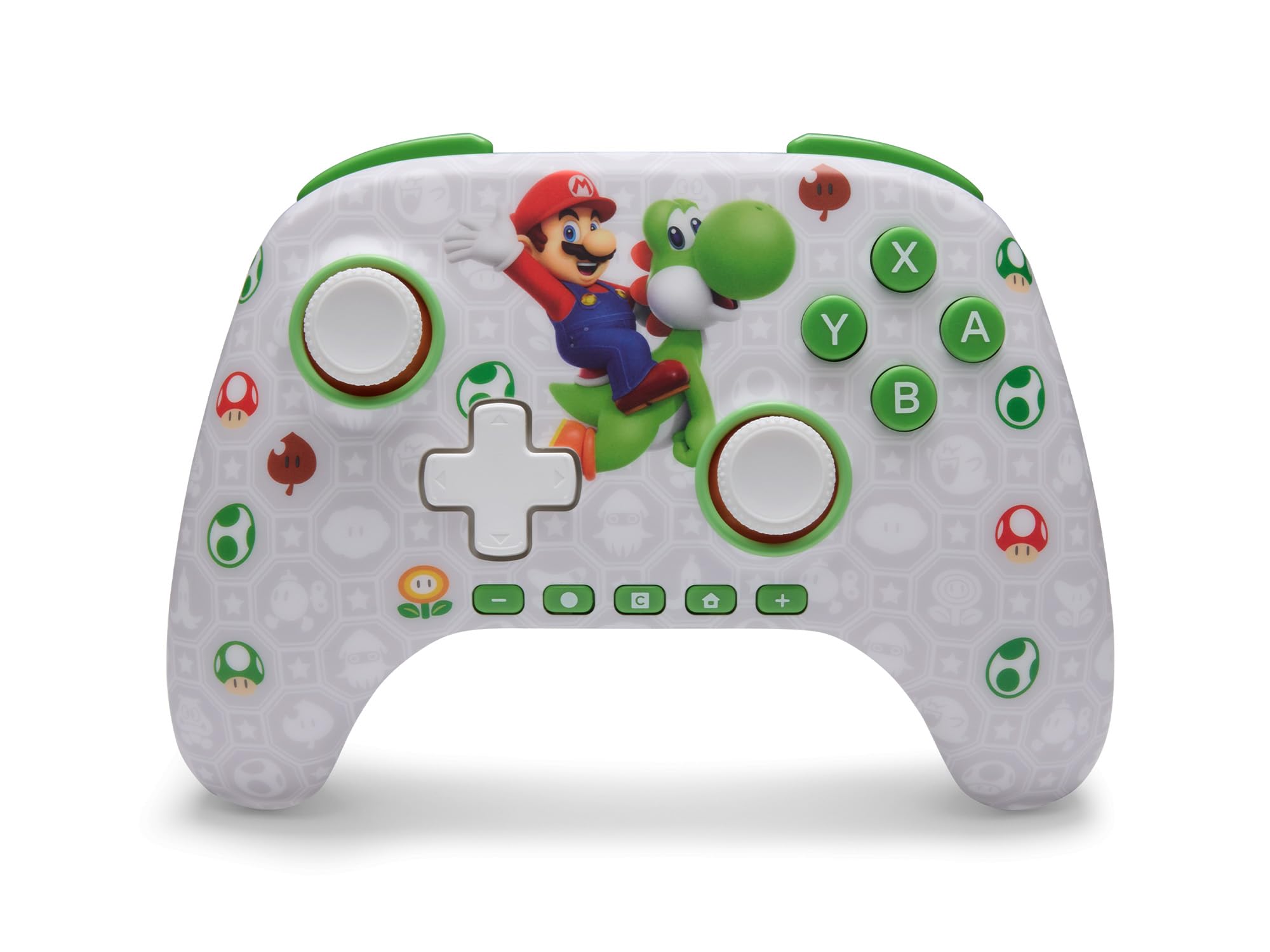
PowerA Advantage Wireless Controller features standard Nintendo Switch button layouts, including A, B, X, Y buttons, L/R and ZL/ZR shoulder buttons, a D-pad, and dual analog sticks. Familiarize yourself with these controls for general gameplay.
Foto 2: N'ihu view of the PowerA Advantage Wireless Controller, highlighting the Mario and Yoshi design and button layout.
Advanced Gaming Buttons (AGB)
The controller includes two mappable Advanced Gaming Buttons (AGR and AGL) on the back. These buttons can be assigned to replicate any other button on the controller for quick access during gameplay.
Pịa Program Button (PRGM) on the back of the controller. The Program LED will flash.
Pịa Advanced Gaming Button (AGR or AGL) you wish to map. The Program LED will flash rapidly.
Pịa bọtịnụ you want to assign to the Advanced Gaming Button (e.g., A, B, X, Y, L, R, ZL, ZR, D-pad directions). The Program LED will stop flashing, indicating successful mapping.
To clear a mapped button, repeat steps 1-2, then press the Bọtịnụ mmemme ọzọ.
Figure 3: Advanced Gaming Buttons (AGB) on the back of the controller, with an illustration of mappable functions.
Njikwa ngagharị
The controller supports motion controls, allowing for intuitive interaction in compatible games. These controls are automatically enabled when supported by the game.
Figure 4: Controller demonstrating motion control capabilities through tilting.
C Button (GameChat)
The dedicated C Button provides quick access to GameChat features in supported titles, enhancing your multiplayer experience.
Figure 5: The 'C' button, used for GameChat features.
Nlekọta
Nhicha: Jiri ákwà dị nro ma kpọọ nkụ hichaa ihe njikwa ahụ. Zere iji kemịkalụ siri ike ma ọ bụ ihe ndị na-emebi ihe.
Nchekwa: Chekwaa onye njikwa ahụ n'ebe dị jụụ, kpọrọ nkụ na-adịghị na ìhè anyanwụ kpọmkwem na oke okpomọkụ.
Nlekọta batrị: Iji mee ka batrị dị ogologo, zere iwepụ ihe njikwa ahụ kpamkpam mgbe niile. Chajie ya mgbe niile, ọbụlagodi na ọ naghị arụ ọrụ mgbe niile.
Nlekọta USB: Handle the USB-C charging cable with care. Avoid bending or twisting it excessively.
Nchọpụta nsogbu
Njikwa Anaghị ejikọta/Na-ejikọ
Gbaa mbọ hụ na akwụchara onye njikwa ya nke ọma.
Verify the Nintendo Switch console is updated to the latest system software.
Repeat the pairing process (see "Pairing with Nintendo Switch" in Setup Instructions).
If issues persist, try restarting both the controller and the Nintendo Switch console.
Stick Drift
PowerA Advantage Controller features Hall Effect modules designed to prevent stick drift. If you experience any unintended input, ensure the controller's firmware is up to date (check PowerA's official websaịtị maka mmelite).
Recalibrate the joysticks through the Nintendo Switch system settings if necessary (System Settings > Controllers and Sensors > Calibrate Control Sticks).
Ndụ obere batrị
Ensure the controller is fully charged before each use.
Battery life can vary based on game usage and features enabled.
Jiri eriri USB-C enyere maka chaja kacha mma.
Nkọwapụta
Njirimara
Nkọwa
Nọmba nlereanya
NSGP0569-01V
Njikọta
Wireless (Bluetooth), USB-C (for charging)
Ngwa dakọtara
Nintendo Switch 2, Nintendo Switch, Nintendo Switch – OLED Model, Nintendo Switch Lite
Ndụ batrị
Ruo awa 30 (dị iche na ojiji)
Ogologo eriri USB
10 ft. (3m) USB-C
Akụkụ
5.88 x 4.21 x 2.36 sentimita asatọ
Ibu
0.66 pound
Atụmatụ pụrụ iche
Hall Effect Thumbsticks, Mappable Advanced Gaming Buttons, Motion Controls, C Button
Akwụkwọ ikike na nkwado
PowerA Advantage Wireless Controller comes with a Akwụkwọ ikike dị afọ abụọMaka ozi zuru ezu gbasara akwụkwọ ikike, nkwado ngwaahịa, ma ọ bụ iji debanye aha ngwaahịa gị, biko gaa na PowerA gọọmentị websaịtị na PowerA.com/Support.
Figure 6: Official Nintendo Licensed Product badge, ensuring quality and compatibility.
Ask a question about this manual
Ask about setup, troubleshooting, compatibility, parts, safety, or missing instructions. Manuals+ will review the question and use this page’s manual context to help answer it.