
1. Okwu mmalite
Thank you for choosing the Sharp 40HF2265E Full HD Google TV. This manual provides essential information for setting up, operating, and maintaining your television. Featuring integrated Google TV, HDR10 support, Dolby Digital audio, and Bluetooth connectivity, your new TV offers a rich entertainment experience. Please read this manual thoroughly before use to ensure proper operation and to maximize your viewna-atọ ụtọ.

Foto 1.1: N'ihu view of the Sharp 40HF2265E Full HD Google TV.
2. Kedu ihe dị na Igbe ahụ
Jiri nlezianya wepụ ihe onyonyo gị wee lelee na agụnyere ihe niile ndị a:
- Sharp 40HF2265E Television
- Igwe ọkụ ọkụ
- Remote Control (requires 2 AAA batteries, not always included)
- Akwụkwọ ntuziaka (akwụkwọ a)
- Akwụkwọ ikike kaadị
If any items are missing or damaged, please contact your retailer or Sharp customer support immediately.
3. Nhazi
3.1 Nwụnye guzoro
To install the TV stand, place the TV screen-down on a soft, flat surface to prevent scratches. Align the stand feet with the corresponding slots on the bottom of the TV and secure them with the provided screws. Ensure the stand is firmly attached before placing the TV upright.

Foto 3.1: N'ihu view of the TV with stand feet attached.
3.2 Mgbidi Mgbidi
If you prefer to wall-mount your TV, you will need a VESA-compatible wall mount (not included). The Sharp 40HF2265E supports a VESA mounting standard of 200 x 200 mm. Refer to the wall mount's instructions for installation. Always ensure the wall can support the weight of the TV and the mount.

Foto 3.2: N'azụ view of the TV, highlighting VESA mounting points and ports.
3.3 Njikọta Peripherals
Connect your external devices to the appropriate ports on the back and side of the TV. The TV features multiple HDMI, USB, and other connectivity options.
- ọdụ ụgbọ mmiri HDMI: Maka ijikọ ndị egwuregwu Blu-ray, consoles egwuregwu, igbe set-top, wdg.
- ọdụ ụgbọ mmiri USB: Maka ijikọ ngwaọrụ nchekwa USB iji kpọọ mgbasa ozi ma ọ bụ maka mmelite ngwanrọ.
- Njikọ Ethernet: Maka njikọ ịntanetị ejikọrọ.
- Ntinye Antenna/Cable: Maka ijikọ antenna ma ọ bụ eriri TV mgbama.
- Mmepụta ọdịyo: Maka ijikọ sistemụ ọdịyo mpụga.
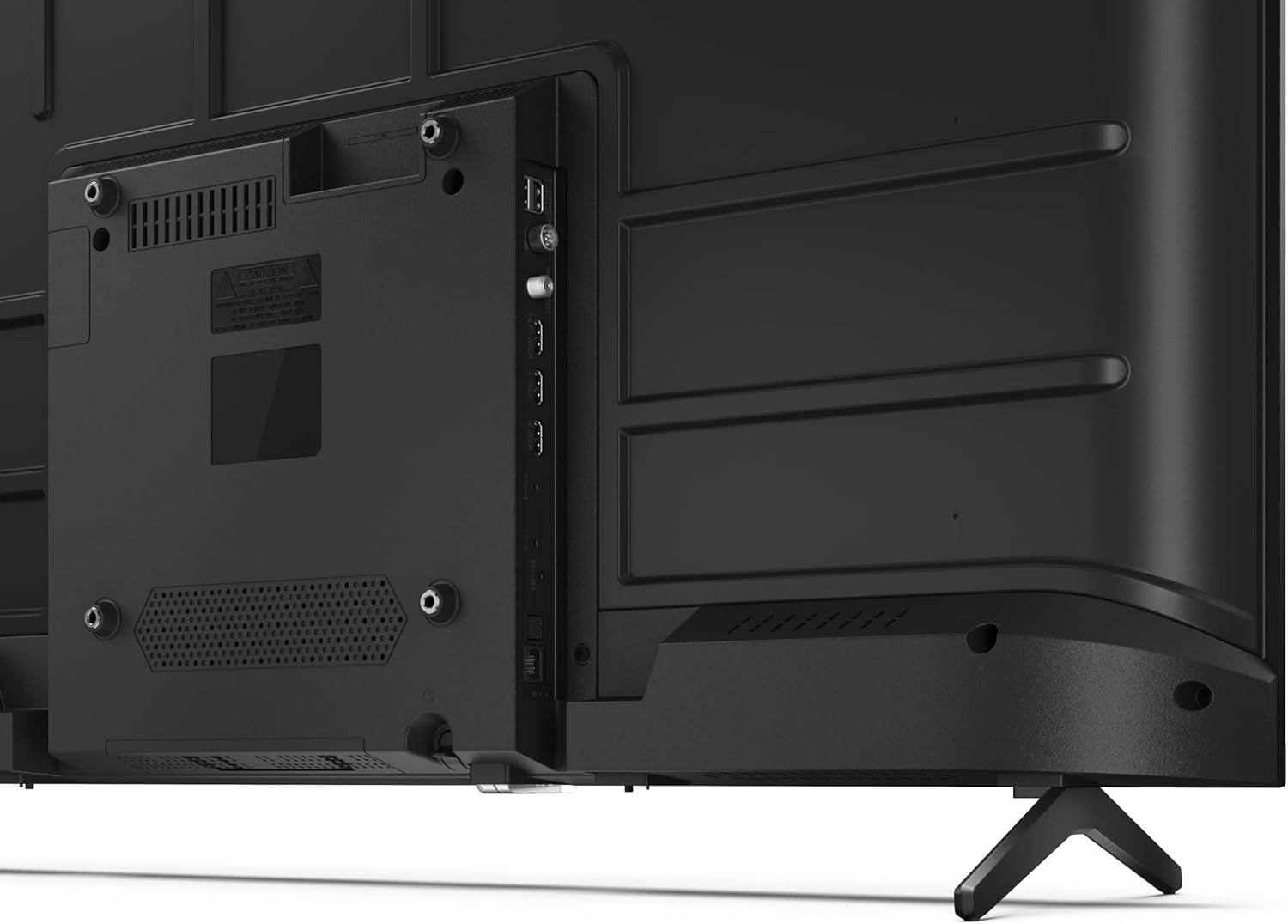
Foto 3.3: Zuru ezu view nke ọdụ njikọ TV.
3.4 Ike izizi na Google TV Ntọala
After connecting all necessary cables, plug the power cable into an electrical outlet. Press the power button on the remote control or on the TV. Follow the on-screen instructions to complete the initial setup, including network connection, Google account login, and channel scanning.
4. .rụ ọrụ
4.1 Ọrụ njikwa anya
The remote control allows you to navigate the TV's features. Common buttons include Power, Volume Up/Down, Channel Up/Down, Input Source, Home (Google TV), Navigation (directional arrows, OK), Back, and Google Assistant.
4.2 Google TV Interface
Your Sharp TV runs on Google TV, providing a personalized home screen with content recommendations from your subscriptions. Use the remote's navigation buttons to browse movies, shows, apps, and your library.

Image 4.1: The Google TV home screen on the Sharp 40HF2265E.
4.3 Nhọrọ ntinye
To switch between connected devices (e.g., HDMI 1, HDMI 2, TV tuner), press the 'Input' or 'Source' button on your remote control and select the desired input from the on-screen menu.
4.4 Ntọala foto na ụda
Access the TV's settings menu to adjust picture modes (Standard, Vivid, Cinema, Game), brightness, contrast, color, and sound modes (Standard, Music, Movie, Speech). The TV supports HDR10 for enhanced contrast and color, and Dolby Digital for rich audio.

Image 4.2: Visual representation of HDR (High Dynamic Range) technology.
4.5 Google Assistant and Chromecast
Use the built-in Google Assistant for voice control. Press the Google Assistant button on your remote and speak your commands, such as searching for content, controlling smart home devices, or getting information. Chromecast allows you to cast content directly from compatible devices like smartphones or tablets to your TV.

Image 4.3: Google Assistant integration for voice commands.
4.6 Njikọ Bluetooth
Pair Bluetooth-enabled devices such as headphones or soundbars with your TV for a wireless audio experience. Navigate to the TV's settings menu, select 'Remotes & Accessories', and then 'Pair new device' to connect.
5. Nlekọta
5.1 Ihicha TV
Always unplug the TV before cleaning. Use a soft, dry cloth to wipe the screen and TV body. For stubborn marks, lightly dampen the cloth with water or a specialized screen cleaner. Never use abrasive cleaners, waxes, or solvents.
5.2 Mmelite ngwanrọ
Your Google TV may receive automatic software updates. Ensure your TV is connected to the internet to receive these updates, which can improve performance and add new features. You can also manually check for updates in the settings menu.
6. Nchọpụta nsogbu
Ọ bụrụ na ị na-enwe nsogbu na TV gị, rụtụ aka na azịza ndị a na-ahụkarị:
- Enweghị ike: Check if the power cable is securely plugged into both the TV and the wall outlet. Ensure the outlet is functional.
- Enweghị foto/ụda: Verify that the correct input source is selected. Check all cable connections (HDMI, antenna). Try restarting the TV.
- Njikwa anya anaghị arụ ọrụ: Dochie batrị (2 AAA). Gbaa mbọ hụ na onweghị ihe mgbochi n'etiti ime ime na ihe mmetụta IR nke TV.
- Okwu njikọ netwọkụ: For Wi-Fi, check your router and ensure the TV is within range. For wired connections, check the Ethernet cable. Try restarting your router and the TV.
- Okwu Ogo foto: Adjust picture settings (brightness, contrast, sharpness). Ensure the input source is providing a high-quality signal.
For more complex issues, consult the comprehensive troubleshooting section in the full digital manual or contact Sharp customer support.
7. Nkọwapụta
Below are the technical specifications for the Sharp 40HF2265E Full HD Google TV:

Image 7.1: Dimensions of the Sharp 40HF2265E TV.
| Njirimara | Nkọwapụta |
|---|---|
| Ụdị | Nkọ |
| Nọmba nlereanya | 40HF2265E |
| Aha Nlereanya | Usoro HF |
| Afọ Nlereanya | 2025 |
| Nha ihuenyo | 40 sentimita (81 centimita) |
| Ngosipụta teknụzụ | Ikanam |
| Mkpebi | 1080p (HD zuru ezu) |
| Ọnụego ume ọhụrụ | 60 Hz |
| Akụkụ akụkụ | 16:9 |
| Ọnụọgụ ọdịiche | 100000:1 |
| Screen Finish | Matte |
| Oge nzaghachi | 8 nkeji |
| Teknụzụ ọkụ azụ | Ikanam |
| Supported HDR Format | HDR10, HLG |
| Nkwalite ogo onyonyo | Dynamic Contrast, HDR10, HLG |
| Motion Enhancement Technology | Motion Interpolation |
| Sistemụ nrụọrụ | Google TV |
| Internet Applications | Apple TV, Google TV, Hulu, Prime Video, YouTube |
| Atụmatụ pụrụ iche | Bluetooth, Chromecast, Dolby Digital, HD Tuner |
| Teknụzụ Njikọta | Ethernet, USB, Wi-Fi |
| Teknụzụ ikuku | Bluetooth |
| Ụdị Bluetooth | 5.0 |
| Screen Mirroring Technology | Chromecast, Google Cast |
| Mgbakọta ọdụ ụgbọ mmiri HDMI | 3 |
| Total USB 2.0 Ports | 2 |
| Number of Composite Video Inputs | 1 |
| Ntinye ọdịyo | Mini composite/CVBS + audio input |
| Total Audio Output Ports | 2 |
| Ọnọdụ mmepụta ọdịyo | Stereo |
| Ndekọ ọdịyo | DD |
| Integrated Surround Sound Format | Dolby AC-4, Dolby Digital, Dolby Digital Plus |
| Ike Mmepụta Ọkà Okwu Kachasị Elu | 16 Watts (2x8W) |
| Ọnụọgụ ọwa ọdịyo | 2.0 |
| Sistemụ Mgbasa Ozi | DVB-T2/C/S/S2 |
| Ndekọ vidiyo | MKV |
| Akụkụ ngwaahịa (DxWxH) | 8.4P x 89.2lx 50.9H cm |
| Ibu Ibu | 5.4 kilogram |
| Ibu na-enweghị Nkwụsi ike | 5.4 kilogram |
| Obosara ala | 765 millimeters |
| Ọnụ ego nke VESA | 200 x 200 mm |
| Oriri ike | 37 Watt |
| Voltage | 230 Volt |
| Remote Control Battery Size | AAA |
| Remote Control Battery Quantity | 2 |
| Parental Control Technology | Kindersicherung Über Google Tv |
| Nnweta akụkụ mapụtara EU | Afọ 7 |
8. Akwụkwọ ikike na nkwado
8.1 Akwụkwọ ikike ngwaahịa
The Sharp 40HF2265E television comes with a 2-year manufacturer's warranty. Please refer to the included Warranty Card for detailed terms and conditions regarding coverage and service. Keep your proof of purchase for warranty claims.
8.2 Nkwado ndị ahịa
If you require further assistance, have questions not covered in this manual, or need technical support, please contact Sharp customer service. Contact information can typically be found on the Warranty Card or the official Sharp websaịtị.