
1. Okwu mmalite na gafereview
The ORGBRO DX1 Label Maker is a portable Bluetooth thermal printer designed for efficient organization in various environments, including home, office, school, and small businesses. This device utilizes advanced inkless thermal printing technology, offering a cost-effective and convenient labeling solution.
Akụkụ ndị bụ isi:
- Versatile Printing Modes: Supports both pre-cut and continuous labels, allowing for customizable label lengths for diverse applications.
- Smart App & Easy Setup: Connects via Bluetooth in under a minute using the XeasyLabel App (iOS/Android), offering over 95 fonts, 15 languages, and 1200+ symbols without registration or hidden fees.
- Teknụzụ Thermal Inkless: Features a German thermal print head for 203 DPI high-definition monochrome printing, eliminating the need for ink, toner, or ribbon. Includes a built-in cutter for clean edges.
- Compact & Long-Lasting: Weighs only 7 ounces, pocket-sized, and equipped with a 2000mAh battery for extended operation on a single USB charge.
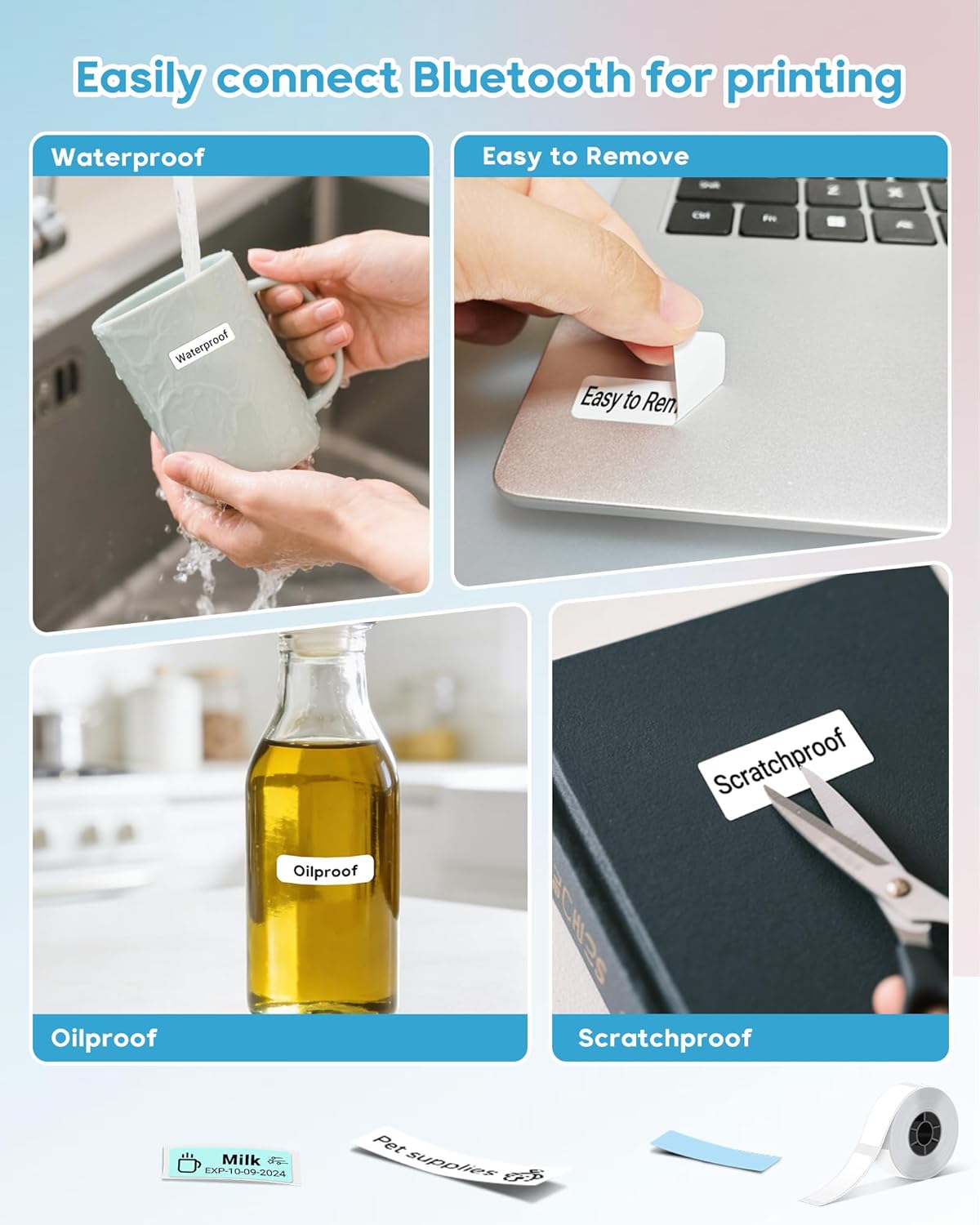
- Akara na-adịgide adịgide: Included labels are BPA-free, waterproof, oil-proof, and scratch-resistant with strong adhesive that leaves no residue.

The ORGBRO DX1 Label Maker in a home office setting, demonstrating its compact size and versatility.
2. Ntuziaka Nhazi
2.1 Unboxing na ngwugwu ọdịnaya
Carefully unpack your ORGBRO DX1 Label Maker. Ensure all components are present as listed below:
- 1 x Mini Label Maker
- 1 x Roll of white label paper
- 1 x Akwụkwọ ntuziaka onye ọrụ
- 1 x Ụdị-C eriri USB
The complete packing list for the ORGBRO DX1 Label Maker.
Official video demonstrating the unboxing and initial overview of the ORGBRO DX1 Label Maker.
2.2 Mbuli teepu akara
- Press the open button on the side of the device to open the cover.
- Insert the label roll with the print side facing up. Ensure the label tape is fed smoothly through the printer's slot.
- Mechie mkpuchi ahụ nke ọma ruo mgbe ọ pịnyere aka n'ebe ọ dị.
- Press and hold the power button to turn on the device. Double-press the power button to print a test page and calibrate the label.
Visual instructions for installing the label tape.
Official video demonstrating the label loading process and initial setup.
2.3 Nbudata ngwa na njikọ Bluetooth
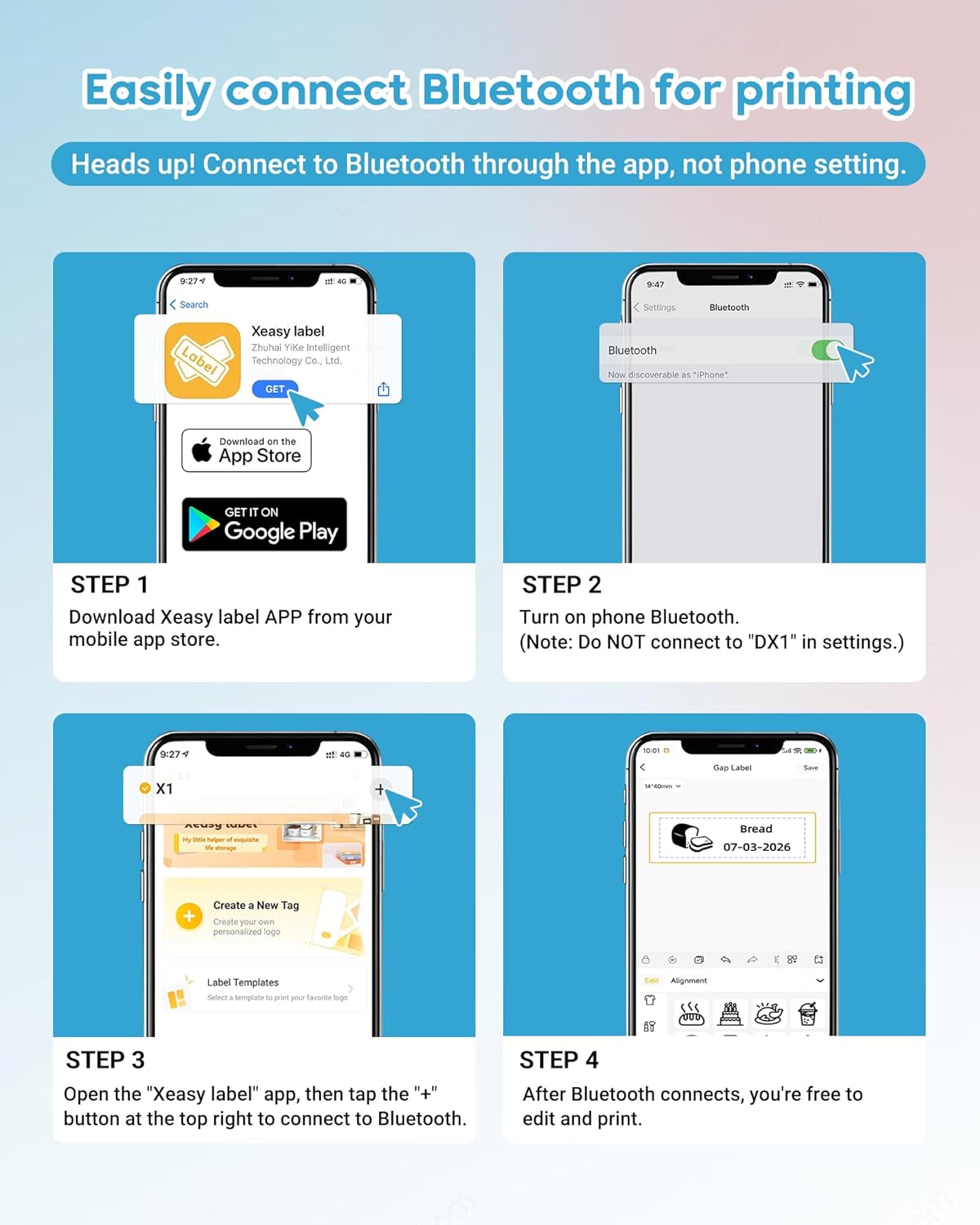
- Budata ya "XEasyLabel" app from your mobile app store (available on iOS and Android).
- Gbanye Bluetooth nke ekwentị gị. Important: Do NOT connect to "DX1" in your phone's Bluetooth settings directly.
- Open the XEasyLabel app. Tap the "+" icon in the top right corner to search for and connect to the printer.
- Once connected, the app will indicate "Connected" and you are ready to edit and print.

Detailed steps for app installation and Bluetooth pairing.
3. Ntuziaka ọrụ
3.1 Ịmepụta na ibipụta aha
The XEasyLabel app provides extensive customization options for your labels:
- Ederede: Add custom text using various fonts (over 95 available) and languages (15 available).
- Stickers & Symbols: Choose from over 1200+ symbols and stickers to enhance your labels.
- Foto: Embed images onto your labels.
- Oge na Datebọchị: Tinye oge ma ọ bụ ụbọchị ugbu a stamps.
- QR Code & Barcode: Generate and print QR codes or barcodes directly from the app.
- Ndebiri: Utilize pre-designed templates for common uses like kitchen, office, or school organization.
After designing your label, preview it in the app, adjust print density if needed, and tap "Print Label" to send it to the DX1 printer.

The XEasyLabel app offers a powerful multi-function application for label design.
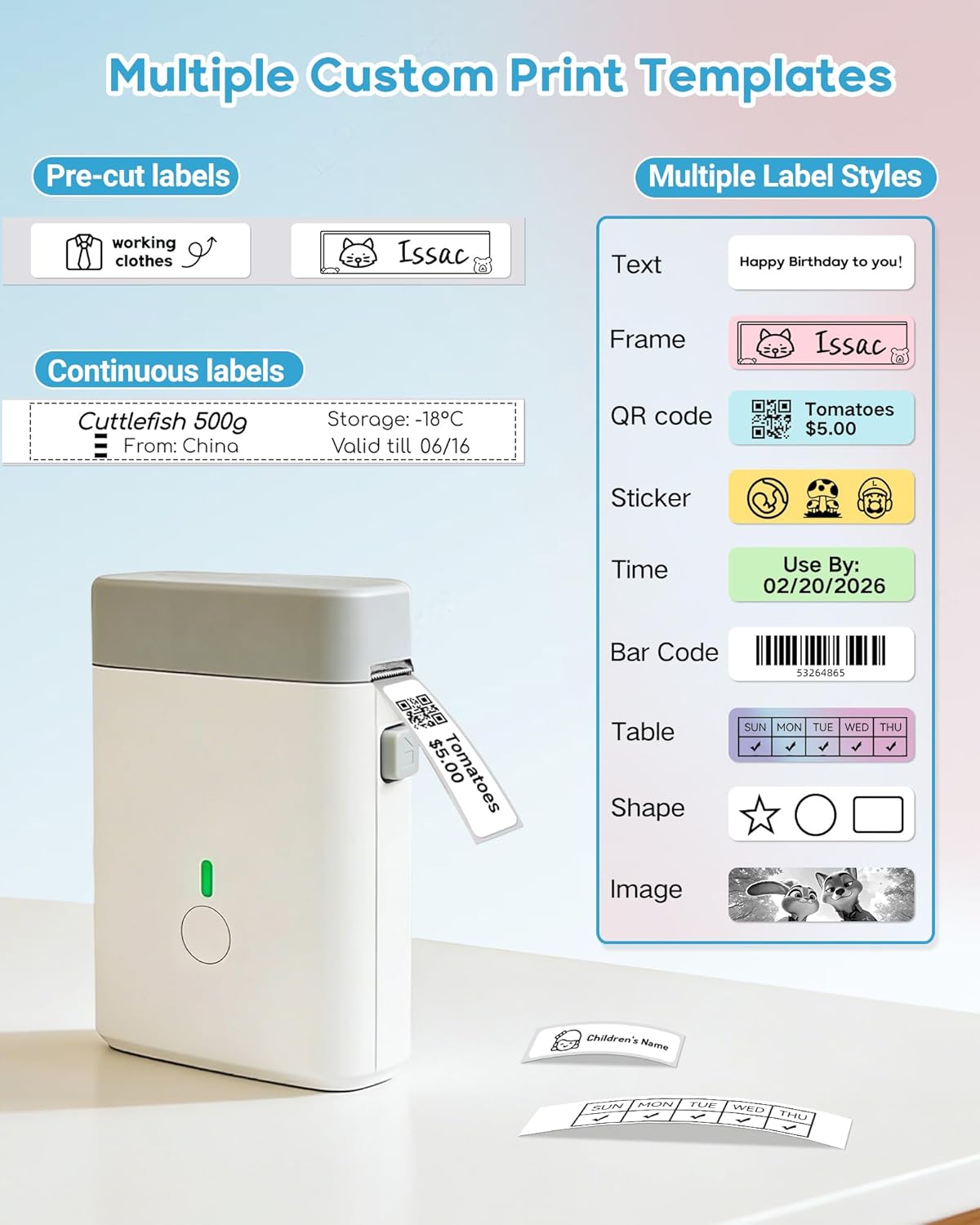
Multiple custom print templates and label styles for diverse labeling needs.
Official video demonstrating how to design and print labels using the XEasyLabel app.
3.2 Practical Applications
The ORGBRO DX1 is ideal for:
- Home organization (spice jars, food containers, storage boxes)
- Office organization (file folders, cables, stationery)
- School supplies and personal item identification
- Small business pricing and product labeling

Various applications of the ORGBRO DX1 Label Maker in different settings.
4. Nlekọta
The ORGBRO DX1 Label Maker uses inkless thermal technology, which significantly reduces maintenance requirements. There is no need to replace ink cartridges or ribbons.
4.1 Na-ehicha isi mbipụta
To ensure optimal print quality, occasionally clean the thermal print head. Use a soft, lint-free cloth lightly dampened with isopropyl alcohol. Gently wipe the print head surface. Allow it to dry completely before closing the cover and resuming use.
4.2 Nlekọta batrị
The device is equipped with a 2000mAh rechargeable battery. For best battery life, avoid fully discharging the battery frequently and store the device in a cool, dry place when not in use for extended periods. Charge using the provided Type-C cable.
5. Nchọpụta nsogbu
5.1 Okwu nkịtị na Ngwọta
- Igwe nbipute anaghị ejikọ site na Bluetooth: Ensure Bluetooth is enabled on your phone and connect through the XEasyLabel app, not directly through phone settings. Restart both the printer and your phone if issues persist.
- Ọdịmma mbipụta na-adịghị mma: Check if the label tape is loaded correctly with the print side up. Clean the print head as described in the Maintenance section. Adjust the print density setting within the XEasyLabel app.
- Labels not feeding correctly: Ensure the label roll is properly seated and the tape is not jammed. Double-press the power button to calibrate the label.
- Ngwaọrụ anaghị agbanwu: Ensure the battery is charged. Connect the Type-C charging cable and allow it to charge for a while before attempting to power on again.
6. Nkọwapụta
| Njirimara | Nkọwa |
|---|---|
| Ụdị | ORGBRO |
| Aha Nlereanya | X1 Label Maker |
| Teknụzụ Njikọta | Bluetooth |
| Teknụzụ obibi akwụkwọ | Thermal |
| Mmepụta ngwa nbipute | Monochrome |
| Monochrome kacha ebi ebi | 30 ppm |
| Mkpebi | 203 x 203 dpi |
| Ibu Ibu | 7 ounces |
| Akụkụ ngwaahịa (D x W x H) | 1.2"D x 3"W x 4.2"H |
| Ụdị njikwa | iOS, Android |
| Mgbasa ozi bipute | Akara aha |
| Ogo mgbasa ozi kacha | 0.6 x1.57 inch |
| Ike batrị | 2000mAh (from feature bullets) |
7. Akwụkwọ ikike na nkwado
7.1 Ozi akwụkwọ ikike
The ORGBRO DX1 Label Maker comes with a Amụma nloghachi na mgbanwe ego nke ụbọchị iri atọ n'efuBiko lee akwụkwọ ịzụrụ ihe gị maka usoro na ọnọdụ ụfọdụ.
7.2 Nkwado ndị ahịa
For any questions, technical assistance, or support, please contact ORGBRO customer service. ORGBRO is dedicated to providing high-quality products and an excellent printing experience.
Ị nwere ike ịga na ORGBRO Store on Amazon maka ozi ndị ọzọ na ngwaahịa ndị metụtara ya.