
1. Okwu mmalite
The GameSir Pocket Taco is a vertical mobile gaming controller designed to transform your Android smartphone into a retro handheld gaming device. It offers a compact, lightweight design with Bluetooth connectivity and a built-in rechargeable battery, providing an authentic arcade experience for mobile gaming.
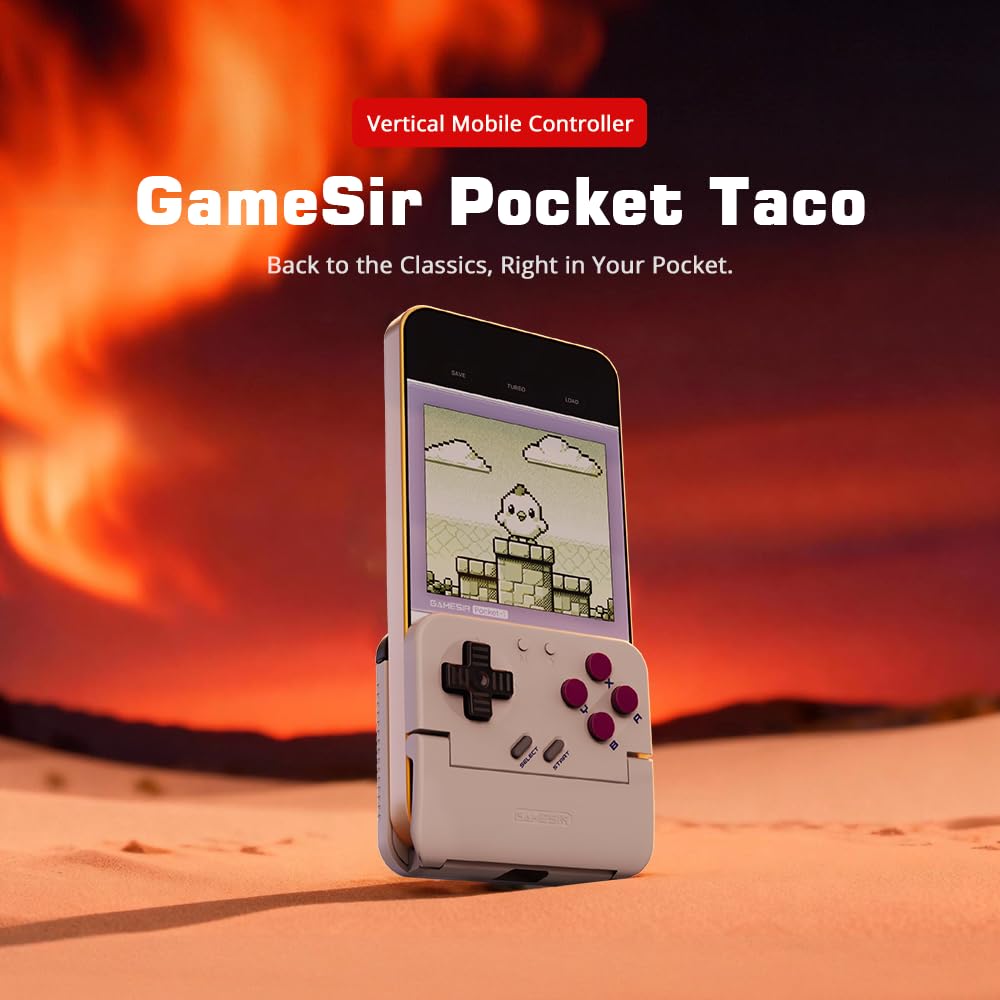
Figure 1: GameSir Pocket Taco attached to a smartphone, ready for vertical gaming.
Vidiyo 1: Agafeeview of the GameSir Pocket Taco Vertical Mobile Gaming Controller, showcasing nhazi na atụmatụ ya.
2. Atụmatụ igodo
- Vertical Retro Arcade Design: Transforms your phone into a classic vertical handheld gaming device, ideal for retro titles and vertical shoot 'em ups.
- Obere obere & dị fechaa: Weighing only 62.2g, this compact Bluetooth controller is easy to carry and includes a durable PP storage box for protection.
- Smart Power & Seamless Bluetooth Connectivity: Automatically powers on when unfolded and off when closed. Offers low-latency wireless gaming on Android and other compatible devices.
- Long-Lasting 600 mAh Battery & Pass-Through Charging: Provides hours of gameplay on a single charge. The hollow-bottom design allows simultaneous phone charging while gaming.
- Customizable Controls via GameSir App: Remap buttons, enable D-pad diagonal lock, switch to keyboard mode, and access G-Touch/V-Touch support for precise inputs.
- Phone-Friendly Silicone Protection: Soft silicone pads in the clamp area protect your phone from scratches and ensure a secure fit during intense gaming sessions.

Figure 2: Experience vertical handheld gaming by attaching your smartphone to the GameSir Pocket Taco.
3. Ntọala na Njikọ
3.1 Ntọala mbụ
- Ịkwapu: Carefully remove the GameSir Pocket Taco from its packaging.
- Nyochaa: Check for any visible damage or missing components.
- ebubo: Ensure the controller is sufficiently charged before first use. Connect the USB-C cable to the charging port on the controller.
- Tinye ekwentị: Gently open the controller's clamp and insert your smartphone. The silicone pads will secure your device and prevent scratches.
3.2 Njikọ Bluetooth
The GameSir Pocket Taco supports multiple connection modes for various platforms. Follow the steps below for your specific device:

Figure 3: The GameSir Pocket Taco offers seamless Bluetooth connectivity across various compatible devices.
3.2.1 iOS Connection (DS4 Mode)
- Pịa ma jide Bọtịnụ ụlọ na ndabara Bọtịnụ simultaneously for 2 seconds until the indicator light turns solid and flashes rapidly.
- On your iOS device, open Ntọala Bluetooth.
- Select "DUALSHOCK 4 Wireless Controller" from the available devices to connect.
- A solid indicator light on the controller confirms a successful connection.
3.2.2 Android Connection (Android Mode)
- Pịa ma jide Bọtịnụ ụlọ na ndabara B bọtịnụ simultaneously for 2 seconds until the indicator light turns solid and flashes rapidly.
- On your Android device, open Ntọala Bluetooth.
- Select "GameSir-Pocket 1" or "GameSir-Pocket 1_G" from the available devices to connect.
- A solid indicator light on the controller confirms a successful connection.
3.2.3 Switch Connection (Switch Mode)
- Pịa ma jide Bọtịnụ ụlọ na ndabara bọtịnụ X simultaneously for 2 seconds until the indicator light flashes up and down rapidly.
- On your Nintendo Switch, go to the Home NchNhr, wee họrọ "Ndị njikwa", Ọzọkwa "Gbanwee njide/Iwu" ka ịbanye mode mmakọ.
- Wait for the connection to be established. A solid indicator light on the controller confirms a successful connection.
3.2.4 G-Touch Mode Connection
- Pịa ma jide Bọtịnụ ụlọ na ndabara bọtịnụ Y simultaneously for 2 seconds until the indicator light turns solid and flashes rapidly.
- On your Android device, open Ntọala Bluetooth.
- Select "GameSir-Pocket 1_G" from the available devices to connect.
- A solid indicator light on the controller confirms a successful connection.
4. Ntuziaka ọrụ
4.1 Gbanyụọ ma ọ bụ gbanyụọ
- Ike Na: Unfold the controller to automatically power it on.
- Gbanyụọ: Close the controller to automatically power it off.
4.2 Ịchaji
The GameSir Pocket Taco features a 600mAh battery. To charge, connect a USB-C cable to the charging port located on the top of the controller. The hollow-bottom design allows you to charge your phone simultaneously while playing.

Figure 4: Key features of the GameSir Pocket Taco, including pass-through charging and protective silicone pads.
4.3 Customizable Controls (GameSir App)
Download the official GameSir App to unlock advanced customization options:
- Mgbanwe bọtịnụ: Assign functions to different buttons for personalized gameplay.
- D-pad Diagonal Lock: Enable or disable diagonal input for the D-pad.
- Ụdị ahụigodo: Switch to keyboard mode for a more flexible control experience.
- G-Touch/V-Touch Support: Utilize advanced touch mapping features for specific games.
- Mmelite femụwe: Keep your controller up-to-date with the latest software enhancements.

Figure 5: Customize your GameSir Pocket Taco settings and update firmware using the dedicated GameSir App.
5. Nlekọta na nlekọta
- Nhicha: Use a soft, dry cloth to clean the controller. Avoid abrasive cleaners or solvents.
- Nchekwa: When not in use, store the GameSir Pocket Taco in its durable PP storage box to protect it from dust, scratches, and impacts.
- Ijikwa: Do not apply excessive force when opening or closing the controller to prevent damage to the hinge mechanism.
- Okpomọkụ: Avoid exposing the controller to extreme temperatures or direct sunlight for prolonged periods.
6. Nchọpụta nsogbu
6.1 Okwu njikọ
- Njikwa anaghị ejikọta: If the connection fails, press and hold the 'M' button and the 'Home' button on the controller for 2 seconds to re-enter pairing mode. Ensure Bluetooth is enabled on your device and the correct mode (iOS, Android, Switch, G-Touch) is selected.
- Njikọ na-adịte aka: Ensure the controller is within range of your device and there are no significant obstructions. Fully charge the controller and your device.
Nzaghachi bọtịnụ 6.2
- Bọtịnụ anaghị aza: Ensure the controller is properly connected. Check for firmware updates via the GameSir App.
- D-pad issues: Some users have reported issues with D-pad responsiveness. Ensure firmware is up-to-date. If issues persist, contact GameSir support.
6.3 Okwu nchaji
- Onye njikwa anaghị agbacha: Use the provided USB-C cable or a compatible cable. Ensure the cable and power adapter are functioning correctly.
7. Nkọwapụta
| Njirimara | Nkọwa |
|---|---|
| Aha Nlereanya | GameSir Pocket Taco |
| Ụdị | GameSir |
| Ngwa dakọtara | Android (also supports iOS, Switch, PC via specific modes) |
| Ụdị njikwa | Gamepad |
| Njikọta | Ikuku (Bluetooth) |
| Ike batrị | 600 mAh |
| Nchaji ọdụ ụgbọ mmiri | USB-C (Pass-Through Charging for phone) |
| Ibu Ibu | 0.2 Kilograms (approx. 62.2g) |
| Agba | Ọcha |
| Ngwaike Platform | Ekwentị mkpanaaka |
8. Akwụkwọ ikike na nkwado
For warranty information, technical support, or service inquiries, please refer to the documentation included with your product or visit the official GameSir websaịtị. Debe nnata nzụta gị dị ka ihe akaebe nke ịzụrụ maka nkwupụta ikike.