
1. Okwu mmalite
The Cricut Joy 2 is an ultra-compact cutting machine designed for quick, everyday crafting projects. This machine is capable of creating custom cards, simple decals, labels, and full-color stickers when used with a home inkjet printer. Its small size allows for easy storage and portability, making it suitable for crafting in various spaces.
2. Gịnị gụnyere
The Cricut Joy 2 Essential Bundle includes the following components and materials to begin crafting immediately:
- Cricut Joy 2 Machine (Blue)
- Premium Fine Point Cutting Tool & Scoring Tool
- Scraper, Weeder, Spatula, Portable Trimmer & Paper Ruler
- Dual-Sided Marker (Black)
- Insert Card Set (2 ct)
- Smart Iron-On™ (4 sheets)
- Smart Vinyl™ (6 sheets)
- Value Cardstock (10 sheets)
- Transfer Tape (6 sheets)
- Digital Content*
- Light Grip Machine Mat & Card Mat
- Printable Vinyl (3 sheets)
*Refer to product description for details on digital content.

Foto: Ofeview of the Cricut Joy 2 Essential Bundle, showing the machine, various tools, and material sheets included.
3. Nhazi ntuziaka
- Wepu igwe ahụ: Jiri nlezianya wepụ ihe niile dị na nkwakọ ngwaahịa.
- Njikọ ike: Connect the power adapter to the Cricut Joy 2 machine and plug it into a power outlet.
- Install Design Space Software: Download and install the Cricut Design Space application on your mobile phone, tablet, or computer. The software is available for free.
- Jikọọ site na Bluetooth: Ensure Bluetooth is enabled on your device. Open Design Space and follow the on-screen prompts to pair your Cricut Joy 2 machine.
- Ihe eji ebu: Prepare your material (e.g., Smart Vinyl, cardstock) and load it into the machine as instructed by the Design Space software for your chosen project.

Image: A Cricut Joy 2 machine on a desk, ready for use, with a laptop displaying the Design Space interface.
4. Ntuziaka ọrụ
4.1. Basic Operation Overview
The Cricut Joy 2 is designed for ease of use, allowing you to design, cut, and assemble projects efficiently. It supports various functions including cutting, writing, drawing, scoring, and foiling.

Image: A visual guide illustrating the four main steps of using the Cricut Joy 2: Design on a laptop, Cut with the machine, Assemble the cut pieces, and the final product.
4.2. Ngwa ndakọrịta
The machine is compatible with over 75 materials, including popular options such as vinyl, iron-on, printable materials, and cardstock. Always refer to the Cricut website for the most up-to-date list of compatible materials and tools.

Foto: Examples of personalized items made with the Cricut Joy 2, showcasing its versatility for different projects.
4.3. Advanced Functions: Write, Cut, Foil, & Score
Beyond basic cutting, the Cricut Joy 2 can perform intricate tasks. It can write text, draw designs, create fold lines with the scoring tool, and add metallic accents using the foil transfer tool. Note: Specialty tools for foiling and scoring are sold separately.

Image: A collage demonstrating the Cricut Joy 2's capabilities: writing, cutting, foiling, and scoring different materials.
4.4. Print Then Cut Feature
The machine integrates with your home inkjet printer to enable "Print Then Cut" functionality. This allows you to print designs in full color using your printer, and then the Cricut Joy 2 precisely cuts around the printed images to create stickers, decals, and more.

Image: The Cricut Joy 2 cutting out full-color stickers that were previously printed, demonstrating the "Print Then Cut" feature.
4.5. Using Cricut Design Space
Cricut Design Space is a free, user-friendly application compatible with mobile and desktop devices. It connects to your machine via Bluetooth and offers:
- Guided design flows
- Ụdị ndebiri nwere ike ịhazi ya
- AI-image generation tools
- A vast content library with over 3,000 images, 100+ fonts, and 1,000+ projects to get started.
Additional content and certain software features may require a paid Cricut Access subscription.
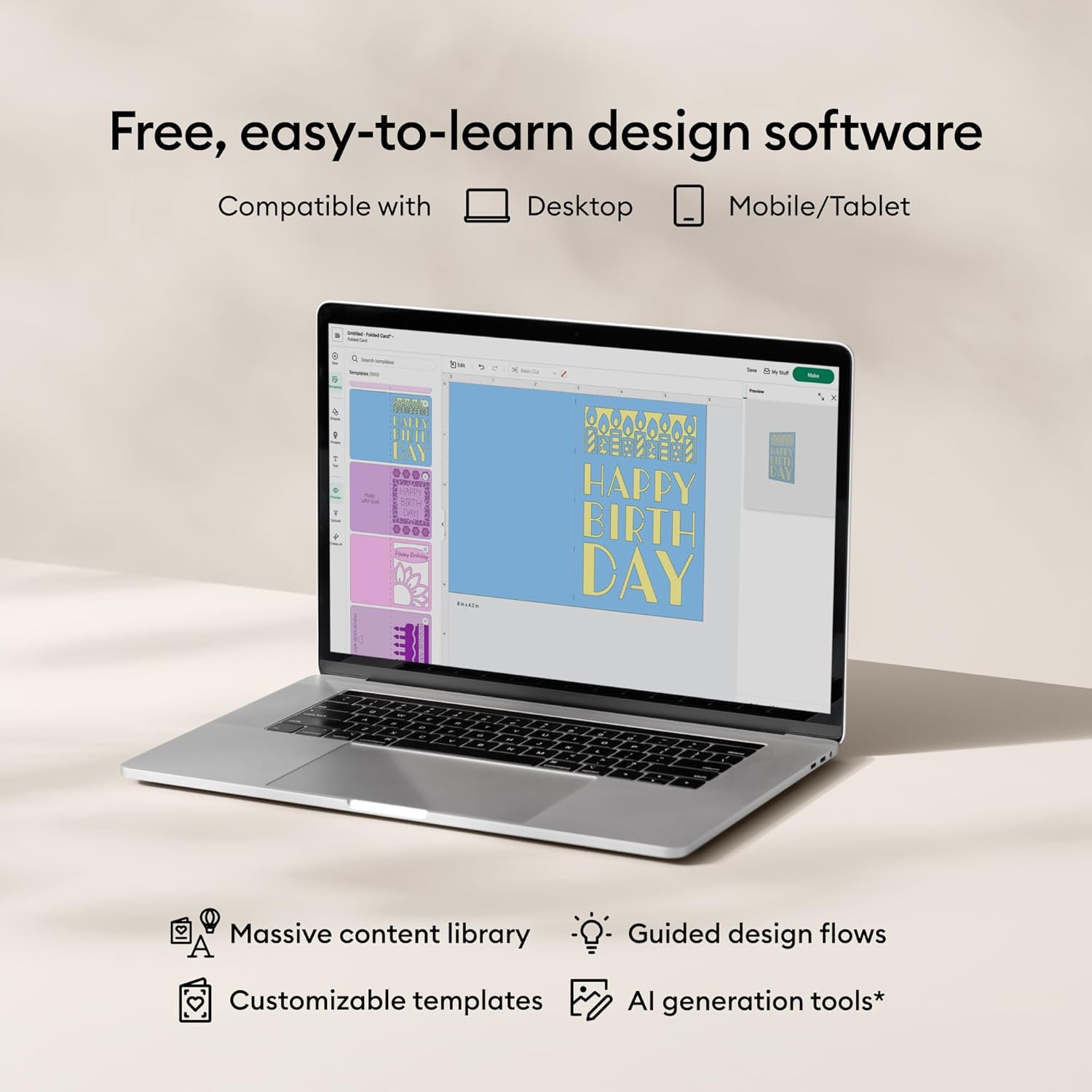
Image: The Cricut Design Space software displayed on a laptop, highlighting its features and compatibility across devices.

Image: The extensive content library within Cricut Design Space, featuring numerous images, fonts, and project ideas.
4.6. Official Product Videos
Cricut Joy 2 Product Overview
Video: An official product video from Provo Craft showcasing the features and capabilities of the Cricut Joy 2 machine, including its compact design, material compatibility, and various crafting applications.
Cricut Design Space Tutorial
Video: An official tutorial from Provo Craft demonstrating how to use the Cricut Design Space software, covering design selection, customization, and preparing projects for the cutting machine.
5. Nlekọta
- Nhicha: Regularly wipe down the exterior of the machine with a soft, dry cloth. Keep the cutting area free of debris and material scraps.
- Ndochi agụba: The cutting blade is a consumable part and will need to be replaced periodically depending on usage and material types. Refer to the Design Space software or Cricut's official support resources for instructions on how to safely replace the blade and housing.
- Nlekọta Mat: Clean your cutting mats as per Cricut's recommendations to maintain their stickiness and prolong their lifespan.
6. Nchọpụta nsogbu
- Igwe Anaghị ejikọta: Ensure Bluetooth is enabled on your device and the machine is powered on. Try restarting both the machine and your device. Verify that Design Space is updated to the latest version.
- Material Not Cutting Properly: Check that the correct material setting is selected in Design Space. Ensure the blade is clean, properly installed, and not dull. Verify the material is loaded correctly and flat on the mat (if using one).
- Okwu ngwanrọ: If Design Space is not functioning as expected, try restarting the application or your device. Ensure your internet connection is stable. For persistent issues, check the Cricut website for known issues or contact customer support.
7. Nkọwapụta
| Njirimara | Nkọwa |
|---|---|
| Ụdị | Cricut |
| Nọmba nlereanya | 8003145 |
| Ihe onwunwe | Plastic |
| Agba | Acha anụnụ anụnụ |
| Mpaghara Elu Na-arụ Ọrụ | 4.5 x 6.5 sentimita (11.4 cm x 16.5 cm) |
| Ogologo obosara | 4.5 sentimita (11.4 cm) |
| Ibu | Ihe dị ka 2 lbs (0.91 n'arọ) |
| Ụdị ọrụ | Ọkara akpaka |
| Njikọta | Bluetooth® wireless |
| Ngwa dakọtara | 75+ materials (vinyl, iron-on, cardstock, printable materials) |
| Ọrụ | Cut, Write, Draw, Foil, Score |
| UPC | 093573552731 |

Image: A comparison chart detailing the features and capabilities of various Cricut machines, including the Cricut Joy 2.
8. Akwụkwọ ikike na nkwado
The Cricut Joy 2 is covered by a Limited Warranty. For complete terms and conditions, please visit the official Cricut website or contact the manufacturer directly. For additional support, tutorials, and resources, refer to the Cricut Design Space application or the Cricut support websaịtị.
Cricut Websaịtị: Visit the Cricut Store