1. Okwu mmalite
This manual provides detailed instructions for the operation and maintenance of the Generic V539 OBDII Auto Diagnostic Code Scanner. This device is designed to assist in diagnosing engine-related issues in compatible vehicles, specifically BMW I3 (2011-2020) and BMW I8 (2019-2020) models. It supports all 10 modes of OBDII test for comprehensive vehicle diagnosis.

Image 1.1: The V539 OBDII Auto Diagnostic Code Scanner, highlighting its multi-language support and plug-and-play functionality.
2. Akụrụngwa Ngwaahịa
- Ndakọrịta OBDII: Supports all 10 modes of OBDII test for a complete diagnosis.
- Ndakọrịta ụgbọ ala: Specifically designed for BMW I3 (2011-2020) and BMW I8 (2019-2020) models.
- Ọrụ nyocha: Determines the cause of the engine light, reads I/M readiness, reads and clears codes, turns off engine light (MIL), performs battery voltage tests, displays live data streams, supports onboard monitoring mode, and conducts component testing.
- Nhazi na-adịgide adịgide: Features an upgraded processing chip and a rugged, drop-resistant housing made from engineering-grade ABS for reliability and longevity.
- Ngwa ngwa-Enyi na Enyi: Equipped with a 2.8-inch high-definition color screen for clear visuals and structured data display, even in varying lighting conditions.
- Ọ dị mfe iji: Boots up instantly with clear menu prompts and a one-click scan function for straightforward operation.
- One-Click Smog Check: A dedicated I/M Readiness hotkey provides instant emission monitor status.

Image 2.1: The V539 scanner's 2.8-inch high-definition color screen, showing various diagnostic menu options.

Image 2.2: The V539 scanner's robust engineering-grade ABS protective shell and anti-slip design for enhanced durability.
3. Nhazi
- Chọta Ọdụ Ụgbọ Mmiri OBDII: The OBDII port is typically located under the dashboard on the driver's side of the vehicle. Refer to your vehicle's owner's manual if you cannot find it.
- Jikọọ ihe nyocha ahụ: With the vehicle's ignition off, firmly plug the V539 scanner's OBDII connector into the vehicle's OBDII port.
- Ike Na: Turn the vehicle's ignition to the "ON" position (do not start the engine). The scanner will automatically power on and display the main menu.
- Language Selection (if needed): If prompted, select your preferred language from the available options.
4. Usoro ọrụ
Follow these steps to diagnose and clear fault codes using the V539 scanner.
- Insert OBDII Plug: Connect the scanner to your vehicle's OBDII port as described in the Setup section.
- Retrieve Fault Codes: From the main menu, select "OBD/EOBD" or "Diagnosis" and press "OK". The scanner will communicate with the vehicle's ECU and display any detected Diagnostic Trouble Codes (DTCs). Each code will be accompanied by a brief description.
- Review Koodu mmejọ: Carefully read and understand the displayed fault codes. You can use the "LOOKUP" function on the scanner to get more detailed information about specific DTCs.
- Kpochapụ Koodu Nsogbu: After addressing the underlying issue that caused the fault code, you can clear the codes. Navigate to the "Clear Codes" option (often found within the "Diagnosis" menu or as a dedicated button/option) and confirm your selection. This will turn off the Malfunction Indicator Lamp (MIL) or "Check Engine" light.

Image 4.1: Visual guide for the V539 scanner's operating procedure, showing connection, code retrieval, and code clearing steps.
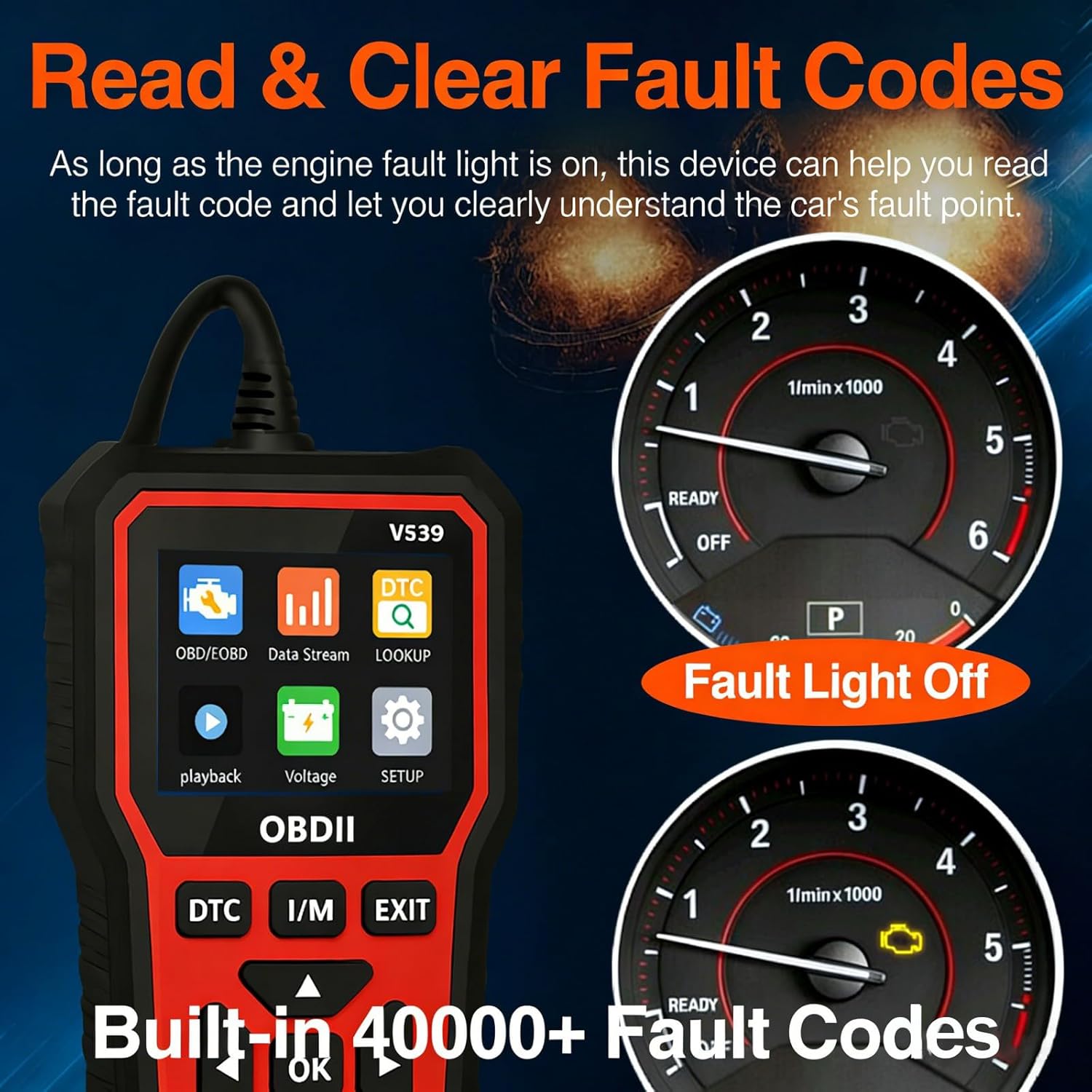
Image 4.2: The V539 scanner's ability to read and clear fault codes, demonstrating how the fault light turns off after successful clearance.
5. Core Functions Overview
The V539 OBDII scanner offers a range of diagnostic capabilities:
- Engine Fault Diagnosis
- Engine Fault Code Clearance
- Record Freeze Frame Information
- Vehicle Information Reading
- Nyochaa Ọnọdụ Njikere M/M
- Real-time Data Stream Reading
- Batrị Voltage Nnwale
- Nnwale ihe mmetụta oxygen
- Retrieve Fault Code Library
- Playback Function for recorded data

Image 5.1: An illustration of the V539 scanner's main diagnostic functions.
6. Nlekọta
- Nhicha: Use a soft, dry cloth to clean the scanner's screen and body. Avoid using abrasive cleaners or solvents.
- Nchekwa: Chekwaa ngwaọrụ ahụ n'ebe dị jụụ, kpọrọ nkụ na-adịghị na ìhè anyanwụ kpọmkwem na oke okpomọkụ.
- Nlekọta USB: Do not bend or crimp the OBDII cable excessively. Ensure the connector pins are clean and free from debris.
- Mmelite ngwanrọ: Lelee onye nrụpụta website periodically for any available software updates to ensure optimal performance and compatibility.
7. Nchọpụta nsogbu
| Nsogbu | Ihe nwere ike ime | Ngwọta |
|---|---|---|
| Scanner anaghị agbanye ọkụ. | Loose connection; vehicle ignition off; faulty OBDII port. | Ensure the OBDII connector is firmly plugged in. Turn the vehicle ignition to the "ON" position. Test the scanner on another compatible vehicle if possible. |
| Njehie nkwukọrịta na ụgbọala. | Incorrect protocol; vehicle not OBDII compliant; loose connection. | Verify vehicle is OBDII compliant. Check the connection. Try again after turning the ignition off and on. |
| Cannot clear fault codes. | Underlying issue not resolved; ignition not in "ON" position. | Ensure the vehicle's fault has been repaired. Confirm ignition is "ON" (engine off). Some codes may require specific driving cycles to clear after repair. |
| Ihuenyo ahụ tọgbọ chakoo ma ọ bụ kpọnwụrụ akpọnwụ. | Software glitch; power issue. | Disconnect the scanner from the vehicle, wait a few seconds, then reconnect. If the issue persists, contact support. |
8. Nkọwapụta
- Ụdị: V539
- Onye nrụpụta: HDCAL
- Nọmba Nlereanya ihe: HDCAL-6670383
- Ibu ihe: 1.1 pound (ihe dị ka 0.5 n'arọ)
- Akụkụ ngwaahịa: 0.39 x 0.39 x 0.39 sentimita (ihe dị ka 1 x 1 x 1 cm) - Note: This dimension seems incorrect based on images, likely a placeholder. Actual dimensions are closer to 15.5cm x 7.3cm based on Image 7.1.
- Ngosipụta: 2.8-inch High-Definition Color Screen
- Ihe eji eme ụlọ: Engineering-grade ABS
- ndakọrịta: OBDII compliant vehicles, specifically BMW I3 (2011-2020) and BMW I8 (2019-2020).

Image 8.1: Physical dimensions of the V539 OBDII scanner and its OBDII plug.
9. Akwụkwọ ikike na nkwado
For warranty information or technical support, please refer to the documentation included with your purchase or contact the manufacturer directly. Keep your purchase receipt as proof of purchase for warranty claims.

