
Okwu mmalite
This manual provides detailed instructions for the setup, operation, maintenance, and troubleshooting of your GravaStar Mercury V60 Magnetic Gaming Keyboard. Designed for precision and speed, this keyboard features Hall Effect switches, an 8000Hz polling rate, and extensive customization options to enhance your gaming and typing experience.
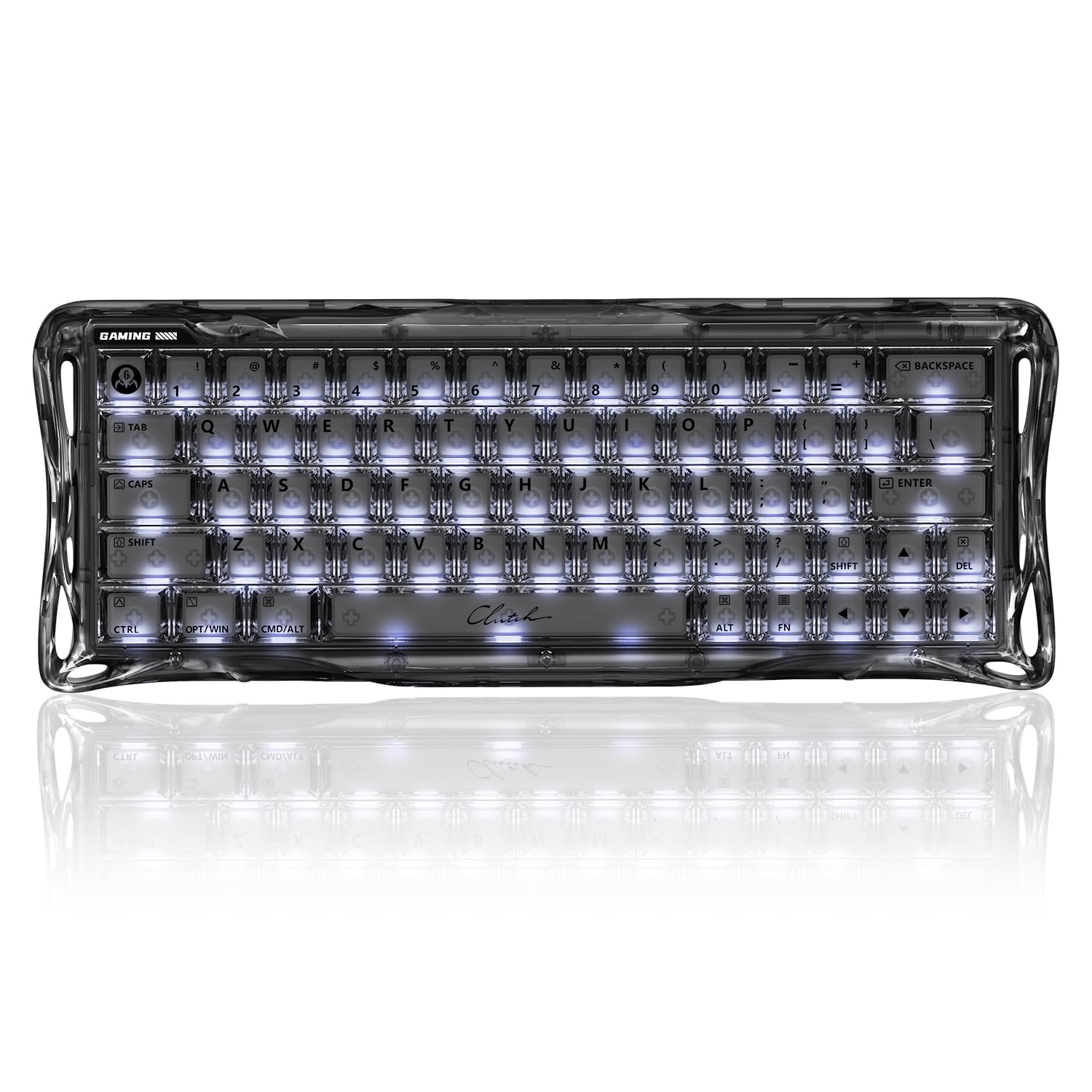
The GravaStar Mercury V60 Magnetic Gaming Keyboard, showcasing its unique design and vibrant backlighting.
Melite
Ihe ngwugwu
Tupu ịmalite, biko hụ na ihe niile dị na ngwugwu:
- Mercury V60 Gaming Hall Effect Keyboard
- UFO Magnetic Switches (x4)
- Dust Cover Bag
- eriri USB
- Nhicha ahịhịa
- Akwa nhicha
- Brand Stickers
- Gbanwee Puller
- Onye na-adọkpụ igodo
- Akwụkwọ ntuziaka onye ọrụ

All components included with the GravaStar Mercury V60 keyboard.
Jikọọ ahụigodo
The GravaStar Mercury V60 connects via USB-C. Use the provided USB cable to connect the keyboard to an available USB port on your computer (PC, Laptop, or Gaming Console). No additional drivers are typically required for basic functionality.
Ntuziaka ọrụ
Ultra-Precision Magnetic Switches
The keyboard features GravaStar UFO Magnetic Switches, offering 0.005mm precision and adjustable actuation from 0.005mm to 3.5mm. This allows for fine-tuning key sensitivity to match your preferences.

Anatomy of the UFO Magnetic Switch, highlighting its precision and magnetic flux.
Ọnụego ntuli aka 8000Hz
The V60 operates with a native 8000Hz polling rate and 256kHz key-position scanning, reducing latency to 0.125ms for rapid response times.
Dynamic Rapid Trigger & Last Keystroke Prioritization (LKP)
Dynamic Rapid Trigger allows keys to reset the moment you lift your finger, enabling faster repeated inputs. LKP ensures that only the last pressed key is registered, preventing unintended inputs during quick directional changes.
Controller Mapping & Analog Control
Each key can detect press depth, allowing for analog simulation. This feature enables mapping keys to mimic controller inputs like throttles or steering wheels for enhanced control in compatible games.

Ahụigodo profiles demonstrating customizable key layouts for different gaming scenarios.
Premium Build & Silent Acoustics
The V60 features a full-transparent chassis and a 4-layer acoustic foam internal structure to minimize vibrations and hollow sounds, providing a consistent typing experience.

Internal structure of the keyboard, showing the layers designed for acoustic performance.
Hot-Swappable & Customizable
The magnetic Hall Effect PCB is fully hot-swappable, allowing for switch replacement without soldering. It is compatible with select magnetic switches from TTC and Gateron.
Njikwa ọkụ RGB
Igodo ahụ nwere ọkụ azụ RGB nke enwere ike ịhazi. Jiri njikọta igodo ndị a iji gbanwee mmetụta ọkụ:
- Fn + \|: Cycle through Backlight Modes
- Fn + Tab: Switch Colors
- Fn + ← / →: Adjust Speed
- Fn + ↑ / ↓: Gbanwee ihie

Visual guide for controlling RGB backlight modes, colors, speed, and brightness.
Vidiyo ngwaahịa ngwaahịa
Ihe ngosi vidiyo gọọmentịasing the GravaStar Mercury V60 HE Gaming Keyboard in Onyx Crystal, demonstrating its features and aesthetics.
Nlekọta
Na-ehicha ahụigodo
To maintain optimal performance and appearance, regularly clean your keyboard. Use the provided cleaning brush and cloth to remove dust and debris from between the keycaps and the chassis. For stubborn dirt, a slightly damp cloth (water only) can be used, ensuring no liquid enters the keyboard. Always disconnect the keyboard before cleaning.
Keycap and Switch Removal
Use the provided keycap puller to carefully remove keycaps. For switch replacement, use the switch puller to gently extract the magnetic switches. Ensure proper alignment when reinserting switches and keycaps to prevent damage.
Nchọpụta nsogbu
Okwu Njikọta
- Keyboard not recognized: Ensure the USB-C cable is securely connected to both the keyboard and your computer. Try a different USB port or cable.
- Njikọ na-adịte aka: Check for any physical damage to the cable or ports. Avoid using unpowered USB hubs.
Key Functionality Problems
- Igodo anaghị aza: Ensure the switches are properly seated. If hot-swapping, verify compatibility.
- Incorrect input: Check for any custom key bindings or profiles that might be active.
Okwu ọkụ RGB
- Ọkụ anaghị arụ ọrụ: Verify that the lighting is enabled and brightness is not set to minimum using the Fn key combinations.
- Ọkụ na-ekwekọghị ekwekọ: Ensure the keyboard firmware is up to date.
Nhazi ngwanrọ
For advanced customization, including actuation point adjustment, rapid trigger settings, and key remapping, visit the official GravaStar web-based application at hub.gravastar.com. This application requires a Chrome browser for full functionality and will prompt for hardware access.

The GravaStar web-based application for advanced keyboard settings and customization.
Nkọwapụta
| Njirimara | Nkọwa |
|---|---|
| Ụdị | gravelstar |
| Nọmba nlereanya | GS V60 |
| Ngwa dakọtara | Gaming Console, Laptọọpụ, PC |
| Teknụzụ Njikọta | USB-C |
| Nkọwa ahụigodo | 60% okirikiri nhọrọ ukwuu |
| Eji akwadoro | Business, Everyday Use, Gaming, Video Editing |
| Atụmatụ pụrụ iche | 8000Hz Polling Rate, Backlit, Hall Effect Switch, Rapid Trigger |
| Agba | Onyx Crystal |
| Ahụigodo azụ azụ | RGB |
| Akụkụ ngwaahịa (L x W x H) | 11.5"L x 6.1"W x 1.8"H |
| Ọnụọgụ igodo | 61 |
| Isi Iyi Ike | Kwadoro USB |
| Ngbanwe Ụdị | Linear |
| Nhazi ahụigodo | QWERTY |
| Mechanical Keyboard Switch Model | Mmetụta Ụlọ Nzukọ |
| Ihe mkpuchi | Plastic |
Akwụkwọ ikike
The GravaStar Mercury V60 Magnetic Gaming Keyboard comes with a Akwụkwọ ikike nke Onye nrụpụta afọ 1. Please retain your proof of purchase for any warranty claims. For detailed terms and conditions, refer to the official GravaStar websaịtị ma ọ bụ kpọtụrụ nkwado ndị ahịa.
Nkwado
For further assistance, product updates, or to explore other GravaStar products, please visit the official GravaStar Store or contact their customer support channels.
- GravaStar Store: Visit the GravaStar Store on Amazon
- Web-based Software: hub.gravastar.com