
1. Nhazi
This section guides you through the initial setup of your CHUWI CoreBook X laptop.
1.1 Ịkpọghe igbe na Mmalite Ike Gbanye
- Jiri nlezianya wepụ laptọọpụ na ngwa niile na nkwakọ ngwaahịa.
- Connect the provided USB-C power adapter to the laptop's USB-C port (PD Charging/USB 2.0) and then to a power outlet.
- Open the laptop lid. The laptop may power on automatically or you may need to press the power button located on the keyboard.
- Soro ntuziaka dị na ihuenyo iji mezue ntọala mbụ nke Windows 11 Pro, gụnyere nhọrọ asụsụ, njikọ netwọk, na ịmepụta akaụntụ onye ọrụ.
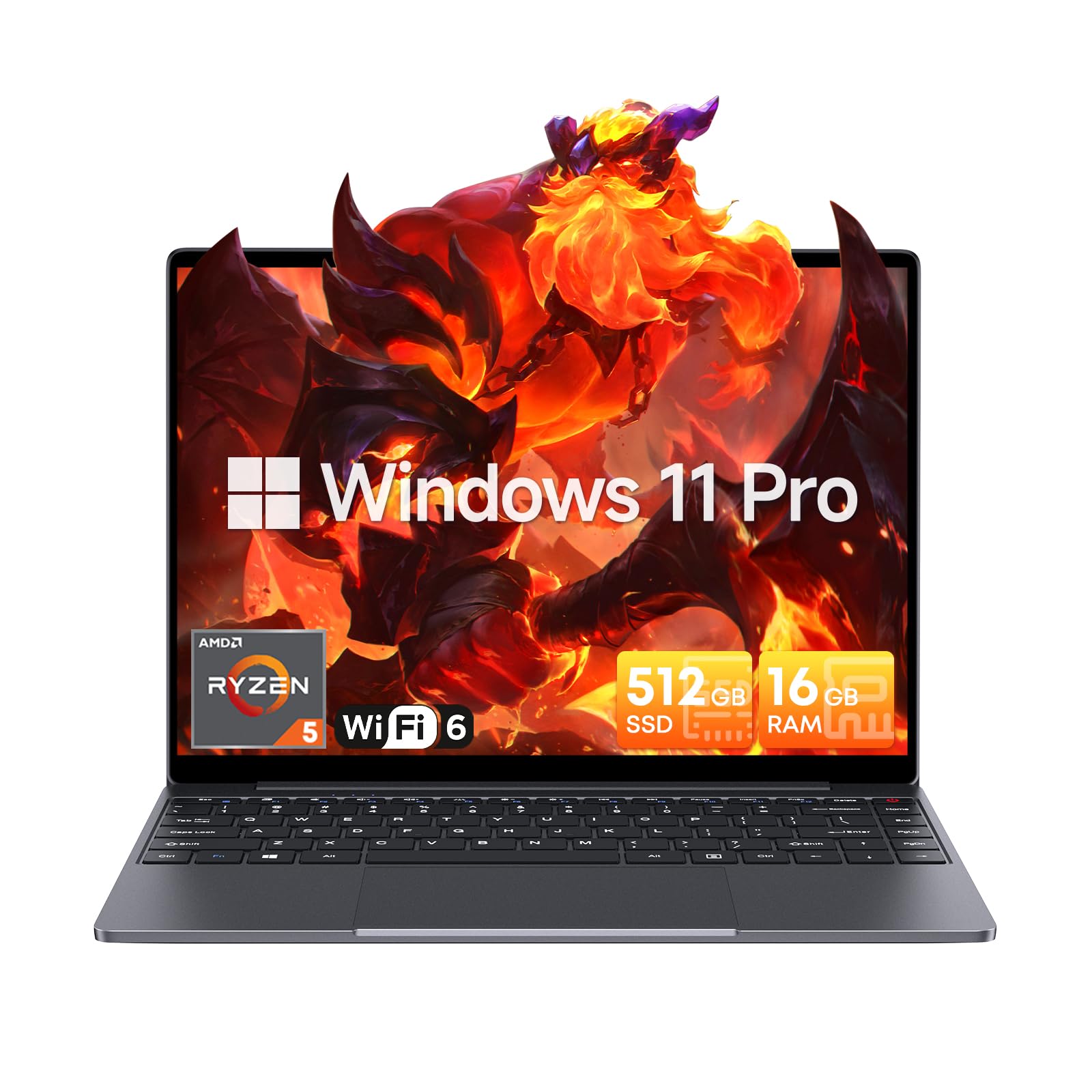
Image: The CHUWI CoreBook X laptop open on a desk, ready for use.
1.2 Njikọta Peripherals
- Ngwa USB: Connect USB mice, keyboards, or external storage devices to the available USB 3.0 ports.
- Ngosipụta mpụga: Use the HDMI 1.4 port or the full-featured USB Type-C port to connect an external monitor.
- Ngwa ọdịyo: Connect headphones or external speakers to the 3.5mm audio jack.
- Kaadị TF: Insert a TF card into the TF card slot for additional storage.

Foto: Zuru ezu view of the laptop's ports, including TF Card Slot, 3.5mm Headphone Jack, USB 3.0 Port, Lock Slot, USB Type-C (PD Charging/USB 2.0), HDMI 1.4, and Full-featured USB Type-C Port.
1.3 Network and Bluetooth Connection
- Wi-Fi 6: Iji jikọọ na netwọk ikuku, pịa akara ngosi Wi-Fi dị na taskbar, họrọ netwọk gị, wee tinye paswọọdụ.
- Bluetooth Bluetooth: To pair Bluetooth devices, go to Windows Settings > Bluetooth & devices, turn on Bluetooth, and select your device to pair.
2. .rụ ọrụ
This section covers the basic operation of your CHUWI CoreBook X laptop.
2.1 Njikwa ike
- Ike Na: Pịa bọtịnụ ike.
- Modera Modera: Mechie mkpuchi ahụ ma ọ bụ họrọ "Ụra" site na menu Mmalite.
- Mechie: Select "Shut down" from the Start menu.
- Malitegharịa: Select "Restart" from the Start menu.
2.2 Ahụigodo na Touchpad
- The laptop features a full-sized backlit keyboard with white illumination. Use the function keys (Fn) in combination with other keys for shortcuts like adjusting brightness, volume, or toggling the backlight.
- The large touchpad supports multi-touch gestures for navigation. Refer to Windows settings for customizing touchpad gestures.

Foto: A nso nso view of the laptop's backlit keyboard and large touchpad, highlighting its navigation features.
2.3 Ngosipụta na ọdịyo
- The 14-inch IPS display offers a 2160*1440 resolution. Adjust display settings (brightness, resolution, scaling) through Windows Display Settings.
- The laptop is equipped with stereo speakers. Volume can be controlled via the keyboard function keys or the Windows sound settings.
- An HD webcam is integrated for video conferencing.

Image: The laptop's 14-inch 2K IPS display showcasing vibrant colors and a comparison of 3:2 and 16:9 aspect ratios.
2.4 Video karịrịview
Video: An official product video demonstrating various features and usage scenarios of the CHUWI CoreBook X laptop, including its performance, display, and connectivity options.
3. Nlekọta
Nlekọta kwesịrị ekwesị na-eme ka laptọọpụ gị dị ogologo ma nwee ike ịrụ ọrụ nke ọma.
3.1 Nhicha
- Use a soft, lint-free cloth to clean the screen. For stubborn marks, dampjiri mmiri ma ọ bụ ihe nhicha dị mfe kpuchie ákwà ahụ ntakịrị.
- Wipe the chassis and keyboard with a soft, dry cloth. Avoid using harsh chemicals or abrasive materials.
- Periodically use compressed air to clear dust from the vents to maintain efficient cooling.
3.2 Nlekọta batrị
- Avoid fully discharging the battery frequently. Charge the laptop when the battery level is low.
- Debe laptọọpụ ahụ n'ebe dị jụụ ma kpọọ nkụ ma ọ bụrụ na ejirighị ya ruo ogologo oge, ma chajịa batrị ya ruo ihe dịka 50-70%.
- Use only the original or certified compatible USB-C PD charger.
3.3 Mmelite Nchekwa na Ebe Nchekwa
The laptop supports RAM and SSD upgrades.
- The 16GB DDR4 RAM can be expanded up to 64GB via 2 SODIMM slots.
- The 512GB PCIe SSD can be expanded up to 2TB using the M.2 2280 PCIe slot.
- A convenient detachable bottom cover allows for easier access to upgrade components without removing the entire back panel.

Image: The underside of the laptop with the detachable cover removed, revealing the dual-channel SO-DIMM slot for RAM upgrades.
4. Nchọpụta nsogbu
Akụkụ a na-enye azịza maka nsogbu nkịtị ị nwere ike izute.
4.1 Okwu nkịtị na Ngwọta
- Laptọọpụ anaghị agbanye:
- Hụ na e jikọtara ihe nkwụnye ọkụ eletrik ahụ nke ọma na laptọọpụ ahụ na ebe ọkụ eletrik na-arụ ọrụ.
- Nyochaa na ntinye ọkụ na-arụ ọrụ.
- Gbalịa ijide bọtịnụ ike maka sekọnd 10-15 iji mee nrụpụta siri ike.
- Ngosipụta nsogbu (enweghị onyonyo, na-amagharị):
- Jiri igodo ọrụ gbanwee ìhè ihuenyo.
- Ọ bụrụ na ejikọtala ihe nlele mpụga, gbalịa wepụ ya.
- Malitegharịa ekwentị ahụ.
- Wi-Fi or Bluetooth connectivity problems:
- Hụ na enyere Wi-Fi/Bluetooth aka na ntọala Windows.
- Malitegharịa ekwentị gị / modem maka okwu Wi-Fi.
- Remove and re-pair Bluetooth devices.
- Update network and Bluetooth drivers through Device Manager.
- Ịrụ ọrụ nwayọ:
- Mechie ngwa na-adịghị mkpa na-agba n'azụ.
- Check for Windows updates and driver updates.
- Hụ na ohere zuru oke na SSD.
- Run a malware scan.
If you encounter issues not covered here or require further assistance, please refer to the Support section.
5. Nkọwapụta
Detailed technical specifications for the CHUWI CoreBook X laptop.

Image: An illustration of the AMD Ryzen 5 processor, highlighting its core count, threads, and clock speed.
| Njirimara | Nkọwapụta |
|---|---|
| Aha Nlereanya | Corebook X |
| Nhazi | AMD Ryzen 5 (6 Cores, 12 Threads, up to 4.3 GHz) |
| Eserese | AMD Radeon Graphics (1800MHz, Max 2GB Memory) |
| RAM | 16GB DDR4 (Expandable up to 64GB via 2 SODIMM slots) |
| Nchekwa | 512GB PCIe SSD (Expandable up to 2TB via M.2 2280 PCIe slot) |
| Ngosipụta | 14-inch IPS, 2160*1440 Resolution, 100% sRGB Color Gamut |
| Sistemụ nrụọrụ | Windows 11 Pro |
| Njikọta | Wi-Fi 6 (802.11ax), Bluetooth 5.2 |
| ọdụ ụgbọ mmiri | USB Type-C (PD Charging/USB 2.0), USB 3.0, HDMI 1.4, Full-featured USB Type-C, 3.5mm Audio Jack, TF Card Slot, Lock Slot |
| Batrị | 46.2Wh Lithium-Ion Battery, 65W USB-C PD Fast Charging |
| Ahụigodo | Full-sized Backlit Keyboard with White Illumination |
| Mpempe aka | Large Touchpad, Multi-touch |
| Webcam | HD Webcam |
| Akụkụ | 12.2"L x 9"W x 0.67"Th (17mm thin) |
| Ibu | Paụnd 2.2 (1.4kg) |
6. Akwụkwọ ikike
The CHUWI CoreBook X laptop comes with a Akwụkwọ ikike onye nrụpụta afọ 1.
This warranty covers defects in materials and workmanship under normal use. It does not cover damage caused by accidents, misuse, unauthorized repairs, or modifications. Please retain your proof of purchase for warranty claims.
7. Nkwado
For technical assistance, warranty claims, or further inquiries, please contact CHUWI customer support.
- Nkwado onye nrụpụta: Visit the official CHUWI websaịtị maka akụrụngwa nkwado, FAQs, na ozi kọntaktị.
- Nkwado Onye Na-ere Ahịa: If purchased through a retailer, you may also contact the seller for assistance.