
1. Nhazi
Ihe ngwugwu 1.1
Tupu e jikọta ya, biko hụ na ihe niile dị na ngwugwu ahụ dị:
- KTC H24F7 24 Inch 240Hz Monitor
- Nyochaa Ebe
- Nyochaa Guzosie
- Ihe nkwụnye ọkụ
- HDMI USB
- Ntuziaka mmalite ngwa ngwa (QSG)
1.2 Ntuziaka Mgbakọ
Soro usoro ndị a iji chịkọta ihe nleba anya gị:
- Jiri nlezianya wepụ ihe nlele ahụ na ihe niile dị na ngwugwu ahụ.
- Attach the monitor stand to the monitor base. Ensure it clicks securely into place.
- Connect the assembled stand and base to the back of the monitor. The stand is designed for easy snap-in installation.
- Tinye ihe nleba anya n'elu elu kwụsiri ike ma dịkwa larịị.

1.3 Nwụnye VESA Mount
The KTC H24F7 monitor supports VESA 100mm x 100mm mounting for alternative stand or wall mount solutions. Ensure you use M4-0.7 x 10mm screws (not included) for secure installation.

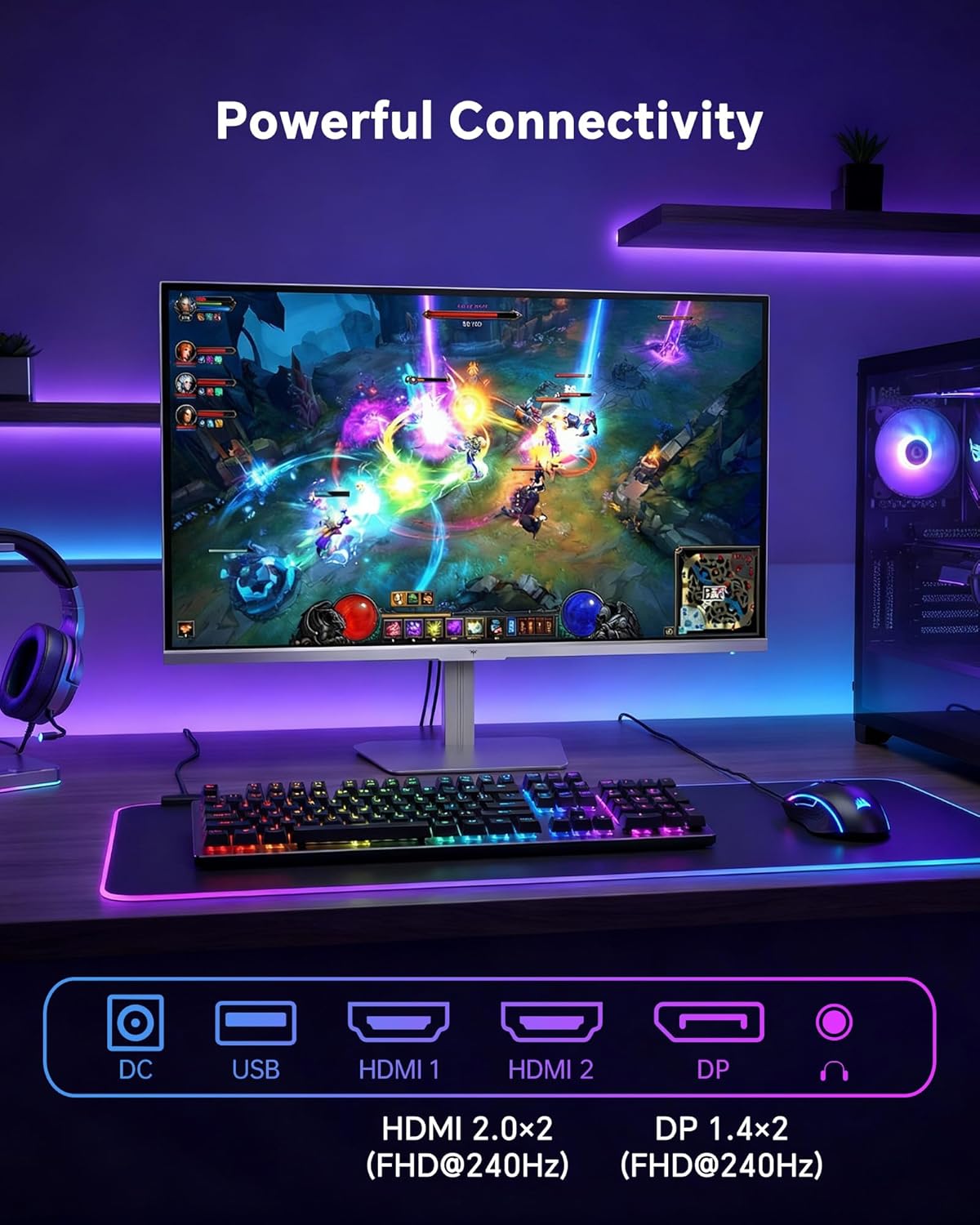
1.4 Ijikọ na ngwaọrụ
Connect your computer or other devices to the monitor using the appropriate cables.
- HDMI: Use an HDMI cable to connect to devices with HDMI output. The monitor has two HDMI 2.0 ports, supporting FHD at 240Hz.
- DisplayPort: Use a DisplayPort cable for devices with DisplayPort output. The monitor has one DisplayPort 1.4, supporting FHD at 240Hz.
- Ike: Connect the power adaptor to the DC input on the monitor and then to a power outlet.
- USB: A USB 2.0 port is available for connecting peripherals.
- Apụọ ọdịyo: A 3.5mm audio jack is available for connecting headphones or external speakers.
2. Ntuziaka ọrụ
2.1 Gbanyụọ ma ọ bụ gbanyụọ
Pịa bọtịnụ ike dị na ihe nlele ahụ iji gbanye ya ma ọ bụ gbanyụọ ya. Ọkụ ihe ngosi ike ahụ ga-enwu mgbe ihe nlele ahụ na-arụ ọrụ.
2.2 Ngosipụta Ngosipụta (OSD) NchNhr
The OSD menu allows you to adjust various monitor settings. Use the control buttons (typically located on the back or bottom of the monitor) to navigate the menu and select options. Refer to the Quick Start Guide for specific button functions.
2.3 Ntọala ngosi
Bulite gị viewing experience by adjusting the following settings:
- Ọnụego ume ọhụrụ: The monitor supports a 240Hz refresh rate for smooth motion. Ensure your graphics card settings are configured to utilize this rate.

- Mmekọrịta na-agbanwe agbanwe: This technology synchronizes the monitor's refresh rate with your graphics card's frame rate to eliminate screen tearing and stuttering. Enable Adaptive Sync in the OSD menu and ensure it is also enabled in your graphics card control panel (FreeSync/G-Sync compatible).

- HDR 400: High Dynamic Range 400 provides enhanced contrast and color accuracy, delivering brighter highlights and deeper shadows. Activate HDR in the OSD menu and your operating system display settings for compatible content.

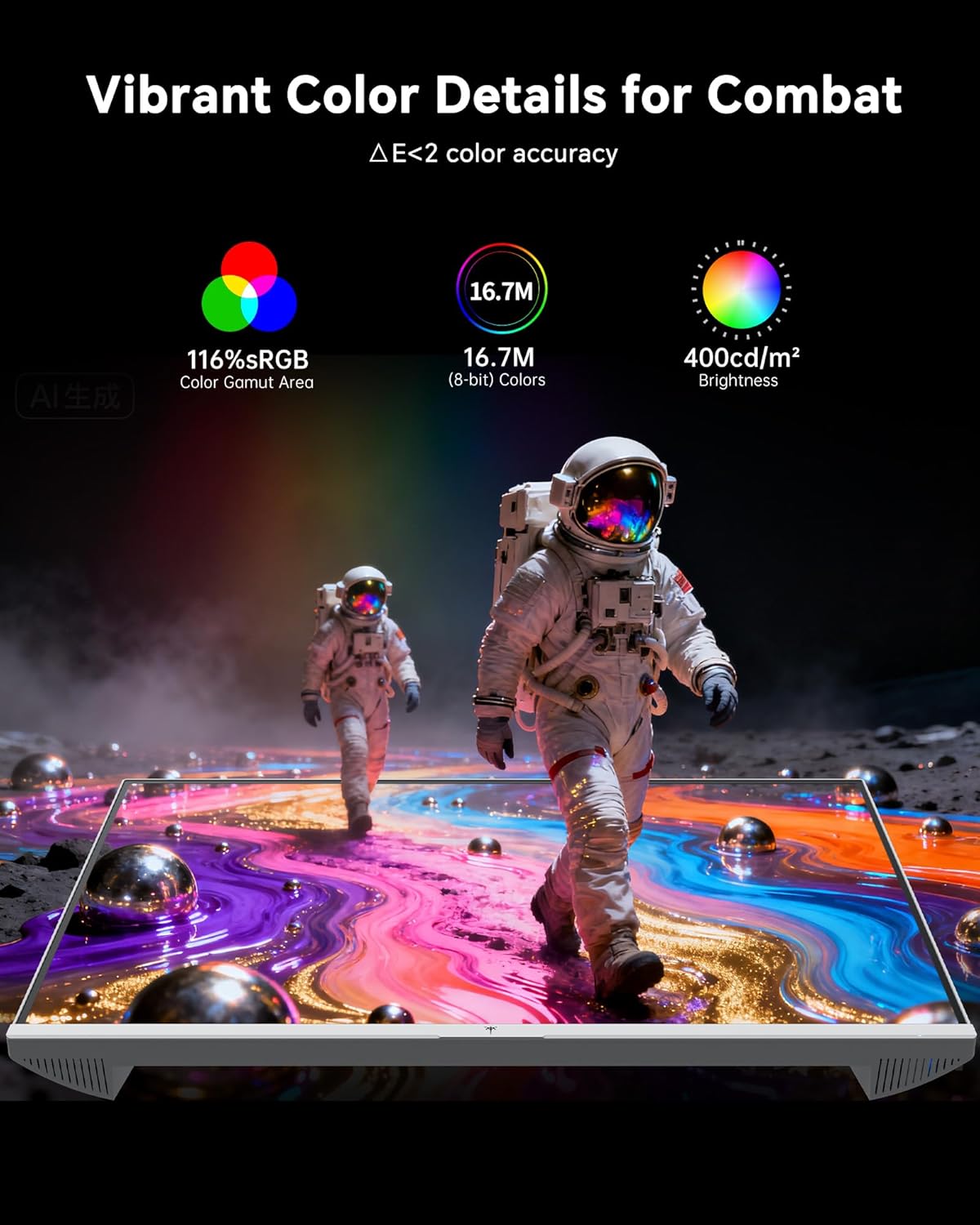
- Ntọala agba: The monitor offers 116% sRGB color gamut and 16.7 million colors. Adjust brightness (up to 400 cd/m²) and color temperature through the OSD menu to suit your preference.
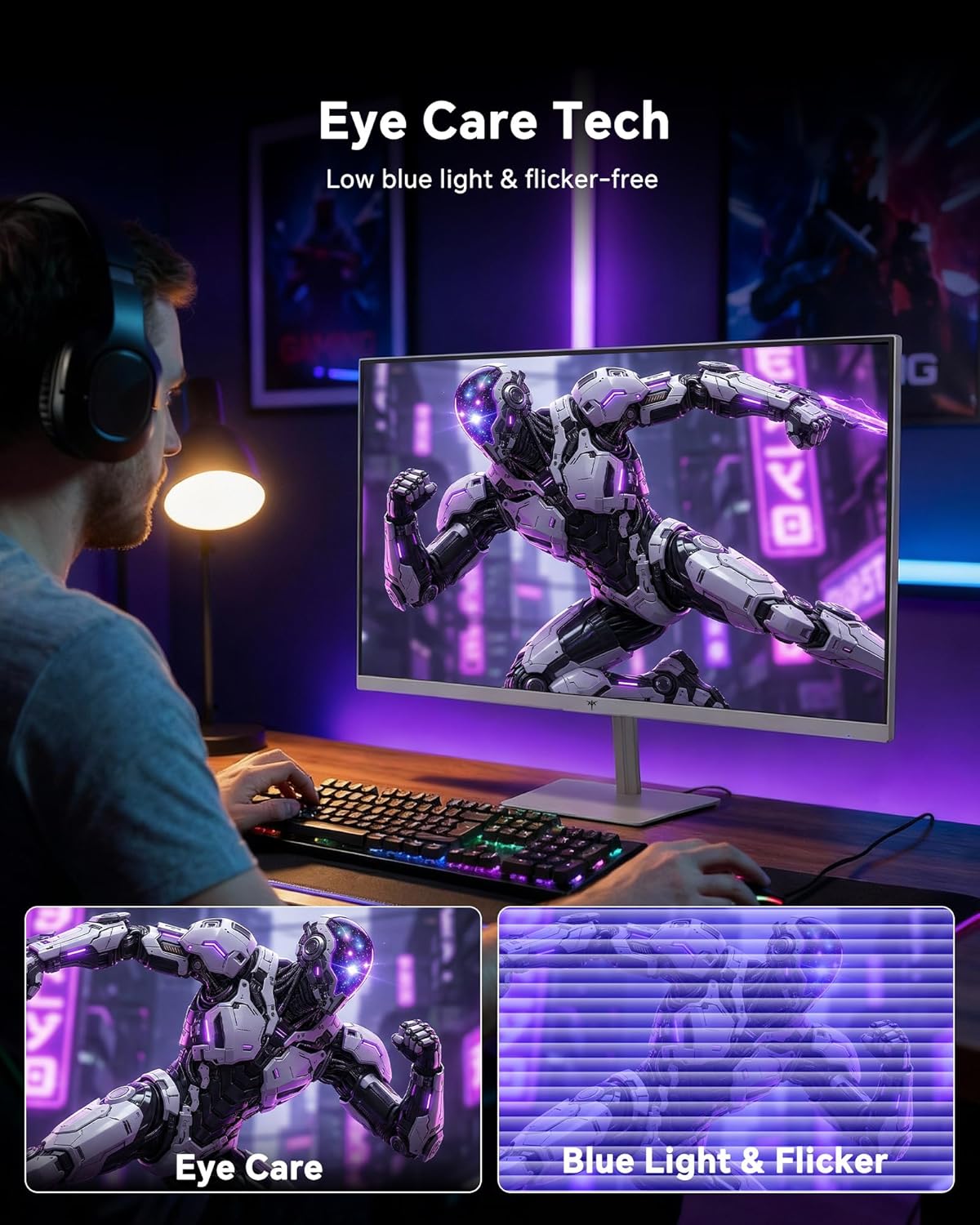
- Teknụzụ Nlekọta anya: The monitor features low blue light and flicker-free technology to reduce eye strain during prolonged use. These settings can typically be adjusted or enabled within the OSD menu.
2.4 Monitor Tilt Adjustment
The monitor supports tilt adjustment from -5° to 15° (±3°). Gently adjust the monitor panel to your desired viewakụkụ n'akuku.
3. Nlekọta
3.1 Na-ehicha ihe nleba anya
Iji hichaa ihuenyo monitor na casing:
- Gbanyụọ ihe nleba anya mgbe niile wee wepụ eriri ọkụ tupu ihicha ya.
- Jiri akwa dị nro na-enweghị ntụpọ dampejiri mmiri mee ya ma ọ bụ ihe dị nro, ihe nhicha ihuenyo anaghị emebi emebi.
- Jiri nwayọ hichapụ ihuenyo ahụ iji wepụ uzuzu na nsị. Zere itinye nrụgide gabigara ókè.
- Maka ndị casing, use a dry, soft cloth. Do not use alcohol, ammonia, or abrasive cleaners, as these can damage the surface.
3.2 Nlekọta n'ozuzu
- Zere itinye ihe ndị dị arọ na igwe nleba anya ma ọ bụ eriri ya.
- Etinyela ihe nlele ahụ n'ebe anwụ na-acha kpọmkwem, oke okpomọkụ, ma ọ bụ oyi na-atụ.
- Debe ihe nlele ahụ ka ọ ghara ịdị mmiri mmiri na oke iru mmiri.
- Gbaa mbọ hụ na ikuku ikuku dị na gburugburu ihe nleba anya iji gbochie ikpo oke ọkụ.
4. Nchọpụta nsogbu
If you encounter issues with your KTC H24F7 monitor, refer to the following common problems and solutions:
| Nsogbu | Ihe nwere ike ime | Ngwọta |
|---|---|---|
| Enweghị onyonyo na ihuenyo | Power cable disconnected; Video cable disconnected or loose; Incorrect input source selected; Monitor is off. | Ensure power cable is securely connected and monitor is on. Check video cable connections (HDMI/DisplayPort) at both the monitor and computer. Press the input source button on the monitor to cycle through inputs. |
| Image flickering or tearing | Adaptive Sync not enabled; Graphics card driver issues; Faulty video cable. | Enable Adaptive Sync in the OSD menu and your graphics card control panel. Update graphics card drivers. Try a different video cable. If using DisplayPort 1, try DisplayPort 2 or HDMI if available, as some units may experience issues with specific ports. |
| Agba ndị ahụ adịghị mma ma ọ bụ na-acha ọcha | Color settings incorrect; HDR not properly configured; Faulty video cable. | Adjust color settings (brightness, contrast, color temperature) in the OSD menu. Ensure HDR is enabled in both the OSD and your operating system for HDR content. Try a different video cable. |
| Monitor not reaching 240Hz | Graphics card limitations; Incorrect display settings in OS; Cable bandwidth limitations. | Ensure your graphics card supports 240Hz at 1080p. Verify display settings in your operating system (e.g., Windows Display Settings or NVIDIA/AMD control panel) are set to 240Hz. Use the provided HDMI cable or a certified DisplayPort 1.4 cable. |
| Stuck or dead pixels | Nrụpụta nrụpụta. | A small number of stuck or dead pixels (typically 1-3) may be considered normal for LCD panels. If the issue is severe or persistent, contact customer support. |
5. Nkọwapụta
| Njirimara | Nkọwa |
|---|---|
| Ụdị | KTC |
| Nọmba nlereanya | H24F7 |
| Nha ihuenyo | 24 sentimita asatọ |
| Mkpebi | FHD 1080p (1920 x 1080 pikselụ) |
| Ụdị panel | Ngwa ngwa IPS |
| Ọnụego ume ọhụrụ | 240 Hz |
| Oge nzaghachi | 1 Millisekọnd (MPRT) |
| Akụkụ akụkụ | 16:9 |
| Icha ọkụ | 400 Candela per Square Meter |
| Ọnụọgụ ọdịiche | 1000:1 |
| Agba Gamut | 116% sRGB |
| Nkwado HDR | HDR 400 |
| Mmekọrịta na-agbanwe agbanwe | FreeSync, G-Sync Compatible |
| Njikọta | 2x HDMI 2.0, 1x DisplayPort 1.4, 1x USB 2.0, 1x Audio Out (3.5mm) |
| Atụmatụ Nlekọta Anya | Low Blue Light, Flicker-Free, Anti-Glare Screen |
| Ndozigharị | Tilt (-5° to 15°) |
| Ugwu VESA | 100mm x 100mm |
| Akụkụ (D x W x H) | 5.39"D x 21.25"W x 15.74"H |
| Ibu Ibu | 3.2 kilogram |
| Agba | Ọcha |
6. Akwụkwọ ikike & Nkwado
6.1 Ozi akwụkwọ ikike
The KTC H24F7 monitor comes with a three-year manufacturer warranty. Akwụkwọ ikike a na-ekpuchi ntụpọ dị na ngwa na arụ ọrụ n'okpuru ojiji nkịtị.
Biko dowe ihe akaebe nke ịzụrụ ihe maka akwụkwọ ikike.
6.2 Nkwado ndị ahịa
For technical assistance, warranty claims, or any questions regarding your KTC H24F7 monitor, please contact KTC customer support. KTC aims to provide responsive customer support and typically responds within 12 hours.
You can usually find contact information on the official KTC website or through the retailer where you purchased the product. When contacting support, please have your monitor model number (H24F7) and purchase details ready.