
1. Okwu mmalite
Thank you for choosing the ELECROW 5-inch IPS Touch Screen Monitor. This compact display offers a high-definition visual experience with responsive touch functionality, designed for a wide range of applications including single-board computers and mini PCs. This manual provides essential information for the proper installation, operation, and care of your device.

The ELECROW 5-inch IPS Touch Screen Monitor, a versatile display solution.
Atụmatụ gụnyere:
- HD Display Experience: 5-inch IPS capacitive touchscreen with a 1024 x 600 resolution, 178° viewing angle, and support for up to 1080P signal input.
- Responsive Touch: Supports 5-point multi-touch on Windows and single-touch on Raspberry Pi/Jetson Nano.
- Nkwụnye na-egwu dị mfe: No additional drivers required for most compatible systems.
- Ọrụ ndị ọkachamara: Features a headphone jack for audio output and a built-in OSD menu for display adjustments.
2. Kedu ihe dị na Igbe ahụ
Biko chọpụta na agụnyere ihe niile edepụtara n'okpuru na ngwugwu gị:
- 1x 5-inch Touch Screen Monitor
- 1x HD Cable (1m)
- 1x USB-A to USB-C Cable (1m)
- 1x Micro-HD Adapter (for Raspberry Pi 4B & 5)
- 4x Hexagonal Copper Standoff Kit (M2.5)
- 2x Pro Stand
- 1 x Screwdriver
- 1x User Manual (Quick Start Guide)
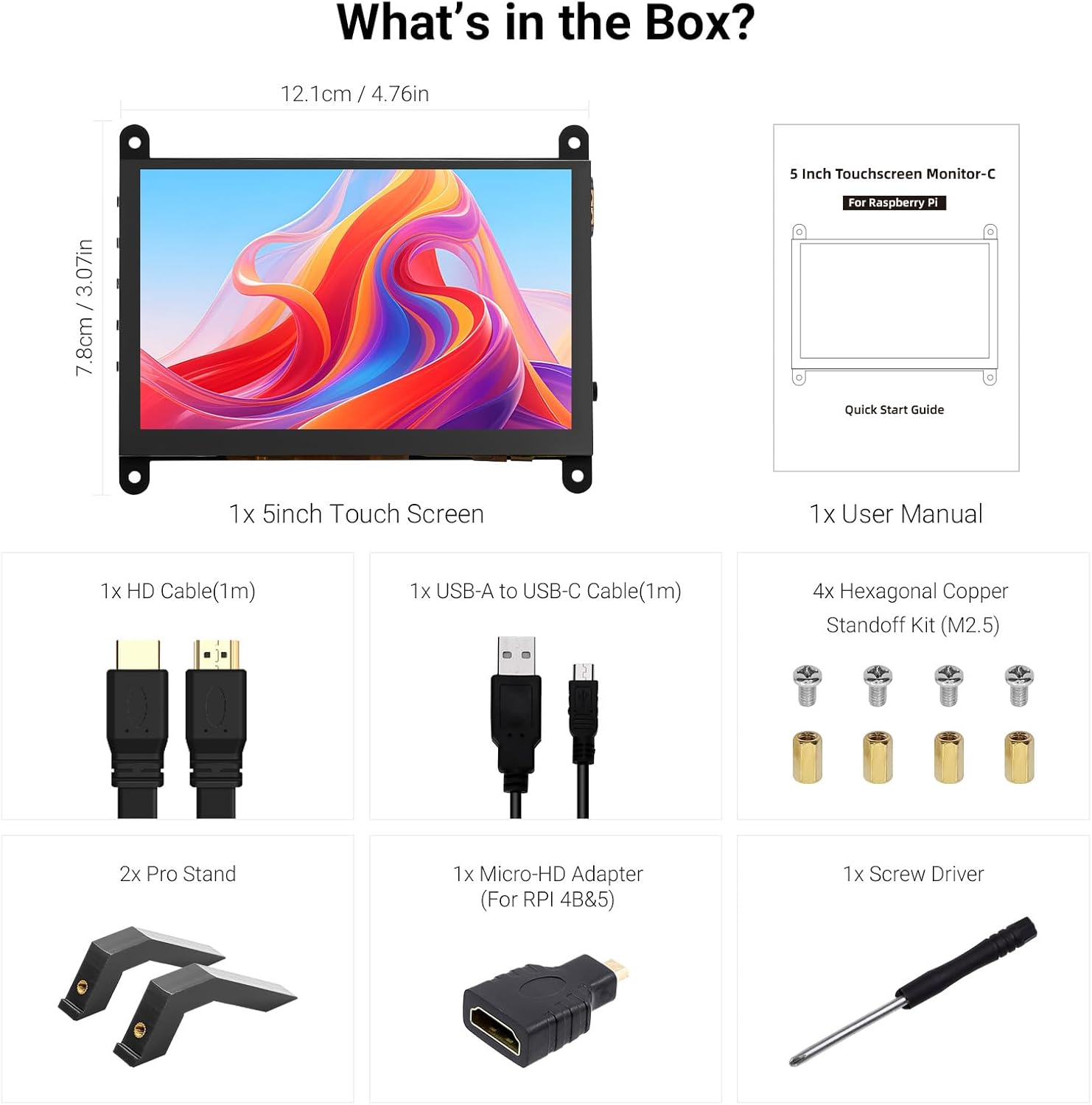
All components included in the product package.
3. Ngwaahịa gafereview
Familiarize yourself with the ports and buttons on your ELECROW 5-inch Touch Screen Monitor:

Zuru ezu view of the monitor's ports and control buttons.
- HD Input Port: Maka ntinye ihe mgbaàmà vidiyo.
- Ọdụ USB-C: For power supply and touch signal transmission.
- Jack ekweisi 3.5mm: Maka mmepụta ọdịyo.
- Bọtịnụ menu: Na-abanye na menu Ngosipụta Ihuenyo (OSD).
- Left/Up Button: Navigates left or up in the OSD menu.
- Right/Down Button: Navigates right or down in the OSD menu.
- Bọtịnụ nloghachi: Exits a menu or returns to the previous option.
- Bọtịnụ ike: Na-agbanye ma ọ bụ gbanyụọ ihe ngosi.
- 20P-FPC-0.5mm Display Port: For flexible cable expansion in embedded systems.
4. Nhazi ntuziaka
Follow these steps to connect your ELECROW 5-inch Touch Screen Monitor to a compatible device:
4.1 Connecting to Raspberry Pi
- Connect HD Cable: Use the provided HD cable to connect the monitor's HD Input Port to the HDMI port on your Raspberry Pi. If using Raspberry Pi 4B or 5, use the included Micro-HD adapter.
- Jikọọ eriri USB: Connect the USB-C port on the monitor to a USB-A port on your Raspberry Pi using the provided USB-A to USB-C cable. This supplies power to the monitor and enables touch functionality.
- Ike Na: Power up your Raspberry Pi. The display should automatically detect the signal and power on.
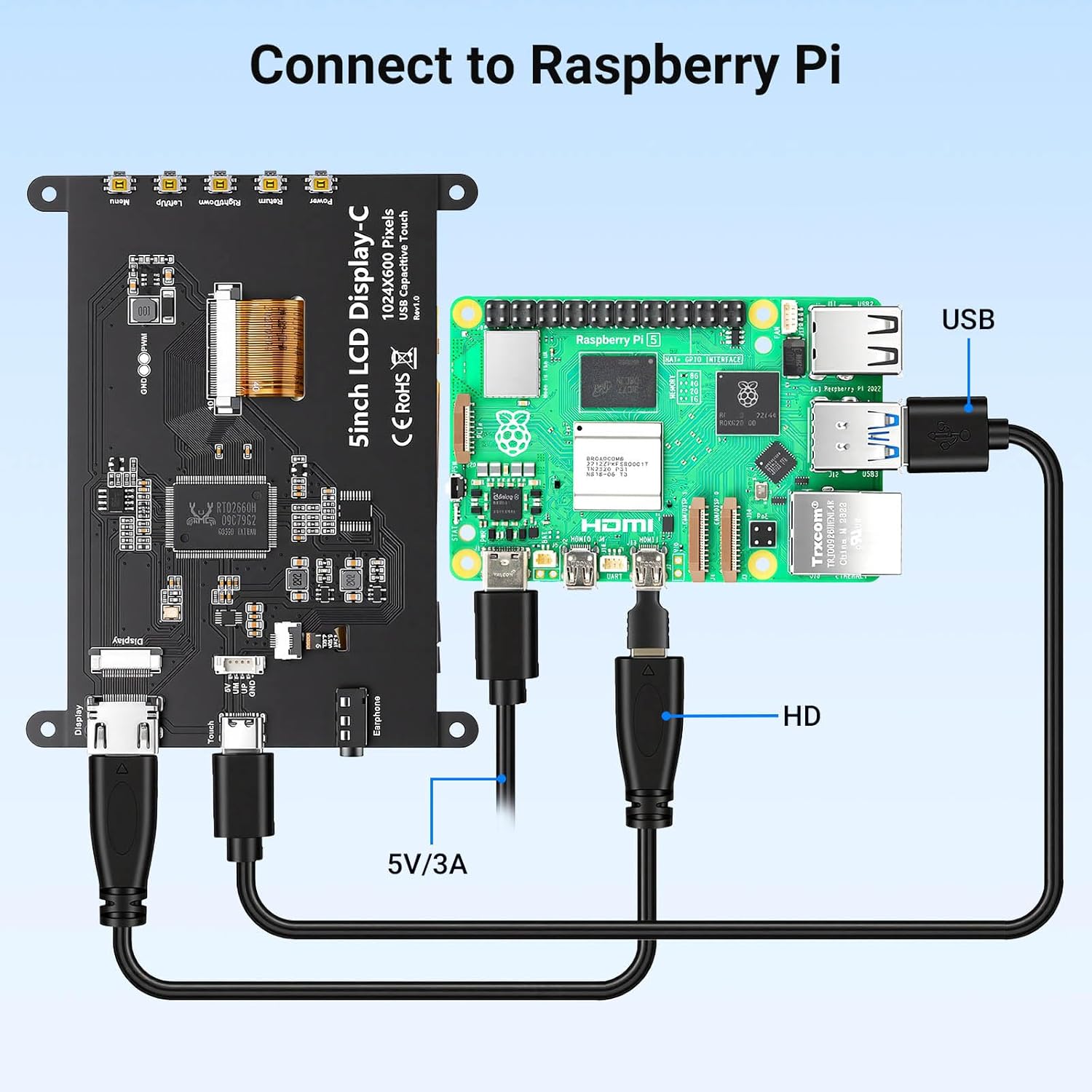
Connection diagram for Raspberry Pi.
4.2 Connecting to Windows PC/Laptop
- Connect HD Cable: Use the provided HD cable to connect the monitor's HD Input Port to the HDMI port on your PC/laptop.
- Jikọọ eriri USB: Connect the USB-C port on the monitor to a USB-A port on your PC/laptop using the provided USB-A to USB-C cable. This provides power and enables touch functionality.
- Ike Na: Power on your PC/laptop. The display should be recognized automatically. No additional drivers are typically required for Windows 7/8/10/11.
5. Ntuziaka ọrụ
5.1 Basic Arụmọrụ
- Gbanyụọ/ Gbanyụọ: Press the Power Button (8) to turn the display on or off.
- Ọrụ mmetụ: The monitor features a capacitive touchscreen. On Windows systems, it supports 5-point multi-touch. On Raspberry Pi (Raspbian, Ubuntu, Kali, Retropie) and Jetson Nano, it supports single-touch operation.

Responsive touch experience for various devices.
5.2 OSD Ntugharị menu
The On-Screen Display (OSD) menu allows you to adjust various display settings:
- Pịa Menu Button (4) imepe menu OSD.
- Jiri ihe Left/Up Button (5) na Right/Down Button (6) to navigate through menu options.
- Pịa Menu Button (4) again to select an option or confirm a setting.
- Pịa Bọtịnụ nloghachi (7) to exit the current menu or return to the previous level.
Common adjustable settings include Brightness, Contrast, and other display parameters.
5.3 Mmepụta ọdịyo
Connect headphones or external speakers to the 3.5mm Headphone Jack (3) for audio output from the connected device.
6. Ndakọrịta
The ELECROW 5-inch Touch Screen Monitor offers broad compatibility with various operating systems and hardware platforms:
- Sistemu eji arụ ọrụ: Raspbian, Ubuntu, Kali, Retropie, Windows 7/8/10/11, Windows 10 IoT.
- Ngwa dakọtara: Raspberry Pi 5, Raspberry Pi 4, Raspberry Pi 3 B+, BB Black, Banana Pi, Jetson Nano, PS4, Xbox.

Broad compatibility with popular operating systems and devices.
7. Nkọwapụta
| Njirimara | Nkọwa |
|---|---|
| Ụdị | ELECROW |
| Nọmba nlereanya | DLH04950B |
| Nha ihuenyo | 5 sentimita asatọ |
| Mkpebi | 1024 x 600 pikselụ |
| Ụdị ngosi | IPS |
| Viewna n'akuku | 178 ogo |
| Icha ọkụ | 410 cd/m² |
| Ọnụego ume ọhụrụ | 60 Hz |
| Oge nzaghachi | 2 nkeji |
| Njikọta | HDMI, USB Ụdị C |
| Voltage | 5 volts |
| Akụkụ (W x H) | 12.1 cm x 7.8 cm (4.76 na x 3.07 inch) |
| Atụmatụ ndị ọzọ | Portable, Touchscreen, Headphone Jack, OSD Menu |

Visual representation of key display specifications.
8. Nlekọta
Proper care and maintenance will ensure the longevity and optimal performance of your monitor:
- Na-ehicha ihuenyo: Jiri akwa dị nro na-enweghị ntụpọ dampened with water or a screen-cleaning solution. Avoid harsh chemicals, abrasive materials, or excessive moisture.
- Nchacha izugbe: Wipe the exterior of the monitor with a dry, soft cloth.
- Nchekwa: Mgbe a naghị eji ihe nlele ahụ ruo ogologo oge, debe ihe nlele ahụ n'ebe dị jụụ ma kpọọ nkụ, ebe anwụ na-anaghị apụta kpọmkwem ma ọ bụ oke okpomọkụ.
- Ijikwa: Avoid dropping the monitor or subjecting it to strong impacts. Do not apply excessive pressure to the screen.
- Igwe ikuku: Ensure the monitor has adequate ventilation to prevent overheating. Do not block any vents.
9. Nchọpụta nsogbu
If you encounter issues with your ELECROW 5-inch Touch Screen Monitor, refer to the following common problems and solutions:
9.1 Enweghị Ngosipụta / Ihuenyo Ojii
- Lelee njikọ: Ensure the HD cable is securely connected to both the monitor and the source device.
- Ịnye ọkụ: Verify that the USB-C cable is properly connected and providing sufficient power (5V). Try a different USB port or power adapter if available.
- Ngwaọrụ isi mmalite: Confirm that your source device (e.g., Raspberry Pi, PC) is powered on and outputting a video signal.
- Ntọala mkpebi: Ensure the output resolution of your source device is compatible with the monitor (1024x600 or a resolution that can be scaled).
9.2 Touch Function Not Working
- Njikọ USB: The USB-C cable is essential for touch functionality. Ensure it is connected to both the monitor and the source device.
- Nkwado sistemụ arụmọrụ: Verify that your operating system supports touch input and that necessary drivers (if any, though usually plug-and-play) are installed. For Raspberry Pi, ensure the OS is configured for touch.
- Ndozigharị: Some operating systems may require touch screen calibration. Refer to your OS documentation for instructions.
9.3 Nsogbu Ogo Foto (Ịgbanwe Agba, Agba Gbagọrọ Agbanwe)
- Ịdị n'ezi nke eriri USB: Try a different HD cable to rule out a faulty cable.
- Source Signal: Test the monitor with a different source device to determine if the issue is with the monitor or the source.
- Ntọala OSD: Adjust brightness, contrast, and other color settings via the OSD menu.
10. Akwụkwọ ikike & Nkwado
10.1 Ozi akwụkwọ ikike
This ELECROW 5-inch Touch Screen Monitor comes with a Akwụkwọ ikike nke Onye nrụpụta afọ 1. This warranty covers defects in materials and workmanship under normal use. It does not cover damage caused by misuse, accident, modification, or unauthorized repair.
10.2 Nkwado nka na ụzụ
For technical assistance, troubleshooting beyond this manual, or warranty claims, please contact ELECROW customer support through their official website or the platform where you purchased the product. Please have your model number (DLH04950B) and purchase details ready when contacting support.