
1. Okwu mmalite
This manual provides essential information for setting up, operating, maintaining, and troubleshooting your CHUWI Hi10 X2 2-in-1 Laptop Tablet. Please read it thoroughly before using your device.
Kedu ihe dị na Igbe ahụ
- Hi10 X2 Tablet
- Ahụigodo magnetik
- Okwu na Nkwụrụ
- Ntọala chaja
- Akwụkwọ ntuziaka (akwụkwọ a)

Image 1.1: CHUWI Hi10 X2 Tablet with Magnetic Keyboard and Case.
2. Nhazi
2.1 Nchaji izizi
Before first use, fully charge your CHUWI Hi10 X2 tablet using the provided charger set. Connect the charger to the Type-C port on the tablet and plug it into a power outlet. The charging indicator light will illuminate.
2.2 Attaching the Magnetic Keyboard and Case
Align the tablet with the magnetic connectors on the keyboard. The magnets will secure the tablet in place. The case with stand can be adjusted to your preferred viewakụkụ n'akuku.
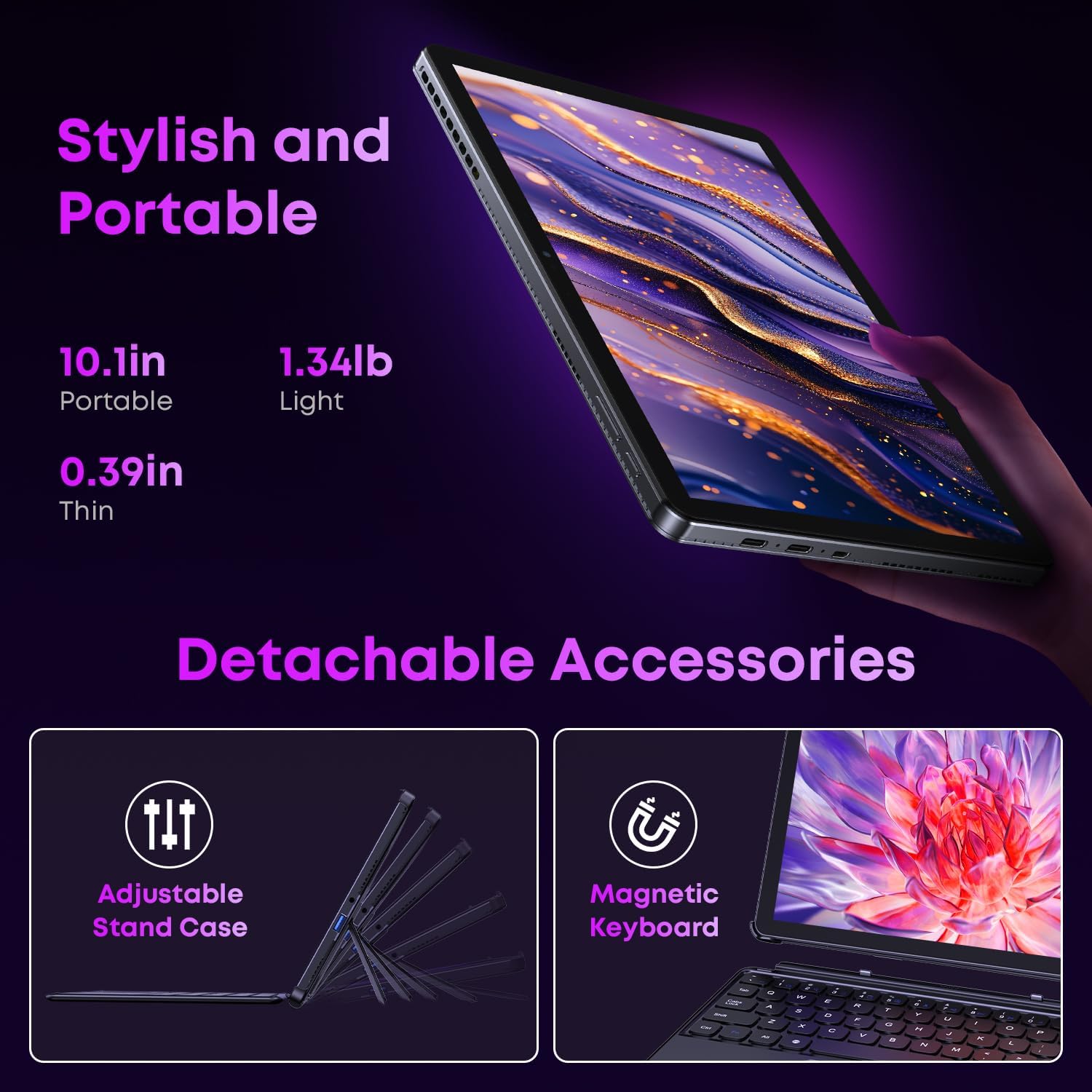
Image 2.1: Detachable accessories including the magnetic keyboard and adjustable stand case.
2.3 First Boot-Up and Windows Activation
Press and hold the power button until the screen turns on. Follow the on-screen instructions to complete the initial Windows 11 setup. If your Windows system arrives unactivated, please send the serial number (located on the back of the device) to CHUWI support via Amazon for your activation key.
2.4 Jikọọ na Wi-Fi
During setup, you will be prompted to connect to a Wi-Fi network. Select your network and enter the password. The device supports Wi-Fi 6 for fast and stable connections.
3. Ntuziaka ọrụ
3.1 Ọnọdụ Ịgbanye/Mgbanyụ na Ụra Ike
- Ike Na: Pịa ma jide bọtịnụ ike ruo mgbe ihuenyo na-enwu.
- Gbanyụọ: From the Windows Start menu, select Power > Shut down.
- Modera Modera: Briefly press the power button to enter or exit sleep mode.
3.2 Iji ihuenyo mmetụ ahụ
The 10.1-inch HD touchscreen supports 10-point multi-touch gestures. Use taps, swipes, and pinches for navigation and interaction with applications.

Image 3.1: The 10.1-inch HD touchscreen display.
3.3 Laptop and Tablet Modes
The magnetic keyboard allows for seamless switching between laptop and tablet modes. Attach the keyboard for typing and productivity, or detach it for a pure tablet experience.
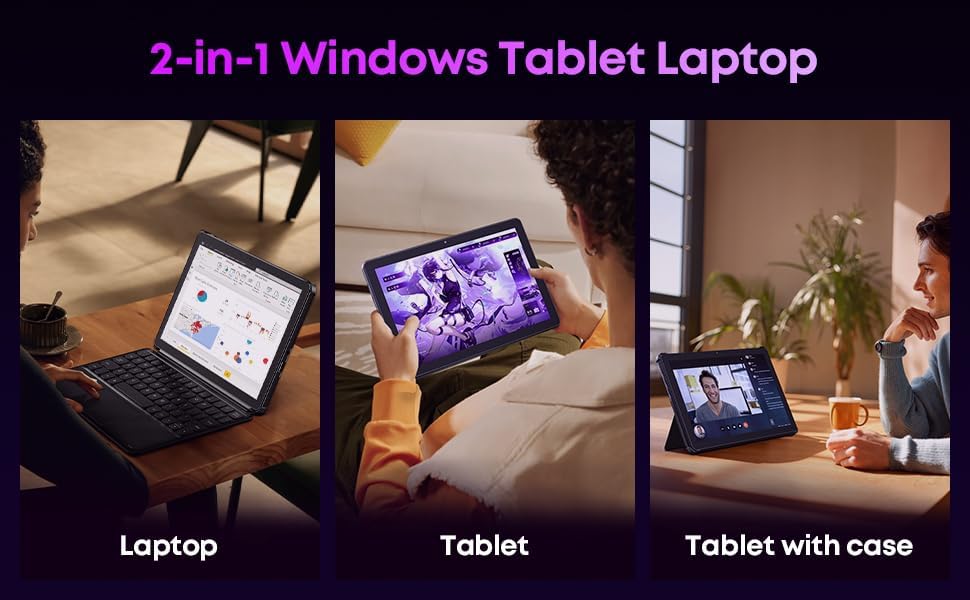
Image 3.2: Usage scenarios demonstrating laptop, tablet, and tablet with case modes.
3.4 Njikọta
- ọdụ ụgbọ mmiri USB: The tablet features a full-featured Type-C port and a USB 3.2 Gen1 port for data transfer and connecting peripherals.
- Micro HDMI: Connect to external monitors or TVs using the Micro HDMI port for extended display options, supporting up to 4K video output.
- Bluetooth Bluetooth: Pair with wireless headphones, mice, and other Bluetooth accessories.
- Wi-Fi 6: Enjoy high-speed internet connectivity for streaming and browsing.
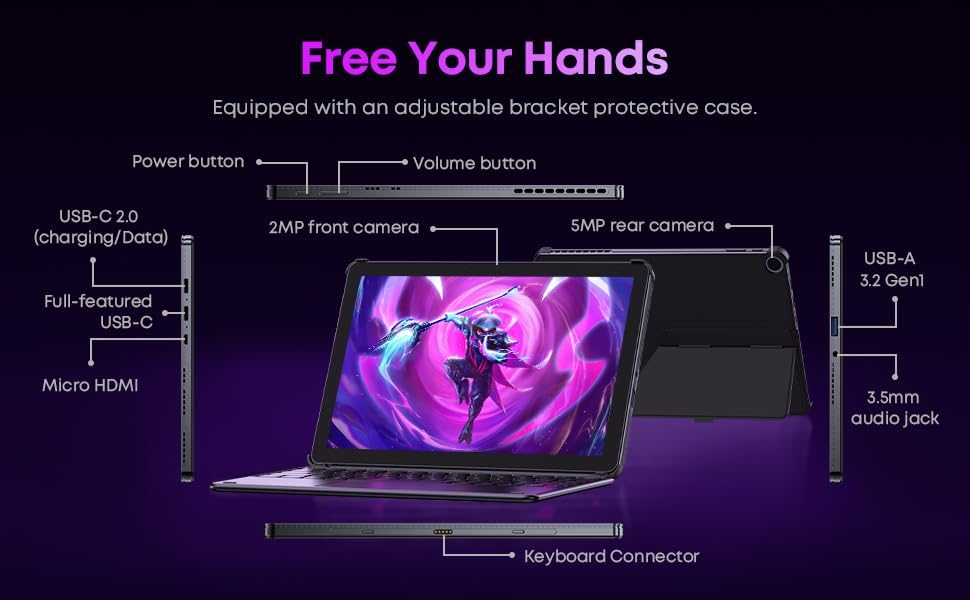
Foto 3.3: Zuru ezu view of the tablet's ports and connectors.
3.5 Ojiji igwefoto
The tablet is equipped with a 5MP autofocus rear camera for capturing photos and videos, and a 2MP front camera for video calls and selfies.

Image 3.4: Camera and wireless connectivity features.
3.6 Processor and Storage
Powered by a 10th Gen Intel Core i3 processor (up to 3.9GHz) and 8GB RAM, the tablet handles multitasking efficiently. The 256GB SSD provides ample storage and fast access to your files.

Image 3.5: Intel 10th Gen Core i3 Processor details.
3.7 Ngwaahịa gafereview Vidiyo
Vidiyo nke 3.6: Mwepuview of the CHUWI Hi10 X2 2-in-1 Laptop Tablet, highlighting its features and functionality.
4. Nlekọta
4.1 Na-ehicha ngwaọrụ
Jiri akwa dị nro na-enweghị lint hichaa ihuenyo na ahụ nke mbadamba ihe. Maka isi ike smudges, ntakịrị dampJiri mmiri ma ọ bụ ihe e ji asa ákwà kpuchie ákwà ahụ. Zere kemịkalụ siri ike ma ọ bụ ihe ndị na-emebi ihe.
4.2 Nlekọta batrị
To prolong battery life, avoid exposing the tablet to extreme temperatures. It is recommended to keep the battery charge between 20% and 80% for optimal longevity. Avoid fully discharging the battery frequently.
4.3 Mmelite ngwanrọ
Na-enyocha ma wụnye mmelite Windows mgbe niile iji hụ na sistemụ gị nwere ihe ndozi nchekwa kachasị ọhụrụ na mmezi arụmọrụ. Gaa na Ntọala > Mmelite Windows.
4.4 Njikwa nchekwa
Mgbe ụfọdụ review ma hichapụ adịghị mkpa files and applications to free up storage space on the 256GB SSD. This helps maintain optimal device performance.
5. Nchọpụta nsogbu
5.1 Ngwaọrụ anaghị agba ọkụ
- Ensure the device is fully charged. Connect the charger and wait a few minutes before attempting to power on.
- Press and hold the power button for 10-15 seconds to perform a hard reset.
5.2 Okwu Njikọta Wi-Fi
- Malitegharịa ekwentị Wi-Fi gị na mbadamba.
- Lelee ma ngwaọrụ ndị ọzọ nwere ike ijikọ na otu netwọk Wi-Fi ahụ.
- Chefuo netwọk dị na ntọala Windows wee jikọọ ọzọ.
5.3 Screen Not Responding to Touch
- Malitegharịa ekwentị ahụ.
- Hụ na ihuenyo ahụ dị ọcha ma ghara inwe ihe ruru unyi.
5.4 Keyboard Not Working
- Ensure the tablet is correctly aligned and securely connected to the magnetic keyboard.
- Malitegharịa ekwentị ahụ.
Maka enyemaka ọzọ, biko rụtụ aka na ngalaba Nkwado.
6. Nkọwapụta
| Njirimara | Nkọwapụta |
|---|---|
| Ụdị | CHUWI |
| Aha Nlereanya | Hi10 X2 |
| Nhazi | Intel Core i3 (10th Gen, up to 3.9 GHz) |
| Sistemụ nrụọrụ | Windows 11 Ụlọ |
| RAM | 8 GB |
| Nchekwa | 256 GB SSD |
| Nha ihuenyo | 10.1 sentimita asatọ |
| Ngosipụta mkpebi | 1280x800 pikselụ |
| Njikọta | Wi-Fi 6, Bluetooth 5.3 |
| ọdụ ụgbọ mmiri | Full-featured Type-C, USB 3.2 Gen 1, Micro HDMI, 3.5mm Audio Jack |
| Igwefoto | 5MP Autofocus Rear, 2MP Front |
| Ibu | 1.3 pound (ihe dị ka 0.59 n'arọ) |
| Akụkụ (L x W x Th) | 9.6" x 6.49" x 0.39" |
| Ike batrị | 3400 mAh |
7. Akwụkwọ ikike Ozi
The CHUWI Hi10 X2 2-in-1 Laptop Tablet comes with a Akwụkwọ ikike dị afọ 1. This warranty covers manufacturing defects and malfunctions under normal use. Please retain your proof of purchase for warranty claims.
For detailed warranty terms and conditions, please refer to the official CHUWI websaịtị ma ọ bụ kpọtụrụ nkwado ndị ahịa.
8. Nkwado
If you encounter any issues not covered in the Troubleshooting section, or require assistance with Windows activation, please contact CHUWI customer support. You can typically find support contact information on the official CHUWI website or through your purchase platform (e.g., Amazon seller messaging).
When contacting support, please have your device's serial number and proof of purchase readily available.