
1. Okwu mmalite
Thank you for choosing the Picun G2 Wireless Gaming Headset. This manual provides detailed instructions for setting up, operating, and maintaining your headset to ensure optimal performance and an immersive gaming experience. Please read this manual thoroughly before use.
Kedu ihe dị na Igbe ahụ
- 1 x Picun G2 Wireless Gaming Headset
- 1 x USB-A & Type-C 2-in-1 Wireless Dongle
- 1 x USB-C Nchaji USB
- 1 x 3.5mm USB USB
- 1 x Akwụkwọ ntuziaka onye ọrụ
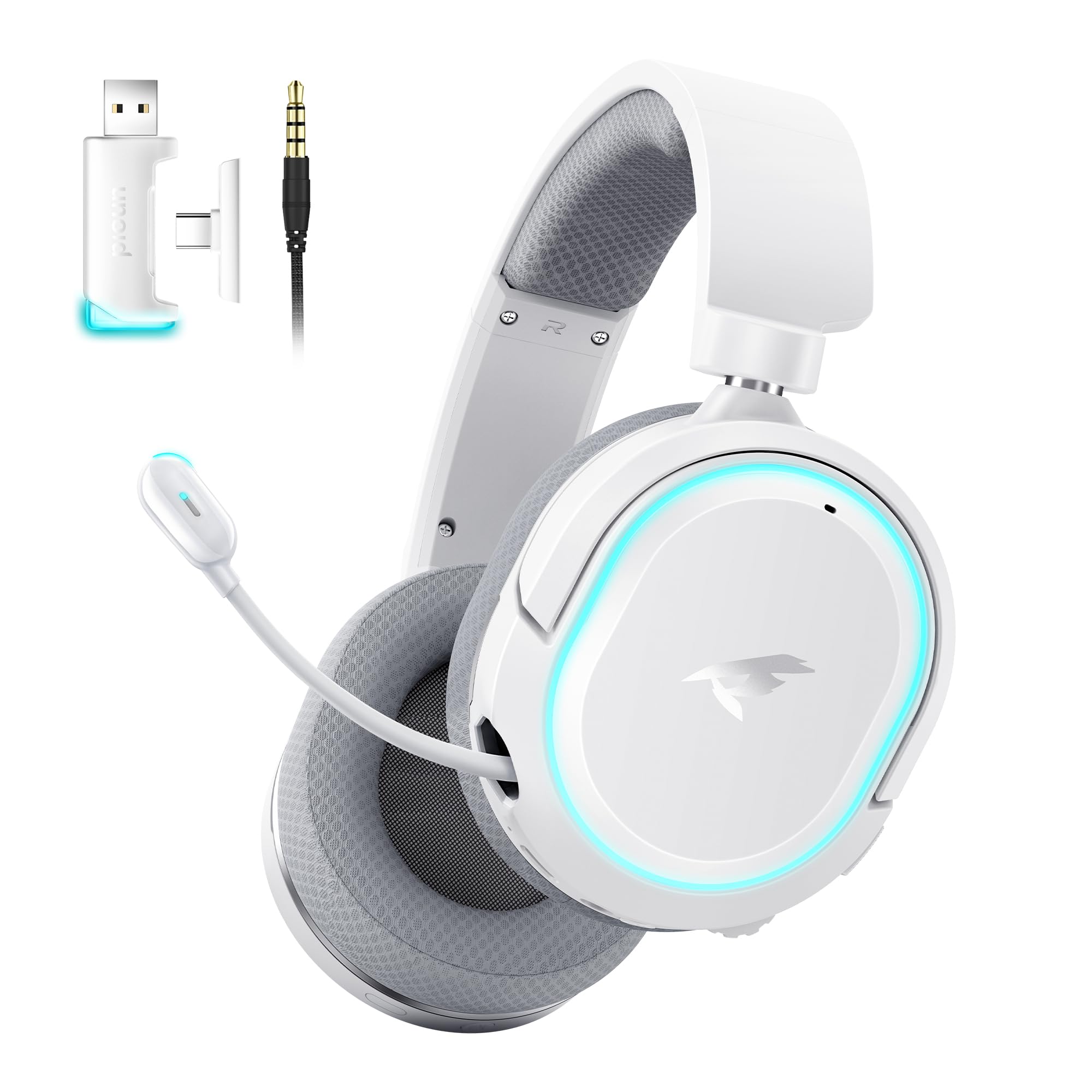
Image: Picun G2 Wireless Gaming Headset (Grey)
2. Ngwaahịa gafereview
Familiarize yourself with the various components and controls of your Picun G2 headset.

Image: Headset Controls Diagram
- 7.1 Mode Light Control: Button to activate/deactivate 7.1 virtual surround sound and control RGB lighting.
- Nchaji ọdụ ụgbọ mmiri: USB-C port for charging the headset.
- 3.5mm ọdụ ụgbọ mmiri: For wired connection using the included 3.5mm audio cable.
- Bọtịnụ ike: Press and hold to power on/off. Short press for play/pause in Bluetooth mode.
- Wheel olu: Scroll up or down to adjust the volume.
- Igwe ogbi Slide switch to mute or unmute the microphone.
3. Ntọala na Njikọ
3.1 Ịchaji ekweisi
Before first use, fully charge the headset using the provided USB-C charging cable. Connect the USB-C end to the headset's charging port and the USB-A end to a power source (e.g., computer USB port, USB wall adapter).
3.2 Connecting via 2.4GHz Wireless (Dongle)
For ultra-low latency gaming on PC, PS5, PS4, or Nintendo Switch (docked mode):
- Insert the 2.4GHz USB-A/Type-C dongle into an available USB port on your device.
- Power on the headset. It will automatically connect to the dongle.
- Ensure the headset is selected as the audio output and input device in your device's sound settings.
3.3 Ijikọ site na Bluetooth 5.4
For wireless connection to smartphones, tablets, and other Bluetooth-enabled devices:
- With the headset powered off, press and hold the Power Button until the LED indicator flashes blue and red, indicating pairing mode.
- On your device, enable Bluetooth and search for "Picun G2".
- Select "Picun G2" to pair. The LED will turn solid blue once connected.
3.4 Connecting via 3.5mm Wired
For universal compatibility with devices featuring a 3.5mm audio jack:
- Connect one end of the 3.5mm audio cable to the headset's 3.5mm audio port.
- Connect the other end to your device's 3.5mm audio jack.
- Note: Microphone functionality may vary or be unavailable in wired mode depending on the device.

Image: Multiple Connection Options
4. Ntuziaka ọrụ
4.1 Gbanyụọ ma ọ bụ gbanyụọ
- Ike Na: Pịa ma jide bọtịnụ ike maka sekọnd 3.
- Gbanyụọ: Pịa ma jide bọtịnụ ike maka sekọnd 3.
4.2 Njikwa olu
- Tugharia ihe Mpịakọta Mpịakọta upwards to increase volume.
- Tugharia ihe Mpịakọta Mpịakọta downwards to decrease volume.
4.3 Microphone Usage (Retractable ENC Noise-Canceling Mic)
- Extend/Retract Mic: Gently pull out or push in the microphone from the left earcup.
- Mechie/Kpuchie: Jiri ihe Igwe okwu ogbi slide switch located on the earcup.

Image: Retractable ENC Noise-Canceling Microphone
4.4 7.1 Virtual Surround Sound Activation
- Pịa 7.1 Mode Light Control button to toggle 7.1 virtual surround sound on or off.
- The RGB lighting will indicate the status of the 7.1 mode.

Image: 7.1 Surround Sound Activation
5. Ozi batrị
The Picun G2 headset offers extended battery life for prolonged usage.
- Up to 100 hours playtime in Bluetooth mode (RGB off).
- Approximately 42-45 hours playtime via 2.4GHz wireless (RGB on).
- Full charge typically takes 2-3 hours.
- The headset supports charging while in use.

Image: Battery Life and Charging
6. Nkasi Obi na Nhazi
The Picun G2 is designed for comfort during extended gaming sessions.
- Ihe mkpuchi isi nwere ike idozi: Customize the fit for various head sizes.
- Rotatable Earcups: Allows for flexible positioning and storage.
- Soft Memory Sponge Cushions: Breathable fabric earcups and headband provide comfort and reduce pressure.

Image: Comfort Features
7. Nchọpụta nsogbu
If you encounter any issues with your Picun G2 headset, please refer to the following common solutions:
| Nsogbu | Ngwọta |
|---|---|
| Enweghị ụda sitere na ekweisi |
|
| Igwe okwu anaghị arụ ọrụ |
|
| Cannot connect via 2.4GHz wireless |
|
| Enweghị ike ijikọ site na Bluetooth |
|
| Ndụ batrị dị mkpụmkpụ |
|
8. Nkọwapụta
| Njirimara | Nkọwa |
|---|---|
| Ụdị | Picun |
| Aha Nlereanya | Picun-G2 |
| Teknụzụ Njikọta | 2.4GHz Wireless, Bluetooth 5.4, 3.5mm Wired |
| Ntinye ntị | N'elu Ntị |
| Ụdị ọkwọ ụgbọ ala ọdịyo | Onye ọkwọ ụgbọ ala dị ike (40mm) |
| Mgbochi | 32 ohms |
| Oke ugboro ugboro | 20 Hz - 20,000 Hz |
| Oge Latịn | 5 Milliseconds (2.4GHz) |
| Ụdị Bluetooth | 5.4 |
| Oke Bluetooth | 10 mita |
| Ndụ batrị | Up to 100 Hours (Bluetooth, RGB off) / 42-45 Hours (2.4GHz, RGB on) |
| Oge Nchaji | 2-3 Awa |
| Igwe okwu | Retractable ENC Noise-Canceling Omnidirectional Mic |
| Ngwa dakọtara | PC, Mac, Laptop, Desktop, Phone, Pad, Tablet, PlayStation 4/5/pro/Slim, Gaming Consoles, Switch, Nintendo Switch (microphone invalid on Switch via 3.5mm) |
| Ihe onwunwe | ABS, Breathable Fabric, PC, Soft Memory Sponge Cushions |
| Atụmatụ ndị ọzọ | 7.1 Virtual Surround Sound, RGB Lighting, Adjustable Headband, Rotatable Earcups |
9. Akwụkwọ ikike na nkwado
9.1 Ozi akwụkwọ ikike
The Picun G2 Wireless Gaming Headset comes with a 1-afọ akwụkwọ ikike from the date of purchase. This warranty covers manufacturing defects and ensures the product is free from defects in material and workmanship under normal use. Please retain your proof of purchase for warranty claims.
Akwụkwọ ikike anaghị ekpuchi:
- Damage caused by misuse, abuse, accident, or negligence.
- Ndozi ma ọ bụ mgbanwe na-enweghị ikike.
- Nkịtị iyi na akwa.
9.2 Nkwado ndị ahịa
For technical assistance, warranty claims, or any questions regarding your Picun G2 Wireless Gaming Headset, please contact Picun customer support through the following channels:
- Email: support@picun.com (Ọpụample, actual email not provided)
- Websaịtị: Visit the official Picun websaịtị maka FAQ na akụrụngwa nkwado.
Please have your model number (Picun-G2) and proof of purchase ready when contacting support.