
Okwu mmalite
Thank you for choosing the KAMRUI Hyper H2 Mini PC. This compact and powerful desktop computer is designed for a wide range of applications, from demanding office tasks and creative projects to home entertainment and light gaming. Equipped with an Intel Core i5-14450HX processor, 16GB DDR4 RAM, and a 512GB NVMe SSD, it offers robust performance and seamless multitasking capabilities. Its versatile connectivity options and triple 4K display support ensure a flexible and immersive user experience.
This manual provides essential information on setting up, operating, maintaining, and troubleshooting your KAMRUI Hyper H2 Mini PC. Please read it thoroughly to ensure optimal performance and longevity of your device.
Kedu ihe dị na Igbe ahụ
Upon opening your KAMRUI Hyper H2 Mini PC package, please verify that all the following items are included:
- 1 x KAMRUI Hyper H2 Mini PC
- 1 x HDMI eriri
- 1 x VESA Mount nwere skru
- 1 x nkwụnye ọkụ
- 1 x Akwụkwọ ntuziaka onye ọrụ

Ngwaahịa gafereview
The KAMRUI Hyper H2 Mini PC is engineered for efficiency and connectivity. Its compact chassis houses a powerful Intel Core i5-14450HX processor, supported by a robust cooling system to ensure stable performance even under heavy workloads.
Ọdụ ụgbọ mmiri ihu ihu
- 1 x USB 3.2 Gen2 Type-C port (10Gbps data transfer, DisplayPort Alt Mode, 15W power delivery)
- 2 x USB 3.2 Gen2 Type-A ports (10Gbps)
- 1 x Audio Jack (3.5mm for headphones/microphone)
- 1 x bọtịnụ ike
Ọdụ ụgbọ mmiri azụ
- 1 x HDMI 2.0 ọdụ ụgbọ mmiri
- 1 x DisplayPort 1.4b
- 1 x RJ45 Gigabit Ethernet Port
- 4 x USB 3.2 Gen1 Type-A ports (5Gbps)
- 1 x DC Power Input

Ntuziaka nhazi
Follow these steps for initial setup of your KAMRUI Hyper H2 Mini PC:
- Ngosipụta Jikọọ: Connect your monitor(s) to the Mini PC using the HDMI, DisplayPort, or USB-C port. For triple display setup, utilize all three available video outputs.
- Ngwa njikọ: Tinye ahụigodo gị, òké, na ngwaọrụ USB ọ bụla ọzọ n'ime ọdụ USB dị.
- Jikọọ na netwọk: For wired internet, connect an Ethernet cable to the RJ45 Gigabit Ethernet port. For wireless, ensure your Wi-Fi 6 network is available after initial boot.
- Njikọ Ike: Tinye ihe nkwụnye ike n'ime ọdụ ntinye DC na Mini PC, wee jikọọ ihe nkwụnye ahụ na ebe a na-etinye ike.
- Ike Na: Press the power button on the front panel to turn on your Mini PC.
- Nhazi izizi: Follow the on-screen instructions to complete the Windows 11 Pro setup, including language, network, and user account settings.
Nwụnye ugwu VESA
The included VESA mount allows you to attach the Mini PC to the back of a compatible monitor or TV, saving desk space and creating a clean setup.
- Attach the VESA mount bracket to the back of your monitor using the provided screws.
- Slide the KAMRUI Hyper H2 Mini PC onto the mounted bracket until it clicks securely into place.
Ntuziaka ọrụ
Isi ọrụ
- Gbanyụọ/ Gbanyụọ: Press the power button once to turn the device on or off. For a forced shutdown, press and hold the power button for 5-7 seconds.
- Malitegharịa: Use the operating system's restart option for proper system reboots.
- Modera Modera: The system will enter sleep mode after a period of inactivity or by selecting the sleep option in the OS.
Multi-Display Setup
The KAMRUI Hyper H2 supports up to three 4K@60Hz displays simultaneously, enhancing productivity and entertainment. Connect your displays to the HDMI, DisplayPort, and full-featured USB-C ports. Once connected, configure your display settings within the operating system (e.g., Extend, Duplicate, or Second screen only).

Nlekọta na nkwalite
Sistemụ jụrụ oyi
The KAMRUI Hyper H2 features a premium thermal design with a dual-fan cooling system, full copper heat pipes, and a dedicated aluminum SSD heatsink. This ensures the CPU and storage remain cool, even under sustained heavy workloads. To maintain optimal cooling performance:
- Ensure proper airflow by keeping the vents clear of obstructions.
- Jiri ikuku a kpọchiri akpọchi hichaa uzuzu site na oghere ikuku mgbe niile.

RAM and SSD Upgrades
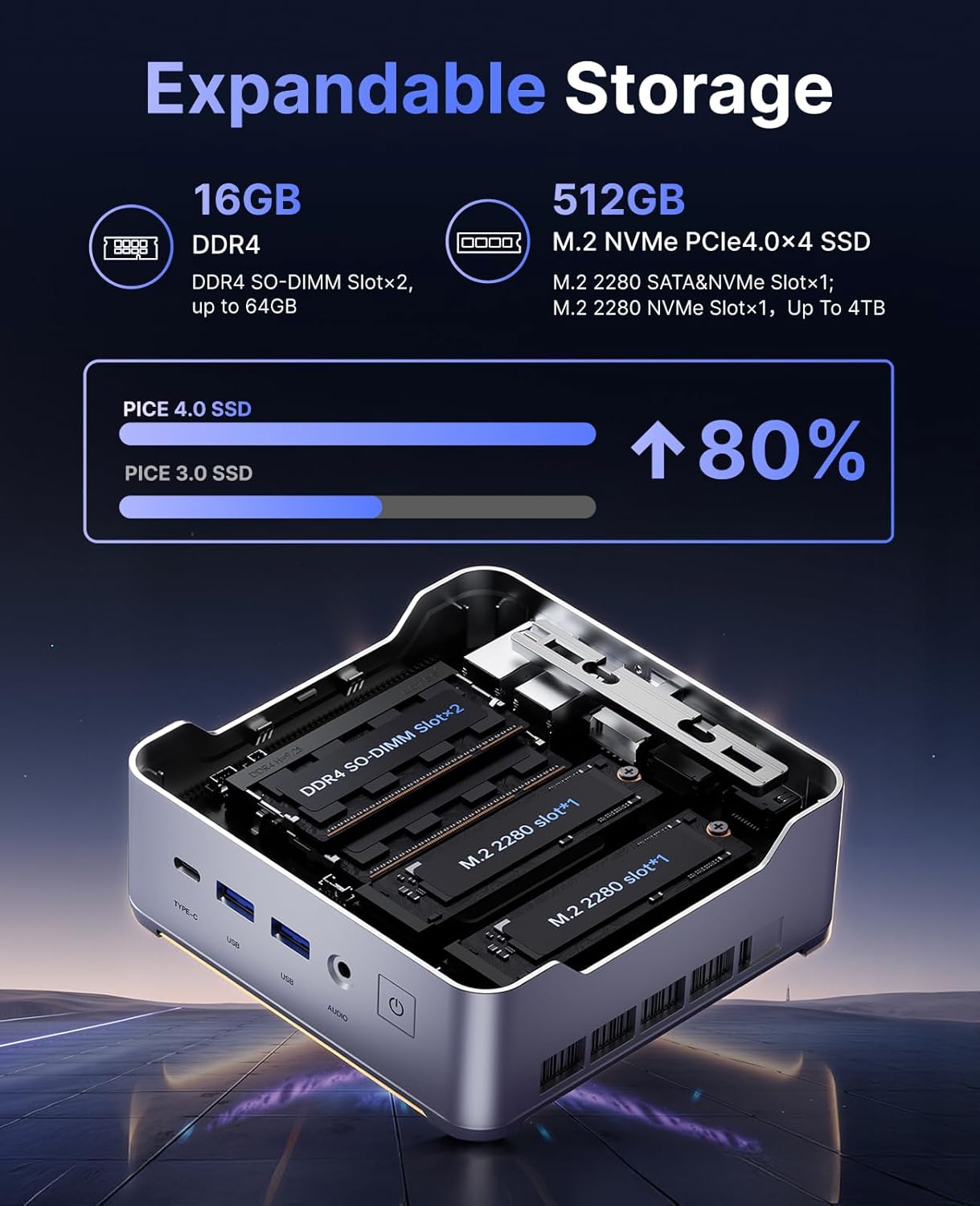
The KAMRUI Hyper H2 is designed for easy upgrades, allowing you to expand its memory and storage capacity. The Mini PC supports:
- RAM: Up to 2x 32GB DDR4 3200MHz/s SO-DIMM (total 64GB).
- SSD: Up to 2x 2TB NVMe SSD (M.2 2280 PCIe Gen4x4).
To access the RAM and SSD slots:
- Ensure the Mini PC is powered off and disconnected from all cables.
- Locate the small Phillips screw on the rear panel next to the lock/unlock switch. Remove this screw.
- Slide the lock switch to the unlock position. The top cover will lift slightly.
- Jiri nlezianya wepụ ihe mkpuchi elu.
- Unscrew the four Phillips screws holding the metal plate/cover.
- Gently lift the metal plate to reveal the RAM and NVMe SSD slots.
- Install or replace your RAM modules or NVMe SSDs as needed.
- Reassemble the Mini PC by reversing these steps, ensuring all screws are tightened and the cover is securely locked.
Nchọpụta nsogbu
If you encounter any issues with your KAMRUI Hyper H2 Mini PC, please refer to the following common solutions:
- Enweghị ike:
- Gbaa mbọ hụ na ejikọrọ ihe nkwụnye ọkụ na nke ọma na ma PC Obere yana oghere ọkụ na-arụ ọrụ.
- Nyochaa na ntinye ọkụ na-arụ ọrụ site na nkwụnye na ngwaọrụ ọzọ.
- Enweghị Ngosipụta:
- Check all video cable connections (HDMI, DP, USB-C) between the Mini PC and your monitor(s).
- Hụ na enyocha gị na-agba ọkụ ma tinye ya na isi mmalite ntinye kwesịrị ekwesị.
- Try connecting to a different display or using a different video cable.
- Enweghị njikọ ịntanetị:
- For wired connection, ensure the Ethernet cable is properly connected and your router/modem is working.
- For Wi-Fi, check if Wi-Fi is enabled in Windows settings and ensure you are connected to the correct network with the right password.
- Restart your router/modem and the Mini PC.
- Ịrụ ngwa ngwa:
- Mechie ngwa na-adịghị mkpa na-agba n'azụ.
- Gbaa mbọ hụ na sistemụ arụmọrụ gị na ndị ọkwọ ụgbọ ala emelitere.
- Jiri ngwanrọ antivirus a ma ama lelee ma ọ bụ malware.
- Consider upgrading RAM or SSD if performance issues persist, especially with demanding tasks.
Nkọwapụta
| Njirimara | Nkọwapụta |
|---|---|
| Nhazi | Intel Core i5-14450HX (10 Cores/16 Threads, up to 4.8GHz) |
| Eserese | Integrated UHD Graphics for 14th Gen Processors (max frequency 1.5GHz) |
| RAM | 16GB DDR4 (Expandable up to 64GB, 2x SO-DIMM slots) |
| Nchekwa | 512GB NVMe PCIe 4.0 SSD (Expandable up to 2x 2TB NVMe SSD) |
| Mmepụta vidiyo | Triple 4K@60Hz (HDMI 2.0, DP 1.4b, USB-C with DisplayPort Alt Mode) |
| Njikọ ikuku | Wi-Fi 6 (802.11ax), Bluetooth 5.2 |
| Njikọ ikuku | 1 x RJ45 Gigabit Ethernet Port |
| ọdụ ụgbọ mmiri USB | 1 x USB 3.2 Gen2 Type-C (10Gbps, DP Alt Mode, 15W PD) 2 x USB 3.2 Gen2 Ụdị-A (10Gbps) 4 x USB 3.2 Gen1 Ụdị-A (5Gbps) |
| Audio | 1 x 3.5mm Jack Audio |
| Sistemụ nrụọrụ | OS PRO |
| Akụkụ | 6.46 x 6.42 x 4.53 inch (Ngwugwu) |
| Ibu Ibu | 2.99 pound |
Akwụkwọ ikike na nkwado
Your KAMRUI Hyper H2 Mini PC comes with a Akwụkwọ ikike nke ọnwa 12 from the date of purchase, covering manufacturing defects and hardware malfunctions under normal use. For any technical assistance, troubleshooting, or warranty claims, please contact KAMRUI customer support.
KAMRUI offers Nkwado ndị ahịa 24-hour to assist you with any queries or issues you may encounter. Please refer to the contact information provided in your product packaging or visit the official KAMRUI websaịtị maka nkọwa nkwado.
Maka akụrụngwa ndị ọzọ na ozi ngwaahịa, gaa na KAMRUI Store on Amazon.