
1. Okwu mmalite
This manual provides essential information for setting up, operating, maintaining, and troubleshooting your Sharp Aquos QLED 55 Inch 4K Ultra HD Xumo Smart TV. Please read this manual thoroughly before using your television and retain it for future reference.
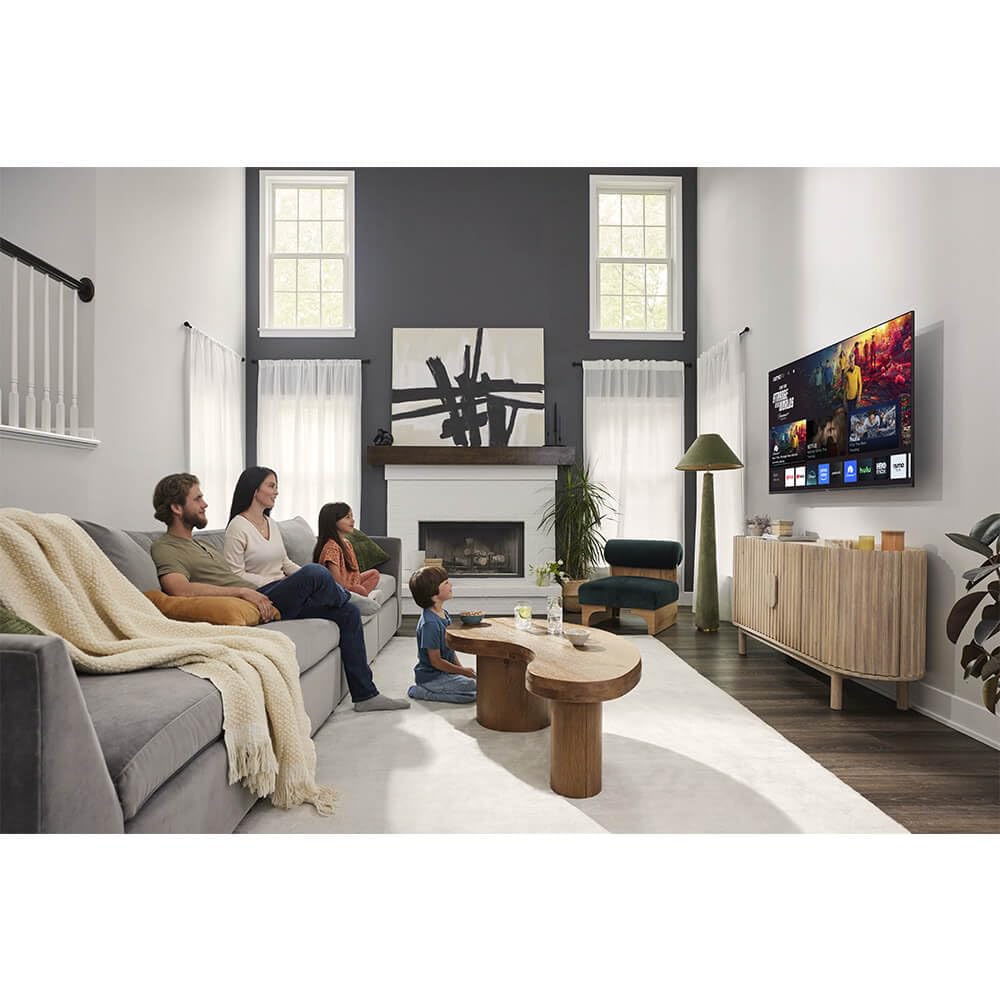
Foto: N'ihu view of the Sharp Aquos QLED 55 Inch 4K Ultra HD Xumo Smart TV.
2. Ozi nchekwa
Always follow basic safety precautions when using this television to reduce the risk of fire, electric shock, and injury. Keep the television away from moisture, direct sunlight, and heat sources. Ensure proper ventilation and do not block any ventilation openings. Use only the power cord and accessories specified by the manufacturer. Refer to the full safety guidelines in the included printed manual.
3. Kedu ihe dị na Igbe ahụ
Your Sharp Aquos QLED 55 Inch 4K Ultra HD Xumo Smart TV package includes:
- Sharp Aquos QLED 55 Inch 4K Ultra HD Xumo Smart TV
- Njikwa Remote olu
- Ihe nkwụnye TV (2 iberibe)
- Ihe nkedo maka TV Stand
- Ụdọ ọkụ
- Akwụkwọ ntuziaka (akwụkwọ a)
- Ntuziaka mmalite ngwa ngwa
4. Nhazi
4.1 Na-agbakwunye ihe nkwụnye TV
- Jiri nlezianya dobe ihuenyo TV n'elu ala dị nro ma dị larịị iji gbochie mmebi.
- Hazie ihe nkwụnye ọ bụla na oghere skru kwekọrọ na ala TV ahụ.
- Jiri skru ndị enyere kee ihe ọ bụla e ji ejide ya. Hụ na e siri ike nke ọma.
4.2 Mgbidi mgbidi (nhọrọ)
If you choose to wall mount your TV, ensure you use a VESA-compatible wall mount kit (sold separately) that supports the 55-inch screen size and weight. Follow the instructions provided with your wall mount kit. Remove the TV stand before mounting.
4.3 Ngwa jikọọ
Connect your external devices (cable box, gaming console, soundbar, etc.) to the appropriate ports on the back of the TV. The Sharp Aquos QLED TV features multiple HDMI inputs for versatile connectivity.

Foto: N'azụ view of the Sharp Aquos QLED TV showing cable management through the stand.
4.4 Njikọ ike
Plug the power cord into the TV's power input, then into a wall outlet. The TV is now ready for initial setup.
5. Ntuziaka ọrụ
5.1 Ntọala mbụ na njikọ netwọkụ
Upon first power-on, the TV will guide you through the initial setup process. This includes selecting your language, connecting to your Wi-Fi network (dual-band Wi-Fi supported for reliable streaming), and agreeing to terms and conditions. Follow the on-screen prompts.
5.2 Ọrụ njikwa anya
The included voice remote allows for intuitive navigation. Use the directional pad to move through menus, the OK button to select, and dedicated buttons for popular streaming services. The built-in voice search feature provides hands-free control for launching apps, adjusting volume, and switching inputs.
5.3 Xumo Smart TV Platform
The Xumo Smart TV system offers fast and intuitive access to your favorite streaming applications. The clean home screen allows for easy navigation and personalized content recommendations.
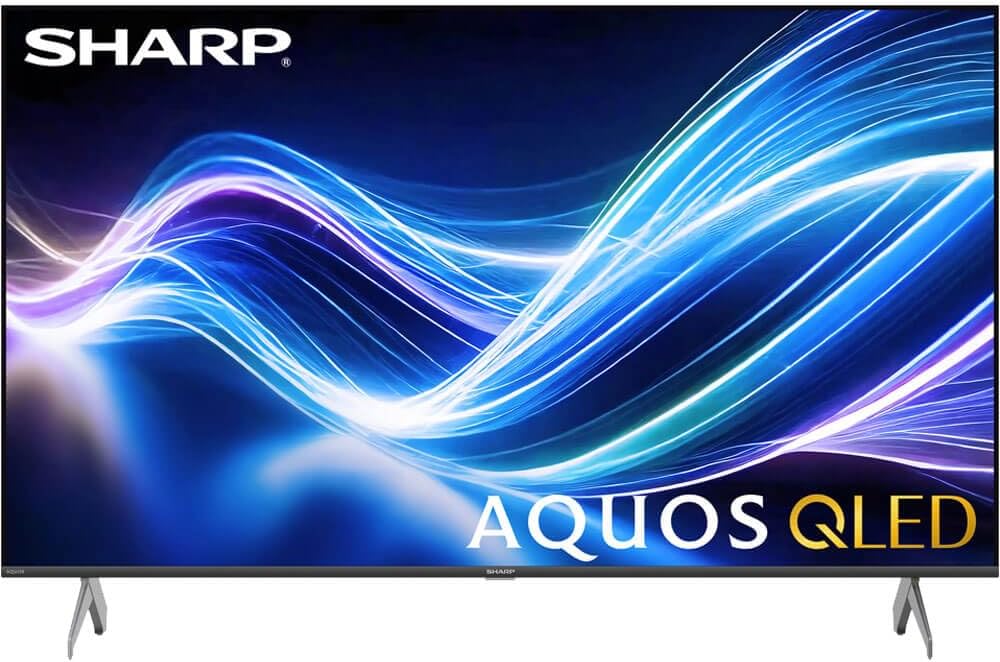
Image: The Xumo Smart TV home screen displaying various streaming apps and voice search functionality.
5.4 Ntọala foto na ụda
Your Sharp Aquos QLED TV supports advanced picture and sound technologies:
- Ngosipụta QLED 4K: Enjoy vibrant, lifelike images with Quantum Dot color and enhanced brightness.
- Dolby Vision & HDR10: These premium HDR formats optimize contrast, depth, and clarity for cinematic picture quality. Access picture settings via the TV menu to fine-tune brightness, contrast, color, and sharpness.
- Audio na-emikpu: The TV features optimized sound processing for clear dialogue and enhanced bass. Connect Bluetooth headphones or speakers for wireless listening. Adjust audio modes (Standard, Music, Movie, Speech, Custom) in the sound settings.
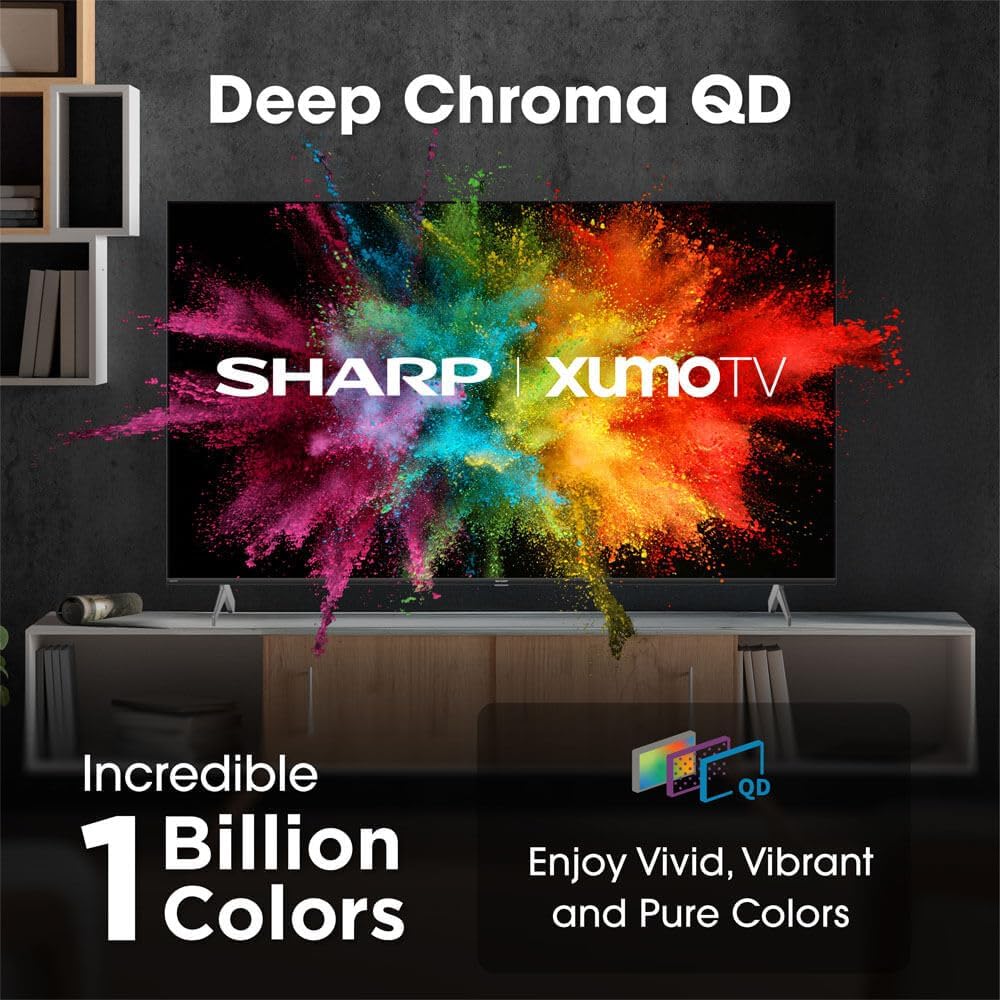
Image: Comparison of Dolby Vision enhanced picture quality against a standard display.

Image: Visual representation of Dolby Atmos creating immersive sound in a living room setting.
6. Nlekọta
6.1 Ihicha TV
Iji hichaa ihuenyo ahụ, jiri nwayọọ hichaa ya na akwa dị nro na-enweghị lint. Maka akara ndị isi ike, ntakịrị dampen the cloth with water or a screen-cleaning solution. Never spray liquid directly onto the screen. Clean the TV's exterior with a soft, dry cloth.
6.2 Mmelite ngwanrọ
TV gị nwere ike ịnweta mmelite ngwanrọ akpaka iji melite arụmọrụ ma tinye atụmatụ ọhụrụ. Hụ na ejikọtara TV gị na ịntanetị iji nweta mmelite ndị a. Ị nwekwara ike ịlele mmelite aka na menu ntọala TV.
7. Nchọpụta nsogbu
| Nsogbu | Ihe nwere ike ime | Ngwọta |
|---|---|---|
| Enweghị ike | Power cord not connected, power outlet not working. | Check power cord connection, try a different outlet. |
| Enweghị foto/ụda | Incorrect input selected, external device off/disconnected. | Verify input source, check device power and connections. |
| Remote anaghị arụ ọrụ | Batteries low/dead, obstruction between remote and TV. | Dochie batrị, wepụ ihe mgbochi, tinyegharịa ihe n'ime ebe nchekwa ma ọ bụrụ na ọ dị mkpa. |
| Nsogbu njikọ Wi-Fi | Router issues, incorrect password, weak signal. | Restart router, re-enter Wi-Fi password, move TV closer to router or use Ethernet. |
8. Nkọwapụta
- Akara: Nkọ
- Nọmba nlereanya: 4TC55HP7050U
- Nha ihuenyo: 55 sentimita asatọ
- Ngosipụta teknụzụ: QLED Smart
- Mkpebi: 4K Ultra HD
- Ọnụego ume ọhụrụ: 60Hz
- Atụmatụ pụrụ iche: Flat, Dolby Vision, HDR10, Xumo Smart TV, Voice Remote, Bluetooth, Dual-band Wi-Fi
- Teknụzụ Njikọta: RCA, HDMI (multiple ports)
- Ọrụ ịntanetị akwadoro: Netflix, Hulu, Amazon Prime Video (and more via Xumo platform)
- Ibu ihe: 32 pound
- Agba: Nwa
9. Akwụkwọ ikike na nkwado
For warranty information and technical support, please refer to the warranty card included with your product or visit the official Sharp websaịtị. Debe nnata nzụta gị dị ka ihe akaebe nke ịzụrụ maka nkwupụta ikike.