
Okwu mmalite
This manual provides comprehensive instructions for the installation, operation, and maintenance of the Fdit Global 4G/GSM Gate Controller. This device is designed for access control systems, parking systems, and other remote control applications, utilizing GSM 4G communication for reliable operation. It supports remote control via SMS or calling, with feedback provided to the user.
Please read this manual thoroughly before installation and operation to ensure correct usage and to prevent damage to the device or connected systems.
Ngwaahịa gafereview
The Fdit Global 4G/GSM Gate Controller offers advanced features for secure and convenient access management.
Akụkụ ndị bụ isi:
- GSM 4G Communication: Operates on GSM 4G frequency bands, supporting global connectivity.
- Njikwa onye ọrụ: Supports up to 1001 authorized users for access control.
- Njikwa anya: Devices can be controlled via SMS or calling, with SMS feedback.
- Ngwa sara mbara: Suitable for access control systems, garage doors, swing doors, folding doors, and parking systems.
- Callny Control App: Compatible with the Callny Control phone application for enhanced management.
- Remote Software Updates: Supports remote software updates.
- Obosara Voltage Ntinye: AC/DC 9-36V input for versatile power options.
Ọdịnaya ngwugwu:
- 1x Fdit 4G/GSM Gate Controller (G203 model specified in package list, but applies to the series)
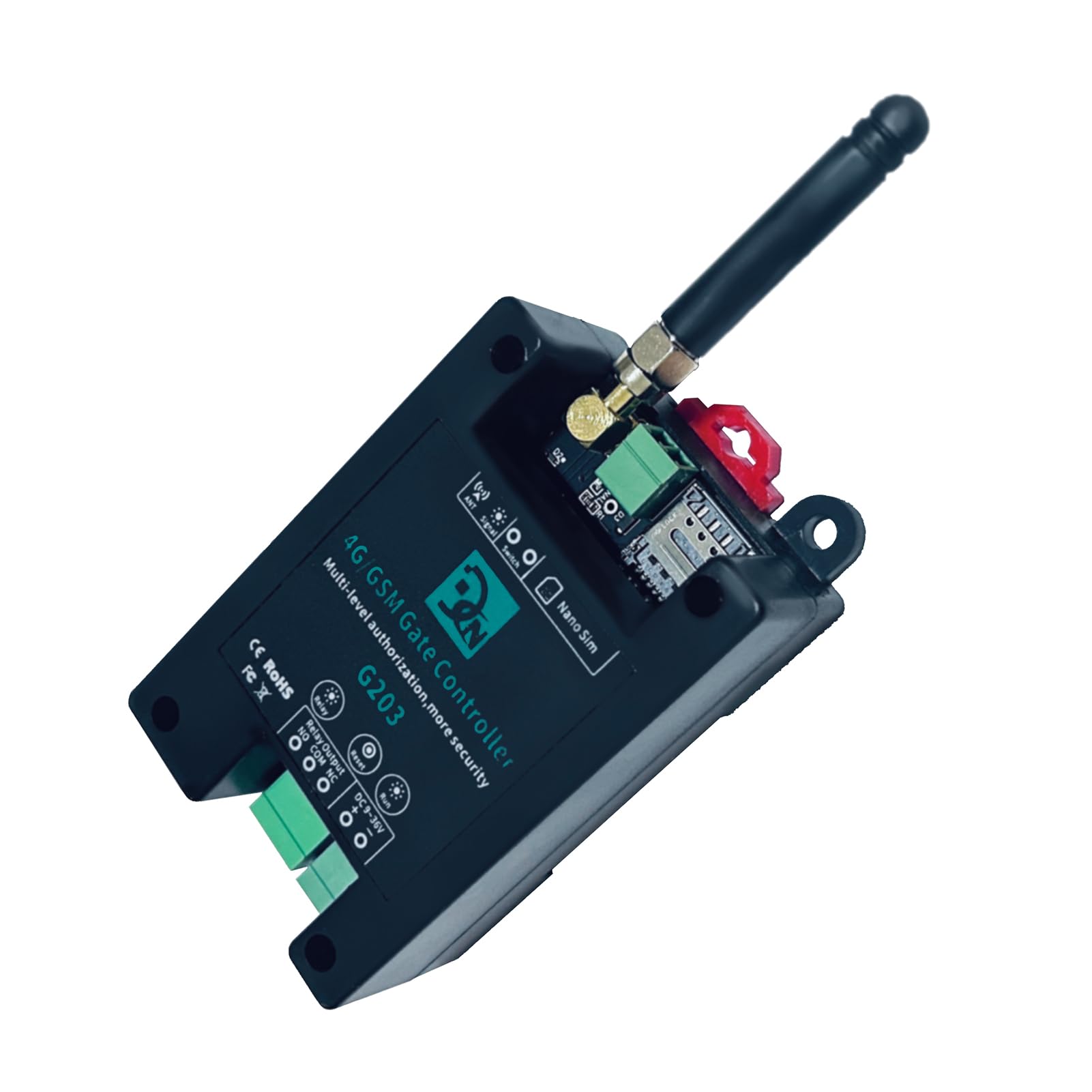
Figure 1: Fdit 4G/GSM Gate Controller G203. This image shows the top-down view of the controller with its antenna, SIM card slot, and various connection terminals.
Nkọwapụta
| Njirimara | Nkọwapụta |
|---|---|
| Nlereanya | G202PLUS, G203, CN302, CN303, CN305 |
| Ihe onwunwe | ABS |
| Ogo Voltage | DC 9V ~ 36V/1A |
| Okpomọkụ na-arụ ọrụ | -10 ℃ ~ + 60 ℃ |
| Okpomọkụ nchekwa | -20 ℃ ~ + 60 ℃ |
| Iru mmiri dị nso | 10-90%, No condensation |
| Ụdị kaadị SIM | Nano SIM, 3V |
| Antenna | 50 Ω SMA |
| Relay Output Capacity | 5A/250VAC, 7A/125VAC, 20A/14VDC |
| Supported 4G Bands (FDD) | B1/B2/B3/B4/B5/B7/B8/B12, B13/B17/B18/B19/B20/B25/B26/B28/B66 |
| Supported 4G Bands (TDD) | B38/B40/B41 |
| Akụkụ (L*W*H) | 9.7 x 5 x 3.2 cm (Product), 13 x 8 x 6 cm (Package) |
| Ibu | 122g (Package) |
Melite
1. Ntinye kaadi SIM:
- Gbaa mbọ hụ na agbanyụrụ ngwaọrụ ahụ.
- Locate the Nano SIM card slot on the controller.
- Insert a valid 3V Nano SIM card into the slot. Ensure it is correctly oriented.
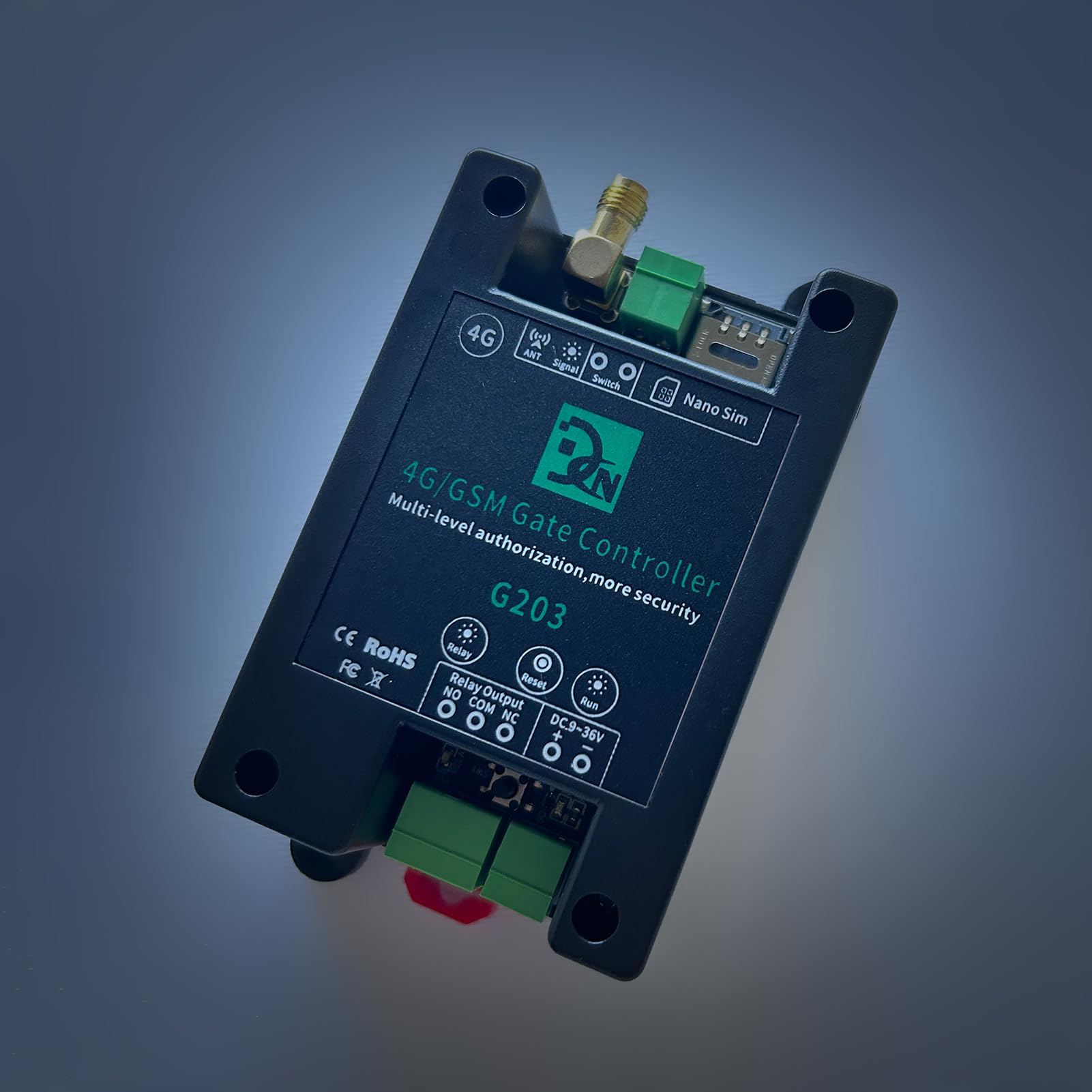
Foto 2: Top view of the Fdit Gate Controller showing the Nano SIM card slot and antenna connection.
2. Njikọ antenna:
- Connect the provided 50 Ω SMA antenna to the "ANT" port on the controller.
- Ensure the antenna is securely tightened for optimal signal reception.
3. Njikọ ọkọnọ ike:
- Connect a DC 9V-36V/1A power supply to the "DC 9-36V" terminals. Observe polarity: "+" to positive, "-" to negative.
4. Relay Output Wiring:
The controller features a relay output with Normally Open (NO), Common (COM), and Normally Closed (NC) terminals. Wire the relay according to your application's requirements.

Figure 3: Wiring diagram for connecting an AC load (e.g., a light) to the relay output. The AC power supply connects to the relay's COM and NO terminals, and the load is connected in series.

Figure 4: Wiring diagram for connecting a DC load (e.g., a keypad or other access device) to the relay output. The DC power supply and the load are connected to the relay's COM and NO terminals.
Mara: Ensure all wiring is performed by a qualified professional and adheres to local electrical codes.
Ntuziaka ọrụ
1. Ike mbido:
- After connecting the SIM card, antenna, and power supply, the device will power on.
- Observe the "Signal" and "Run" indicator lights for status. A stable signal light indicates network connectivity.
2. Callny Control App:
The Callny Control app provides a user-friendly interface for managing the gate controller.
- Budata ngwa: Scan the QR code provided with the product or search for "Callny Control" in your device's app store.

Figure 5: Image showing the Fdit Gate Controller alongside a smartphone displaying a QR code for downloading the Callny Control App.
- Ngwakọta ngwaọrụ: Follow the in-app instructions to pair your gate controller with the Callny Control app.
- Ikike onye ọrụ: Use the app to add, modify, or delete authorized users. The controller supports up to 1001 users.
- Njikwa anya: The app allows for remote activation/deactivation of the relay, checking signal status, and other functions.

Figure 6: Screenshot of the Callny Control app interface, showing various control options such as Free Calling, ON/OFF, Relay Status, Check Signal, Authorize Users, and more.
3. SMS and Call Control:
Authorized users can control the gate controller by sending specific SMS commands or by making a call to the SIM card number installed in the device.
- Iwu SMS: Refer to the Callny Control app or supplementary documentation for a list of valid SMS commands for relay activation, user management, and status checks.
- Njikwa oku: When an authorized user calls the device's number, the controller will activate the relay (e.g., open a gate) and then terminate the call. No call charges are incurred for this operation.
- Nzaghachi: The device will send an SMS confirmation for successful operations or error messages.
Nlekọta
- Nhicha mgbe niile: Keep the device clean and free from dust and debris. Use a soft, dry cloth for cleaning. Do not use liquid cleaners.
- Nyochaa antenna: Periodically check the antenna connection to ensure it is secure and undamaged for optimal signal strength.
- Mmelite ngwanrọ: The device supports remote software updates. Ensure your device's software is up-to-date for optimal performance and security. Updates can typically be initiated via the Callny Control app or by contacting support.
- SIM Card Validity: Ensure the installed SIM card remains active and has sufficient credit (if prepaid) for SMS and call functions.
Nchọpụta nsogbu
| Nsogbu | Ihe nwere ike ime | Ngwọta |
|---|---|---|
| Device not responding to calls/SMS |
|
|
| Relay anaghị arụ ọrụ |
|
|
| Callny Control App not connecting |
|
|
Akwụkwọ ikike na nkwado
Ozi akwụkwọ ikike:
Specific warranty details are typically provided with your purchase documentation or can be obtained from your retailer. Please retain your proof of purchase for warranty claims.
Nkwado ndị teknuzu:
For technical assistance, troubleshooting beyond this manual, or inquiries regarding software updates, please contact Fdit customer support or your authorized dealer. Contact information can usually be found on the product packaging or the official Fdit websaịtị.
When contacting support, please be prepared to provide your product model number (G202PLUS, G203, CN302, CN303, CN305) and a detailed description of the issue.