
1. Okwu mmalite
The Bisofice Z58-IV is a compact 58mm thermal receipt printer designed for various business environments. It offers high-speed printing, clear output, and flexible connectivity options including Bluetooth and USB. This manual provides detailed instructions for setup, operation, maintenance, and troubleshooting to ensure optimal performance of your printer.

Figure 1.1: Bisofice Z58-IV Thermal Receipt Printer in a retail setting.
2. Ozi nchekwa
- Ensure the printer is placed on a stable, flat surface.
- Ekwela ka igwe nbipute ahụ banye na mmiri, mmiri mmiri, ma ọ bụ oke okpomọkụ.
- Jiri naanị ihe nkwụnye ọkụ enyere.
- Avoid touching the print head immediately after printing, as it may be hot.
- Debe ebe ụmụaka na-apụghị iru.
- Gbanyụọ ike tupu ị sachaa ma ọ bụ rụzie ya.
3. Ihe ngwugwu
Chọpụta na ihe niile dị na ngwugwu:
- Bisofice Z58-IV Thermal Receipt Printer
- Ihe nkwụnye ọkụ
- eriri USB
- Akwụkwọ mpịakọta okpomọkụ
- Akwụkwọ ntuziaka (akwụkwọ a)
4. Ngwaahịa gafereview
Familiarize yourself with the printer's components and ports:
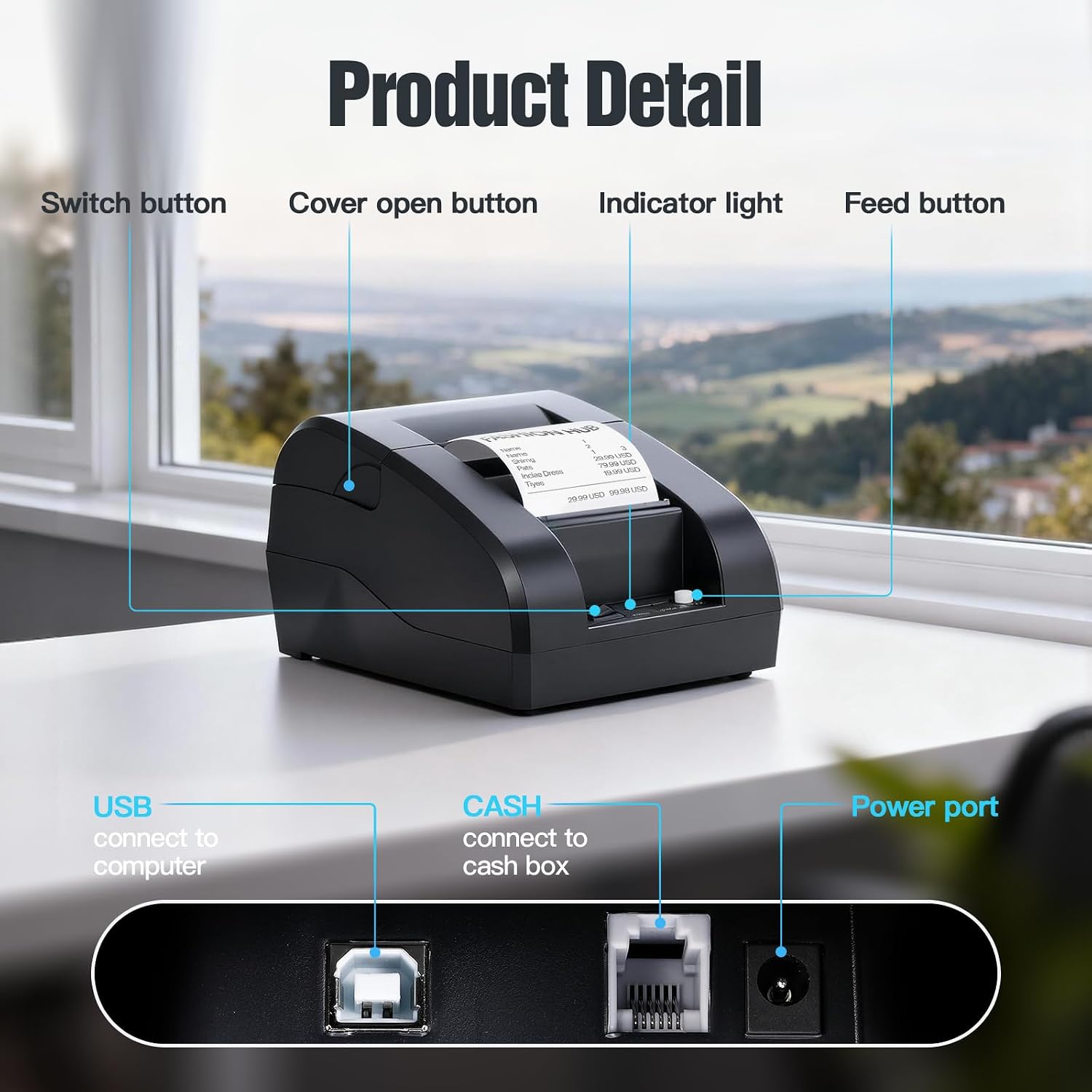
Figure 4.1: Front and Rear Panel Details.
- Mgbanwe bọtịnụ: Powers the printer On/Off.
- Cover Open Button: Releases the top cover for paper roll installation.
- Ìhè ihe ngosi: Displays printer status (e.g., power, error, paper out).
- Bọtịnụ ndepụta: Manually feeds paper.
- Ọdụ ụgbọ mmiri USB: Connects the printer to a computer via USB cable.
- CASH Port: Connects to a cash drawer.
- Ike Port: Jikọọ na nkwụnye ọkụ.
5. Nhazi
5.1. Paper Roll Installation
- Press the Cover Open Button to open the top cover.
- Insert a 58mm thermal paper roll into the compartment, ensuring the paper feeds from the bottom and the leading edge extends slightly out of the printer.
- Mechie mkpuchi elu ahụ nke ọma ruo mgbe ọ pịnyere aka n'ebe ọ dị.

Figure 5.1: Installing the thermal paper roll.
5.2. Njikọ ike
Connect the power adapter to the printer's Power Port and then plug the adapter into a power outlet.
5.3. Jikọọ na kọmputa (USB)
The printer supports USB connection for Windows and Linux operating systems. Note: This printer is not compatible with iOS or Mac OS via USB.
- Jikọọ ngwa nbipute na kọmputa gị site na iji eriri USB enyere.
- Gbanwuo ngwa nbipute.
- Download and install the appropriate printer driver for your operating system (Windows/Linux) from the Bisofice official websaịtị ma ọ bụ mgbasa ozi nwụnye enyere.
- Soro ntuziaka na ihuenyo iji mezue nwụnye ọkwọ ụgbọala.
5.4. Ijikọ na Ngwaọrụ Mkpanaka (Bluetooth)
The printer supports Bluetooth connection for Android smartphones. Note: This printer is not compatible with iOS via Bluetooth.
- Gbaa mbọ hụ na agbanyere ngwa nbipute.
- Enable Bluetooth on your Android smartphone.
- Chọọ maka available Bluetooth devices and select the printer (usually named 'Z58-IV' or similar).
- Enter the pairing PIN if prompted (common PINs are '0000' or '1234').
- Once paired, you can use compatible Android applications (e.g., Loyverse, iREAP, CasierStock, Kyte) to print.

Figure 5.2: Connectivity options: USB to computer and Bluetooth to mobile phone.
6. Ntuziaka ọrụ
6.1. Printing a Receipt
After successful setup and connection, you can initiate printing from your application or system. The printer supports ESC/POS commands for various printing functions.
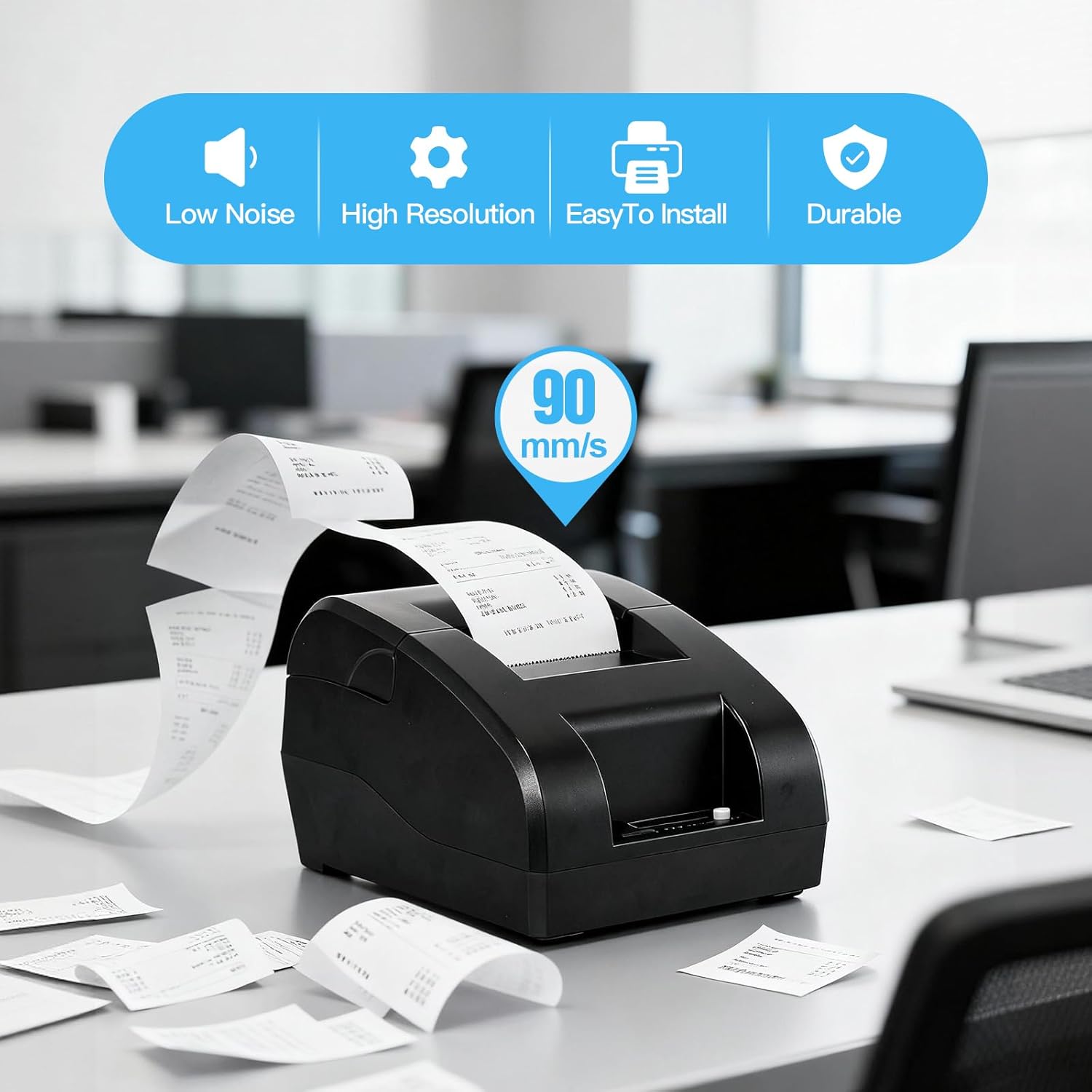
Figure 6.1: High-speed printing at 90mm/s.
6.2. Nri akwụkwọ ntuziaka
Press the Feed Button briefly to advance the paper by one line. Press and hold the Feed Button to continuously feed paper.
7. Nlekọta
7.1. Na-ehicha isi mbipụta
To maintain print quality, clean the thermal print head regularly (e.g., once a month or after every 10 rolls of paper). Use a cotton swab lightly moistened with isopropyl alcohol. Gently wipe the print head surface. Allow it to dry completely before use.
7.2. Mpụga ihicha
Jiri nwayọ hichaa mpụta nke ngwa nbipute, damp akwa . Ejila kemịkalụ siri ike ma ọ bụ ihe mkpocha abrasive.
7.3. Paper Roll Replacement
Refer to Section 5.1 for instructions on replacing the thermal paper roll when it runs out.
8. Nchọpụta nsogbu
- Igwe nbipute anaghị agbanye: Check the power adapter connection and ensure the power outlet is functional.
- Igwe nbipute anaghị ebipụta:
- Ensure the paper roll is correctly installed and not empty.
- Check the connection (USB or Bluetooth) to your device.
- Hụ na etinyere ma họrọ draịva igwe nbipute ziri ezi na kọmputa gị.
- For Bluetooth, ensure the printer is paired and connected to your Android device.
- Ọdịmma mbipụta na-adịghị mma: Clean the print head as described in Section 7.1. Ensure you are using high-quality thermal paper.
- Okwu ndakọrịta
- Ihe nbipute bụ ekwekọghị with iOS and Mac OS.
- Ihe nbipute bụ ekwekọghị with POS systems such as Square, Hellocash, and Zettle.
- For Android, ensure your application supports this printer model.
9. Nkọwapụta
| Njirimara | Nkọwapụta |
|---|---|
| Ụdị | Bisofice |
| Aha Nlereanya | Z58-IV |
| Teknụzụ Njikọta | Bluetooth, USB |
| Teknụzụ obibi akwụkwọ | Thermal |
| Agba | Nwa |
| Mmepụta ngwa nbipute | Monochromatic |
| Ọsọ Mbipụta Kachasị Elu (Ojii na Ọcha) | 90 mm / s |
| Max Paper Size Supported | 58mm |
| Akụkụ ngwaahịa | 18P x 10.5L x 13H cm |
| Ngwa gụnyere | Akwụkwọ ọkụ |
| Ọrụ ndị nbipute ndị ọzọ | Bipụta naanị |
10. Akwụkwọ ikike na nkwado
For warranty information and technical support, please refer to the documentation provided with your purchase or visit the official Bisofice websaịtị. Debe nnata nzụta gị dị ka ihe akaebe nke ịzụrụ maka nkwupụta ikike.