
1. Okwu mmalite
Thank you for choosing the PUTRIMS S36 Smart Mini Projector. This manual provides essential information for setting up, operating, and maintaining your projector. Please read it thoroughly before use to ensure optimal performance and safety.
2. Kedu ihe dị na Igbe ahụ
Chọpụta na ihe niile dị na ngwugwu:
- S36 Smart Projector with WiFi and Bluetooth
- Remote (2*AAA Batteries Required, NOT Included)
- HDMI Cable x 1 (1.4M/4.59ft)
- Power Cord x 1 (1.5M/4.92ft)
- Quick Start Guide & FAQs
- Ngwa nhicha oghere

Image: The PUTRIMS S36 projector and its accessories, including the remote, cables, and cleaning kit.
3. Ngwaahịa gafereview
The PUTRIMS S36 is an ultra-portable smart mini projector designed for versatile entertainment. It features a native 1080P resolution with 4K decoding support, AI auto-setup for instant image clarity, and a 330° rotatable stand for flexible projection.
Akụkụ ndị bụ isi:
- Exclusive SmartOS: Access massive native apps and 1,000+ free live TV channels via Whale TV.
- Arụmọrụ emelitere: Equipped with 1.5GB DDR RAM for smooth streaming and responsiveness.
- Ebube dị obere: Weighs 1.9 lbs, similar in size to an iPad mini, with a 330° rotatable stand for projection onto walls, ceilings, or angled surfaces.
- Pro Theater System: Native 1080P resolution, 4K decoding, HDR support, and CEC support for simplified control.
- AI Auto-Setup: Features auto-focus, auto keystone correction, obstacle avoidance, and screen alignment for a perfect image in seconds.
- All-in-One Connectivity: Wi-Fi 6 and 2-way Bluetooth for smooth AirPlay/Miracast and flexible audio options. Includes HDMI ARC and USB ports.

Foto: Ofeview of the PUTRIMS S36 projector's smart features and adjustable design.
4. Nhazi
4.1 Initial Power-On and Auto-Setup
- Jikọọ eriri ọkụ na ihe nrụpụta na igwe ọkụ.
- Pịa bọtịnụ ike na projector ma ọ bụ remote control ka ịgbanwuo ya.
- The projector will automatically perform auto-focus and auto keystone correction to optimize the image.
Video: Demonstrates how the projector automatically adjusts image focus and keystone correction when moved.
4.2 Jikọọ na Wi-Fi
- Site na ihuenyo ụlọ, gaa na Ntọala (gear icon).
- Họrọ Netwọk.
- Choose your Wi-Fi network from the list and enter the password.
4.3 Adjusting Projection
The S36 features a 330° rotatable stand for flexible placement. It also includes AI auto-setup for instant image clarity.
- Ndozi akpaaka: The projector automatically adjusts focus, keystone, avoids obstacles, and aligns the screen when moved.
- Mbugharị dijitalụ: To adjust the image size, go to Ntọala > Ntọala projector > Dijitalụ mbugharị. Use the remote to zoom in or out (50-100%).
- Lekwasịrị anya n'aka: If needed, you can manually trigger focus adjustment via the remote control.
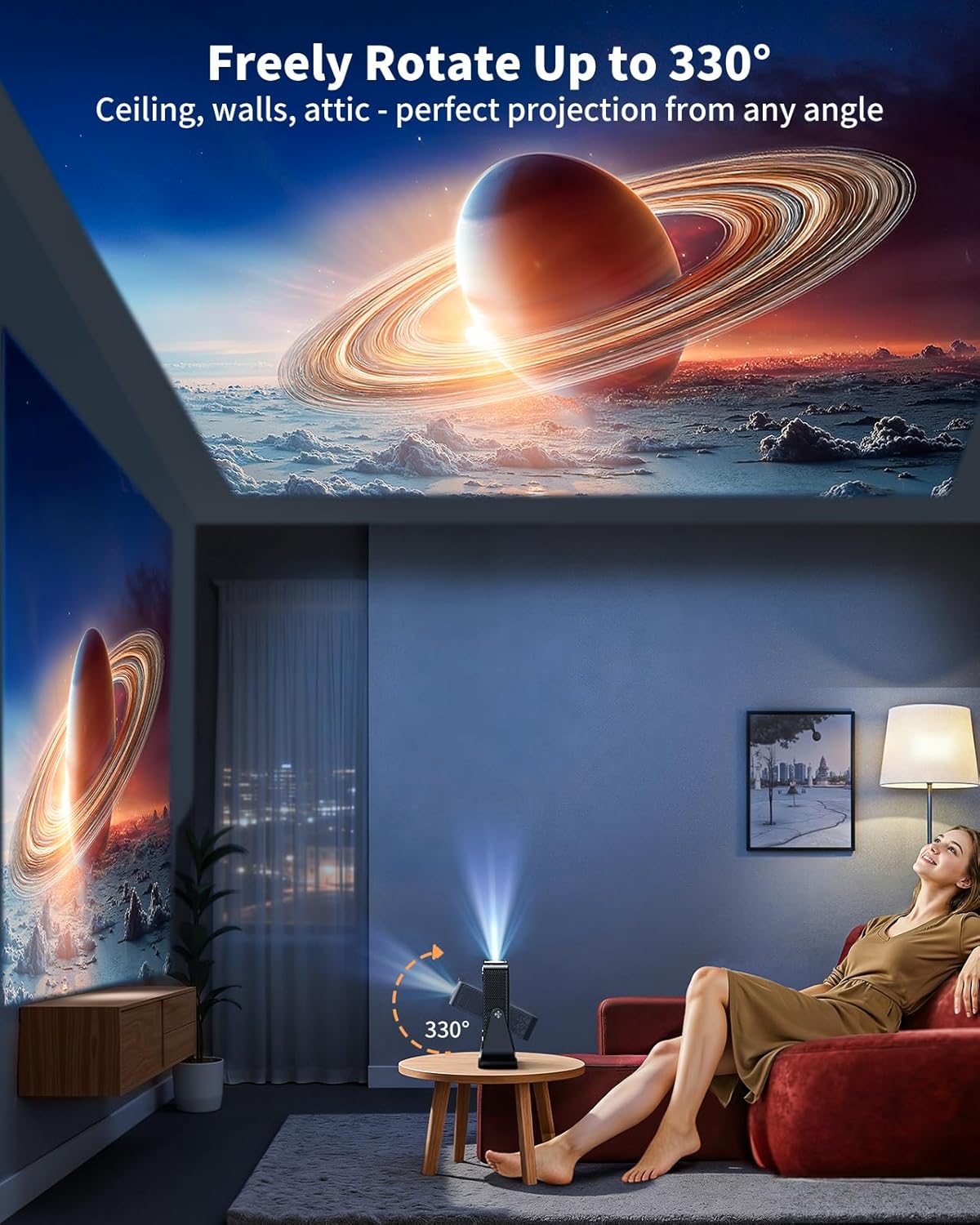
Image: The projector's flexible stand allows projection onto various surfaces, including ceilings.
4.4 Ijikọ ngwaọrụ mpụga
Ihe projector na-enye ọtụtụ nhọrọ njikọ:
- HDMI: Connect gaming consoles, laptops, TV sticks, or other HDMI-enabled devices via the HDMI port.
- USB: Gwuo mgbasa ozi files ozugbo site na draịvụ USB.
- Bluetooth: Connect external Bluetooth speakers or headphones for enhanced audio. The projector also supports 2-way Bluetooth, allowing it to function as a standalone speaker.
- Jack Audio: 3.5mm For wired audio output to headphones or external speakers.

Image: Illustration of the projector's various input/output ports and compatible devices.
5. .rụ ọrụ
5.1 Ime Remote
The included remote control provides full functionality for navigating the projector's interface. It features dedicated buttons for power, settings, apps, home, volume, and direct access to popular streaming services.

Image: Close-up of the remote control for the PUTRIMS S36 projector.
5.2 Ịnweta ngwa
The S36 runs on an official SmartOS, providing access to a wide range of applications:
- Ngwa etinyegoro mbụ: Popular apps like Netflix, YouTube, Prime Video, Apple TV, Max, and ESPN are pre-installed.
- Whale TV: Access 1,000+ free live TV channels.
- Ụlọ ahịa Play: Download additional apps from the integrated Play Store.
Video: Shows the unboxing and initial setup, highlighting the pre-installed apps and smart interface.
5.3 Casting from Your Phone
Use the TV Casting App to control the projector from your smartphone and cast content:
- Gbaa mbọ hụ na ejikọrọ ekwentị gị na projector na otu netwọk Wi-Fi.
- Download the TV Casting App on your smartphone (scan the QR code displayed on the projector's casting screen).
- Open the app, select your projector, and start screen mirroring or casting content.
Video: Instructions on how to download apps, use your phone as a remote, and cast your screen to the projector.
5.4 Audio and Picture Settings
Adjust audio and picture quality via the Settings menu:
- Ọnọdụ ụda: Choose from various sound modes (Standard, Music, Movie, News, Game, User) or connect external speakers via Bluetooth or the 3.5mm audio jack.
- Okpomọkụ agba: Adjust the color temperature (Cool, Standard, Warm) to your preference.
- Ụdị Nchekwa Anya: Enable this mode for reduced eye strain during prolonged viewing.
6. Nlekọta
To ensure the longevity and optimal performance of your PUTRIMS S36 projector, regular maintenance is recommended:
- Nchacha oghere: Use the provided lens cleaning kit to gently clean the projector lens. Avoid abrasive materials that could scratch the surface.
- Mwepụ uzuzu: Keep the projector's vents clear of dust and debris to prevent overheating. Use a soft brush or compressed air.
- Nchekwa: When not in use, store the projector in a cool, dry place, away from direct sunlight and extreme temperatures.
7. Nchọpụta nsogbu
If you encounter issues with your projector, refer to the included Quick Start Guide & FAQs for common solutions. For further assistance, please contact customer support.
Okwu ndị a na-ahụkarị na ngwọta:
- Enweghị Foto/Foto Na-adịghị Enwu Anwụ: Check power connection, ensure lens cap is removed, and allow auto-focus to complete. Manually adjust focus if needed.
- Enweghị ụda: Check volume settings on the projector and any connected external devices. Ensure correct audio output is selected.
- Okwu Njikọta: Verify Wi-Fi connection, ensure devices are on the same network for casting, and check HDMI/USB cable connections.
- Apps Not Loading: Ensure a stable internet connection. Try restarting the app or the projector.
8. Nkọwapụta
| Njirimara | Nkọwa |
|---|---|
| Ụdị | PUTRIMS |
| Nlereanya | S36 |
| Ngosipụta mkpebi | Native 1920 x 1080P (4K Decoding Supported) |
| Ibu Ibu | 1.8 pound |
| Akụkụ ngwaahịa | 7.7 x 3.5 x 8.3 sentimita asatọ |
| Teknụzụ Njikọta | 3.5mm Jack, Bluetooth (2-way), HDMI (ARC/CEC), Wi-Fi 6 |
| Atụmatụ pụrụ iche | Smart Operating System (Whale OS), 330° Rotating Stand, 1.5GB DDR RAM, HDR10, Smart Phone Remote, Auto Focus, Auto Keystone Correction, Smart Obstacle Avoidance, Screen Alignment, 50–100% Zoom Out, Lower Noise (<30dB) |
| Agba | Nwa |
9. Akwụkwọ ikike & Nkwado
PUTRIMS is committed to providing excellent customer service:
- Nkwado ndị ahịa: 24/7 after-sales customer support.
- Nkwenye n'azụ ego: 2-YEAR money-back guarantee.
- Repair Coverage: 3-YEAR repair coverage.
- Nkwado ndị teknuzu: Nkwado teknụzụ ndụ oge niile.
For any questions or assistance, please contact us at: support@putrims.com