
1. Okwu mmalite
Thank you for choosing the PUTRIMS S36 Smart Mini Projector. This device is designed to provide a versatile and high-quality viewing experience with its native 1080P resolution, 4K decoding support, and Smart Whale OS. Enjoy seamless streaming, automatic image adjustments, and flexible connectivity options for various entertainment and presentation needs.
2. Kedu ihe dị na Igbe ahụ
- S36 Smart Projector with WiFi and Bluetooth
- Remote (2*AAA Batteries Required, NOT Included)
- HDMI Cable x 1 (1.4M/4.59ft)
- Power Cord x 1 (1.5M/4.92ft)
- Quick Start Guide & FAQs
- Ngwa nhicha oghere

Figure 2.1: All items included in the PUTRIMS S36 Smart Mini Projector package.
Video 2.2: PUTRIMS S36 Smart Projector Unboxing. This video demonstrates the contents of the package and initial handling of the projector.
3. Ngwaahịa gafereview
3.1 N'ihu View
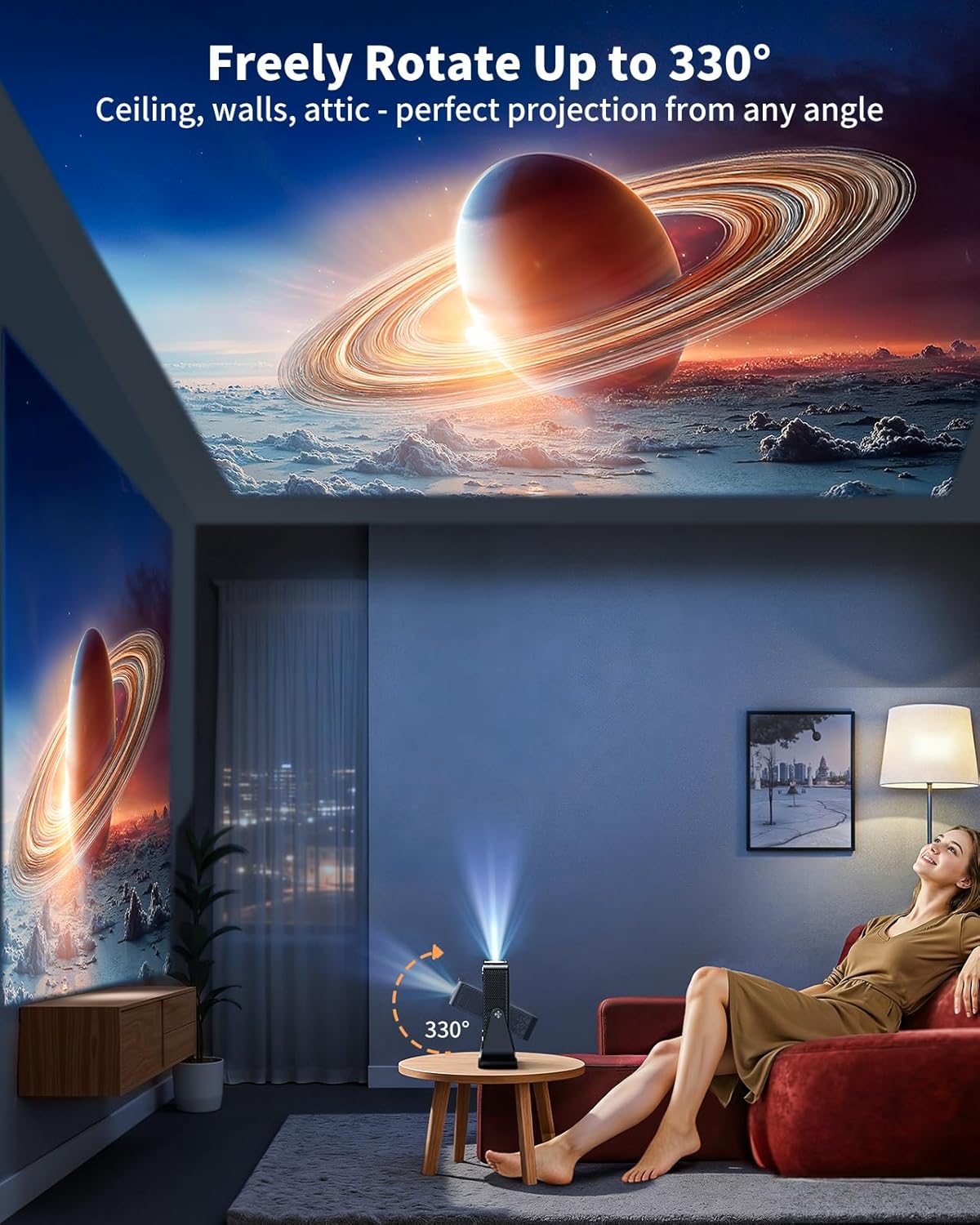
Foto 3.1: N'ihu view of the projector, highlighting the projection lens and auto-focus sensor.
3.2 N'azụ View (ọdụ ụgbọ mmiri)

Ọgụgụ 3.2: N'azụ view of the projector, detailing the available ports.
- Bọtịnụ ike: To turn the projector on/off.
- Ọdụ ụgbọ mmiri USB: Maka ijikọ ngwaọrụ nchekwa USB.
- 3.5mm Audio pụta: Maka ijikọ ekweisi ma ọ bụ igwe okwu mpụga.
- Onye nnata IR: Maka akara njikwa dị anya.
- HDMI CEC&ARC Port: For connecting HDMI devices and audio return channel.
- Ntinye ike: Maka ijikọ eriri ọkụ.
4. Nhazi
4.1 Initial Setup and Automatic Adjustments
Upon powering on the PUTRIMS S36, the AI Auto-Setup system will automatically perform auto-focus, auto keystone correction, obstacle avoidance, and screen alignment to provide an instant, perfectly aligned image. No manual adjustments are typically needed for basic setup.

Figure 4.1: AI-Powered Image, Instant Clarity features.
Video 4.2: How Auto Image Adjustment Works. This video demonstrates the automatic focus and keystone correction features.
4.2 Njikọ netwọkụ
To access streaming apps and online content, connect your projector to a Wi-Fi network. Navigate to the 'Network' settings in the main menu and select your desired network.
4.3 Ngwa nwụnye
The S36 runs on Smart Whale OS, providing access to a wide range of officially licensed native apps. You can find popular streaming services like Netflix, YouTube, Prime Video, Disney+, Max, and ESPN directly on the home screen or download more from the integrated Play Store.

Figure 4.3: All your go-to apps are just one click away.
Video 4.4: How to Download Apps, Use Phone as Remote & Cast Screen. This video guides you through app management and screen mirroring.
4.4 Projection Placement
The S36 features a built-in 330° rotatable stand, allowing for flexible projection onto walls, ceilings, or angled surfaces. It also supports tripod mounting via a standard 1/4" screw for enhanced versatility.

Figure 4.5: Freely Rotate Up to 330° for versatile projection.
Video 4.6: How to Ceiling Mount & Set the Projection Direction. This video explains different mounting options and how to adjust projection settings.
5. Ntuziaka ọrụ
5.1 Ime Remote
The included remote control provides full functionality for navigating the projector's interface, selecting apps, adjusting settings, and controlling playback. It features dedicated buttons for popular streaming services for quick access.
5.2 Ọdịnaya gụgharia
Utilize the pre-installed apps for direct streaming. For content from your smartphone, the projector supports AirPlay and Miracast for seamless screen casting. Ensure your phone and projector are connected to the same Wi-Fi network for optimal performance.

Figure 5.1: Screen casting from a smartphone to the projector.
5.3 External Devices
Connect gaming consoles, laptops, or other media players via the HDMI port. For local media files, insert a USB drive into the USB port. The projector supports various file formats for video, music, and pictures.

Figure 5.2: Unlock More Possibilities with various connectivity options.
5.4 Nhọrọ ọdịyo
The S36 includes built-in speakers for convenient audio playback. For an enhanced audio experience, connect wireless Bluetooth speakers or soundbars. The projector can also function as a standalone Bluetooth speaker.

Figure 5.3: Not Just a Projector, Also a Speaker.
6. Nlekọta
6.1 nhicha oghere
To maintain optimal image clarity, regularly clean the projector lens. Use the provided lens cleaning kit, including cotton swabs, to gently remove any dust or smudges. Avoid using abrasive materials or harsh chemicals.
Video 6.1: How to Clean Dust from the Lens. This video demonstrates the proper procedure for cleaning the projector lens.
6.2 Nlekọta n'ozuzu
Ensure the projector's ventilation ports are clear and unobstructed to prevent overheating. Store the projector in a cool, dry place away from direct sunlight and extreme temperatures when not in use.
7. Nchọpụta nsogbu
If you encounter any issues with your PUTRIMS S36 projector, please refer to the Quick Start Guide and FAQ document included in the package. Many common problems can be resolved by checking connections, power supply, or basic settings. For persistent issues, contact customer support.
8. Nkọwapụta
| Njirimara | Nkọwa |
|---|---|
| Ụdị | PUTRIMS |
| Nlereanya | S36 |
| Mkpebi obodo | 1920 x 1080 (1080P) |
| Mkpebi akwadoro | Ndozi 4K |
| Sistemụ nrụọrụ | Smart Whale OS (Android 13.0) |
| RAM | 1.5GB nke DDR |
| Njikọta | Wi-Fi 6, 2-way Bluetooth, HDMI (CEC/ARC), USB, 3.5mm Audio Jack |
| Atụmatụ pụrụ iche | AI Auto-Setup (Auto-Focus, Auto Keystone Correction, Obstacle Avoidance, Screen Alignment), 330° Rotatable Stand, HDR10, Smart Phone Remote, Low Noise (<30dB), 50-100% Zoom Out |
| Ibu Ibu | 1.8 pound |
| Akụkụ ngwaahịa | 7.7 x 3.5 x 8.3 sentimita asatọ |
9. Akwụkwọ ikike na nkwado
PUTRIMS is committed to providing excellent customer service. Your S36 Smart Mini Projector comes with:
- 24/7 After-Sales Customer Support
- 2-YEAR Money-Back Guarantee
- 3-YEAR Repair Coverage
- Nkwado nka na ụzụ ndụ oge niile
For any questions or assistance, please contact us at: support@putrims.com

Figure 9.1: PUTRIMS Customer Support and Warranty Information.