
1. Okwu mmalite
The Montech AX120 PRO is a high-performance 120mm cooling fan designed for efficient thermal management in computer systems. This 3-pack includes fans with a glowing ARGB rim and illuminated fan blades, providing both cooling capability and visual effects. The fans feature a precision-engineered 9-blade design for optimal airflow and static pressure, along with integrated anti-vibration pads for reduced noise. A durable rifle bearing ensures smooth operation and an extended lifespan. This manual provides instructions for installation, operation, maintenance, and troubleshooting.

Foto 1.1: Ofeview of MONTECH AX120 PRO ARGB Fans and their features.
2. Kedu ihe dị na Igbe ahụ
Nyochaa na akụrụngwa niile dị tupu ịmalite nwụnye:
- 3 x MONTECH AX120 PRO ARGB PWM 120mm Fans
- 1 x ARGB Fan Hub
- Ịkwanye kposara

Image 2.1: Packaging and contents of the AX120 PRO 3-pack.
3. Ntọala na nwụnye
Follow these steps to properly install your MONTECH AX120 PRO fans:
- Kwadebe Sistemu gị: Ensure your computer is powered off and unplugged from the wall outlet. Open your computer case to access the fan mounting locations.
- Wụnye ndị Fans: Position each AX120 PRO fan in your desired location (e.g., front intake, rear exhaust, top exhaust). Use the included mounting screws to secure the fans to the case. Ensure the fan's airflow direction is correct for your cooling strategy. The AX series fans typically blow air from the RGB end to the non-RGB end.
- Connect to Fan Hub: Connect the 4-pin PWM cable from each fan to an available 4-pin fan header on the included ARGB Fan Hub.
- Connect ARGB Cables: Connect the 3-pin ARGB cable from each fan to an available 3-pin ARGB header on the fan hub. Ensure correct orientation to avoid damage.
- Connect Fan Hub to Motherboard:
- Connect the 4-pin PWM cable from the fan hub to a 4-pin PWM fan header on your motherboard (e.g., CPU_FAN, SYS_FAN). This allows for fan speed control.
- Connect the 3-pin ARGB cable from the fan hub to a 3-pin 5V ARGB header on your motherboard. This enables software control of the fan lighting. Do not connect to a 4-pin 12V RGB header, as this will damage the LEDs.
- Connect Fan Hub Power: Connect the SATA power connector from your power supply unit (PSU) to the ARGB Fan Hub. This provides power to both the fans and the ARGB lighting.
- Njikwa USB: Route all cables neatly to ensure proper airflow within the case and a clean aesthetic.
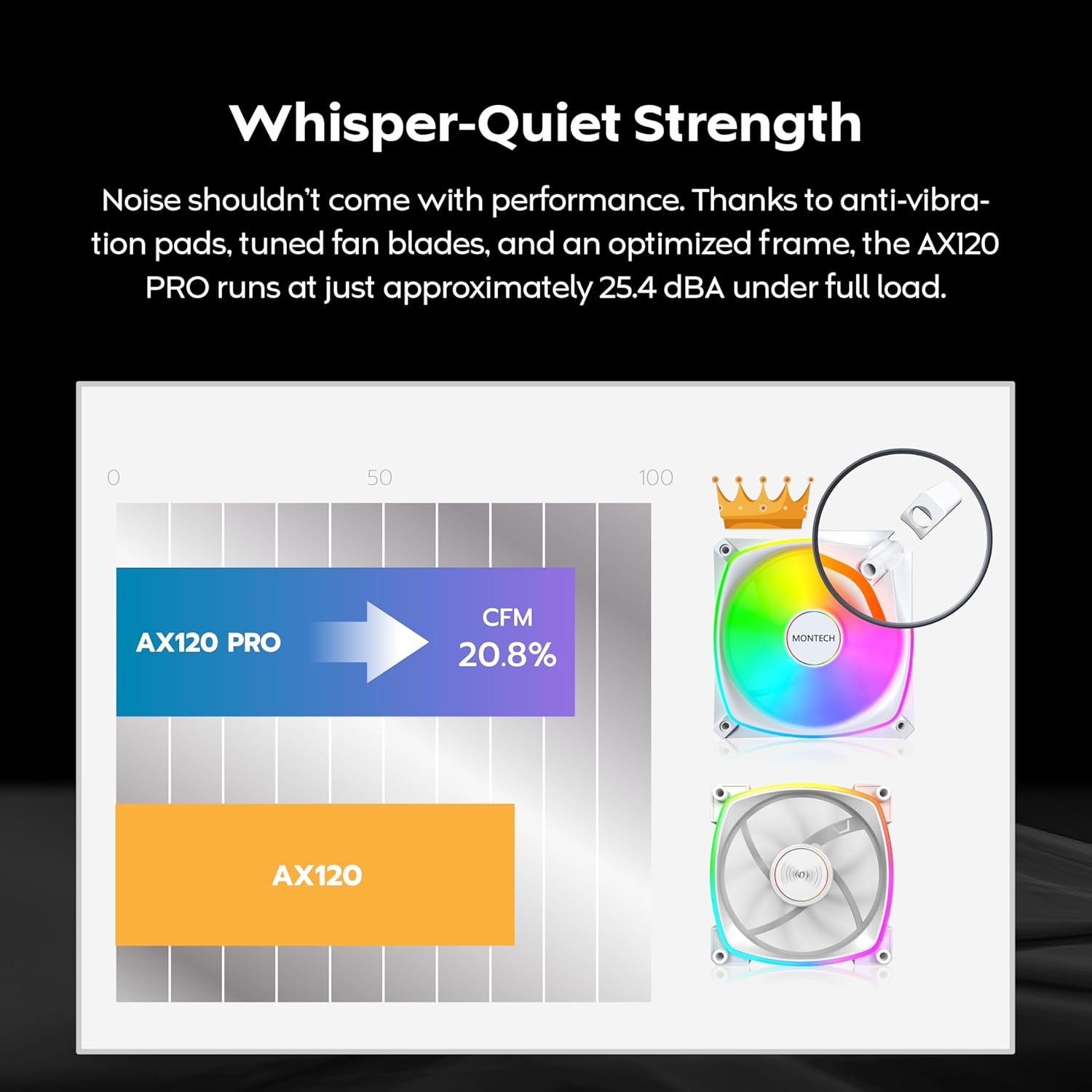
Image 3.1: The included ARGB Fan Hub for connecting multiple fans.

Image 3.2: Illustration of fan placement and airflow for optimal cooling.
4. Ntuziaka ọrụ
4.1. PWM Fan Speed Control
The AX120 PRO fans utilize Pulse Width Modulation (PWM) technology, allowing your motherboard to dynamically adjust fan speeds based on system temperature. This provides an optimal balance between cooling performance and noise levels. Fan speeds can range from 600 to 1600 RPM.
- Njikwa akpaaka: Once connected to a 4-pin PWM header on your motherboard, the fan speed will be automatically regulated by your motherboard's BIOS/UEFI settings or operating system software.
- Ndozi akwụkwọ ntuziaka: You can typically adjust fan curves and set custom speed profiles through your motherboard's BIOS/UEFI or dedicated fan control software provided by your motherboard manufacturer.

Image 4.1: PWM control mechanism for intelligent cooling.
4.2. Njikwa ọkụ ARGB
The AX120 PRO fans feature Addressable RGB (ARGB) lighting, allowing for customizable lighting effects. The lighting is controlled via your motherboard's ARGB software.
- Software Synchronization: Connect the fan hub's ARGB cable to a compatible 3-pin 5V ARGB header on your motherboard. Use your motherboard's RGB control software (e.g., ASUS Aura Sync, GIGABYTE RGB Fusion 2.0, MSI Mystic Light Sync, ASRock Polychrome Sync) to customize lighting patterns, colors, and effects.
- Njikwa Nnwere Onwe: If your motherboard does not have an ARGB header, or if you prefer, a separate ARGB controller (not included) can be used to manage the lighting.

Image 4.2: ARGB lighting synchronization with major motherboard brands.
5. Nlekọta
Regular maintenance helps ensure optimal performance and longevity of your fans.
- Nhicha: Periodically clean the fan blades and frame to remove dust buildup. Use compressed air or a soft brush. Ensure the fan is powered off and unplugged before cleaning. Do not use liquid cleaners directly on the fan.
- Nyocha: Check fan cables for any signs of wear or damage. Ensure all connections to the fan hub and motherboard are secure.
- Bearing Care: The rifle bearing is designed for long-term, maintenance-free operation. No lubrication is required.

Foto 5.1: Ime view of the rifle bearing, designed for durability.
6. Nchọpụta nsogbu
If you encounter issues with your MONTECH AX120 PRO fans, refer to the following common problems and solutions:
- Ndị Fans anaghị agba ọsọ:
- Ensure the fan hub is correctly connected to the PSU via the SATA power cable.
- Verify that the 4-pin PWM cables from the fans are securely connected to the fan hub, and the fan hub's PWM cable is connected to a motherboard fan header.
- Check your motherboard's BIOS/UEFI settings to ensure fan headers are enabled and configured correctly.
- No ARGB Lighting:
- Confirm the 3-pin ARGB cables from the fans are connected to the fan hub, and the fan hub's ARGB cable is connected to a 3-pin 5V ARGB header on your motherboard.
- Ihe dị mkpa: Do not connect to a 4-pin 12V RGB header.
- Ensure the fan hub is receiving power from the PSU via SATA.
- Check your motherboard's ARGB software for lighting control and ensure it is running and configured.
- Oke mkpọtụ:
- Verify that the fans are securely mounted and not vibrating against the case. The fans include anti-vibration pads.
- Check for any cables or obstructions interfering with the fan blades.
- Adjust fan speed settings in your motherboard's BIOS/UEFI or software to a lower RPM if noise is a concern at idle.
- Hichaa uzuzu ọ bụla dị na agụba fan.
7. Nkọwapụta
| Njirimara | Nkọwapụta |
|---|---|
| Nọmba nlereanya | AX120PW3in1 |
| Ụdị Ụdị | 120mm x 120mm x 25mm (4.72"L x 0.98"W x 4.72"H) |
| Ọsọ fan | 600 - 1600 RPM (PWM na-achịkwa) |
| Ike ikuku | 72.3 CFM (Cubic Feet kwa nkeji) |
| Ọkwa mkpọtụ | 25.4 dBA (Kachasị) |
| Nrụgide Static | 1.85 mmH2O |
| Ụdị ibu | Ebu egbe |
| Njikọ ọkụ | 4-PWM nkwụnye |
| Njikọ ARGB | 3-Pin 5V ARGB |
| Ngwa dakọtara | Kọmputa kọmputa |
| Ọnụọgụ nke ihe | 3 Fans + 1 Hub |
8. Akwụkwọ ikike na nkwado
8.1. Akwụkwọ ikike Ozi
The MONTECH AX120 PRO ARGB PWM 120mm Fan 3-Pack comes with a 3-afọ akwụkwọ ikike site na ụbọchị ịzụrụ ihe. Akwụkwọ ikike a na-ekpuchi ntụpọ nrụpụta ma na-ahụ na ngwaahịa ahụ ruru ụkpụrụ arụmọrụ akọwapụtara ya n'okpuru ojiji nkịtị. Biko debe ihe akaebe ịzụrụ ihe gị maka nkwupụta akwụkwọ ikike.
8.2. Nkwado nka na ụzụ
For technical assistance, troubleshooting beyond this manual, or warranty inquiries, please contact MONTECH customer support through their official website or the retailer where the product was purchased. Provide your product model number (AX120PW3in1) and a detailed description of the issue to expedite support.