
1. Okwu mmalite
This manual provides essential information for the safe and efficient use of your Haier H55C95EUX 55-inch OLED 4K HDR Smart TV. Please read these instructions thoroughly before operating your television and retain them for future reference.
The Haier H55C95EUX features a 55-inch OLED display for deep blacks and vibrant colors, 4K HDR resolution, a 144Hz refresh rate for smooth motion, integrated Harman Kardon sound, and the Google TV operating system for smart functionality and voice control.

Foto 1.1: Ofeview of Haier C95 Series OLED TV features, highlighting Harman Kardon audio, 144Hz gaming, Dolby Vision IQ, Dolby Atmos, HDR10+, Google TV, and 3GB RAM with 32GB storage.
2. Ozi nchekwa
Na-agbaso usoro nchekwa nchekwa mgbe niile mgbe ị na-eji igwe onyonyo a iji belata ihe egwu nke ọkụ, ujo eletrik na mmerụ ahụ.
- Isi mmalite ike: Connect the TV only to an AC 220-240V, 50/60Hz power supply.
- Igwe ikuku: Gbaa mbọ hụ na ikuku ikuku zuru oke na gburugburu TV. Akwụsịla oghere ikuku.
- Mmiri na mmiri: Ewepụla TV na mmiri ozuzo ma ọ bụ mmiri. Edokwala ihe jupụtara na mmiri mmiri, dị ka vases, na TV.
- Nhicha: Wepụ TV na oghere mgbidi tupu ihicha ya. Jiri akwa dị nro ma kpọọ nkụ. Ejila ihe nhicha mmiri ma ọ bụ ihe nhicha ikuku.
- Ịkwanye: If wall-mounting, ensure the wall mount is compatible with the VESA standard (100 x 100 mm) and can support the TV's weight.
- Ụmụaka: Supervise children to ensure they do not play with the television.
3. Kedu ihe dị na Igbe ahụ
Jiri nlezianya tọpụ igbe ahụ ma hụ na ihe niile dị na ya ma ghara imebi emebi.
- Haier H55C95EUX 55-inch OLED 4K HDR Smart TV
- Njikwa anya
- Akwụkwọ ntuziaka (akwụkwọ a)
- Igwe ọkụ ọkụ
- Ngwa TV Stand (ọ bụrụ na ọdabara)
4. Nhazi
4.1 Nwụnye anụ ahụ
Before installation, consider the TV's dimensions to ensure proper placement.

Foto 4.1: N'ihu view dimensions of the 55-inch Haier TV, indicating a width of 1225mm and a height of 749mm.

Image 4.2: Detailed dimensions of the Haier 55-inch TV, showing measurements with and without the stand.
Nwụnye guzoro
- Debe ihu TV ahụ n'elu ala dị nro ma dị larịị iji gbochie mmebi ihuenyo.
- Attach the stand components to the designated slots on the bottom of the TV using the provided screws.
- Ensure the stand is securely fastened before placing the TV upright.
Ịkwanye mgbidi
If wall-mounting, use a VESA-compatible mount (100 x 100 mm) and follow the mount manufacturer's instructions. Ensure the wall can support the TV's weight.
4.2 Ngwa jikọọ
Your TV is equipped with multiple ports for connecting external devices.
- HDMI: Connect Blu-ray players, game consoles, or set-top boxes to the HDMI 2.1 ports for high-quality audio and video.
- USB: Jikọọ ngwaọrụ nchekwa USB maka ịkpọghachi mgbasa ozi.
- Ethernet: Maka njikọ ịntanetị kwụsiri ike.
- Bluetooth: Connect wireless headphones or other Bluetooth devices.
4.3 Agbanye na ntọala mbụ
- Jikọọ eriri ike ahụ na TV na oghere mgbidi.
- Pịa bọtịnụ ike na njikwa anya ma ọ bụ TV.
- Follow the on-screen instructions to complete the initial setup, including language selection, network connection (Wi-Fi or Ethernet), and Google TV account login.
5. Na-arụ ọrụ TV gị
5.1 Ime Remote
The included remote control allows you to navigate the TV's features. It may feature a solar cell for eco-friendly charging and USB-C for backup charging.

Image 5.1: The Haier TV remote control, featuring navigation, volume, and app access buttons.
5.2 Google TV Interface
Your TV runs on Google TV, providing access to a wide range of streaming services, apps, and personalized content.

Image 5.2: The Google TV home screen, showcasing ngwa mgbasa ozi dị iche iche yana ndụmọdụ ọdịnaya.
Njikwa olu
Use the built-in voice control feature to search for content, launch apps, and control your TV hands-free. Simply say "Hey Google" or press the voice assistant button on your remote.

Image 5.3: Demonstrating voice control functionality with the Haier TV and Google TV.
5.3 Ntọala foto na ụda
Teknụzụ OLED
The OLED display provides absolute blacks and infinite contrast for a lifelike viewahụmahụ.

Image 5.4: Visual representation of OLED technology, showcasing deep blacks and vibrant colors.
Harman Kardon Sound
Experience immersive audio with clear dialogues and cinematic depth, delivered by the integrated Harman Kardon sound system.

Image 5.5: Depiction of the Harman Kardon sound system, emphasizing clear and powerful audio.
Dolby Atmos
Enjoy three-dimensional, immersive sound that moves around you, enhancing your audio experience.
144Hz ume ọhụrụ
The 144Hz refresh rate ensures smooth and fluid motion, ideal for fast-paced content like gaming and sports.

Image 5.6: Visual comparison illustrating the fluidity of 144Hz motion compared to 60Hz, particularly beneficial for gaming.
6. Nlekọta
6.1 Na-ehicha TV gị
- Kwupuo TV mgbe niile tupu ihicha ya.
- Jiri akwa dị nro, kpọrọ nkụ, akwa enweghị lint iji hichaa ihuenyo na kabinet.
- Maka akara ndị isi ike, dị obere dampen akwa na mmiri ma ọ bụ pụrụ iche ihuenyo Cleaner. Efela ihe nhicha ozugbo na ihuenyo.
- Zere iji ihe nchacha, waxes, ma ọ bụ ihe mgbaze.
6.2 Mmelite ngwanrọ
Your Haier TV may receive software updates to improve performance and add new features. Ensure your TV is connected to the internet to receive these updates automatically or check for them manually through the settings menu.
7. Nchọpụta nsogbu
Ọ bụrụ na ị na-enwe nsogbu na TV gị, rụtụ aka na azịza ndị a na-ahụkarị:
| Nsogbu | Ngwọta enwere ike |
|---|---|
| Enweghị ike | Check if the power cable is securely connected to the TV and the wall outlet. Ensure the outlet is functioning. Try pressing the power button on the TV itself. |
| Enweghị foto, mana ụda dị ugbu a | Check the input source. Ensure the connected device is powered on and functioning correctly. Try a different HDMI cable or port. |
| Enweghị ụda, mana Foto dị ugbu a | Check the volume level. Ensure the TV is not muted. Verify audio output settings (e.g., internal speakers, external sound system). Check audio cables if using external speakers. |
| Njikwa Remote anaghị arụ ọrụ | Check the remote control's battery level. Ensure there are no obstructions between the remote and the TV's IR sensor. If it's a solar remote, ensure it has sufficient light exposure. |
| Okwu Njikọ netwọkụ | Restart your router and modem. Check Wi-Fi password. If using Ethernet, ensure the cable is connected properly. Try connecting to a different network if available. |
8. Nkọwapụta
| Njirimara | Nkọwa |
|---|---|
| Aha Nlereanya | H55C95EUX |
| Nha ihuenyo | 55 sentimita asatọ |
| Ngosipụta teknụzụ | OLED |
| Mkpebi | 4K (3840 x 2160) |
| Ọnụego ume ọhụrụ | 120 Hz (Motion Enhancement: 144Hz) |
| Akwadoro usoro HDR | Dolby Vision |
| Sistemụ nrụọrụ | Google TV |
| Nchekwa nke ime | 32 GB |
| Sistemụ ọdịyo | Harman Kardon 2.1 Sound System |
| Surround Sound Format | Dolby Atmos |
| Njikọta | Bluetooth, Ethernet, HDMI (x4), USB (x1) |
| Teknụzụ ikuku | Bluetooth, WiFi |
| Usoro njikwa | Remote Control, Voice |
| Akụkụ ngwaahịa (DxWxH) | 29.5P x 122.5l x 76.8H cm (with stand) |
| Ọnụ ego nke VESA | 100 x 100 mm |
| Klas arụmọrụ ike (SDR) | F (77kWh/1000h) |
| Klas arụmọrụ ike (HDR) | G (70 kWh/1000h) |
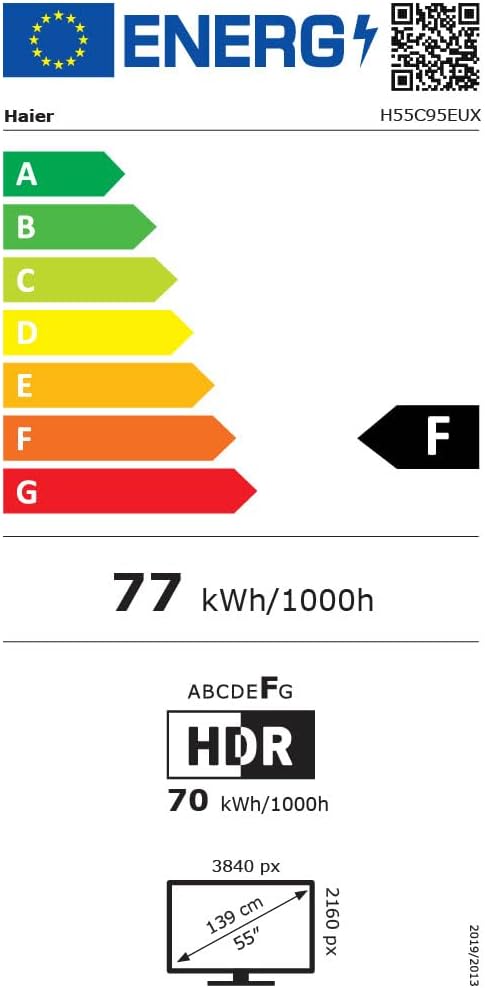
Image 8.1: EU Energy Label for the Haier H55C95EUX TV. For more details, visit the Ebe nchekwa data EPREL.
9. Akwụkwọ ikike & Nkwado
Your Haier H55C95EUX television comes with a Akwụkwọ ikike onye nrụpụta afọ 2. Biko dowe ihe akaebe nke ịzụrụ ihe maka akwụkwọ ikike.
For technical support, service, or further inquiries, please refer to the contact information provided on the official Haier website or your local authorized service center.