
Okwu mmalite
Thank you for choosing JVC HAS59WA Wireless Headphones. These headphones are designed to provide pleasant sound quality and extended battery life in a comfortable, foldable design. This manual provides essential information for setting up, operating, maintaining, and troubleshooting your headphones to ensure optimal performance.

N'ihu view of JVC HAS59WA Wireless Headphones in Retro Blue.
Melite
1. Nchaji mbụ
Before first use, fully charge your JVC HAS59WA headphones. A full charge takes approximately 2 hours and provides up to 50 hours of playback time.
- Connect the provided USB charging cable to the charging port on the headphones.
- Jikọọ nsọtụ nke ọzọ nke eriri USB na ihe nkwụnye ọkụ USB (anaghị etinye ya) ma ọ bụ ọdụ ụgbọ USB nke kọmputa.
- Ọkụ na-egosi chajị ga-enwu n'oge ịchaji wee gbanyụọ ozugbo chajịchara.

Close-up of the charging port and other connections on the JVC HAS59WA headphones.
2. Njikọ Bluetooth
The headphones support Bluetooth 5.3 for stable wireless connection and multipoint connectivity for seamless switching between two devices.
- Ike Na: Press and hold the Power button on the headphones until the indicator light flashes blue and red, indicating pairing mode.
- Kwado Bluetooth: Na ngwaọrụ gị (smartphone, mbadamba, laptọọpụ), gbanye Bluetooth.
- Họrọ Ngwaọrụ: Chọọ maka 'JVC HAS59WA' in the list of available Bluetooth devices and select it to pair.
- nkwenye: Once paired, the indicator light will flash blue slowly, and you may hear an audible confirmation.
- Njikọ Multipoint: To connect a second device, disable Bluetooth on the first device temporarily, put the headphones back into pairing mode, and connect to the second device. Then, re-enable Bluetooth on the first device. The headphones will maintain connection with both.
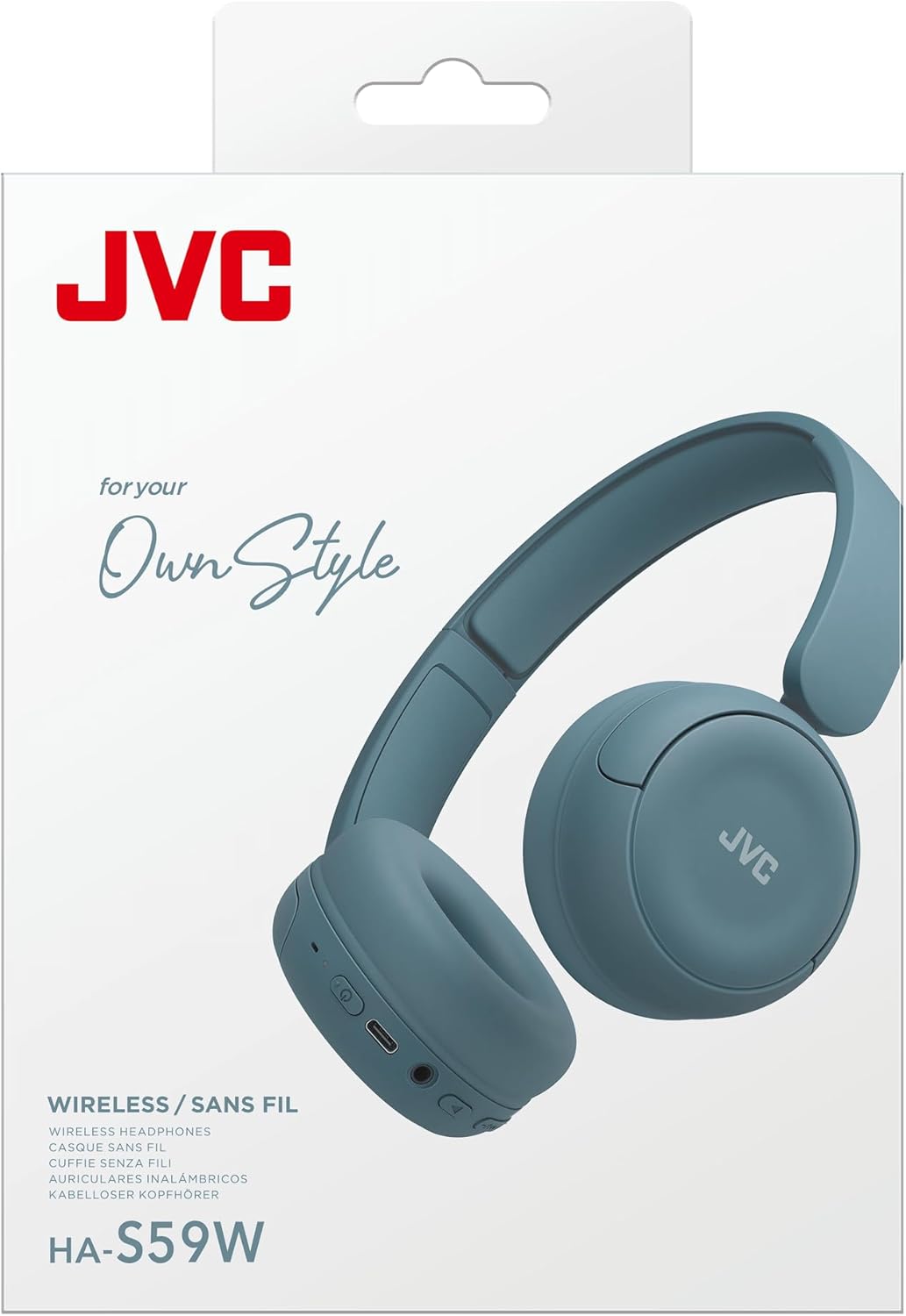
Diagram illustrating multipoint connection feature, connecting to a phone and a laptop simultaneously.
3. App Equalizer (EQ) Setup
Customize your audio experience using the JVC Headphones app.
- Download the 'JVC Headphones' app from your device's app store.
- Ensure your headphones are connected via Bluetooth to your device.
- Open the app and follow the on-screen instructions to connect to your HAS59WA headphones.
- Use the app's equalizer to fine-tune the audio to your preferred sound profile.

Screenshot of the JVC Headphones app interface showing equalizer settings.
Ntuziaka ọrụ
1. Njikwa ntọala
The headphones feature intuitive touch controls for managing audio playback and calls.
- Gbanyụọ/ Gbanyụọ: Pịa ma jide bọtịnụ Ike.
- Gwuo/kwụsịtụ: Pịa otu bọtịnụ ọtụtụ ọrụ.
- Elu elu/ala: Jiri bọtịnụ olu raara onwe ya nye.
- Next / Gara aga Track: Double-tap or triple-tap the multi-function button (refer to specific model instructions for exact sequence).
- Azịza/Kwụsị Oku: Single tap the multi-function button during an incoming call.
- Jụ oku: Pịa ma jide bọtịnụ ọtụtụ ọrụ n'oge oku mbata.

Akụkụ view of JVC HAS59WA Wireless Headphones, showing control buttons and ports.
2. Njikọ eriri
For situations where wireless connection is not preferred or battery is low, you can use the included 3.5mm audio cable.
- Tinye otu nsọtụ nke eriri ọdịyo 3.5mm n'ime ihe mkpuchi ọdịyo nke ekweisi ahụ.
- Plug the other end into your audio source's 3.5mm jack.
- Igwe ekweisi ga-agbanwe na-akpaghị aka na ọnọdụ wired.

Image illustrating wired connection support, app EQ, and multipoint connection.
3. Oku na-enweghị aka
The built-in microphone allows for clear, hands-free calls when connected via Bluetooth.
- Ensure your headphones are paired with your phone.
- Use the multi-function button to answer or end calls as described in the 'Basic Controls' section.
Nlekọta
1. Nhicha
Iji hụ na ekweisi gị dị ọcha ma dị mma:
- Jiri akwa dị nro hichapụ ihe nkwụ ntị ntị na eriri isi.
- Maka unyi isi ike, obere dampen the cloth with water and a mild soap solution, then wipe dry immediately.
- Avoid using harsh chemicals, solvents, or abrasive cleaners.
- Eminyela ekweisi na mmiri.
2. Nchekwa
The flat-foldable design allows for convenient storage and portability.
- Fold the earcups flat to reduce the headphone's profile.
- Chekwaa n'ebe dị jụụ, kpọrọ nkụ na-adịghị na ìhè anyanwụ kpọmkwem na oke okpomọkụ.
- Avoid placing heavy objects on the headphones during storage.

Diagram illustrating the foldable design and comfort features.
Nchọpụta nsogbu
| Nsogbu | Ihe nwere ike ime | Ngwọta |
|---|---|---|
| Igwe ekweisi anaghị agba ọkụ. | Batrị dị ala. | Charge the headphones fully (approx. 2 hours). |
| Enweghị ike ijikọ site na Bluetooth. | Ekweisi anaghị adị n'ụdị njikọta; Bluetooth agbanyụrụ ngwaọrụ; ọtụtụ ngwaọrụ ejikọtara. | Ensure headphones are in pairing mode (flashing blue/red). Turn device Bluetooth off/on. Forget previous pairings on your device and try again. |
| Enweghị ụda ma ọ bụ ụda adịghị mma. | Volume too low; incorrect audio source; EQ settings. | Increase volume on headphones and device. Ensure correct audio output is selected on your device. Adjust EQ settings via the JVC Headphones app. |
| Intermittent Bluetooth connection. | Distance from device; interference; low battery. | Reduce distance between headphones and device. Avoid areas with strong Wi-Fi or other wireless interference. Charge headphones. |
| Igwe okwu anaghị arụ ọrụ n'oge oku. | Incorrect audio input selected on device; headphones not fully connected. | Ensure 'JVC HAS59WA' is selected as the audio input/output device on your phone/computer. Re-pair headphones. |
Nkọwapụta
| Njirimara | Nkọwa |
|---|---|
| Ụdị | JVC |
| Nọmba nlereanya | HAS59WA |
| Ntinye ntị | Na Ntị |
| Teknụzụ Njikọta | Bluetooth, Ikuku |
| Ụdị Bluetooth | 5.3 |
| Atụmatụ ndị ọzọ | Multipoint Pairing, Built-in Mic, App EQ |
| Ndụ batrị | Ruo awa 50 |
| Oge nchaji batrị | Awa 2 |
| Jack ekweisi | Jack 3.5mm (maka njikọ waya) |
| Ụdị njikwa | Njikwa olu, metụ |
| Ụdị ọkwọ ụgbọ ala ọdịyo | Onye ọkwọ ụgbọ ala dị ike (30mm) |
| Oke ugboro ugboro | 20 Hz - 20,000 Hz |
| Ibu | 3.2 ounces |
| Ihe onwunwe | Fabric, Silicone |
| Ngwa gụnyere | Headband, Cable, User Manual |
Ozi akwụkwọ ikike
The JVC HAS59WA Wireless Headphones come with a Akwụkwọ ikike nke onye nrụpụta afọ 1. This warranty covers defects in materials and workmanship under normal use. Please retain your proof of purchase for warranty claims. For specific terms and conditions, refer to the warranty card included in your product packaging or visit the official JVC websaịtị.
Nkwado
For further assistance, product registration, or to explore other JVC products, please visit the official JVC websaịtị ma ọ bụ kpọtụrụ nkwado ndị ahịa.
- Official JVC Store: Gaa na ụlọ ahịa JVC na Amazon
- Ndị ọrụ nlekọta ndị ahịa: Refer to your product packaging for regional contact information or visit the JVC global support page.
Vidiyo ngwaahịa ngwaahịa
Official product video demonstrating the features and design of the JVC HAS59WA On-Ear Wireless Headphones.