
Okwu mmalite
This manual provides essential information for setting up, operating, and maintaining your Roku 32-Inch Select Series 1080p Full HD Smart TV. Designed for a delightful streaming experience, this TV offers excellent picture quality, clear sound, and automatic updates. Please read this manual thoroughly before using your television.
Kedu ihe dị na Igbe ahụ
Chọpụta na akụrụngwa niile dị na nkwakọ ngwaahịa:
- Roku 32-Inch Select Series 1080p Full HD Smart TV
- Njikwa anya
- Nkwụ (2 iberibe)
- Stand Screws (4 pieces)
- Igwe ọkụ ọkụ
- Akwụkwọ ntuziaka (akwụkwọ a)

Image: Contents of the Roku TV box, showing the television, remote control, two stand pieces, and four screws.
Ntuziaka nhazi
1. Ịgbakwụnye ihe nkwụnye TV
- Carefully place your TV face-down on a soft, clean surface to prevent damage to the screen.
- Align the stand pieces with the screw holes on the bottom of the TV.
- Secure each stand piece with two screws using a Phillips head screwdriver. Do not overtighten.
2. Ijikọ ike na ngwaọrụ
- Jikọọ eriri ọkụ na ntinye ike TV wee banye na mgbidi.
- Connect your external devices (e.g., cable box, gaming console, Blu-ray player) to the available HDMI ports on the back of the TV. This model features 3 HDMI ports.
- For older devices, use the AV input ports (yellow, white, red).
- An optical audio output is available for connecting to soundbars or home theater systems.
- A USB port is provided for media playback.

Foto: N'azụ view of the Roku TV displaying HDMI, AV, Antenna, USB, Optical, and Headphone ports.
3. Ike mbụ na njikọ netwọkụ
- Pịa bọtịnụ ike na njikwa anya ma ọ bụ TV.
- Follow the on-screen instructions to select your language and connect to your Wi-Fi network.
- Activate your Roku account or create a new one. This is required to access streaming channels and features.
Ntuziaka ọrụ
1. Roku OS Interface
The Roku OS provides a simple and intuitive home screen for accessing all your entertainment. Easily navigate between streaming apps, live TV, and connected devices.

Image: The Roku TV home screen with a menu on the left and app icons on the right, including Netflix, Disney+, Apple TV, and Roku Channel.
2. Voice Remote
Your Roku TV comes with a voice remote for convenient control. Use your voice to search for content, launch apps, and control playback.
- Ọchụchọ olu: Press the voice button and speak your command (e.g., "Find comedies," "Open Netflix").
- Ụzọ mkpirisi ngwa: Bọtịnụ raara onwe ha nye na-enye ohere ngwa ngwa ịnweta ọrụ nkwanye ugwu ama ama.
- Njikwa olu: Adjust volume using the side buttons.
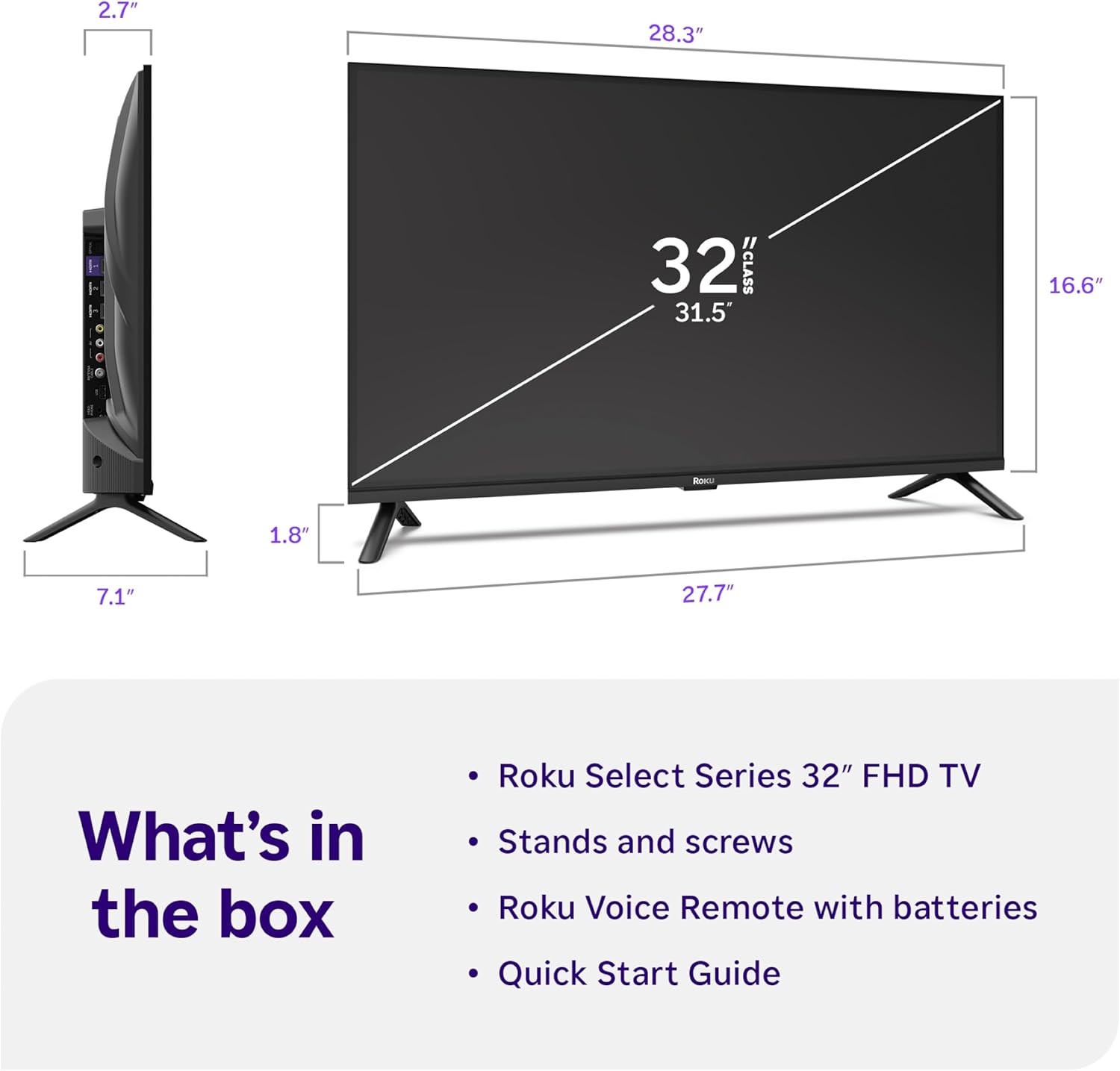
Image: Close-up of the Roku Voice Remote, highlighting buttons for TV power, volume, mute, voice search, instant replay, options, and dedicated app shortcuts.
3. Streaming Apps and Live TV
Access thousands of streaming channels, including Netflix, Disney+, Hulu, Prime Video, and Apple TV+. The Roku Channel also offers free live TV and on-demand content.

Image: A vibrant Roku TV home screen displaying a selection of popular streaming applications and recommended shows.
4. Ntọala foto
Bulite gị viewing experience with various picture settings:
- Roku Smart Picture: Automatically adjusts picture mode for optimal viewing.
- Ụdị foto: Choose from presets like Movie, Sports, Vivid, Standard, or Low Power.
- Nhazi: Adjust brightness, contrast, sharpness, color, and tint for a personalized picture.
5. Ntọala ụda
Enhance your audio experience:
- Dolby Audio: Enjoy clear speech and louder sound.
- Ụdị ụda: Select from Standard, Dialogue, Movie, Music, or Night mode.
- Ụdị Ekweisi Bluetooth: Connect your wireless headphones to listen without disturbing others.

Image: A child wearing wireless headphones while watching the Roku TV, demonstrating the Bluetooth Headphone Mode.
6. Smart Home Integration
Your Roku TV is compatible with various smart home ecosystems:
- Njikwa olu: Use Roku Voice, Siri, Alexa, or Google Assistant for hands-free control.
- Apple AirPlay: Effortlessly share videos, photos, and music from your Apple devices.
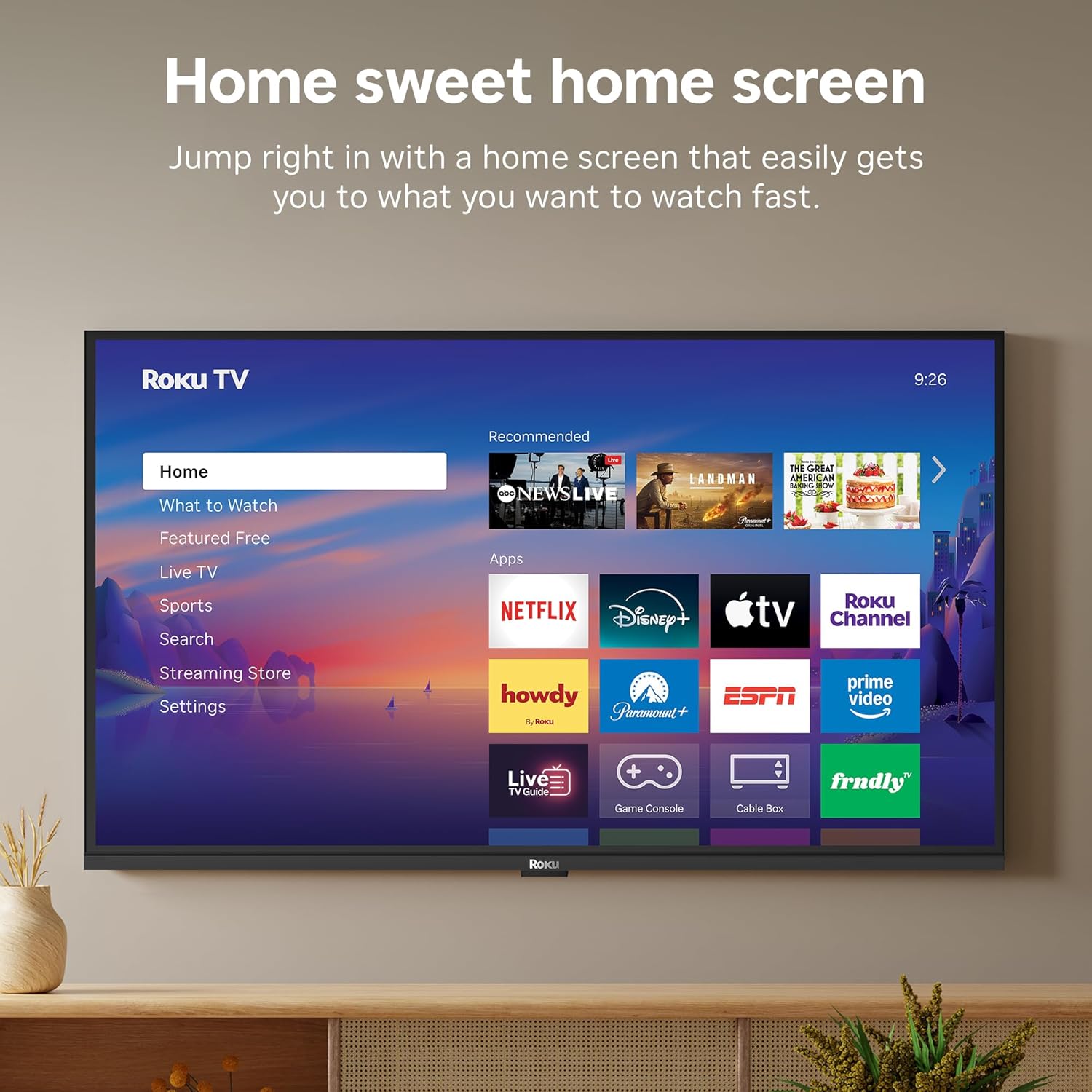
Image: The Roku TV screen displaying smart home compatibility logos for Roku Smart Home, Apple AirPlay, Apple Home, Alexa, and Google Home, with a smart speaker nearby.
7. Njikwa Nne na Nna
Manage content access with built-in parental controls, including V-Chip technology, to ensure a safe viewgburugburu ebe obibi maka ụmụaka.
Vidiyo ngwaahịa ngwaahịa
Vidiyo: Efereview of the Roku TV OS, demonstrating its user-friendly interface, app selection, and smart features. This video is provided by Roku, Inc.
Nkọwapụta
- Nha ihuenyo:
- 32 sentimita asatọ
- Mkpebi:
- 1080p zuru oke
- Ngosipụta teknụzụ:
- Ikanam
- Ọnụego ume ọhụrụ:
- 60 Hz
- Atụmatụ pụrụ iche:
- Bluetooth Headphone Mode, Dolby Audio, Voice Remote, Roku Smart Picture
- Teknụzụ Njikọta:
- Bluetooth, WiFi
- Ngwa ngwa ngwa:
- 3 HDMI Ports, 1 USB Port, S/PDIF (Optical Audio Out)
- Sistemụ nrụọrụ:
- Roku OS
- Akụkụ ngwaahịa (D x W x H):
- 7.1"D x 28.3"W x 18.4"H
- Ibu ihe:
- 7.7 Pounds (with stand)
- VESA Ugwu Standard:
- 200 x 200 mm
- Nọmba nlereanya:
- 32R3E5
- UPC:
- 829610009469
Nchọpụta nsogbu
If you encounter issues with your Roku TV, please refer to the following common solutions:
- Enweghị ike: Gbaa mbọ hụ na ejikọrọ eriri ọkụ na ma igwe onyonyo ma igwe eletrik na-arụ ọrụ. Gbalịa ụzọ ọpụpụ dị iche.
- Enweghị foto/ụda: Verify that the correct input source is selected on your TV. Check all cable connections (HDMI, AV, etc.) for looseness.
- Remote anaghị aza: Replace the batteries in your remote control. Ensure there are no obstructions between the remote and the TV.
- Okwu njikọ netwọkụ: Restart your Wi-Fi router and modem. Go to the TV's Settings > Network > Check connection to diagnose and reconnect.
- Ngwa anaghị ebugo: Restart the app. If the issue persists, try removing and reinstalling the app from the Roku Channel Store.
For more detailed troubleshooting, visit the official Roku support websaịtị.
Nlekọta
To ensure the longevity and optimal performance of your Roku TV, follow these maintenance guidelines:
- Na-ehicha ihuenyo: Jiri nwayọ hichaa ihuenyo ahụ na akwa microfiber dị nro, kpọrọ nkụ. Maka isi ike smudges, dị obere dampen akwa na mmiri ma ọ bụ ihe ngwọta na-ehicha ihuenyo kpọmkwem nke e mere maka ngwá electronic. Afesala mmiri mmiri ozugbo na ihuenyo.
- Nhicha ahụ TV: Use a soft, dry cloth to wipe the exterior of the TV. Avoid abrasive cleaners or solvents.
- Igwe ikuku: Hụ na oghere ikuku dị na TV anaghị emechi iji gbochie oke okpomọkụ. Debe oghere zuru oke gburugburu TV maka ikuku na-agagharị.
- Mmelite ngwanrọ: Your Roku TV automatically receives software updates. Ensure your TV is connected to the internet to receive the latest features and performance improvements.
- Njikwa Ike: Kwụpụ TV na oghere ọkụ n'oge oké ifufe ma ọ bụ mgbe a ga-ahapụ ya n'echeghị ya ruo ogologo oge.
Akwụkwọ ikike na nkwado
Ozi akwụkwọ ikike
Roku warrants the hardware of this device against defects in materials and workmanship under normal use for a period of one (1) year from the date of purchase ("Warranty Period"). If Roku determines that the device’s hardware is defective during the Warranty Period, Roku’s sole obligation, and your exclusive remedy, will be to either repair or replace the unit with either a new or rebuilt device, at its option. This warranty applies if the device is used in accordance with the provided documentation.
Important information about warranty returns and replacements is available on the Roku support site. You may also return a device for any reason, subject to the terms of the applicable return policy: 1) Within thirty (30) days from the date of purchase from Roku; or 2) within the applicable return period if purchased from an authorized reseller or distributor. Additional details regarding product returns can be found on the Roku support site.
Nkwado ndị ahịa
For further assistance, technical support, or to access the full range of support resources, please visit the official Roku support websaịtị ahụ. Ị nwere ike ịchọta Ajụjụ Ndị A Na-ajụkarị, ntuziaka maka nsogbu, na ozi kọntaktị maka ọrụ ndị ahịa ebe ahụ.