
1. Okwu mmalite
This manual provides detailed instructions for the installation, operation, and maintenance of your Mars Gaming MC-3TCORELCDM Micro-ATX Gaming Case. This case features an integrated 7.2-inch IPS screen, triple tempered glass panels, and a dual-chamber structure designed to optimize airflow and provide a clean aesthetic for your PC build.
2. Ntọala na nwụnye
Before beginning installation, ensure all components are compatible with the MC-3TCORELCDM case. This case supports Micro-ATX and Mini-ITX motherboards.
2.1. Internal Component Installation
The MC-3TCORELCDM case offers optimized internal space for various components:
- Ndakọrịta Motherboard: Micro-ATX, Obere-ITX
- VGA (Graphics Card) Support: Up to 415mm length, 150mm width
- Igwe oyi oyi CPU: Ihe ruru 160 mm
- Oghere Mgbasawanye: 5
- Bgbọala Oge: 2x 3.5" HDD / 3x 2.5" SSD (refer to diagram for specific locations)
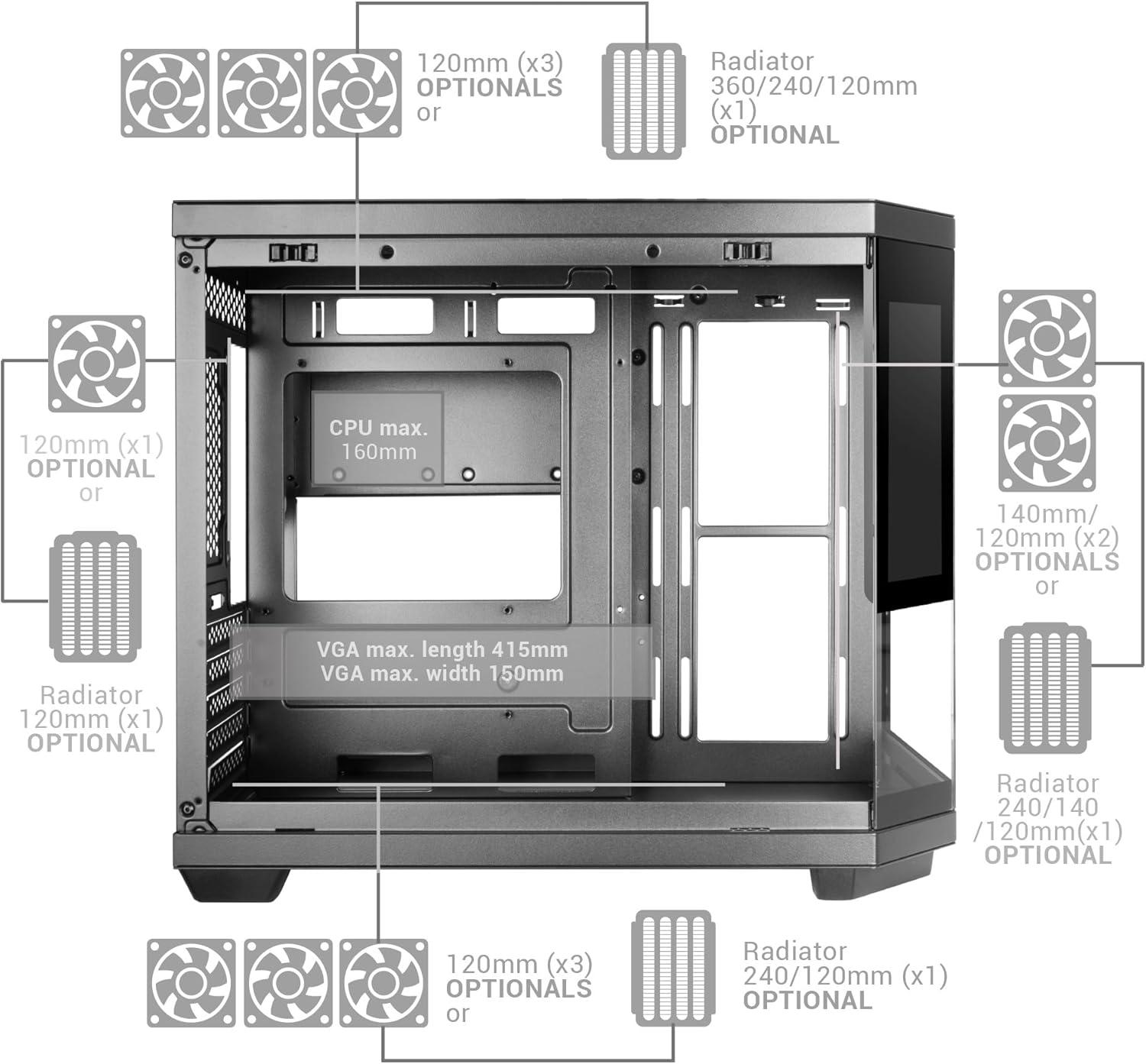
Figure 1: Internal layout diagram with component dimensions and optional cooling placements.
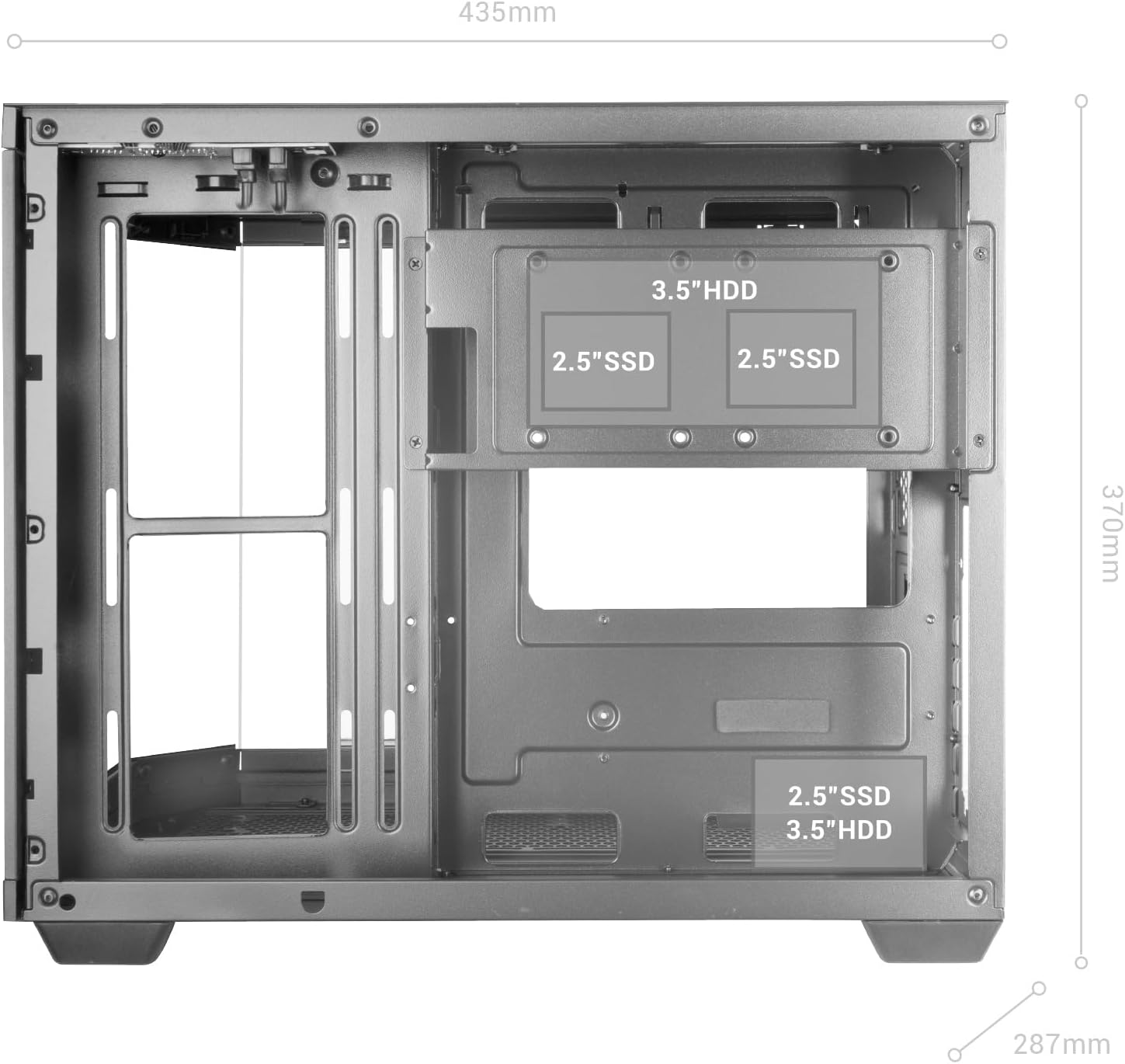
Ọgụgụ 2: Zuru ezu view of internal drive bay locations for 3.5" HDDs and 2.5" SSDs.
2.2. Nwụnye System jụrụ oyi
The case supports extensive cooling configurations:
- Ike onye ofufe: Up to 9x 120mm fans or 2x 140mm + 6x 120mm fans.
- Nkwado mmiri oyi: Up to 360mm radiators.

Ọgụgụ 3: Ọpụample of liquid cooling installation within the MC-3TCORELCDM case, supporting up to 360mm radiators and multiple fans.
2.3. Dual Chamber Structure
The dual-chamber design separates the power supply unit (PSU) and cables from the main hardware components, improving airflow and cable management.

Foto 4: View of the double side chamber, illustrating space for cable routing and rear motherboard connectors.
3. Ntuziaka ọrụ
3.1. Integrated 7.2" IPS Screen
The MC-3TCORELCDM features a 7.2-inch IPS screen integrated into the central tempered glass panel. This screen can display system telemetry (temperatures, usage), custom images, animations, or videos using its dedicated control software.

Figure 5: The 7.2-inch IPS display showing real-time system information such as memory, CPU, disk, and GPU temperatures.
3.2. Top Panel Connectivity
The top panel provides convenient access to various ports for immediate connection of peripherals.
- 1x ọdụ ụgbọ mmiri USB-C
- 1 x USB 3.0 ọdụ ụgbọ mmiri
- 1 x USB 2.0 ọdụ ụgbọ mmiri
- HD Audio + Microphone Jacks

Figure 6: Top panel connectivity options for easy access to peripherals.
4. Nlekọta
Ndozi mgbe niile na-eme ka arụmọrụ kachasị mma na ogologo oge nke ihe mkpuchi PC gị.
4.1. Uzuzu nzacha
The MC-3TCORELCDM case includes magnetic dust filters on the top and bottom panels. Periodically remove and clean these filters to prevent dust buildup and maintain efficient airflow.
4.2. Tempered Glass Panels
The triple tempered glass panels can be cleaned with a soft, lint-free cloth and a mild glass cleaner. Avoid abrasive materials or harsh chemicals that could scratch or damage the glass.

Foto nke 7: Panoramic view of the case highlighting the triple tempered glass panels.
5. Nchọpụta nsogbu
If you encounter issues with your MC-3TCORELCDM case, consider the following general troubleshooting steps:
- Okwu ike: Ensure all power cables are securely connected to the power supply, motherboard, and components. Verify the power supply switch is in the 'ON' position.
- Arụmọrụ jụrụ oyi: Check that all fans are spinning correctly and are free from obstructions. Ensure dust filters are clean. Verify liquid cooling pumps are operational if installed.
- Njikọta: If USB or audio ports are not functioning, ensure the internal headers are correctly connected to the motherboard.
- IPS Screen: If the IPS screen is not displaying correctly, check its power and data connections. Refer to the dedicated control software for display settings and troubleshooting.
- Ngwakọta dabara: Double-check that all components are installed according to the specified dimensions and clearances.
For specific component-related issues, refer to the respective component manuals (e.g., motherboard, GPU, PSU).
6. Nkọwapụta
| Njirimara | Nkọwa |
|---|---|
| Ụdị | Ịgba egwu Mars |
| Aha Nlereanya | MC3TCORELCDMW |
| Ụdị ikpe | Ụlọ elu |
| Ndakọrịta Motherboard | Micro ATX, Obere ITX |
| Ihe onwunwe | Igwe ọkụ |
| Agba | Ọcha |
| Akụkụ ihe (D x W x H) | 17.13"D x 11.3"W x 14.57"H |
| Ibu Ibu | 5.88 kilogram |
| VGA Max. Length | 415mm |
| VGA Max. Width | 150mm |
| CPU Cooler Max. Height | 160mm |
| Ike Fans | Up to 9x 120mm or 2x 140mm + 6x 120mm |
| Nkwado Nkwado Mmiri Liquid | Ihe ruru 360 mm |
| Ọnụ mmiri dị n'ime | 2x 3.5" HDD / 3x 2.5" SSD |
| Total USB 3.0 Ports | 1 |
| Other Special Features | Dust Filter, Integrated 7.2" IPS Screen |
7. Akwụkwọ ikike na nkwado
Mars Gaming products are designed for reliability and performance. For warranty information, technical support, or service inquiries, please visit the official Mars Gaming websaịtị ma ọ bụ kpọtụrụ nkwado ndị ahịa ha ozugbo. Debe ihe akaebe nke ịzụrụ ihe maka akwụkwọ ikike.