
XIAOVV B0FT15RN39
XIAOVV WiFi Security Camera (Model B0FT15RN39) User Manual
4K Solar Dual-Eye Outdoor Wireless 360° PTZ WiFi Camera
1. Okwu mmalite
Thank you for choosing the XIAOVV WiFi Security Camera. This manual provides essential information for setting up, operating, and maintaining your 4K Solar Dual-Eye Outdoor Wireless 360° PTZ WiFi Camera (Model B0FT15RN39). Please read this manual thoroughly before use to ensure proper functionality and safety.
This camera features a solar-powered design for continuous surveillance, a 360° dual-lens system with PTZ capabilities to eliminate blind spots, and dual storage options (microSD card up to 128GB or cloud). Its IP65 weather-resistant construction ensures year-round outdoor performance, and smart WiFi connectivity allows for remote viewing and control via a mobile app.
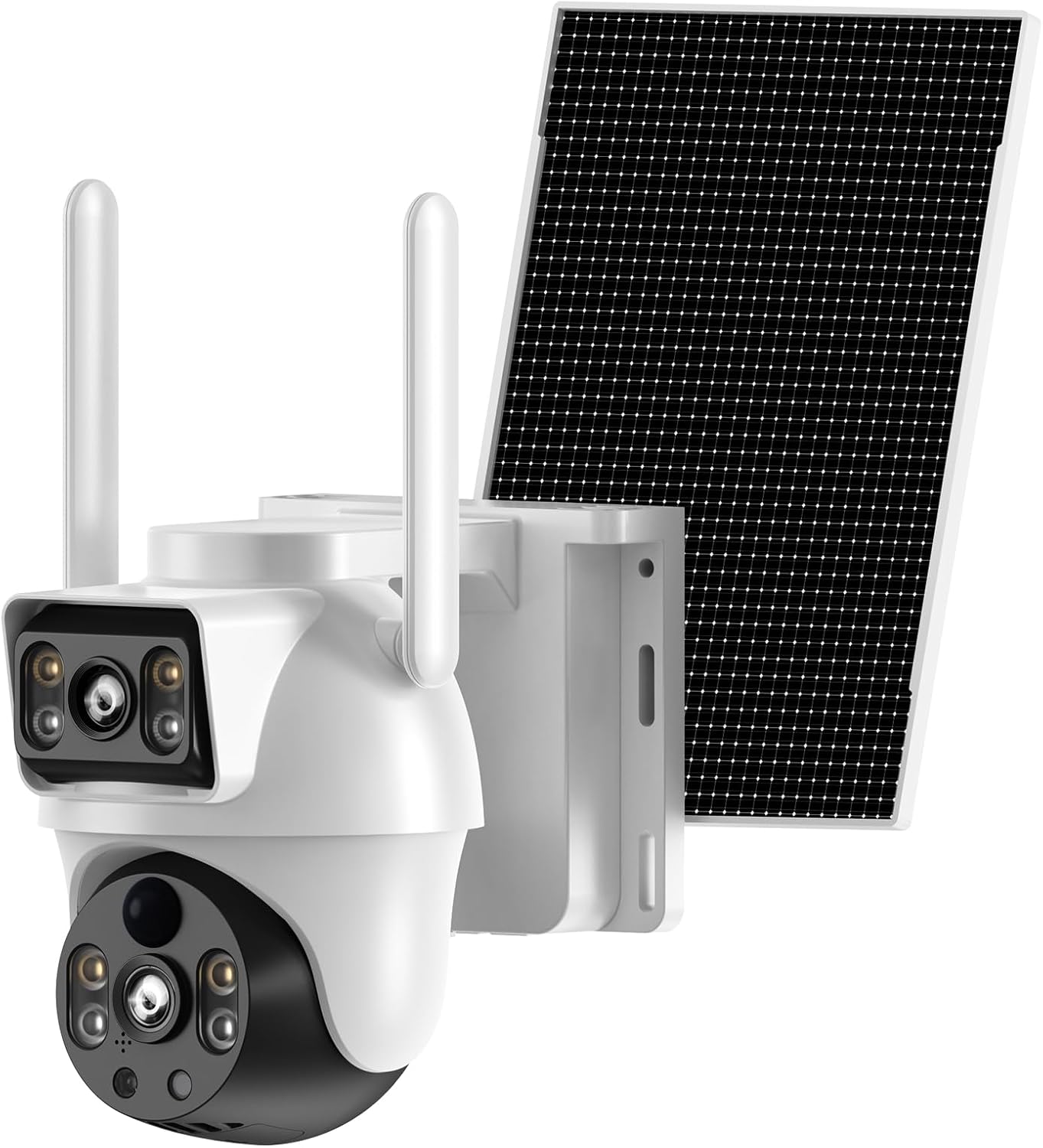
Figure 1: XIAOVV 4K Solar Dual-Eye Outdoor Wireless 360° PTZ WiFi Camera
2. Ihe ngwugwu
Nyochaa na etinyere ihe niile edepụtara n'okpuru na ngwugwu gị. Ọ bụrụ na ihe ọ bụla na-efu ma ọ bụ mebie, biko kpọtụrụ nkwado ndị ahịa.
- XIAOVV WiFi Security Camera (Model B0FT15RN39)
- Igwe ọkụ anyanwụ
- Ihe nkwado nkwado igwefoto
- Ihe nrịba elu nke anyanwụ
- Igwe nchaji USB
- Screw Bag (with screws and wall anchors)
- Akwụkwọ ntuziaka (akwụkwọ a)
Video 1: Unboxing and Package Contents Overview
This video demonstrates the unboxing process and provides a visual guide to all items included in the XIAOVV security camera package, including the camera unit, solar panel, mounting hardware, and cables.
3. Ngwaahịa gafereview
Familiarize yourself with the main components and interfaces of your XIAOVV security camera.

Figure 2: Camera Side View

Figure 3: Camera Front View (Dual Lens)

Figure 4: Camera Back View

Figure 5: Camera Bottom View (ọdụ ụgbọ mmiri)
The camera features a dual-lens system, with one fixed wide-angle lens and one PTZ (Pan-Tilt-Zoom) lens. It includes a microSD card slot, reset button, charging port, and power button, all protected by a waterproof cover.
4. Nhazi
4.1 Nchaji izizi
Before first use, fully charge the camera using the provided USB cable. A full charge typically takes 8-13 hours. The indicator light will change from red to green when fully charged.
4.2 App Download and Registration
Download the companion app to your smartphone (Android or iOS). Chọọ maka "O-KAM Pro" in the Google Play Store or Apple App Store. Follow the on-screen instructions to register a new account and log in.
Video 2: App Download and Initial Setup
This video guides you through downloading the O-KAM Pro app, registering an account, and the initial steps to prepare for camera connection.
4.3 WiFi njikọ
Ensure your smartphone is connected to a 2.4GHz WiFi network. The camera does not support 5GHz WiFi. Turn on the camera. If you do not hear a voice prompt, press and hold the reset button for 4 seconds until the camera prompts "Reset successful." Follow the app's instructions to connect the camera to your home WiFi network.
Video 3: WiFi Connection Methods
This video demonstrates the process of connecting the camera to your home WiFi network using the mobile application, including troubleshooting steps for voice prompts and resetting the device.
5. Nwụnye
The camera is designed for outdoor use and can be wall-mounted. Choose a location that provides optimal surveillance coverage and sufficient sunlight for the solar panel.
- Ugwu igwefoto: Secure the camera mounting bracket to your desired location using the provided screws and wall anchors. Attach the camera to the bracket.
- Ugwu Panel anyanwụ: Secure the solar panel mounting bracket. Install the adjustment plate in sequence, and fix the solar panel. Ensure the solar panel is positioned to receive maximum direct sunlight throughout the day.
- Connect Solar Panel to Camera: Connect the solar panel's cable to the camera's charging port. Ensure the waterproof silicone plug is securely in place.
Video 4: Outdoor Installation Guide
This video provides a step-by-step guide on how to physically install the XIAOVV security camera and its solar panel outdoors, including securing brackets and connecting components.

Ọgụgụ 6: Ọpụample of Outdoor Installation
6. Na-arụ ọrụ igwefoto
6.1 Ndụ View na Njikwa PTZ
Access the live feed from your camera via the O-KAM Pro app. Use the on-screen controls to pan, tilt, and zoom the PTZ lens for a 360° view of your property. Both wide-angle and PTZ views can be monitored simultaneously.

Figure 7: 360° Dual-Lens Viewing
6.2 Ọhụụ abalị
The camera supports both infrared night vision (black and white) and intelligent full-color night vision, providing clear images even in low-light conditions.

Figure 8: Full Color Night Vision
6.3 Nchọpụta na Ịdọ Aka Ná Ntị
The camera features smart motion detection. When motion is detected, you will receive real-time notifications on your smartphone. The camera can also trigger an LED light alarm and siren.

Figure 9: Motion Detection and Alerts
6.4 Audio ụzọ abụọ
Utilize the built-in microphone and speaker for two-way communication through the app, allowing you to listen in or speak to visitors.
6.5 Nhọrọ nchekwa
Recordings can be saved locally to a microSD card (up to 128GB, not included) or securely uploaded to the cloud storage service (subscription may be required).

Figure 10: MicroSD Card and Cloud Storage
6.6 Sharing and Remote Access
Share live footage and camera access with family members or other authorized users. Monitor your property from anywhere with an internet connection.

Figure 11: Shareable Live Stream and Remote Control
7. Nlekọta
7.1 Nhicha
Regularly clean the camera lens and solar panel with a soft, damp cloth to ensure optimal performance. Avoid using harsh chemicals or abrasive materials.
7.2 Mgbochi ihu igwe
The camera has an IP65 rating, making it resistant to dust and water jets. It operates in temperatures from -4°F to 140°F. Ensure all port covers are securely closed to maintain weather resistance.
Video 5: Waterproof Test Demonstration
This video demonstrates the camera's IP65 waterproof capabilities, showing it withstands direct water exposure, highlighting its durability for outdoor use.

Figure 12: IP65 Weather-Resistant Design
8. Nchọpụta nsogbu
- Igwefoto anaghị agba ọkụ: Ensure the camera is fully charged. Check the power switch is in the ON position.
- Enweghị ike ijikọ na WiFi: Ensure your router is broadcasting a 2.4GHz WiFi signal. Verify the WiFi password. Keep the camera close to the router during setup. Try resetting the camera by holding the reset button for 4 seconds.
- Ogo vidiyo na-adịghị mma: Check your internet connection speed. Ensure the camera lens is clean and free from obstructions.
- Nchọpụta mmegharị anaghị arụ ọrụ: Verify motion detection settings in the app. Ensure the camera's view adịghị egbochi.
- Solar panel not charging: Ensure the solar panel is receiving direct sunlight for several hours daily. Clean the solar panel surface.
9. Nkọwapụta
| Njirimara | Nkọwapụta |
|---|---|
| Nlereanya | B0FT15RN39 |
| Mkpebi ịse vidiyo | 4K |
| Protocol Njikọta | Wi-Fi (naanị 2.4GHz) |
| Isi Iyi Ike | Ike anyanwụ |
| Njirimara Pụrụ Iche | PTZ (Pan-Tilt-Zoom), Dual-Lens, Night Color, Motion Detection |
| Ojiji ime ime/n'èzí | N'èzí |
| Ọkwa Nguzogide mmiri | Ihe mgbochi mmiri IP65 |
| Okpomọkụ na-arụ ọrụ | -4°F ruo 140°F (-20°C ruo 60°C) |
| Nchekwa | Kaadị MicroSD (ruo 128GB), Nchekwa Ígwé ojii |
| Ụdị nkwụnye | Ugwu mgbidi |
| Akụkụ akụkụ L x W x H | 10 x 7 x 5 sentimita asatọ |
| Ibu Ibu | 3 pound |
10. Akwụkwọ ikike na nkwado
XIAOVV products come with a standard manufacturer's warranty. For detailed warranty information, technical support, or service inquiries, please refer to the warranty card included in your package or visit the official XIAOVV websaịtị.
For additional assistance, you may contact XIAOVV customer service through the contact information provided on their official channels.
Ask a question about this manual
Ask about setup, troubleshooting, compatibility, parts, safety, or missing instructions. Manuals+ will review the question and use this page’s manual context to help answer it.