
Okwu mmalite
Thank you for choosing the TMEZON C680 Indoor Window Security Camera. This manual provides essential information for setting up, operating, and maintaining your camera. Please read it thoroughly before use and retain it for future reference.
Ozi nchekwa
- Jiri naanị ihe nkwụnye ọkụ enyere.
- Do not expose the camera to extreme temperatures or humidity.
- Emebere igwefoto a maka naanị ime ụlọ.
- Debe ebe ụmụaka na-apụghị iru.
Ihe ngwugwu
Verify that all items are present in your package. If any items are missing or damaged, please contact customer support.
- TMEZON C680 Indoor Window Security Camera
- Ihe nkwụnye ọkụ
- USB Power USB
- Mounting Kit (screws, anchors)
- Akwụkwọ ntuziaka onye ọrụ
Ngwaahịa gafereview
Familiarize yourself with the components of your TMEZON C680 camera.
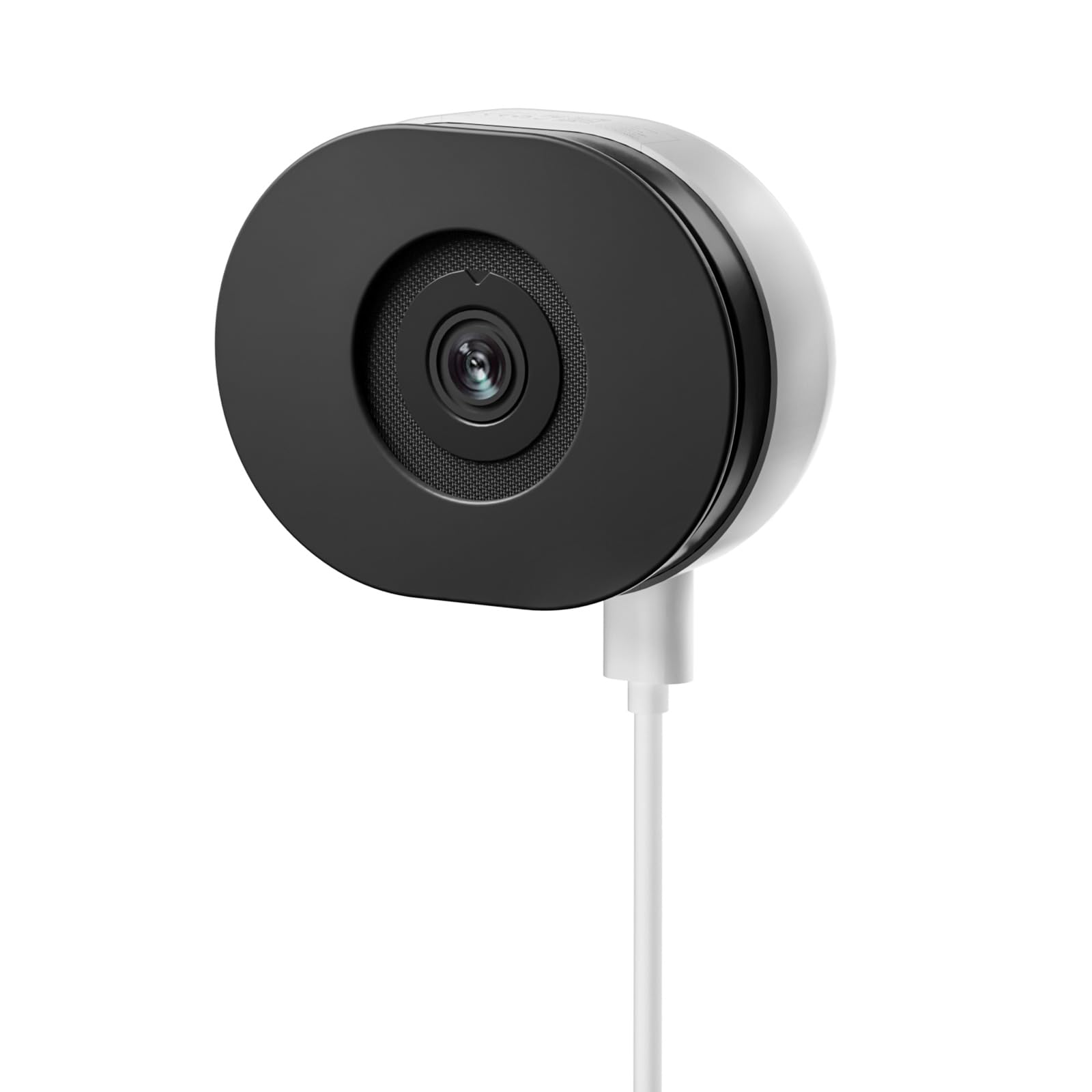
Image: The TMEZON C680 Indoor Window Security Camera. This image displays the camera's compact, circular form factor, highlighting the main lens and overall design.
Ngwa igwefoto
- Igwefoto oghere: Captures 4MP 2.5K video.
- Ìhè ihe ngosi ọnọdụ: Indicates camera status (e.g., solid blue for connected, flashing red for disconnected).
- Igwe okwu: For audio input and two-way audio communication.
- Ọkà okwu: For audio output and two-way audio communication.
- Ike Port: Jikọọ na nkwụnye ọkụ.
- Tọgharịa bọtịnụ: Press and hold for 5 seconds to reset the camera to factory settings.
- Oghere Kaadị MicroSD: For local storage (card not included).
Melite
Nzọụkwụ 1: Download ngwa
Chọọ maka the "TMEZON Smart" app (or similar, as specified in your product documentation) in your mobile device's app store (App Store for iOS, Google Play Store for Android). Download and install the app.
Nzọụkwụ 2: Ike na igwefoto
Connect the USB power cable to the camera's power port and plug the power adapter into a wall outlet. The camera's status indicator light will turn on. Wait for it to flash red, indicating it's ready for pairing.
Nzọụkwụ 3: Tinye Device na App
- Open the TMEZON Smart app and create an account or log in.
- Tap the "+" icon (or "Add Device") to add a new camera.
- Select "Security Camera" or "Smart Camera" from the device list.
- Follow the on-screen instructions to connect the camera to your 2.4GHz Wi-Fi network. Ensure your phone is connected to the same 2.4GHz Wi-Fi network.
- The app will display a QR code. Position your camera to scan this QR code from your phone screen. You will hear a confirmation sound from the camera once scanned successfully.
- Ozugbo ejikọtara ya, ìhè ihe ngosi ọnọdụ ga-agbanwe acha anụnụ anụnụ siri ike.
Step 4: Window Mounting
The TMEZON C680 is designed for easy window mounting.
- Choose a clean, flat window surface for optimal viewing.
- Use the provided mounting kit to secure the camera to the window frame or a nearby wall, ensuring the lens faces outwards.
- Adjust the camera angle to cover your desired surveillance area.
Ntuziaka ọrụ
Dị ndụ View
Open the TMEZON Smart app and select your camera from the device list to access the live video feed.
Ndekọ na ịkpọghachi
The camera supports 24/7 continuous recording to a local MicroSD card (not included).
- Fanye kaadị MicroSD: Power off the camera, insert a MicroSD card (up to 128GB, Class 10 or higher recommended) into the slot, then power on.
- View Ndekọ: In the app's live view, tap the "Playback" or "History" icon to access recorded footage.
Audio Ụzọ Abụọ
N'ime ndụ view interface, tap the microphone icon to speak through the camera's speaker. Tap the speaker icon to listen to audio from the camera's microphone.
Agba Ọhụụ abalị
The camera automatically switches to color night vision in low-light conditions, providing clear, vivid footage up to 32 feet. No manual adjustment is typically required.
Nchọpụta ngagharị na ọkwa
The camera features motion-only alert type.
- In the app, navigate to the camera settings.
- Find "Motion Detection" or "Alert Settings."
- Enable motion detection and customize sensitivity levels and alert schedules as needed.
- You will receive push notifications on your mobile device when motion is detected.
Nlekọta
Nhicha
Jiri nwayọ hichaa oghere igwefoto na ahụ ya na akwa dị nro ma kpọọ nkụ. Ejila ihe na-ehicha mmiri mmiri ma ọ bụ ihe abrasive.
Firmware mmelite
Periodically check the TMEZON Smart app for available firmware updates to ensure optimal performance and security. Follow the in-app instructions for updating.
Nchekwa
When not in use for extended periods, store the camera in a cool, dry place, away from direct sunlight.
Nchọpụta nsogbu
| Nsogbu | Ngwọta |
|---|---|
| Igwefoto anaghị agba ọkụ. | Ensure the power adapter is securely connected to both the camera and a working power outlet. Try a different outlet. |
| Enweghị ike ijikọ na Wi-Fi. |
|
| No recording to MicroSD card. |
|
| Ogo vidiyo na-adịghị mma. |
|
Nkọwapụta
- Ụdị: C680
- Mkpebi: 4MP (2.5K)
- Ọhụụ abalị: Color Night Vision, up to 32 feet
- Njikọta: 2.4GHz Wi-Fi
- Nchekwa: MicroSD Card (up to 128GB, not included)
- Audio: Two-Way Audio (Built-in Microphone & Speaker)
- Ike: Corded Electric, 5W
- Ime ụlọ/n'èzí: Naanị ime ụlọ
- Viewn'akuku n'akuku: 120 ogo
- Akụkụ: Ihe dịka 3.5 x 3.5 x 3.5 sentimita asatọ
- Ihe: Plastic
- Ụdị ọkwa: Naanị ngagharị
Akwụkwọ ikike na nkwado
TMEZON products are designed for reliability and performance. For warranty information, technical support, or customer service inquiries, please refer to the contact information provided on the product packaging or visit the official TMEZON websaịtị.
You can also visit the TMEZON store on Amazon for additional product information and support: TMEZON Amazon Store.