
Okwu mmalite
The Divoom MiniToo is a compact, retro PC-style computer speaker featuring a smart pixel screen. It offers Bluetooth and USB audio connectivity, along with alarm, white noise, and focus tools. This manual provides instructions for setting up, operating, maintaining, and troubleshooting your MiniToo speaker.
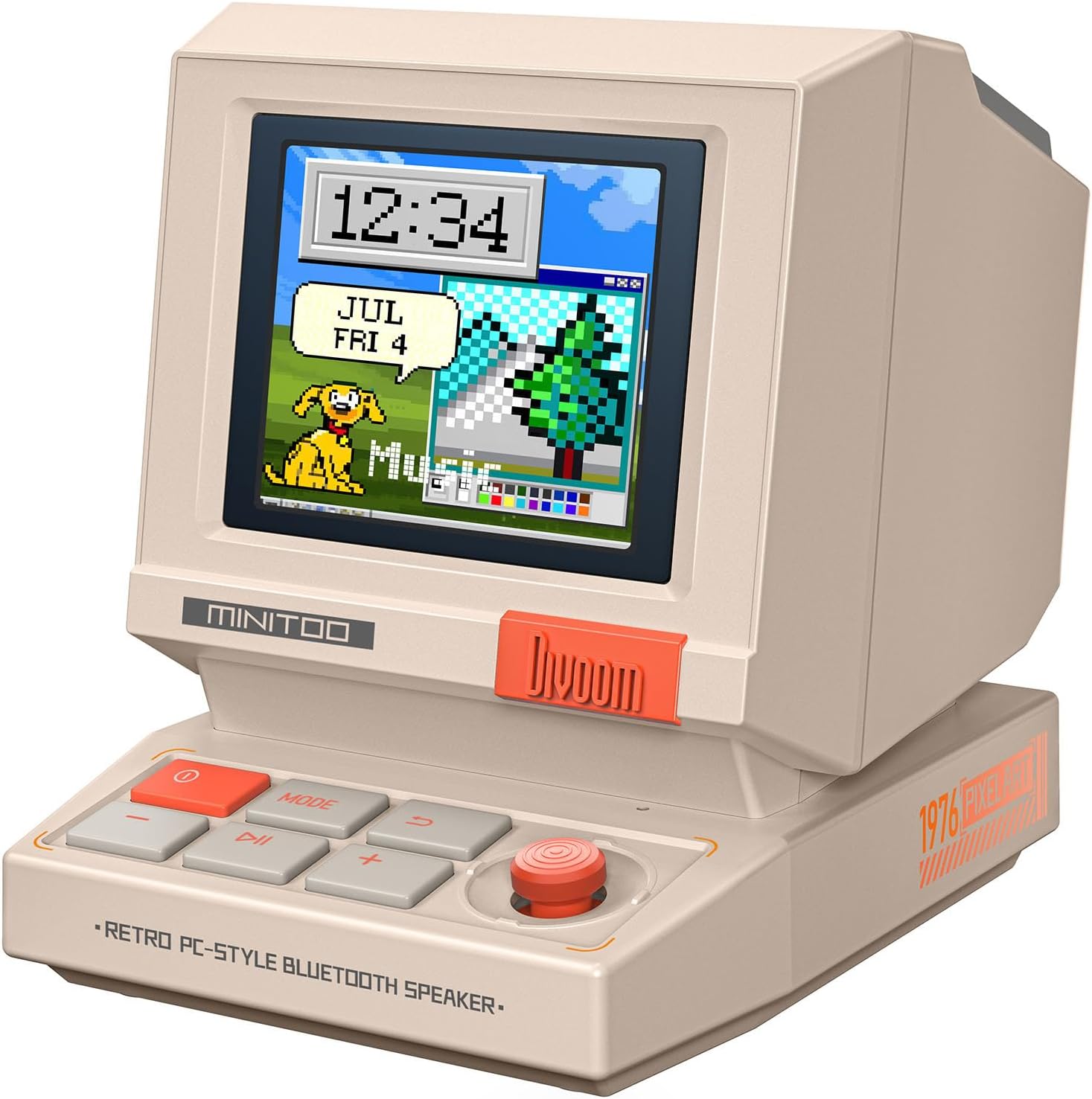
Foto: N'ihu view of the Divoom MiniToo speaker, showcasing its retro computer design and pixel art display with a clock and a dog illustration.
Ihe ngwugwu
- Divoom MiniToo Speaker
- Ntuziaka mmalite ngwa ngwa
- Igwe nchaji USB
Melite
1. Ịkụnye na Nchaji
The MiniToo speaker includes a built-in battery. Before first use, fully charge the device using the provided USB cable. Connect the USB cable to the speaker's charging port and a compatible USB power adapter (not included) or computer USB port.

Foto: N'azụ view of the Divoom MiniToo speaker, highlighting the USB port for charging and audio, and the TF card slot.
2. Njikọ mbụ
The MiniToo supports Bluetooth, USB audio, and TF card playback.
- Njikọ Bluetooth:
- Pịa ma jide bọtịnụ ike ka ịgbanwuo ọkà okwu.
- The pixel screen will display a Bluetooth icon, indicating it's in pairing mode.
- On your device (smartphone, tablet, computer), enable Bluetooth and search for "Divoom MiniToo".
- Select "Divoom MiniToo" to connect. A confirmation sound will play upon successful pairing.
- USB Audio: Connect the speaker to your computer using a USB cable. The speaker will be recognized as an audio output device. Select it from your computer's sound settings.
- Ngụghachi kaadị TF: Tinye kaadị TF nwere ọdịyo files into the designated slot on the back of the speaker. The speaker will automatically switch to TF card playback mode.

Image: The Divoom MiniToo speaker connected to a laptop via USB, illustrating its versatile connectivity options including Bluetooth, USB Audio, and TF Card playback.
3. Divoom App Installation
For full functionality, including pixel art customization and advanced features, download the Divoom app from your device's app store (iOS App Store or Google Play Store). Follow the in-app instructions to connect your MiniToo speaker.
Ntuziaka ọrụ
1. Njikwa ntọala
The MiniToo features several buttons and a joystick for navigation and control:
- Bọtịnụ Ike (Uhie): Press and hold to power on/off. Short press to switch display modes.
- Bọtịnụ MODE: Short press to cycle through different functions (e.g., Music, Clock, Alarm, Tools).
- Bọtịnụ Kwụsị/Kwụsị: Kpọọ ma ọ bụ kwụsịtụ ọdịyo.
- Bọtịnụ olu (+/-): Gbanwee olu.
- Joysticks: Navigate menus, confirm selections, or snooze alarms.

Image: The Divoom MiniToo speaker showcasing its pixel screen with a digital clock and retro computer-style interface, demonstrating its display capabilities.
2. Pixel Screen Customization
The 1.77" pixel display can be customized via the Divoom app:
- DIY Faces & Messages: Create your own pixel art, animations, or text messages.
- Clock Faces: Choose from over 70 retro clock faces and widgets.
- Photo Display: Cast photos from your phone to the speaker's screen using the app.

Image: A user interacting with the Divoom app on a smartphone to create pixel art, which is simultaneously displayed on the MiniToo speaker's screen.

Image: The Divoom MiniToo speaker displaying a photo on its screen, demonstrating the photo casting feature from a smartphone app.

Image: A collage showing multiple retro clock faces and widgets available for the Divoom MiniToo speaker, both on the device and within the companion app.
3. Alarm Clock, White Noise & Focus Tools
The MiniToo integrates several utility functions:
- Elekere mkpu: Set gentle alarms with various sounds directly on the device or through the app. Use the joystick to snooze.
- White Noise & Sleep Sounds: Access a selection of white noise and natural sounds (e.g., rain, forest) to aid sleep or relaxation.
- Focus Tools: Utilize Pomodoro timers and reminders to manage your work or study sessions.

Image: The Divoom MiniToo speaker displaying an alarm, accompanied by a visual list of 12 distinct wake-up sounds available for selection.

Image: The Divoom MiniToo speaker on a bedside table, showing a pixel art display, with visual cues for its white noise and sleep sound functions.
Nlekọta
1. Nhicha
Wipe the speaker with a soft, dry, lint-free cloth. Do not use abrasive cleaners, solvents, or spray directly onto the device. Avoid getting moisture into any openings.
2. Nlekọta batrị
To prolong battery life, avoid fully discharging the battery frequently. If storing the device for an extended period, charge it to approximately 50% every few months.
Nchọpụta nsogbu
| Nsogbu | Ihe nwere ike ime | Ngwọta |
|---|---|---|
| Ngwaọrụ anaghị agbanwu ọkụ. | Enweghị ike ịpị bọtịnụ batrị ma ọ bụ bọtịnụ ike nke ọma. | Charge the device. Press and hold the power button for 3-5 seconds. |
| Enweghị ụda sitere na ọkà okwu. | Olu dị oke ala, isi mmalite ntinye ezighi ezi, ma ọ bụ ngwaọrụ ejikọtaghị. | Increase volume. Check Bluetooth connection, USB audio selection, or TF card insertion. |
| Njikọ Bluetooth ada ada. | Speaker not in pairing mode, or device too far. | Ensure speaker is in pairing mode. Move devices closer. Forget "Divoom MiniToo" on your device and try pairing again. |
| Pixel screen is unresponsive or frozen. | Nsogbu ngwanrọ. | Perform a soft reset by holding the power button until the device restarts. If issues persist, consult the Divoom app for firmware updates. |
Nkọwapụta
| Aha Nlereanya | MiniToo |
| Ụdị Ọkà Okwu | Ọkà Okwu Nwere Ike |
| Teknụzụ Njikọta | Bluetooth 5.3, USB Audio, TF Card |
| Ike Nwepu kacha elu | 5 Watt |
| Ngosipụta | 1.77" TFT, 128x160, 60 Hz |
| Akụkụ ngwaahịa (W x D x H) | 3.2 x 2.4 x 2.9 sentimita asatọ |
| Ibu Ibu | 201.8 g (approx. 7.1 ounces) |
| Batrị | 5.55 Wh, approx. 6 hours playtime |
| Ngwa gụnyere | Quick Start Guide, USB Charging Cable |

Image: A detailed diagram illustrating the physical dimensions and key technical specifications of the Divoom MiniToo speaker.
Akwụkwọ ikike na nkwado
For warranty information, please refer to the Quick Start Guide included in your package or visit the official Divoom website. For technical support or further assistance, please contact Divoom customer service through their official channels.
Official Divoom Websaịtị: www.divoom.com