1. Okwu mmalite
This manual provides detailed instructions for the proper use and care of your FileNest 4-in-1 USB Flash Drive. This device is designed to expand storage and facilitate file management across various platforms, including iPhone, iPad, Android devices, and personal computers. Please read this manual thoroughly before using the product to ensure optimal performance and longevity.
2. Ngwaahịa gafereview
Nke FileNest 4-in-1 USB Flash Drive is a versatile external memory solution featuring multiple connectors for broad compatibility. It offers high-speed data transfer, one-click backup, and easy file sharing capabilities.
Akụkụ ndị bụ isi:
- Njikọ 4-na-1: Equipped with Lightning, USB-A, USB-C, and Micro USB connectors for universal compatibility.
- Nyefee data Ọsọ Ọsọ: Facilitates quick movement of photos, videos, music, and documents between devices.
- External Memory & Backup: Provides additional storage space and a one-click backup function for important data.
- Ndakọrịta sara mbara: Supports iPhone, iPad, Android smartphones and tablets, and PC/Mac computers.
- Enwere ike ibugharị: Compact, lightweight, and durable for convenient storage and transport.
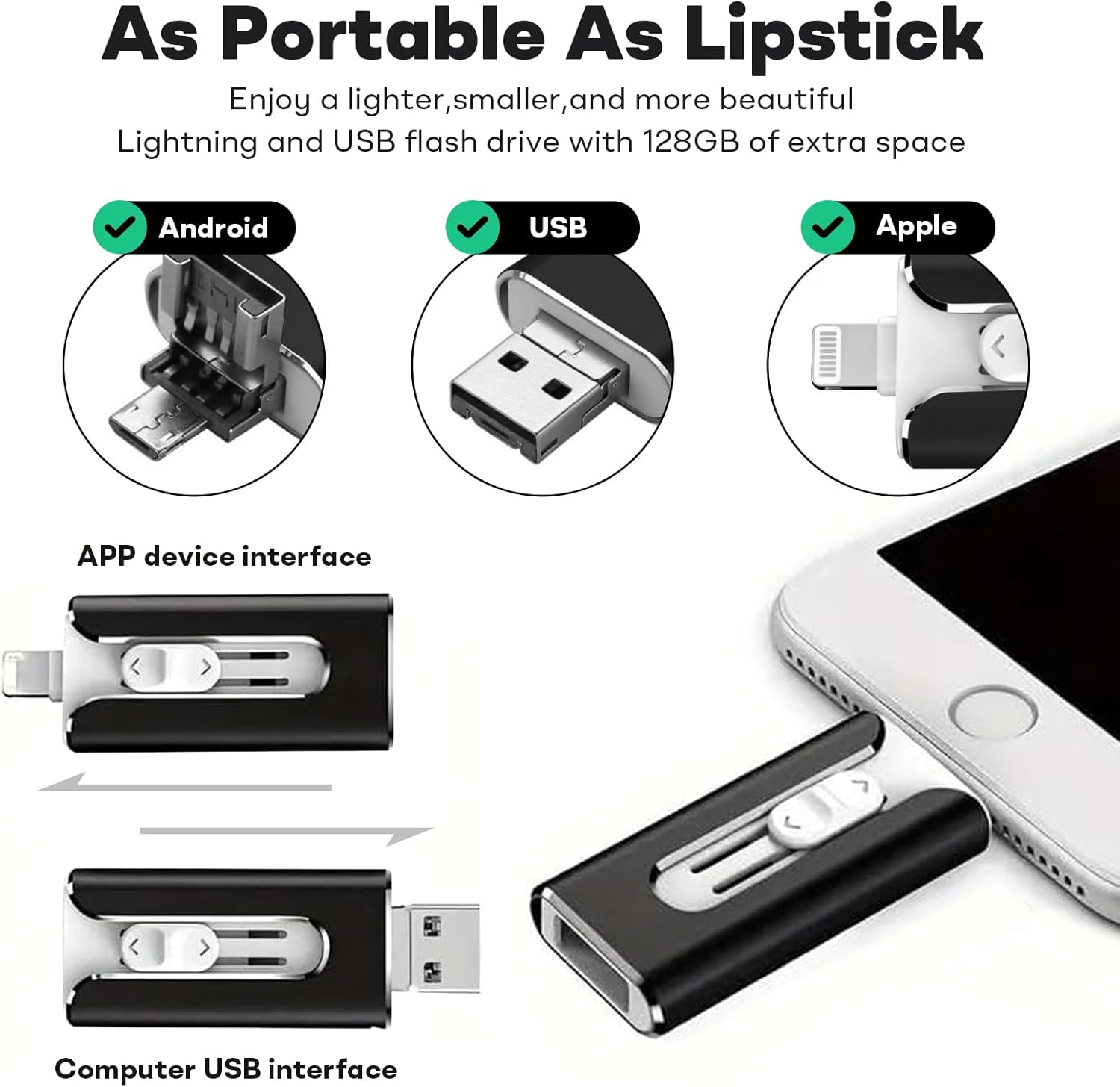
Foto 1: The FileNest 4-in-1 USB Flash Drive showcasing its multiple connector types for broad device compatibility.

Image 2: Physical dimensions of the FileNest USB Flash Drive, highlighting its compact and portable design.
3. Nhazi
Tupu iji gị FileNest USB Flash Drive, ensure your device is compatible and follow the appropriate connection steps.
3.1. App Installation (for iOS/Android)
For iPhone, iPad, and Android devices, a dedicated application is required to manage files on the flash drive. When you first connect the drive to your mobile device, you may be prompted to download the recommended app. If not, search for the "i-FlashDevice HD" app (or similar as indicated by the product packaging/instructions) in your device's app store and install it.
3.2. Ijikọ ngwaọrụ
- For iPhone/iPad (Lightning): Carefully insert the Lightning connector into your iPhone or iPad's charging port. Ensure it is fully seated.
- For Android (USB-C/Micro USB): Identify the correct connector (USB-C or Micro USB) for your Android device and insert it into the device's charging/data port.
- For PC/Mac (USB-A): Insert the standard USB-A connector into an available USB port on your computer. The drive should be recognized automatically by your operating system.
Note: Always ensure the correct connector is used for your device to prevent damage.
4. Ntuziaka ọrụ
4.1. File Management (iOS/Android App)
Once the flash drive is connected and the app is launched:
- Ịnweta Files: The app will display the internal storage of your device and the external storage of the flash drive. Navigate between these locations to view nke gị files.
- Na-ebufe Files:
- Họrọ nke files (photos, videos, documents) you wish to transfer.
- Use the app's copy/move function to transfer them between your device's internal storage and the flash drive.
- One-Click Backup: The app typically includes a "One-Click Backup" feature for photos and videos. Activate this function to quickly back up your mobile device's media to the flash drive.

Foto 3: The FileNest USB Flash Drive offers efficient data transfer speeds for quick file arụmọrụ.
4.2. File Management (PC/Mac)
When connected to a computer, the flash drive will appear as a removable storage device. You can drag and drop files, copy, paste, and delete files using your computer's file onye na-eme nchọpụta (Windows) ma ọ bụ onye na-achọta ihe (Mac).
4.3. Ịkekọrịta Files
The companion app for mobile devices may offer direct sharing options. You can select photos or videos stored on the flash drive and share them to social media platforms or other applications installed on your device.
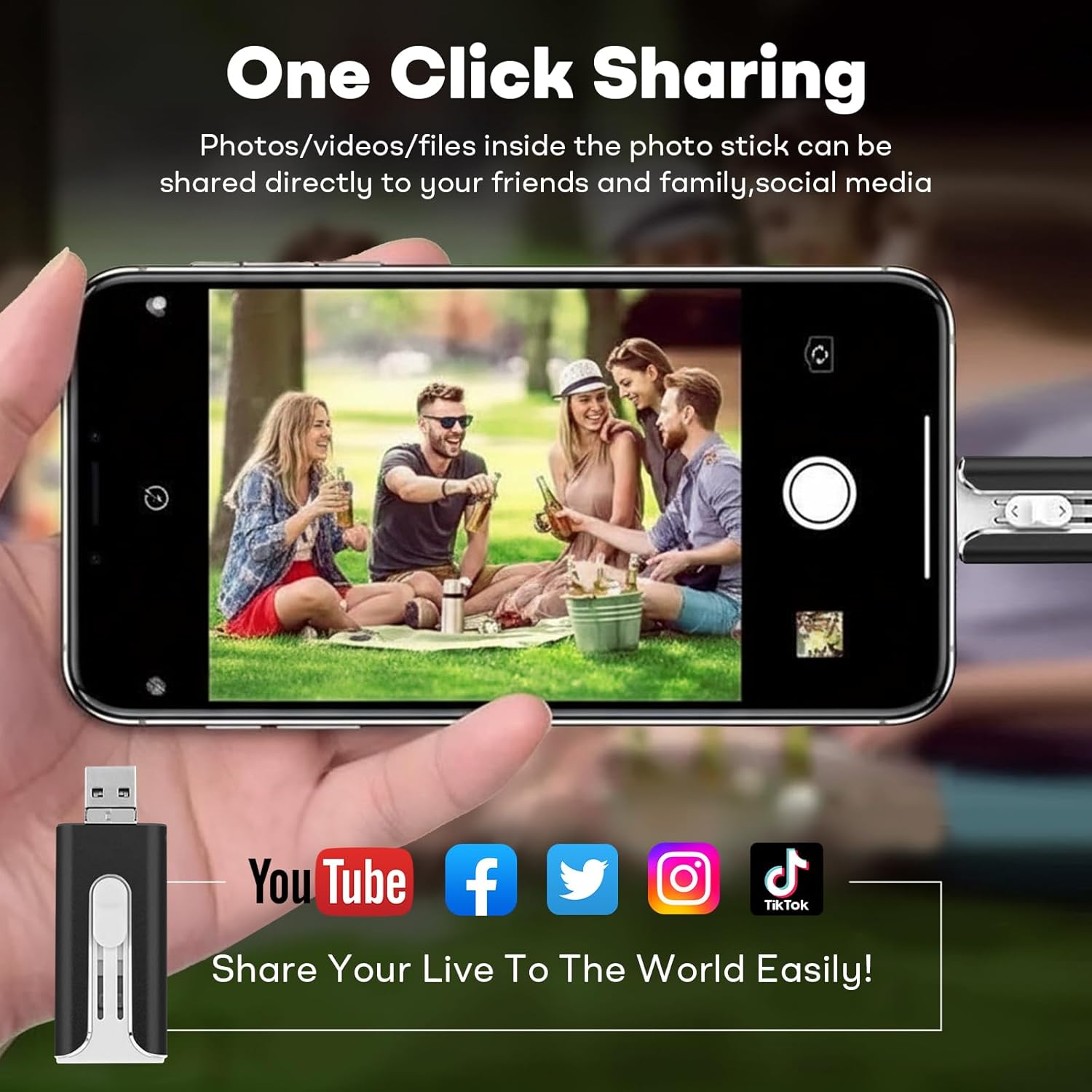
Foto 4: The FileNest USB Flash Drive enables easy sharing of media directly from the drive to various social media platforms.
5. Nlekọta
- Ijikwa nke ọma: Zere idobe ngwaọrụ ma ọ bụ tinye ya na mmetụta siri ike.
- Ọnọdụ gburugburu: Keep the flash drive away from extreme temperatures, direct sunlight, moisture, and strong magnetic fields.
- Nhicha: Jiri ákwà dị nro ma kpọọ nkụ hichaa mpụta ngwaọrụ ahụ. Ejila ihe nhicha mmiri ma ọ bụ ihe mgbaze.
- Mwepụ nke ọma: Always safely eject the flash drive from your computer's operating system before physically disconnecting it to prevent data corruption. For mobile devices, ensure all transfer operations are complete before removal.
6. Nchọpụta nsogbu
| Nsogbu | Ihe nwere ike ime | Ngwọta |
|---|---|---|
| Drive not recognized by mobile device. | App not installed or not running. Incorrect connector used. Loose connection. | Ensure the correct app is installed and open. Verify the connector is fully inserted and matches your device port. Try reconnecting. |
| Kọmputa anaghị amata draịva ahụ. | Loose connection. Faulty USB port. Driver issue. | Try a different USB port. Reconnect the drive. Restart your computer. Check Device Manager (Windows) or System Information (Mac) for USB device status. |
| Ọsọ mbufe data dị nwayọ. | Nnukwu file sizes. Other background processes. USB port version. | Close unnecessary applications. Ensure you are using a USB 3.0 port on your computer for optimal speeds. |
| Enweghị ike ịnyefe files. | Insufficient space on destination. File system limitations. App permissions. | Check available storage. Ensure the file size is within limits for the destination file system (e.g., FAT32 has a 4GB file size limit). Grant necessary permissions to the app. |
7. Nkọwapụta
- Ụdị: FileNest 4-in-1 USB Flash Drive
- Ike Nchekwa ebe nchekwa: 256 GB (as per current variant)
- Teknụzụ Njikọta: USB
- Ngwa ngwa ngwa: USB 3.0
- Njikọ: USB-A, Lightning, USB-C, Micro USB
- Agba: Black (as per current variant)
- Ibu ihe: 1.13 ounces
- Akụkụ ngwugwu: 5.87 x 3.15 x 0.79 sentimita asatọ
- Njirimara Pụrụ Iche: Dị fechaa
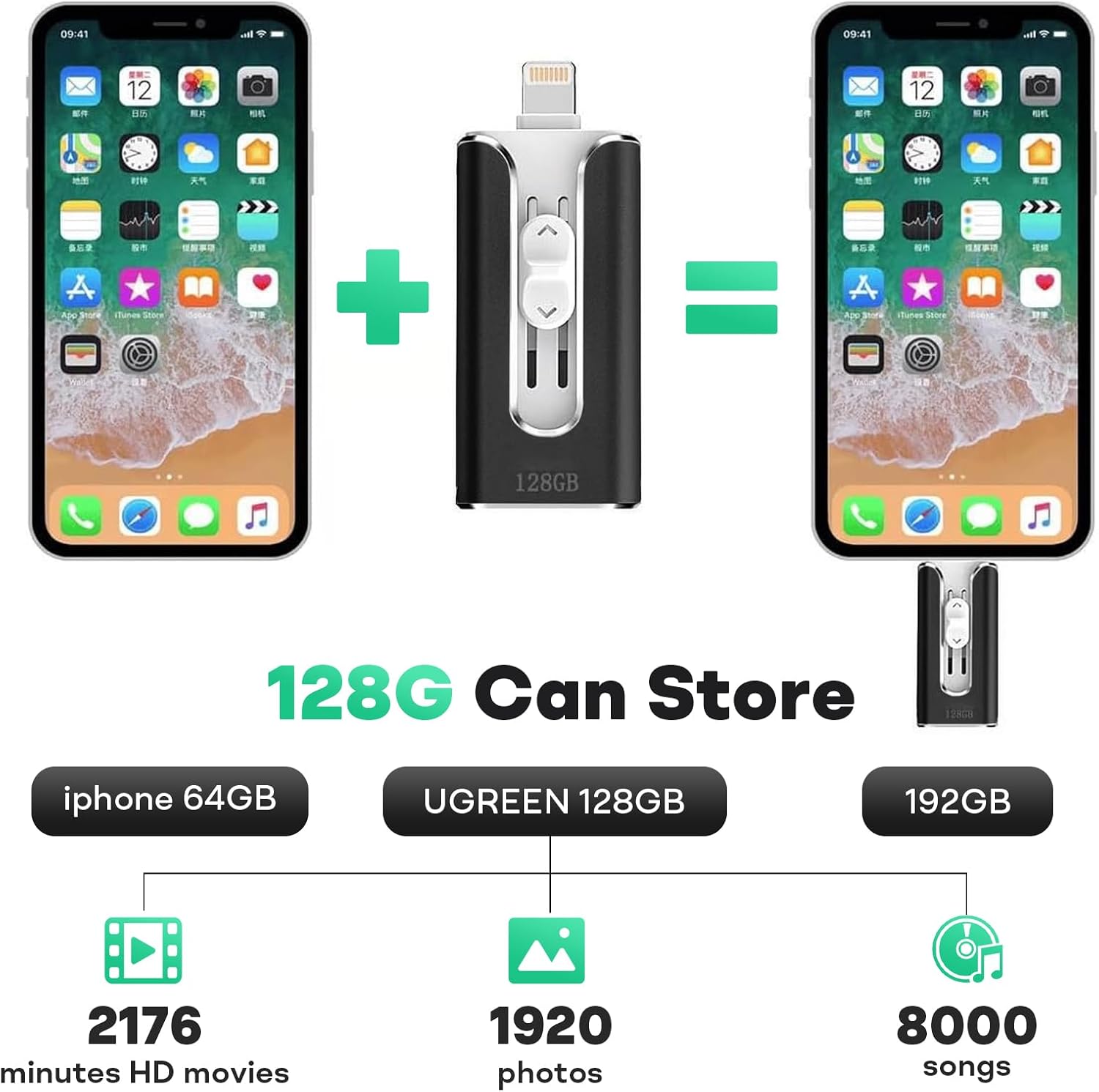
Image 5: Illustrative storage capacity of the FileNest USB Flash Drive, demonstrating its ability to hold a significant amount of media. Note: The image displays 128GB capacity for illustration; this product variant is 256GB.
8. Akwụkwọ ikike & Nkwado
This product comes with a standard manufacturer's warranty. For specific warranty details, please refer to the product packaging or contact the retailer where the product was purchased. For technical support or further assistance, please contact the manufacturer's customer service through the contact information provided on the product packaging or their official websaịtị.
Biko dowe ihe akaebe nke ịzụrụ ihe maka akwụkwọ ikike.


