
Okwu mmalite
This manual provides detailed instructions for the installation, operation, maintenance, and troubleshooting of your Phanteks Glacier One 360M25-LCD AIO Liquid CPU Cooler. This high-performance all-in-one liquid cooler features a massive 6-inch IPS LCD display, 120mm M25 Gen2 D-RGB fans, and a pure copper baseplate for efficient thermal management of high-end CPUs. It is compatible with both Intel and AMD platforms.
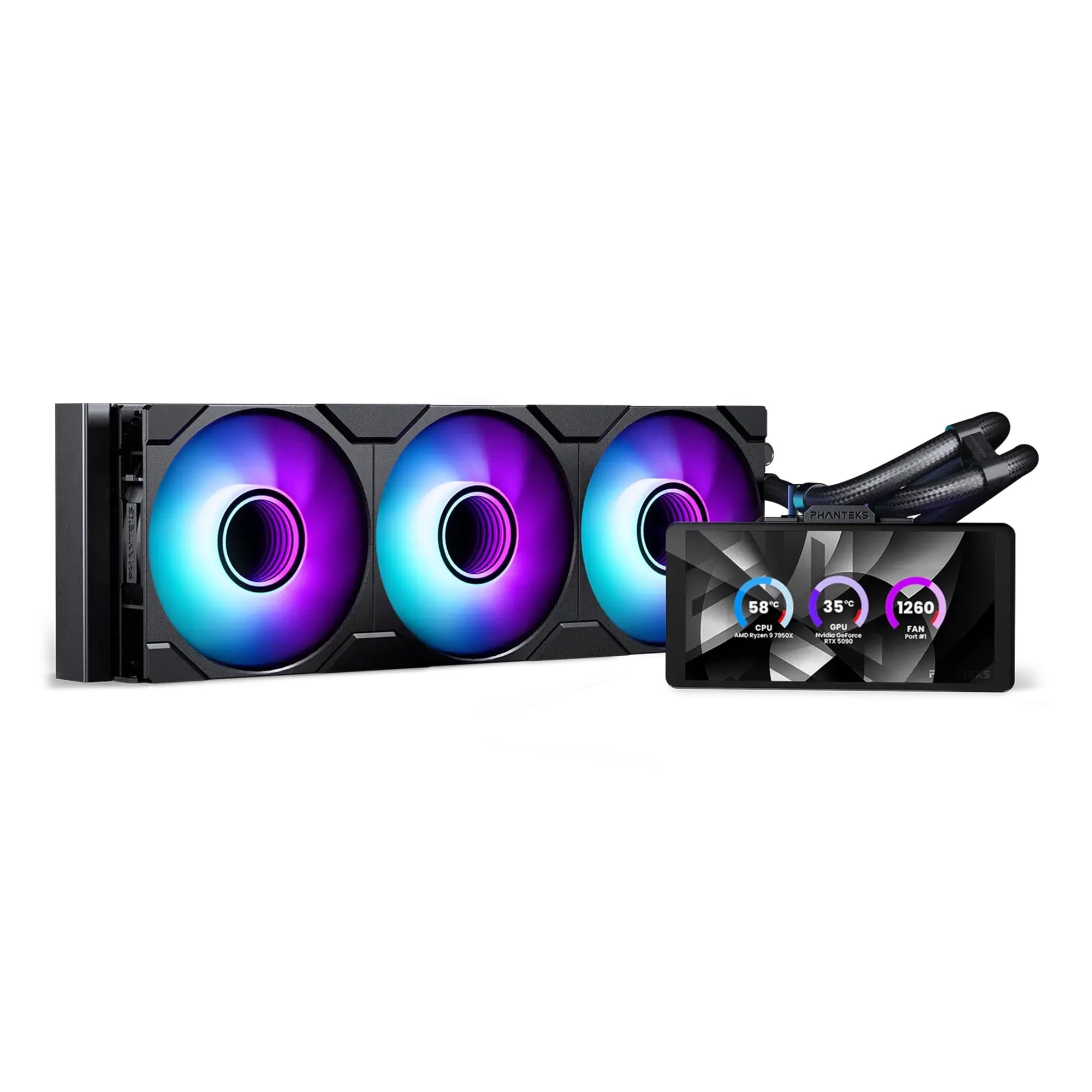
Image: The Phanteks Glacier One 360M25-LCD AIO Liquid CPU Cooler, showcasing its radiator, fans, pump, and integrated LCD display.
Ntọala na nwụnye
Careful installation is crucial for optimal performance. Ensure your system is powered off and disconnected from the power source before beginning.
Ihe ngwugwu
Chọpụta na akụrụngwa niile dị:
- Glacier One 360M25 G2 6” LCD DRGB AIO Liquid CPU Cooler (Radiator, Pump/Block with LCD, Tubing, and Fans pre-attached)
- Akụrụngwa na-arị elu maka oghere Intel na AMD
- Fan and D-RGB cables
- Tube clips
Nzọụkwụ Nwụnye
- Kwadebe Motherboard: Wụnye akwa azụ azụ kwesịrị ekwesị na nkwụsị maka oghere CPU gị (Intel ma ọ bụ AMD).
- Ugwu Radiator: Secure the 360mm radiator to an available fan mounting location in your PC case. Ensure proper airflow direction.
- Install Pump/Block: Apply thermal paste to your CPU (if not pre-applied on the cold plate). Position the pump/block assembly onto the CPU, aligning with the standoffs, and secure it with the provided screws. The pump offers flexible tube routing and multiple LCD orientations for tall RAM clearance.
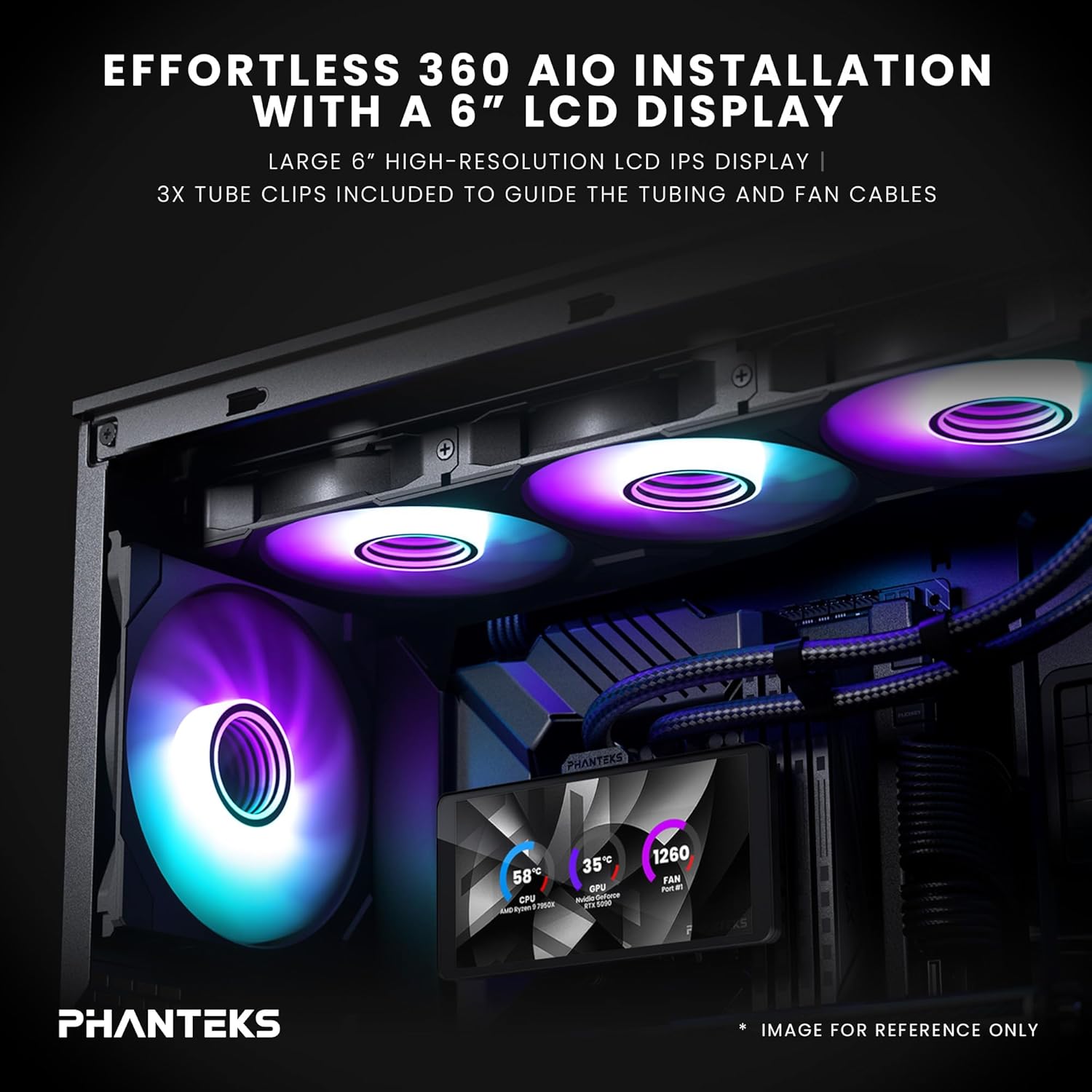
Image: An installed Phanteks Glacier One AIO cooler inside a PC case, highlighting the 6-inch LCD display and D-RGB fans. Tube clips are used to manage tubing and fan cables.
- Jikọọ Fans: The M25 Gen2 D-RGB fans feature a daisy-chained unified design, simplifying cable management. Connect the fans to the radiator and then to the pump/controller.

Image: Close-up of the daisy-chained fan design, showing how fans connect together with a single cable for power and D-RGB control, and included screw covers for a clean look.
- Jikọọ Ike na Data: Connect the pump's power cable to a CPU_FAN header on your motherboard and the D-RGB cable to an available D-RGB header or the included controller. Connect the LCD display's USB cable to an internal USB 2.0 header on your motherboard.
- Njikwa USB: Use the included tube clips and other cable ties to manage all cables for a clean build and unobstructed airflow.

Image: A PC build demonstrating the dual orientation support for the LCD display, showing both horizontal and vertical mounting options for the pump unit.
Operating the Glacier One 360M25-LCD
Once installed, the cooler will provide active cooling. The integrated 6-inch IPS LCD display offers real-time system monitoring and customization.
Nexlinq App for Customization
To fully utilize the LCD display's features, download and install the Nexlinq App for Windows from the official Phanteks websaịtị. Ngwa a na-enye gị ohere:
- Customize LCD layouts and widgets.
- Display live system data such as CPU and GPU temperature, CPU and GPU fan speed (RPM), and pump speed (RPM).
- Adjust the display orientation.
- Upload custom graphics, animations, or media (video playback capped under 80MB).
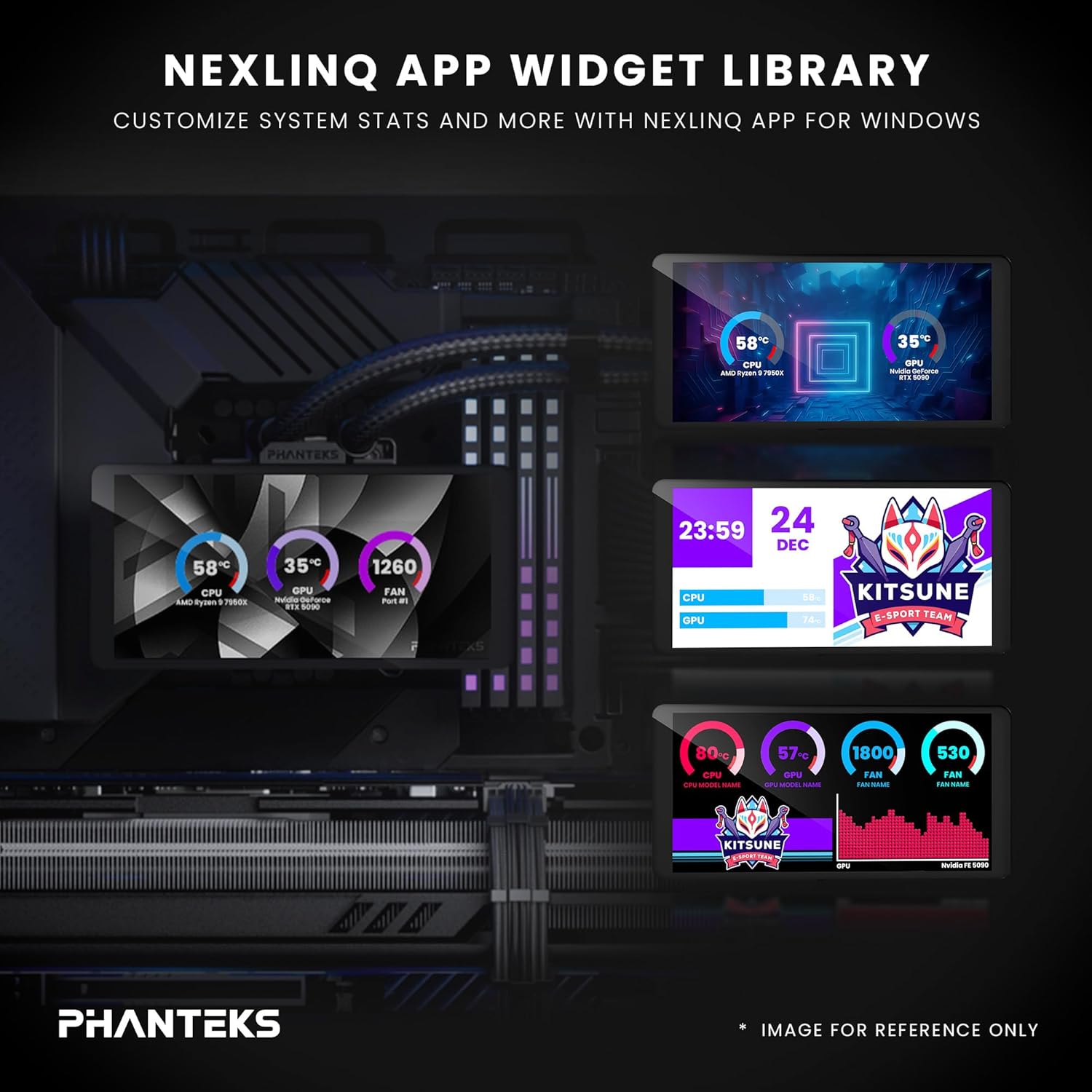
Image: A visual representation of the Nexlinq App's widget library, showing various customizable display options for system statistics and graphics on the LCD screen.
Ensure the Nexlinq App is running in the background for continuous display updates and customization.
Nlekọta
Regular maintenance helps ensure the longevity and optimal performance of your AIO cooler.
- Mwepụ uzuzu: Periodically clean the radiator fins and fan blades using compressed air. Dust accumulation can impede airflow and reduce cooling efficiency.
- Check Tubing and Connections: Visually inspect the tubing and connections for any signs of leaks or damage. Ensure all connections remain secure.
- Mmelite ngwanrọ: Keep the Nexlinq App and any related drivers updated to ensure compatibility and access to new features or performance improvements.
Nchọpụta nsogbu
If you encounter issues with your Glacier One 360M25-LCD, refer to the following common solutions:
- Enweghị ngosi na LCD:
- Ensure the USB 2.0 header cable from the pump is securely connected to your motherboard.
- Verify that the Nexlinq App is installed and running.
- Check for any driver conflicts or Windows updates that might affect USB device recognition.
- Okpomọkụ CPU dị elu:
- Confirm the pump is running (check pump speed in Nexlinq App or BIOS).
- Gbaa mbọ hụ na ndị fan na-agbagharị ma gbakwasara n'ụzọ ziri ezi maka ikuku ikuku.
- Verify the pump/block is making proper contact with the CPU and thermal paste is correctly applied.
- Check for dust buildup on the radiator.
- Fans Not Spinning or D-RGB Not Working:
- Check all fan and D-RGB cable connections.
- Ensure the D-RGB cable is connected to a compatible header or controller.
- Verify fan speed settings in BIOS or through the Nexlinq App.
- Limited Data Displayed on LCD: The Nexlinq App currently supports display of CPU/GPU temperature, CPU/GPU fan speed, and pump speed. Additional data such as RAM usage or liquid temperature may be added in future software updates.
Nkọwapụta
| Njirimara | Nkọwa |
|---|---|
| Akụkụ ngwaahịa | 18"L x 8"W x 5"H |
| Ụdị | Phanteks |
| Ike njikọ .dị | 4-Pin |
| Voltage | 1 volts |
| Wattage | 10 watt |
| Usoro jụrụ oyi | Ikuku, Mmiri |
| Ngwa dakọtara | CPU, Desktop, Computer Case |
| UPC | 886523004202 |
| Onye nrụpụta | Phanteks |
| Ibu Ibu | 5.8 pound |
| Ngwa gụnyere | Glacier One 360M25 G2 6” LCD DRGB AIO Liquid CPU Cooler |
Akwụkwọ ikike na nkwado
Phanteks products are designed for reliability and performance. For warranty information, please refer to the documentation included with your product or visit the official Phanteks website. For technical support, driver downloads, and further assistance, please visit the Phanteks support page or contact their customer service.
Onye nrụpụta: Phanteks
Websaịtị: www.phanteks.com