
1. Ngwaahịa gafereview
The Dpofirs 7.5-inch Digital Notepad is an innovative electronic writing tablet designed to seamlessly bridge the gap between traditional handwriting and digital convenience. It allows users to write naturally with a smart pen, digitize notes in real-time, and leverage AI for handwriting recognition, translation, and sharing. This device is ideal for professionals, students, and travelers seeking an efficient way to capture and manage their ideas.

Foto: N'ihu view of the Dpofirs 7.5-inch Digital Notepad, displaying a handwritten quote on its screen.
2. Ntuziaka Nhazi
Ihe ngwugwu 2.1
Before starting, ensure all components are present in the package:
- Dpofirs 7.5-inch Digital Notepad
- Smart Pen
- Igwe nchaji USB
- Akwụkwọ ntuziaka (akwụkwọ a)
- Additional stylus tips (if included)
Video: Demonstrates the contents of the product package, including the digital notepad, smart pen, and accessories.
2.2 Ịchaji ngwaọrụ
The smart pen and writing tablet are powered by separate batteries. Ensure both are sufficiently charged before first use.
- Smart Pen: Connect the smart pen to a USB power source using the provided USB charging cable. The indicator light will show charging status.
- Writing Tablet: The writing tablet uses a CR2032 battery. This battery is typically pre-installed and provides long-lasting power for the erase function. Replacement instructions are in the Maintenance section.
2.3 Ngwa nbudata na nwụnye
To unlock the full potential of your Dpofirs Digital Notepad, download and install the companion application on your smartphone or tablet.
- Locate the QR code in the user manual (or on the product packaging).
- Jiri ekwentị ma ọ bụ mbadamba gị nyochaa koodu QR.
- Follow the link to download the application. For iOS users, select the App Store button; for Android users, select the Android button.
- Wụnye ngwa na ngwaọrụ gị.
2.4 Njikọ Bluetooth
Pair your smart pen with the application via Bluetooth 5.0 for real-time synchronization.
- Ensure Bluetooth is enabled on your smartphone/tablet and the smart pen is charged.
- Open the Dpofirs companion application.
- Follow the in-app instructions to connect your smart pen. This usually involves pressing a button on the pen or tablet to initiate pairing mode.
- Ozugbo ejikọtara ya, ngwa ahụ ga-egosi na ejikọtara ya nke ọma.
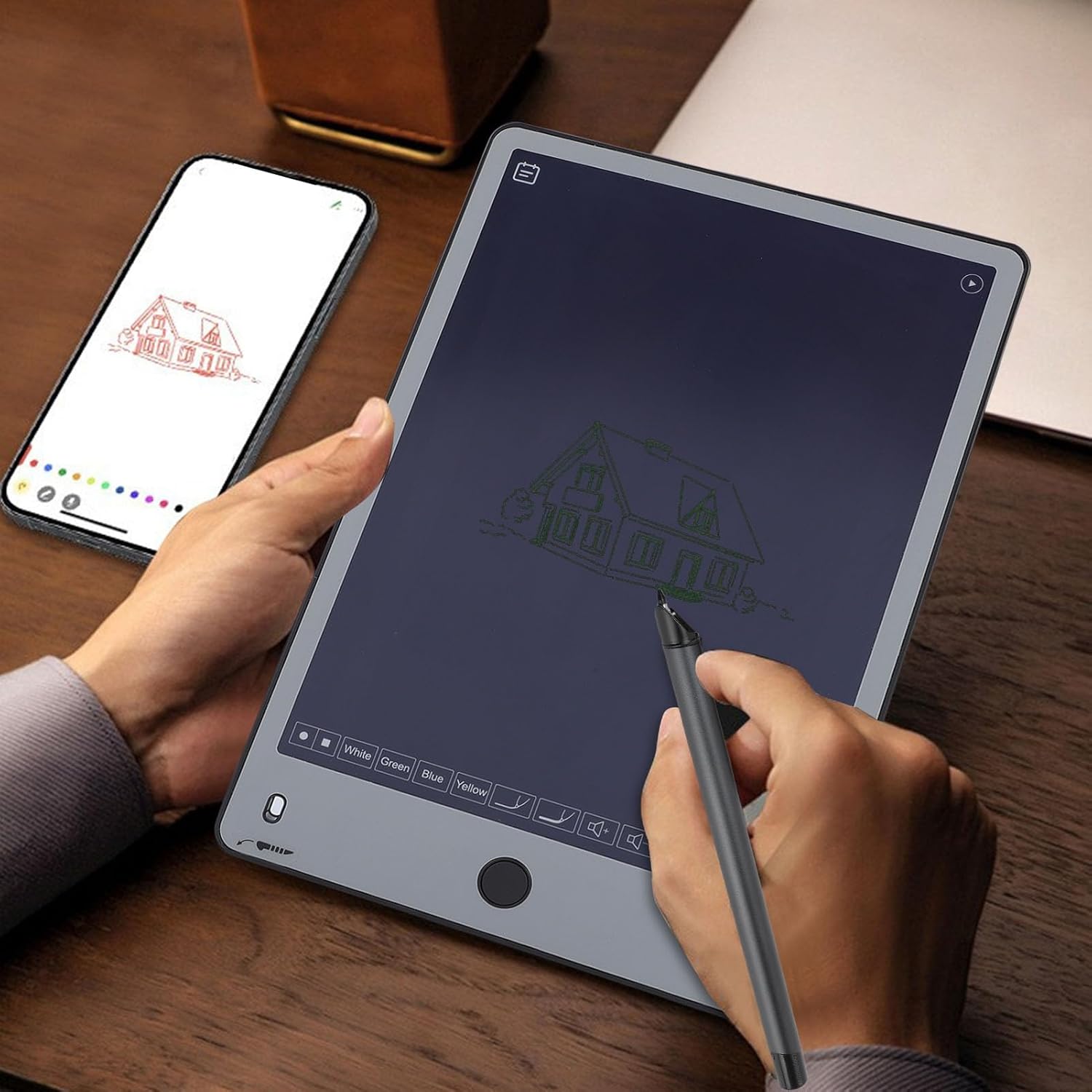
Image: A user writing on the digital notepad while a smartphone displays the synchronized content in real-time.
3. Ntuziaka ọrụ
3.1 Ide ihe na eserese
Use the smart pen to write or draw directly on the surface of the Dpofirs Digital Notepad. The tablet's surface is designed to provide a natural writing experience.
- Ensure the smart pen has a charged battery and a proper tip for optimal performance.
- Write or draw as you would on traditional paper.
- Your strokes will appear on the digital notepad's screen and, if connected, will synchronize in real-time with the companion app on your paired device.
Video: Demonstrates the real-time synchronization of writing from the digital notepad to a connected smartphone.
3.2 One-Click Erase Function
To clear the entire screen content, simply press the dedicated erase button on the digital notepad.
- Press the circular Home key located at the bottom center of the tablet.
- All content on the screen will be instantly cleared without leaving any residue.

Image: A finger pressing the central button on the digital notepad to clear the screen content.
3.3 AI Handwriting Recognition and Conversion
The integrated AI technology allows for quick recognition and conversion of your handwritten notes.
- After writing, open the companion app to view your synchronized notes.
- The app can convert your handwritten text into editable digital formats.
- Export your notes as JPG images or PDF documents for easy sharing and archiving.

Image: The digital notepad displays handwritten text, while a connected smartphone shows the same content converted into editable digital text, highlighting the recognition accuracy.
3.4 Smart Translation and Sharing
Leverage the AI capabilities for intelligent translation and seamless sharing of your content.
- Within the app, select the translation feature to convert your handwritten notes into multiple languages.
- Easily share your digitized notes, drawings, or translated text with colleagues, friends, or family via various platforms.
Video: Demonstrates how to archive and manage notes within the smart notebook application, including sharing options.
4. Nlekọta
4.1 Cleaning the Digital Notepad
To ensure longevity and optimal performance, keep your digital notepad clean.
- Use a soft, lint-free cloth to gently wipe the screen and body of the notepad.
- Avoid using harsh chemicals, abrasive cleaners, or excessive moisture, as these can damage the screen or internal components.
4.2 Smart Pen Battery Care
The smart pen contains a rechargeable Li-ion battery. Follow these guidelines for proper care:
- Charge the pen regularly, especially if it will be stored for an extended period.
- Zere ka batrị ahụ gbapụta nke ọma mgbe niile, n'ihi na nke a nwere ike ibelata ndụ ya.
- Use only the provided USB charging cable or a compatible charger.

Image: The Dpofirs Smart Pen with its cap removed, showing the writing tip.
4.3 Writing Tablet Battery Replacement (CR2032)
The writing tablet's erase function is powered by a replaceable CR2032 coin cell battery. When the erase function becomes weak or stops working, it's time to replace the battery.
- Locate the battery compartment on the back or side of the writing tablet.
- Using a small screwdriver or coin, carefully open the battery compartment cover.
- Wepu batrị CR2032 ochie.
- Fanye batrị CR2032 ọhụrụ nwere akụkụ dị mma (+) chere ihu n'elu.
- Mechie mkpuchi nke batrị batrị nke ọma.
4.4 Stylus Tip Replacement
Over time, the smart pen's tip may wear down. Replace it to maintain optimal writing performance.
- Gently pull the old tip straight out from the smart pen.
- Take a new replacement tip (if provided in the package).
- Insert the new tip firmly into the pen until it is secure.

Foto: A nso nso view of the smart pen's tip, illustrating the part that may need replacement.
5. Nchọpụta nsogbu
5.1 Device Not Turning On / Not Responding
- Smart Pen: Ensure the smart pen is charged. Connect it to the USB charger for at least 30 minutes.
- Writing Tablet: The tablet does not have a power button in the traditional sense; its screen is always ready for writing. If the erase function is not working, check or replace the CR2032 battery.
5.2 App Not Syncing with Pen/Tablet
- Ensure Bluetooth is enabled on your smartphone/tablet and the smart pen is charged.
- Restart the companion application.
- Try unpairing and re-pairing the smart pen via the app's settings.
- Ensure the app has the necessary permissions (e.g., Bluetooth, storage) on your device.
5.3 Handwriting Not Recognized Accurately
- Ensure you are writing clearly and legibly.
- Check if the smart pen tip is worn and replace it if necessary.
- Update the companion app to the latest version, as recognition algorithms may improve with updates.
5.4 Screen Not Clearing
- Press the erase button firmly.
- Replace the CR2032 battery in the writing tablet if the erase function is unresponsive.
6. Nkọwapụta
| Nọmba nlereanya | Dpofirs6e9t7gp0my |
| Writing Tablet Size | 286 x 191 mm (11.3 x 7.5 sentimita) |
| N'ozuzu akụkụ | 31 x 25 x 5 cm (Ngwugwu) |
| Ibu | 540g (19 oz) |
| Akụrụngwa | Aluminum alloy, ABS, PU |
| Smart Pen Battery | SX78460 250mAh Li-ion (Rechargeable) |
| Writing Tablet Battery | CR2032 120mAh (Replaceable) |
| Usoro njikọ | Bluetooth 5.0 |
| Mmalite | China |
Image: The Dpofirs 7.5-inch Digital Notepad, illustrating its physical dimensions.
7. Akwụkwọ ikike na nkwado
7.1 Akwụkwọ ikike ngwaahịa
This Dpofirs product comes with a manufacturer's warranty of 90 days from the date of sale. This warranty covers defects in materials and workmanship under normal use. It does not cover damage caused by misuse, accidents, unauthorized modifications, or normal wear and tear.
Biko dowe ihe akaebe nke ịzụrụ ihe maka akwụkwọ ikike.
7.2 Nkwado ndị ahịa
For technical assistance, troubleshooting, or warranty inquiries, please contact Dpofirs customer support through the retailer's platform or the official Dpofirs website. Provide your product model number (Dpofirs6e9t7gp0my) and a detailed description of the issue to expedite service.