
Okwu mmalite
This manual provides essential information for the safe and efficient use of your Google Pixel 9 Pro 5G smartphone. Please read these instructions carefully before operating your device.
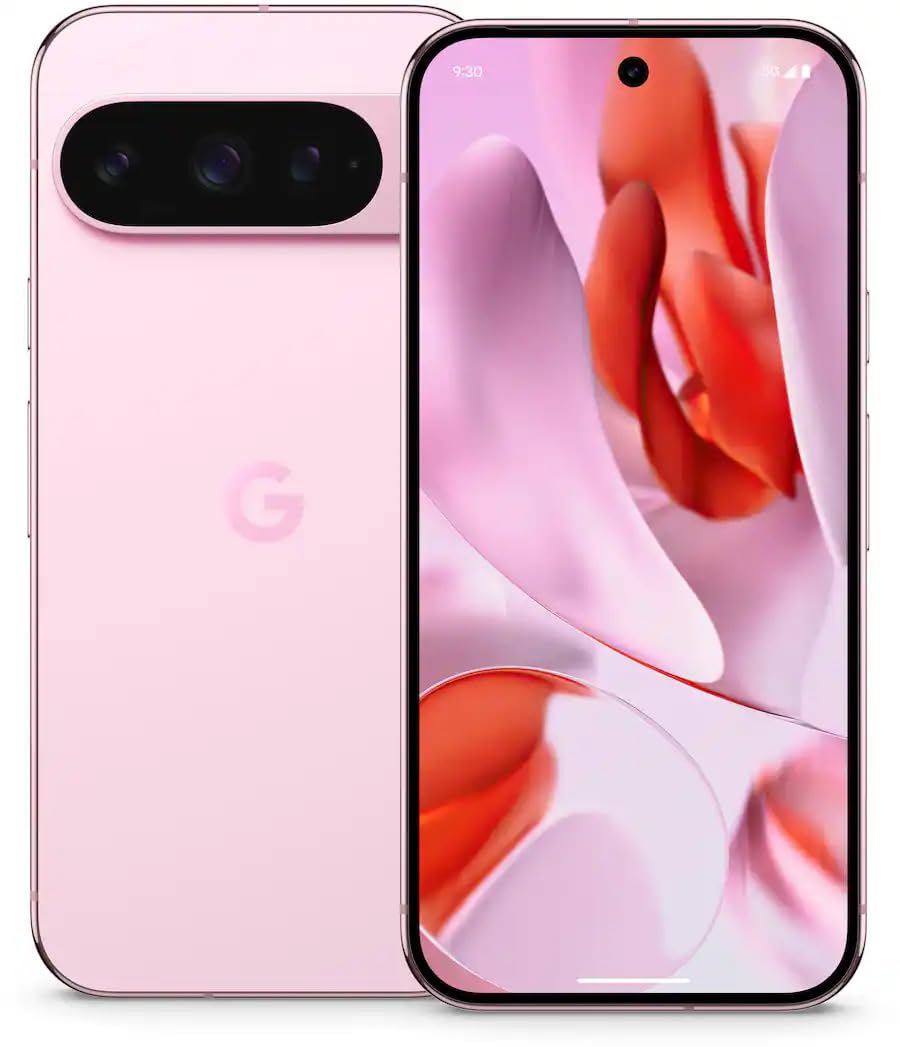
Foto 1: N'ihu view of the Google Pixel 9 Pro 5G.
Kedu ihe dị na Igbe ahụ
Chọpụta na ihe niile dị na nkwakọ ngwaahịa:
- Google Pixel 9 Pro smartphone
- USB-C to USB-C Cable (1m, USB 2.0)
- Ngwá Ọrụ Ejector SIM Tray
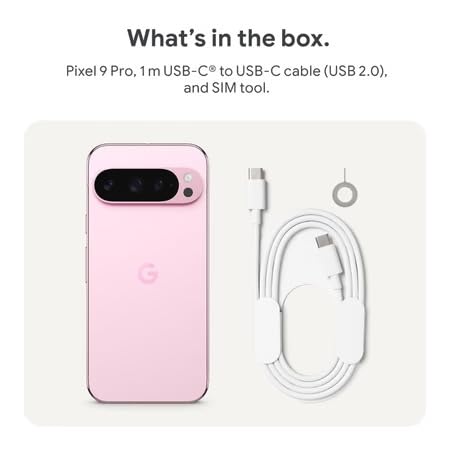
Figure 2: Included items in the Pixel 9 Pro packaging.
Melite
1. Ntinye kaadi SIM
- Chọta tray SIM n'akụkụ Pixel 9 Pro gị.
- Insert the provided SIM ejector tool into the small hole on the SIM tray and press gently until the tray pops out.
- Place your Nano-SIM card into the tray with the gold contacts facing down. Ensure it is seated correctly.
- Carefully push the SIM tray back into the device until it is flush.
2. Nchaji mbụ
Tupu ojiji mbụ, a na-atụ aro ka ị chajịa ngwaọrụ gị nke ọma.
- Jikọọ eriri USB-C na ọdụ ụgbọ mmiri dị na ala ekwentị gị.
- Connect the other end of the cable to a compatible USB power adapter (sold separately) and plug it into a power outlet.
- Akara ngosi batrị dị na ihuenyo ga-egosi ọkwa nchaji.
3. Ịgbanye / gbanyụọ
- Iji gbanye: Press and hold the Power button (located on the right side) until the Google logo appears on the screen.
- Iji gbanyụọ: Press and hold the Power button, then tap 'Power off' on the screen.
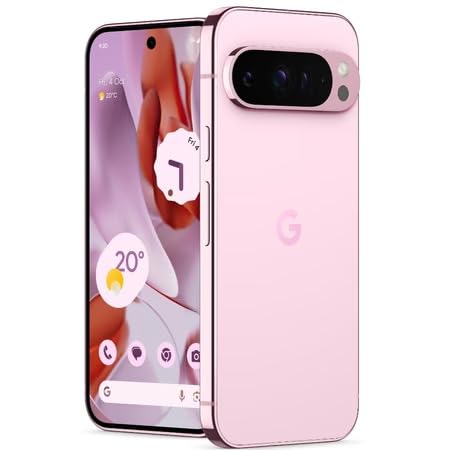
Figure 3: Power and volume buttons on the side of the device.
4. First-Time Setup Wizard
Upon powering on for the first time, follow the on-screen instructions to:
- Họrọ asụsụ na mpaghara gị.
- Jikọọ na netwọk Wi-Fi.
- Jiri akaụntụ Google gị banye ma ọ bụ mepụta nke ọhụrụ.
- Set up security features such as fingerprint unlock, face unlock, PIN, pattern, or password.
- Transfer data from an old device (optional).
Ntuziaka ọrụ
Nsoro ụzọ
- Mmegharị ihuenyo mmetụ: Interact with the device using taps, swipes, pinches (for zoom), and long presses.
- Ihuenyo ụlọ: Access your applications, widgets, and customize your layout.
- Amamọkwa: Si n'elu ihuenyo gaa ala view ngosi.
- Ntọala Ndenye: Swipe down twice from the top of the screen to access quick settings toggles (Wi-Fi, Bluetooth, etc.).
Ọrụ igwefoto
The Pixel 9 Pro features a powerful triple rear camera system.
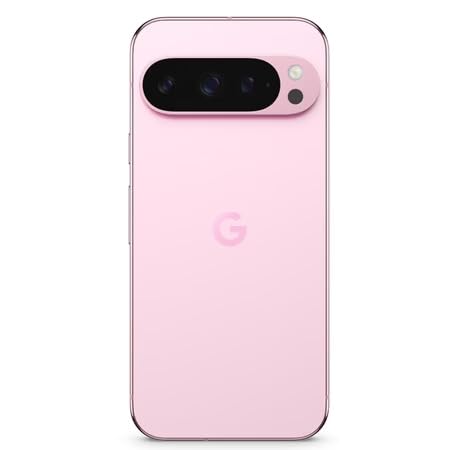
Figure 4: Rear camera system of the Pixel 9 Pro.
- Imepe Igwefoto: Tap the Camera app icon on your home screen or lock screen.
- Switching Lenses: Tap the icons on the viewfinder to switch between wide, ultrawide, and 5x telephoto lenses.
- Ụdị agbapụ: Select from various modes such as Night Sight for low-light conditions, Astrophotograph for capturing stars, Macro for close-up shots, Ngosipụta ogologo for creative effects, and Eserese for depth-of-field effects.
- Mbugharị Super Res: Pinch the screen to digitally zoom up to 30x. For video, Super Res Zoom supports up to 20x.
- Njikwa Pro: Access advanced camera settings like shutter speed and manual focus for greater creative control.
Njikwa batrị
- Na-enyocha ọkwa batrị: View pasent batrịtage in the status bar or in Settings > Battery.
- Nchekwa batrị dị oke egwu: Enable this mode in Settings > Battery > Extreme Battery Saver to significantly extend battery life.
- Ịchaji: Use the provided USB-C cable and a compatible power adapter for optimal charging speed.
Atụmatụ nchekwa
Your Pixel 9 Pro incorporates multiple hardware security layers to protect your data.
- Mkpọghe mkpịsị aka: Register your fingerprints in Settings > Security & privacy > Device unlock.
- Mkpọghe ihu: Set up facial recognition for convenient unlocking.
- PIN/Ụkpụrụ/Paswọọdụ: Always set a strong screen lock method.
- Mmelite ngwanrọ: Regularly install system updates to ensure your device has the latest security patches.
Ihe mmetụta okpomọkụ
The Pixel 9 Pro includes a thermometer for measuring temperature.
- Open the dedicated Thermometer app.
- Follow the on-screen instructions to measure body temperature or the temperature of objects.
- Temperature data can be saved and tracked within the Fitbit application.
Nlekọta
Nhicha Ngwaọrụ gị
- Use a soft, lint-free cloth to clean the screen and body of your phone.
- Avoid using abrasive materials, harsh chemicals, or aerosol sprays.
- Do not submerge the device in water, despite its water-resistant rating.
Mmelite ngwanrọ
Google regularly releases software updates to improve performance, add features, and enhance security.
- To check for updates, go to Settings > System > System update.
- Ensure your device is connected to Wi-Fi and has sufficient battery charge before installing updates.
Nlekọta anụ ahụ
The Pixel 9 Pro is built with Corning Gorilla Glass Victus 2 and is water-resistant, offering durability against everyday drops and spills.
- While durable, avoid excessive impacts or drops to prevent damage.
- Consider using a screen protector and a protective case for additional safeguarding.
Nchọpụta nsogbu
Ngwaọrụ anaghị aza
If your phone becomes unresponsive, perform a force restart:
- Press and hold the Power button for approximately 10-15 seconds until the device restarts.
Ngwa na-akụda ma ọ bụ na-ajụ oyi
- Mechie ngwa nsogbu ahụ wee meghee ya ọzọ.
- Clear the app's cache: Go to Settings > Apps > See all apps > [App Name] > Storage & cache > Clear cache.
- Hụ na emelitere ngwa ahụ na ụdị kachasị ọhụrụ ya site na Google Play Store.
- Malitegharịa ekwentị gị.
Nsogbu Njikọta Netwọk (Wi-Fi/Cellular)
- Toggle Wi-Fi or cellular data off and then back on.
- Malitegharịa ekwentị gị.
- Verify that your SIM card is correctly inserted.
- Reset network settings: Go to Settings > System > Reset options > Reset Wi-Fi, mobile & Bluetooth.
Na-agbapụ batrị ọsọ ọsọ
- Lelee ojiji batrị na Ntọala > Batrị iji chọpụta ngwa ndị na-eri ike.
- Belata ìhè ihuenyo na oge njedebe ihuenyo.
- Disable unnecessary features like GPS, Bluetooth, and Wi-Fi when not in use.
- Enable Extreme Battery Saver mode.
Factory Reset (Last Resort)
Warning: A factory reset will erase all data from your phone. Back up all important data before proceeding.
- Gaa na Ntọala> Sistemu> Tọgharia nhọrọ> Hichapụ data niile (ntọgharị ụlọ ọrụ).
- Confirm your decision when prompted.
Nkọwapụta
| Njirimara | Nkọwa |
|---|---|
| Ụdị | |
| Nlereanya | Pixel 9 Pro |
| Sistemụ nrụọrụ | Android 15 |
| Nhazi | Google Tensor G4 (3.1 GHz) |
| RAM | 16 GB |
| Nchekwa nke ime | 256 GB |
| Ngosipụta | 6.3 Inches LTPO OLED (Actua), 1280 x 2856 Pixels, 120 Hz Refresh Rate |
| Igwefoto azụ | 50 MP wide + 48 MP ultrawide (Macro) + 48 MP 5x telephoto |
| Igwefoto ihu | 42 MP |
| Ike batrị | 4700 ndeamp Hours (up to 24 hours average life) |
| Njikọta | 5G, Wi-Fi 7, Bluetooth 5.3, NFC, UWB, USB-C |
| Kaadị SIM | Single Nano SIM |
| Mmiri Nguzogide | Mmiri na-eguzogide |
| Akụkụ | 8 x 72 x 153 Millimeters |
| Ibu | 198 grams |
Akwụkwọ ikike na nkwado
Ozi akwụkwọ ikike
Your Google Pixel 9 Pro 5G comes with a Akwụkwọ ikike nke Onye nrụpụta afọ 1 site na ụbọchị ịzụrụ. Akwụkwọ ikike a na-ekpuchi ntụpọ nrụpụta n'okpuru ojiji nkịtị. Biko dowe ihe akaebe nke ịzụrụ ihe maka akwụkwọ ikike.
Nkwado ndị ahịa
For technical assistance, warranty claims, or other support inquiries, please contact Google customer service:
- Onye nrụpụta: Google LLC, 1600 AmpParkway, ugwu ugwu View, CA 94043, USA
- Phone Support (India): +91 7718892303
- Importer Contact (India): Nexora Axis Private Limited (+91 7718892303)
For the most up-to-date support information, please visit the official Google Pixel support websaịtị.