
1. Okwu mmalite
Thank you for choosing the Pisichen 24 inch Touch Screen Gaming Monitor. This manual provides essential information for setting up, operating, and maintaining your monitor. Please read it thoroughly before use to ensure optimal performance and safety.
This monitor features a 24-inch QHD (2560x1440P) display with a 165Hz refresh rate, 2ms response time, and 10-point projected capacitive touchscreen functionality. It supports FreeSync and HDR, offering a vibrant and responsive visual experience for both gaming and professional applications.

Image: The Pisichen 24-inch 2K 165Hz Touch Screen Monitor highlighting its key features like HDR, IPS Panel, and 10-point Touch.
2. Ihe ngwugwu
Tupu ịmalite na ntọala ahụ, biko hụ na ihe niile dị na ngwugwu ahụ dị:
- Pisichen 24 inch Touch Screen Monitor
- Nyochaa Stand (Base and Olu)
- DP USB
- HDMI USB
- USB B Touch Cable
- USB CC USB
- Ada Ada Ike DC
- Akwụkwọ ntuziaka (akwụkwọ a)
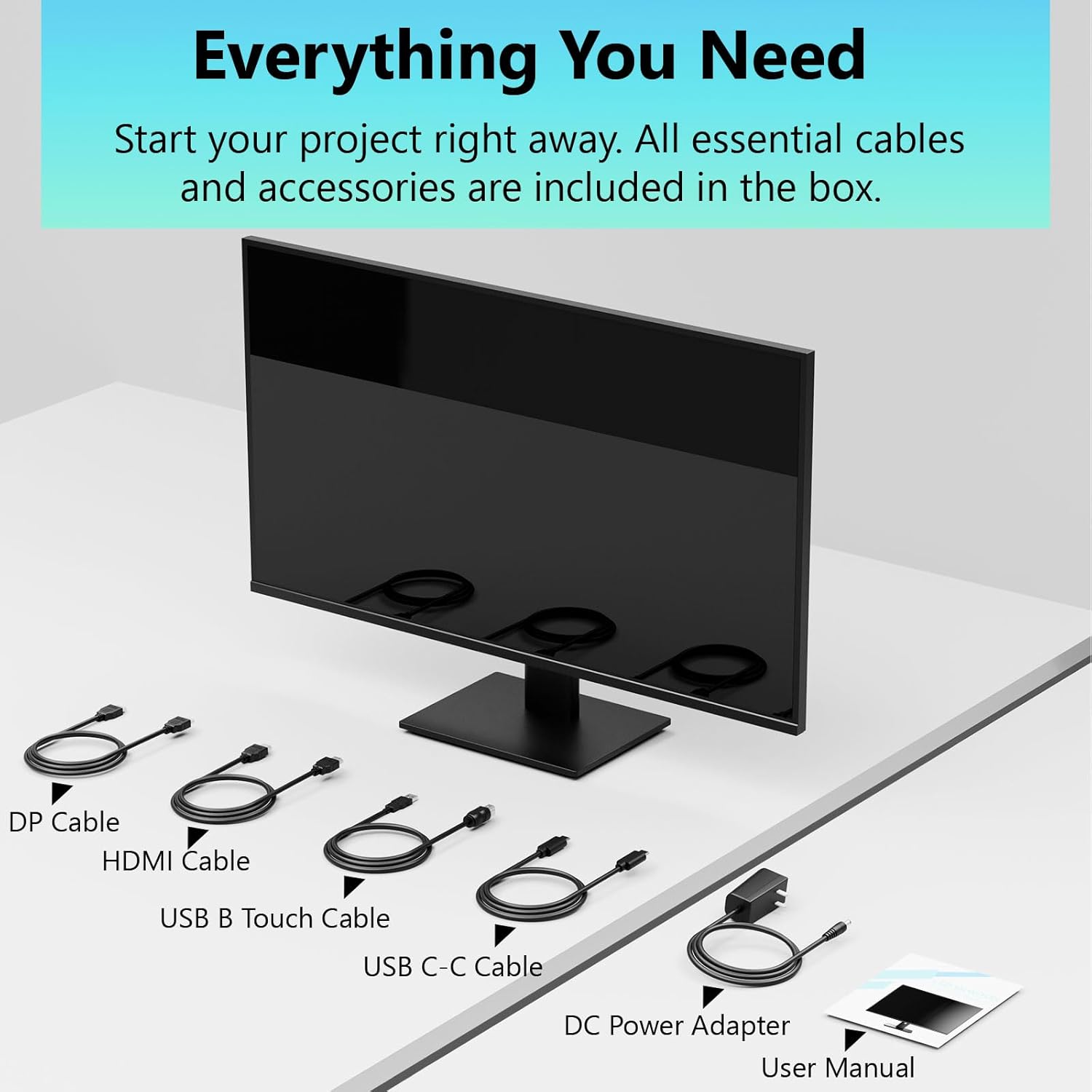
Image: All essential cables and accessories included in the box for the monitor setup.
3. Nhazi ntuziaka
3.1 Ịchịkọta Stand
- Jiri nlezianya wepụ ihe nlele ahụ n'ime ihe mkpuchi ya, tinye ya ihu ala n'elu ebe dị nro ma dị ọcha iji gbochie ọwa.
- Tinye olu ihe nkwụnye ahụ na panel azụ nke ihe nlele ahụ.
- Jiri skru ndị enyere ike kechie ntọala ihe nkwụnye ahụ n'olu ihe nkwụnye ahụ.
- Ensure all connections are firm before placing the monitor upright.
3.2 Ntinye VESA Mount (Nhọrọ)
This monitor supports VESA mounting. If you plan to use a VESA-compatible arm or wall mount, remove the stand and attach the VESA mount according to the mount's instructions. The VESA pattern is typically 75x75mm or 100x100mm (refer to specifications for exact details).
3.3 Ijikọ na ngwaọrụ
The monitor offers multiple connectivity options:
- HDMI: Connect one end of the HDMI cable to the monitor's HDMI port and the other end to your computer's HDMI output.
- DisplayPort (DP): Connect one end of the DP cable to the monitor's DP port and the other end to your computer's DP output.
- USB Ụdị-C: For compatible devices, connect the USB C-C cable to the monitor's USB Type-C port and your device's USB Type-C port. This single cable can transmit video, data, and power (charging).
- USB Type-B (for Touch Functionality): To enable the touch screen feature, connect the USB B Touch Cable from the monitor's USB Type-B port to an available USB Type-A port on your computer.

Image: The monitor's rear panel with various connectivity options, including HDMI, DisplayPort, and USB-C ports.
3.4 Njikọ ike
Connect the DC Power Adapter to the monitor's power input port, then plug the adapter into a power outlet.
3.5 Initial Power On and Touch Compatibility
Press the power button on the monitor. The display should light up. If no image appears, ensure all cables are securely connected and the correct input source is selected on the monitor (via the OSD menu).
For touch functionality, ensure the USB B Touch Cable is connected to your computer. Touch compatibility may vary by operating system and device. Most Windows PCs support multi-touch. For Mac devices, single-touch click is generally supported, but multi-touch may require specific drivers or configurations. Game consoles (PS3/4/5, Xbox, Steam Deck) and some other devices (Fire TV, Apple products like iPhone/iPad) typically do not support touch functionality.

Image: A compatibility chart illustrating which devices support multi-touch or single-touch, and which devices do not support touch functionality with the monitor.
4. Ntuziaka ọrụ
4.1 Gbanyụọ ma ọ bụ gbanyụọ
Press the power button located on the monitor to turn it on or off. The power indicator light will show the monitor's status.
4.2 Ngosipụta Ngosipụta (OSD) NchNhr
The OSD menu allows you to adjust various monitor settings. Use the control buttons (usually located on the back or bottom of the monitor) to navigate the menu. Common menu options include:
- Ntọala foto: Brightness, Contrast, Sharpness, Color Temperature, HDR mode.
- Ntọala ngosi: Aspect Ratio, Input Source selection (HDMI, DP, USB-C).
- Gaming Settings: FreeSync, Response Time (Overdrive), Crosshair.
- Ntọala ọdịyo: Volume (if internal speakers or audio output are present).
- Ntọala sistemụ: Language, OSD Transparency, Reset to Factory Defaults.
4.3 Touch Screen Functionality
The monitor supports 10-point multi-touch, allowing for intuitive interaction directly on the screen. Ensure the USB B Touch Cable is connected to your computer for this feature to work.
- Single Mgbata: Equivalent to a left-click.
- Kpatụ ma jide: Ọ dabara na ịpị aka nri.
- Tụọ-gaa-mbugharị: Jiri mkpịsị aka abụọ mee ka ọ dịkwuo elu ma ọ bụ gbasaa.
- Mịpụta: Navigate through content or scroll.

Image: A user interacting with the monitor's touch screen, highlighting its precision and responsiveness for creative tasks.
4.4 Mgbanwe Ergonomic
The monitor stand allows for tilt adjustments to achieve the most comfortable viewing and touch angle. Gently adjust the screen to your preferred position.
4.5 Atụmatụ nlekọta anya
The monitor includes advanced eye-comfort features such as Flicker-Free technology and Low Bluelight mode to reduce eye strain during prolonged use. These settings can typically be adjusted within the OSD menu.

Image: Visual representation of the monitor's advanced eye-comfort features, including Flicker-Free and Low Bluelight technologies.
5. Nlekọta
5.1 Na-ehicha ihe nleba anya
- Gbanyụọ ihe nleba anya mgbe niile wee wepụ eriri ọkụ tupu ihicha ya.
- Jiri akwa dị nro na nke enweghị mmiri ọkụ dampejiri mmiri mee ya ma ọ bụ ihe dị nro, ihe nhicha ihuenyo anaghị emebi emebi.
- Afesakwala ihe nhicha ozugbo na ihuenyo. Buru ụzọ tinye ya na akwa ahụ.
- Avoid using benzene, thinner, ammonia-based cleaners, or abrasive materials, as these can damage the screen surface.
5.2 Nchekwa
When storing the monitor for an extended period, ensure it is powered off, unplugged, and stored in a cool, dry place away from direct sunlight and extreme temperatures. Use the original packaging if available for best protection.
6. Nchọpụta nsogbu
Ọ bụrụ na ị hụ nsogbu na ihe nlele gị, gaa na usoro ndị a na-emekarị maka nchọpụta nsogbu:
- Enweghị ike: Ensure the power adapter is securely connected to both the monitor and a working power outlet. Check if the power indicator light is on.
- Enweghị onyonyo/ akara:
- Verify that the video cable (HDMI, DP, or USB-C) is securely connected to both the monitor and your computer.
- Gbaa mbọ hụ na ahọpụtara isi mmalite ntinye ziri ezi na menu OSD nke onye nleba anya.
- Lelee ntọala ngosipụta kọmputa gị iji hụ na achọpụtara ma gbanye ihe nlele ahụ.
- No Touch Functionality:
- Confirm the USB B Touch Cable is connected from the monitor to your computer.
- Check your computer's device manager to see if the touch screen driver is installed and functioning correctly.
- Refer to the "Initial Power On and Touch Compatibility" section for device-specific limitations.
- Foto na-egbuke egbuke ma ọ bụ gbagọrọ agbagọ:
- Lelee eriri vidiyo maka mmebi ma ọ bụ njikọ rụrụ arụ.
- Try a different video cable or port.
- Gbanwee ọnụego ume ọhụrụ na ntọala ngosi kọmputa gị.
- Pixels nwụrụ anwụ: A small number of bright or dark pixels are common in LCD/LED technology and are not considered a defect unless they exceed manufacturer specifications.
Ọ bụrụ na nsogbu ahụ dịgidere mgbe ịnwale usoro ndị a, biko kpọtụrụ nkwado ndị ahịa.
7. Nkọwapụta
| Njirimara | Nkọwapụta |
|---|---|
| Ụdị | Pisichen |
| Nọmba nlereanya | 24IN165HZ-QHD |
| Nha ihuenyo | 23.8 sentimita asatọ |
| Mkpebi | QHD Wide 1440p (2560 x 1440) |
| Akụkụ akụkụ | 16:9 |
| Ọnụego ume ọhụrụ | 165 Hz |
| Oge nzaghachi | 2 nkeji |
| Ụdị ngosi | LED IPS |
| Icha ọkụ | 400 Candela (cd/m²) |
| Ọnụọgụ ọdịiche | 3000:1 |
| Viewna n'akuku | 178 ogo |
| Agba Gamut | 99% |
| Picture Quality Enhancement | HDR |
| Mmekọrịta na-agbanwe agbanwe | FreeSync |
| Teknụzụ Njikọta | DisplayPort, HDMI, USB Type-C, USB Type-B |
| Atụmatụ ndị ọzọ | Tilt Adjustment, 10-Point Touchscreen |
| Akụkụ ihe (D x W x H) | 0.75"D x 21.5"W x 12.7"H |
| Ibu Ibu | 5.38 kilogram |
| Agba | Nwa |
8. Akwụkwọ ikike Ozi
This product comes with a 1-year limited warranty from the date of purchase. The warranty covers manufacturing defects and workmanship under normal use. It does not cover damage caused by misuse, accidents, unauthorized modifications, or external factors. Please retain your proof of purchase for warranty claims.
9. Nkwado ndị ahịa
For technical assistance, warranty claims, or further inquiries, please contact Pisichen customer support. You may find contact information on the official Pisichen websaịtị ma ọ bụ site na onye na-ere ahịa gị.
Maka akụrụngwa ndị ọzọ na ozi ngwaahịa, gaa na Pisichen Store on Amazon.