
Okwu mmalite
This manual provides instructions for the Zebronics CSH501 2.5" SSD/HDD Enclosure. This device allows you to connect a 2.5-inch SATA Solid State Drive (SSD) or Hard Disk Drive (HDD) to your computer via a USB Type-C 3.1 Gen 1 interface, enabling high-speed data transfer and portable storage solutions. It supports up to 6TB of storage capacity and features a tool-free slide design for easy installation.
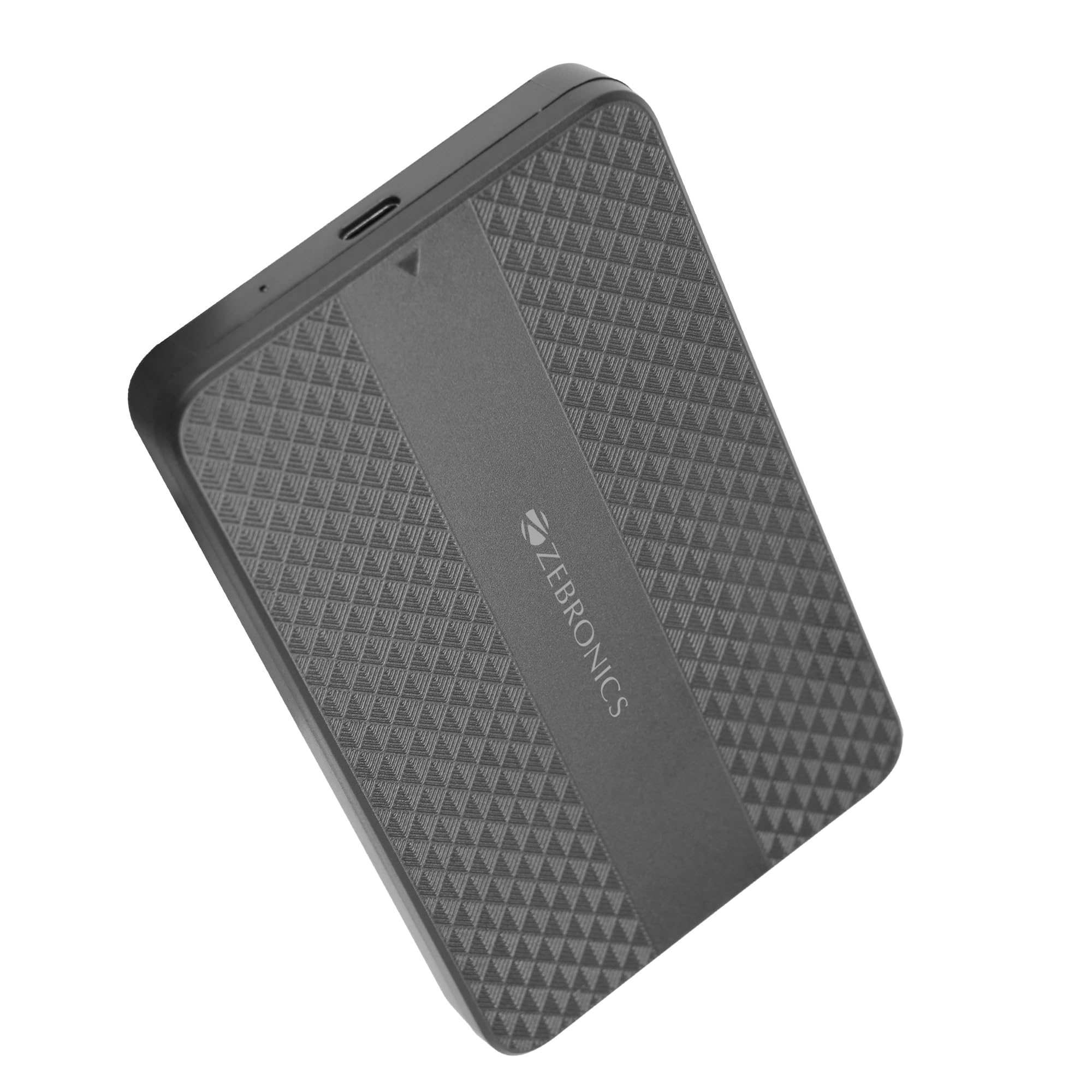
Image: The Zebronics CSH501 2.5 inch SSD/HDD Enclosure, a compact black device with a textured surface and Zebronics branding.
Ihe ngwugwu
Chọpụta na ihe niile dị na ngwugwu:
- 1 x 2.5" SATA SSD Enclosure (CSH501)
- 1 x Foam Pad
- 1 x USB to Micro B Cable
Nkọwapụta
| Njirimara | Nkọwa |
|---|---|
| Nlereanya | CSH501 |
| Ụgbọ ala dakọtara | 2.5-inch SATA SSD/HDD |
| Oke. Ike nchekwa | 6 TB |
| Interface | USB Ụdị-C 3.1 Gen 1 |
| Ọnụego mbufe data | Ruo 5 Gbps |
| Ihe onwunwe | Plastic |
| Akụkụ (L x W x H) | 13L x 8W x 1.3H centimita |
| Ibu | 60 grams |
| Nkwado OS | Windows, Mac, Linux |
Ntọala na nwụnye
The CSH501 enclosure features a tool-free slide design for quick and easy installation of your 2.5-inch SATA SSD or HDD.
- Step 1: Open the Enclosure
Gently slide the back cover of the enclosure to open it. - Step 2: Insert the Drive
Carefully insert your 2.5-inch SATA SSD or HDD into the enclosure, ensuring it connects securely to the internal SATA connector. You may use the provided foam pad to secure thinner drives. Close the cover by sliding it back until it clicks into place. - Nzọụkwụ 3: Jikọọ na kọmputa
Connect the enclosure to your computer using the provided USB to Micro B cable. The enclosure is plug-and-play, requiring no additional drivers for most operating systems.

Image: A three-step visual guide demonstrating the tool-free slide setup: 1. Slide back to open the cover. 2. Insert the drive and close the cover. 3. Connect to the computer for plug & play operation.
Ntuziaka ọrụ
Once connected, the enclosure will be recognized by your operating system as an external storage device. You can then access, transfer, and manage files as you would with any other external drive.
- Nyefee data: The USB 3.1 Gen 1 interface supports data transfer speeds up to 5 Gbps. Actual speeds may vary based on the connected drive, computer's USB port, and file ụdị.
- Ndakọrịta sistemụ arụmọrụ: The enclosure is compatible with Windows, Mac, and Linux operating systems.
- Ike: The enclosure is bus-powered via the USB connection, eliminating the need for an external power adapter.

Image: The Zebronics CSH501 enclosure connected to a laptop via its USB cable, illustrating its capability for data transfer speeds up to 5Gbps.

Image: The Zebronics CSH501 enclosure connected to a laptop, with text highlighting its compatibility across Windows, Mac, and Linux operating systems.
Nlekọta
To ensure the longevity and optimal performance of your Zebronics CSH501 enclosure:
- Debe ngwaọrụ ahụ ọcha na enweghị ntụ. Jiri akwa dị nro, kpọrọ nkụ maka nhicha.
- Zere ikpughe ogige ahụ na oke okpomọkụ, iru mmiri, ma ọ bụ ìhè anyanwụ kpọmkwem.
- Ewepụla ma ọ bụ dobe ngwaọrụ ahụ na mmetụta siri ike.
- Always safely eject the drive from your operating system before disconnecting the enclosure to prevent data corruption.
Nchọpụta nsogbu
If you encounter issues with your enclosure, refer to the following common solutions:
- Achọpụtaghị mbanye:
- Ensure the drive is properly seated within the enclosure and the cover is closed securely.
- Gbalịa jikọọ ogige ahụ na ọdụ ụgbọ USB dị iche na kọmputa gị.
- Jiri eriri USB dị iche nwalee.
- Nyochaa na draịvụ ahụ n'onwe ya na-arụ ọrụ site na ịnwale ya na ogige ọzọ ma ọ bụ jikọọ ya na kọmputa ozugbo ọ bụrụ na ọ ga-ekwe omume.
- For new drives, ensure they are initialized and formatted in your operating system's Disk Management (Windows) or Disk Utility (Mac).
- Ọsọ mbufe nwayọ:
- Ensure the enclosure is connected to a USB 3.0/3.1 port on your computer. Connecting to a USB 2.0 port will result in slower speeds.
- The performance of the installed SSD/HDD also affects transfer speeds.
- Nnukwu file transfers are generally faster than many small file na-enyefe.
- Mkpuchi ahụ na-ekpo ọkụ:
It is normal for the enclosure to become warm during extended use, especially during large data transfers, as heat is dissipated from the internal drive. Ensure adequate airflow around the device.
Akwụkwọ ikike na nkwado
The Zebronics CSH501 enclosure comes with a 1 Year Carry-In Warranty to the service center. For warranty claims or technical support, please contact Zebronics customer service.
Ozi kọntaktị onye nrụpụta:
Zebronics India Private Limited
No.13/7, Smith Road, Royapettah, Chennai - 600 002
For further assistance, visit the official Zebronics websaịtị ma ọ bụ kpọtụrụ ọwa nkwado ha.


