
1. Okwu mmalite
This manual provides detailed instructions for the setup, operation, and maintenance of your POLONO PM220S Label Maker Machine. Please read this manual thoroughly before using the device to ensure proper function and longevity.
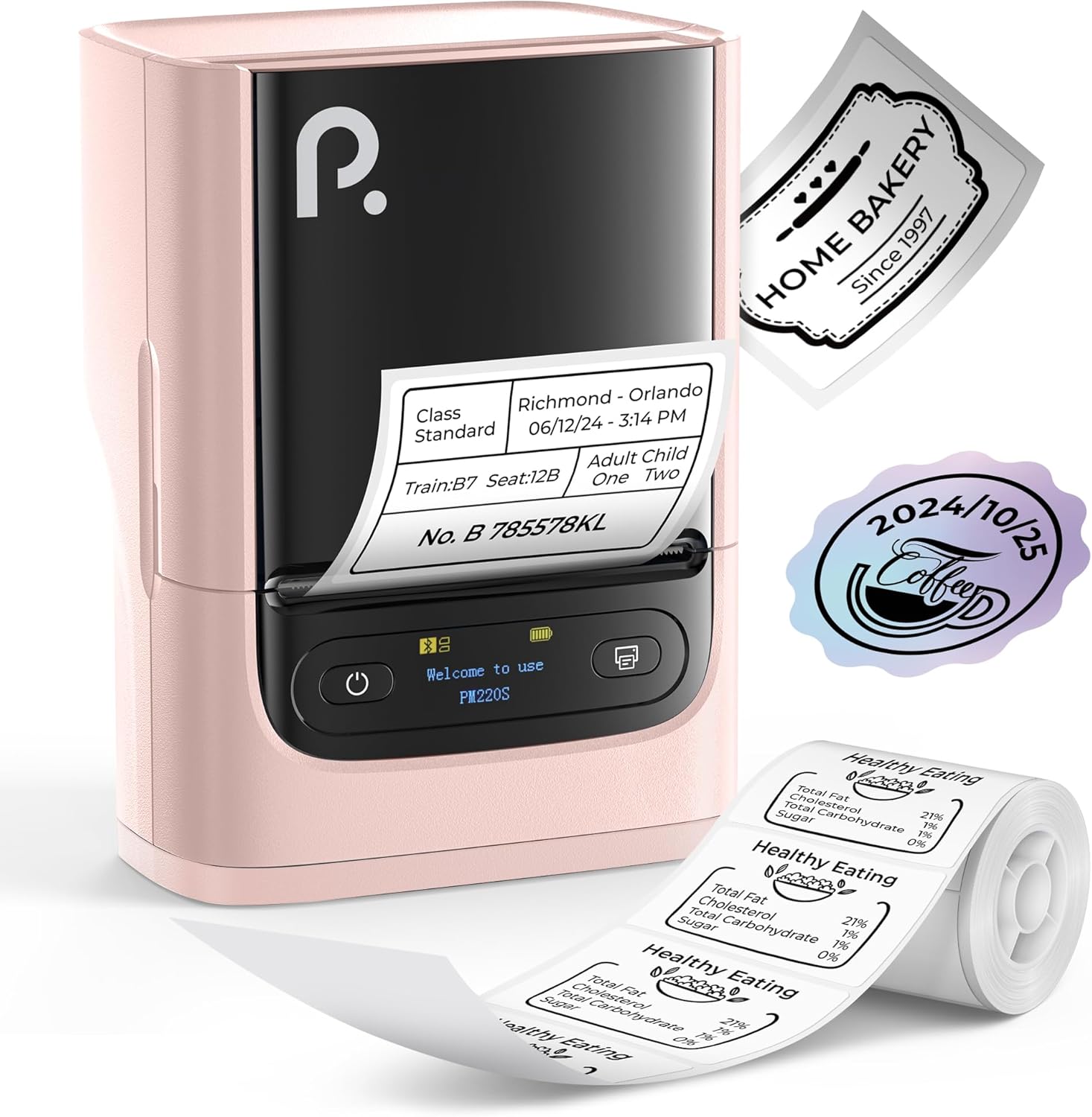
Figure 1: POLONO PM220S Label Maker Machine with sample labels.
2. Ngwaahịa gafereview
2.1 Ngwa gụnyere
- POLONO PM220S Label Maker Machine
- Label Tape (50x30mm, pre-installed or included)
- Igwe nchaji USB
- Akwụkwọ ntuziaka (akwụkwọ a)
2.2 Atụmatụ
- Njikọ Bluetooth: Seamless connection with iOS, Android, and PC devices.
- Intuitive LED Screen: Displays battery level, Bluetooth connection status, and alerts for paper shortages or timed shutdowns.
- Feature-Rich "Labelnize" App: Offers label templates, supports QR codes, barcodes, tables, text, icons, 90+ fonts, 14+ languages, and 450+ material presets.
- Premium Thermal Printing: BPA-Free Direct Thermal Technology with 203 DPI for high-definition, inkless printing.
- Ndakọrịta Label sara mbara: Supports label widths from 23-54mm (0.91"-2.12").
- Enwere ike ibugharị: Compact and lightweight for easy transport and use in various environments.
3. Nhazi ntuziaka
3.1 Ịchaji ngwaọrụ
Before first use, fully charge the label maker using the provided USB cable. The LED screen will indicate charging status.
3.2 App Installation and Driver Download
For mobile devices (iOS/Android), download the "Labelnize" app from your respective app store. For PC users, visit polono.com to download the necessary driver and application.

Figure 2: Universal compatibility with smartphones and laptops for app and driver installation.
3.3 Jikọọ site na Bluetooth
- Ensure the PM220S is powered on.
- On your mobile device, open the "Labelnize" app.
- Within the app, search for and connect to the PM220S via Bluetooth. Do not connect directly via your device's Bluetooth settings for mobile devices.
- For PC, ensure the driver is installed, then connect through the downloaded application.
3.4 Mbuli teepu akara
- Mepee mkpuchi nke ngalaba akara ahụ.
- Insert the label roll with the printing surface facing upwards.
- Adjust the paper slot guides to secure the tape according to its width (23-54mm) for precise alignment.
- Mechie mkpuchi.

Figure 3: Proper loading of label tape into the PM220S.
4. Ntuziaka ọrụ
4.1 Using the "Labelnize" App
- Open the "Labelnize" app on your connected device.
- Select from various pre-designed templates or create your own custom labels.
- The app allows you to add text, barcodes, QR codes, tables, icons, and more.
- Customize labels using a selection of over 90 fonts and 14 languages.
- Utilize the 450+ material presets for different label applications.
- Ihe dị mkpa: For optimal results, use specialized POLONO labels. Avoid tearing the green back sticker to prevent printing issues.
4.2 Understanding the LED Screen Display
The integrated LED screen provides real-time feedback on the printer's status:
- Ọkwa batrị: Indicates the current charge of the device.
- Njikọ Bluetooth: Shows if the device is successfully connected via Bluetooth.
- Mpempe akwụkwọtage Alert: Notifies when the label roll is low or empty.
- Nkwụsị oge: Displays countdown for automatic power-off to conserve battery.

Figure 4: LED screen display functions for real-time status monitoring.
4.3 Ibipụta Aha
- Design your label within the "Labelnize" app.
- Review the label preview to ensure accuracy.
- Tap the "Print" button in the app.
- The label maker will print the label using thermal technology.
- Carefully tear off the printed label.
5. Nlekọta
5.1 Nlekọta n'ozuzu
- Debe ngwaọrụ ahụ ka ọ dị ọcha na enweghị uzuzu na irighiri ihe.
- Zere ikpughe ngwaọrụ ahụ na oke okpomọkụ ma ọ bụ ìhè anyanwụ kpọmkwem.
- Debe ngwaọrụ ahụ n'ebe kpọrọ nkụ mgbe a naghị eji ya.
5.2 Na-ehicha isi mbipụta
If print quality degrades, the thermal print head may need cleaning:
- Turn off the label maker and disconnect it from any power source.
- Mepee ngalaba akara.
- Gently wipe the thermal print head with a cotton swab lightly dampetinyere ya na mmanya isopropyl.
- Allow the print head to dry completely before closing the cover and resuming use.
6. Nchọpụta nsogbu
| Nsogbu | Ihe nwere ike ime | Ngwọta |
|---|---|---|
| Ngwaọrụ anaghị agbanwu ọkụ | Batrị dị ala ma ọ bụ nsogbu ike. | Charge the device fully. Ensure the power button is pressed correctly. |
| Enweghị ike ijikọ site na Bluetooth | Incorrect connection method or app issue. | Ensure you are connecting through the "Labelnize" app, not directly via phone settings. Restart both the device and the app. For PC, verify driver installation. |
| Poor print quality / Faint printing | Dirty print head, incorrect label type, or low battery. | Clean the print head (see Section 5.2). Ensure you are using thermal labels. Charge the device. |
| Labels are misaligned or jammed | Improper label loading or paper slot adjustment. | Open the cover, remove any jammed labels, and reload the tape ensuring the paper slot guides are adjusted correctly for the label width. Avoid tearing the green back sticker. |
| "Paper Shortage" alert | Label roll is empty or incorrectly loaded. | Replace the label roll or re-seat it correctly. |
7. Nkọwapụta
| Ụdị | POLONO |
| Aha Nlereanya | PM220S |
| Teknụzụ Njikọta | Bluetooth |
| Teknụzụ obibi akwụkwọ | Thermal |
| Mkpebi Mbipụta kacha | 203 DPI |
| Ọsọ mbipụta kacha (Monochrome) | 45.0 mm / s |
| Nha mgbasa ozi akwadoro | 23-54mm (0.91"-2.12") width, 50x30mm included |
| Akụkụ ngwaahịa | 3.3"D x 4.4"W x 2.5"H (8.4 x 11.2 x 6.4 cm) |
| Ibu Ibu | 13.4 ounces (380g) |
| Njirimara Pụrụ Iche | Portable, Inkless Printing, LED Display |
8. Akwụkwọ ikike na nkwado
For warranty information, technical support, or to purchase accessories and replacement labels, please visit the official POLONO websaịtị na polono.com or contact POLONO customer service directly.
Biko dowe ihe akaebe nke ịzụrụ ihe maka akwụkwọ ikike.