
1. Nhazi
The darkFlash FLOATRON F1 Micro-ATX PC Case features a 270° panoramic glass view and a unique floating design. This section guides you through the initial setup of your PC components within the case.
1.1 Mwepu na nyocha izizi
Carefully remove the PC case from its packaging. Inspect for any signs of damage during transit. Ensure all accessories listed in the packing list are present.

Foto 1.1: Akụkụ ihu view of the darkFlash FLOATRON F1 PC Case, showcasing its panoramic glass and internal component visibility with blue lighting.
1.2 Ịnweta ime ime
The case is designed with four-side quick-release panels for easy access to internal components. Gently pull on the designated areas to detach the side panels. The front panel is also removable for maintenance or fan installation.

Foto 1.2: Akụkụ view of the darkFlash FLOATRON F1 PC Case, highlighting the mesh side panel for airflow and the integrated I/O ports on the base.
1.3 Nwụnye motherboard
The FLOATRON F1 supports M-ATX and ITX motherboards, including back-connect layouts. Install the motherboard onto the standoffs provided. Ensure all screws are securely fastened.
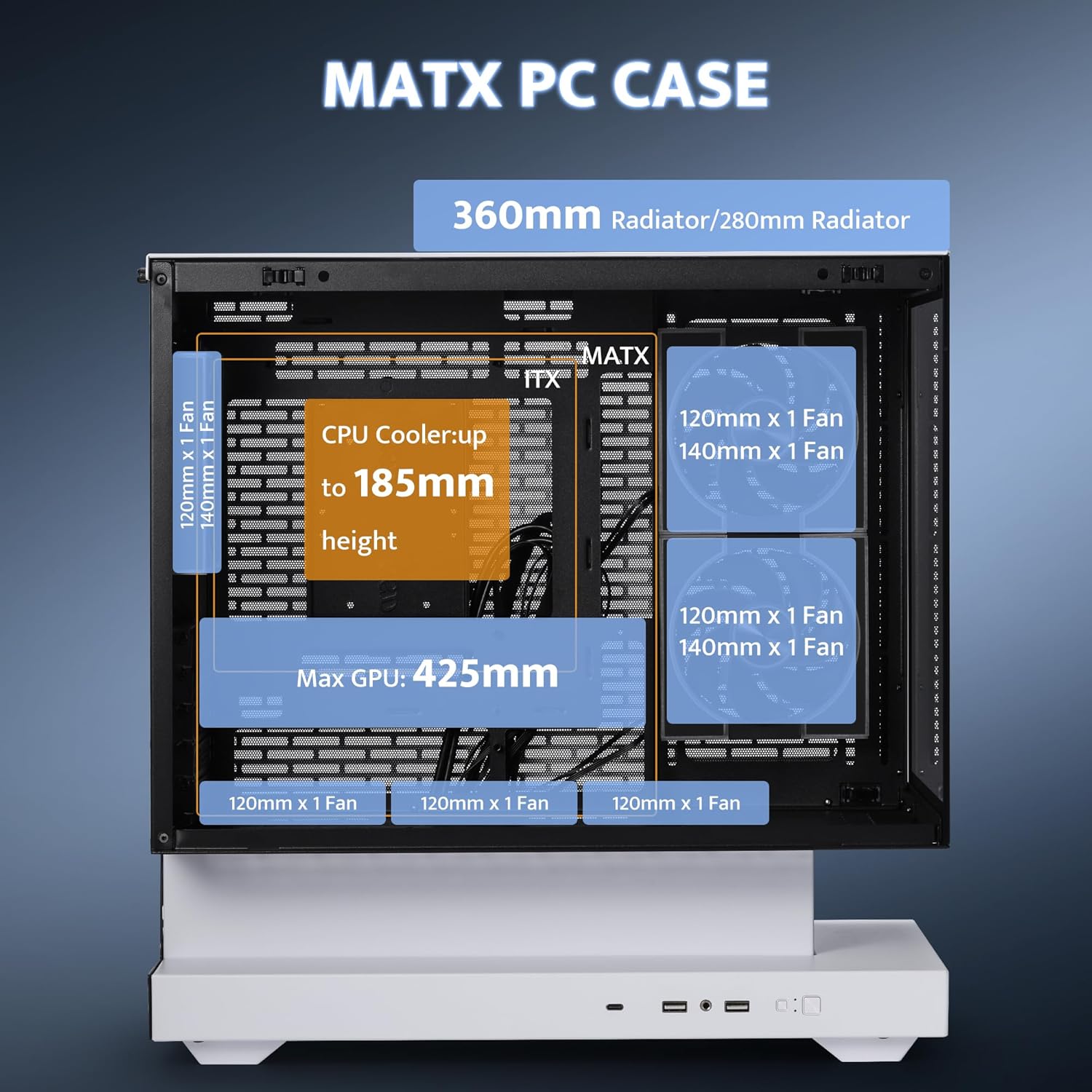
Foto 1.3: Ime ụlọ dị n'azụ view of the darkFlash FLOATRON F1 PC Case, illustrating the design for back-connect motherboards and ample space for cable management behind the tray.
1.4 Ntinye ike
The innovative bottom-mounted PSU layout provides ample space. Install your power supply unit (PSU) in the dedicated compartment within the base. Route cables through the provided cutouts for a tidy build.
Video 1.1: An official darkFlash video demonstrating the features and assembly of the FLOATRON F1 MATX PC Case, including component installation and design highlights.
2. .rụ ọrụ
This section details the operational aspects of the darkFlash FLOATRON F1 PC Case, focusing on its cooling capabilities and connectivity.
2.1 Ikuku na Oyi
The FLOATRON F1 is designed for optimized airflow. Cool air is drawn from the bottom and sides, while hot air exhausts from the top and rear. The case comes pre-installed with 3 darkFlash DM08 ARGB PWM fans for efficient cooling and customizable lighting.

Image 2.1: Diagram showing the optimized airflow within the darkFlash FLOATRON F1 PC Case, with arrows indicating cool air intake from the bottom and sides, and hot air exhaust from the top.
2.2 Internal Layout and Space Utilization
The re-engineered bottom design maximizes space, boosting interior capacity for easier builds and cleaner cable management. The case supports GPUs up to 350mm, CPU coolers up to 185mm, and 360mm liquid cooling solutions.

Image 2.2: Internal layout diagram of the darkFlash FLOATRON F1 PC Case, highlighting the power supply sinking area and overall optimized space utilization for components.
2.3 Connectivity (I/O Ports)
The side-mounted I/O panel provides convenient access to essential ports, including a Type-C port, two USB 3.0 ports, and HD Audio jacks. These are located on the floating extended base.

Foto 2.3: nso nso view of the darkFlash FLOATRON F1 PC Case's floating extended base, showcasing the integrated I/O ports for easy connectivity.
Video 2.1: An official darkFlash video demonstrating the airflow capabilities and design of the FLOATRON F1(2025) case, emphasizing cooling from every angle.
3. Nlekọta
Proper maintenance ensures the longevity and optimal performance of your darkFlash FLOATRON F1 PC Case.
3.1 Nhicha uzuzu uzuzu
The case features magnetic dust filters for superior cooling performance while keeping your build clean. Regularly remove and clean these filters to prevent dust buildup and maintain optimal airflow. Use a soft brush or compressed air to remove accumulated dust.
3.2 Panel Removal and Reinstallation
The screwless front and side panels allow for quick, tool-free access for cleaning or component upgrades. To remove, gently pull the panels away from the chassis. To reinstall, align the panels with their respective slots and push until they click securely into place.

Image 3.1: Diagram illustrating the clamshell side panel opening mechanism of the darkFlash FLOATRON F1 PC Case, demonstrating easy, tool-free access to the interior.
3.3 Nhicha izugbe
Use a soft, dry cloth to wipe down the exterior surfaces of the case. For glass panels, a microfiber cloth with a mild glass cleaner can be used. Avoid abrasive cleaners or solvents that may damage the finish.
4. Nchọpụta nsogbu
This section provides basic troubleshooting steps for common issues you might encounter with your PC build in the darkFlash FLOATRON F1 case.
4.1 PC Not Powering On
- Ensure the power supply unit (PSU) is properly connected to the wall outlet and the power switch on the PSU is in the 'ON' position.
- Verify that the 24-pin ATX power cable and the 8-pin CPU power cable are securely connected to the motherboard.
- Lelee na ejikọrọ eriri ọkụ n'ihu panel nke ọma na nkụnye eji isi mee n'ihu nke motherboard. Rụtụ aka na ntuziaka motherboard maka pinout ziri ezi.
4.2 Fans Not Spinning or RGB Not Lighting Up
- Confirm that the fan power cables are connected to the appropriate fan headers on the motherboard or a fan controller.
- For ARGB lighting, ensure the 3-pin ARGB cable from the fans is connected to a compatible ARGB header on your motherboard or an ARGB controller.
- Check your motherboard's BIOS/UEFI settings or RGB software for fan speed and lighting control.
4.3 USB Ports or Audio Jacks Not Functioning
- Verify that the USB 3.0, Type-C, and HD Audio cables from the case's front I/O panel are correctly connected to their respective headers on the motherboard.
- Ensure the necessary drivers for your motherboard's chipset and audio are installed.
5. Nkọwapụta
Key technical specifications for the darkFlash FLOATRON F1 Micro-ATX PC Case.
| Njirimara | Nkọwapụta |
|---|---|
| Aha Nlereanya | FLOATRON F1 |
| Ụdị ikpe | Micro Tower (Micro-ATX) |
| Ndakọrịta Motherboard | M-ATX, ITX (supports back-connect) |
| Akụkụ (LxWxH) | 15 x 9 x 18.1 sentimita (381 x 228.6 x 459.7 mm) |
| Ibu Ibu | 11.57 pound (5.26 n'arọ) |
| Ihe onwunwe | Ọla, Igwe ọkụ |
| GPU mkpochapụ | Up to 350mm (Max 425mm, refer to Image 5.1) |
| CPU cooler elu | Ihe ruru 185 mm |
| Nkwado Nkwado Mmiri Liquid | Up to 360mm AIO |
| Ndị Fans etinyegoro mbụ | 3x darkFlash DM08 ARGB PWM Fans |
| ọdụ ụgbọ mmiri I/O | 1x Type-C, 2x USB 3.0, HD Audio |
| Ụdị mgbago PSU | Ugwu ala |
| Egwuregwu PCIe | 5 |
| Ụgbọ okporo ígwè | Multiple HDD/SSD mounts |

Image 5.1: Internal dimensions diagram of the darkFlash FLOATRON F1 PC Case, detailing maximum supported lengths for GPU (425mm), CPU cooler height (185mm), and radiator sizes (360mm/280mm).
6. Akwụkwọ ikike Ozi
For detailed warranty information regarding your darkFlash FLOATRON F1 PC Case, please refer to the warranty card included with your product packaging or visit the official darkFlash websaịtị. Usoro na ọnọdụ akwụkwọ ikike nwere ike ịdị iche site na mpaghara na onye na-ere ahịa.
7. Nkwado ndị ahịa
Should you require further assistance, technical support, or have questions not covered in this manual, please contact darkFlash customer support through their official websaịtị ma ọ bụ ozi kọntaktị enyere na akwụkwọ ngwaahịa gị. I nwekwara ike ịga na darkFlash Store on Amazon maka ihe ndi ozo.