
1. Okwu mmalite
Thank you for choosing the Tukio Apple MFi Certified Tracker Tags. Ndị a tags are designed to help you locate your valuable items using the Apple Find My network. This manual provides detailed instructions on how to set up, operate, and maintain your tracker tags iji hụ na arụmọrụ kacha mma.
Note: These tracker tags are only compatible with iOS devices (iPhone, iPad, Mac) and do not support Android devices.

Foto: Ofeview of the Tukio Smart Tracker Tag atụmatụ.
2. Kedu ihe dị na Igbe ahụ
Ngwungwu gị kwesịrị ịnwe ihe ndị a:
- 4 x Tukio Tracker Tags (Model: TX02)
- 4 x Protective Silicone Cases
- 4 x Key Rings
- 4 x Lanyards
- 1 x Akwụkwọ ntuziaka onye ọrụ

Foto: Ngosipụta anya nke ihe dị na ngwugwu ahụ.
3. Nhazi
3.1 Attaching the Tracker Tag to the Protective Case
To protect your tracker tag and easily attach it to items, use the provided silicone case and lanyard/key ring.
- Identify the front and back sides of the silicone case. The circle on the front side is smaller, and the circle on the back side is larger.
- Align the side buttons of the tracker tag with the corresponding openings on the silicone case.
- Insert the transparent side of the tracker tag (front side) into the silicone case from the back side.
- Insert end 'A' of the lanyard into the hole on the top of the silicone case.
- Hold end 'A' and pass end 'B' through the loop of end 'A'.
- Pull it tight to secure the lanyard.
Video: Instructions on how to attach the tracker tag to its protective silicone case and lanyard.
3.2 Powering On and Pairing with Apple Find My App
Follow these steps to power on your tracker tag and connect it to your iOS device:
- Ike Na: Press and hold the button on the tracker tag maka 2 sekọnd ruo mgbe ị nụrụ ụda.
- Ensure Bluetooth is enabled on your iPhone or iPad.
- Mepee nke etinyegoro mbụ "Chọta nke m" ngwa na ngwaọrụ iOS gị.
- Gaa na "Ihe" tab.
- Kpatụ ya "+" akara wee họrọ "Add New Item".
- Họrọ "Ihe Ndị Ọzọ Akwadoro" (do not select "Add AirTag").
- Your iOS device will search for nearby compatible items. When "Lucid tag" appears, tap "Connect".
- Follow the on-screen prompts to name your item and assign an emoji.
- Agree to link the device with your Apple ID.
- Kpatụ "Finish" iji mechaa nhazi.

Image: Step-by-step guide for connecting the tracker tag gaa na Apple Find My ngwa.
Video: A comprehensive guide on connecting Tukio Lucid Tag Tracker Tags with the Apple Find My app on iOS devices.
4. Ntuziaka ọrụ
4.1 Locating Items Nearby
When your item is within Bluetooth range (up to 200 feet or 60 meters in open areas), you can make the tracker tag emit a sound:
- Mepee "Chọta nke m" ngwa.
- Select the item you wish to locate from the "Ihe" tab.
- Kpatụ "Kpọọ ụda". The tracker tag will emit an 80-100dB beep to help you find it.
- Alternatively, you can ask Siri, "Hey Siri, where are my [item name]?"
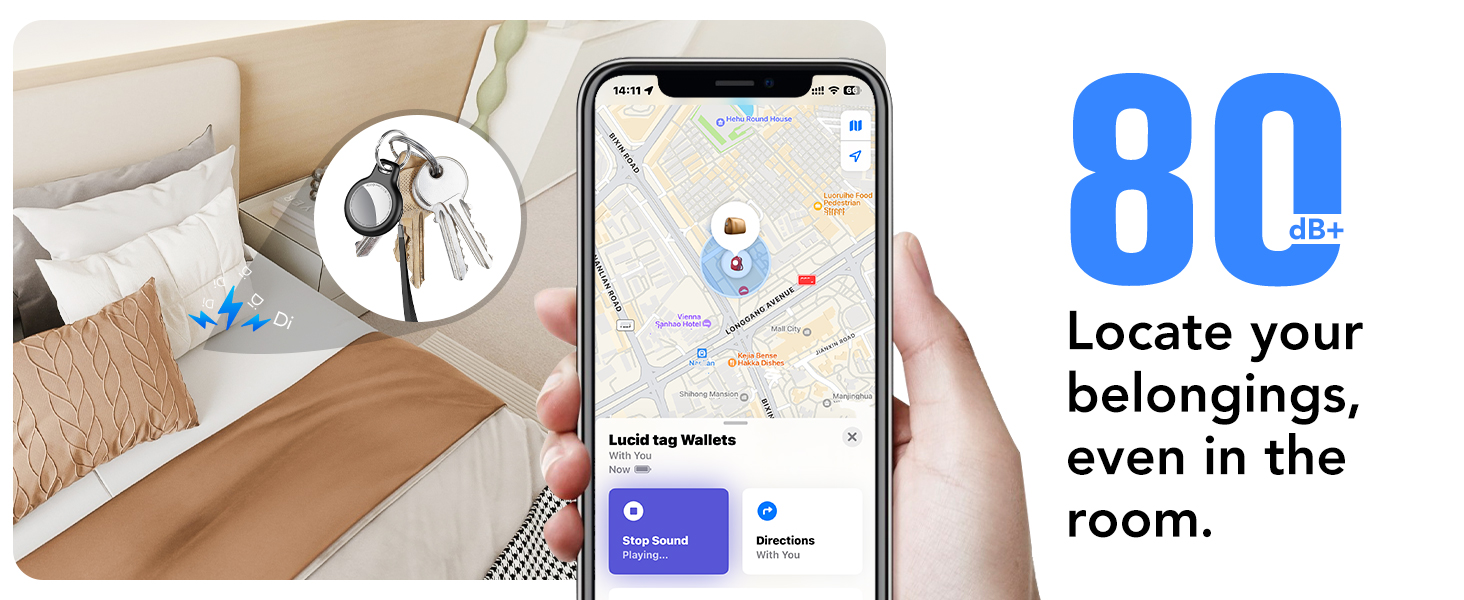
Image: Locating items using the Find My app's sound feature.
4.2 Locating Items Far Away (Lost Mode)
If your item is out of Bluetooth range, the Apple Find My network can help you locate it:
- Nke "Chọta nke m" app will display the last known location of your item on a map.
- Ụdị efu: If an item is lost, you can enable "Lost Mode" in the Find My app. This allows any Apple device that comes within range of your tracker tag to anonymously relay its location to you. You can also leave a contact message for anyone who finds your item.
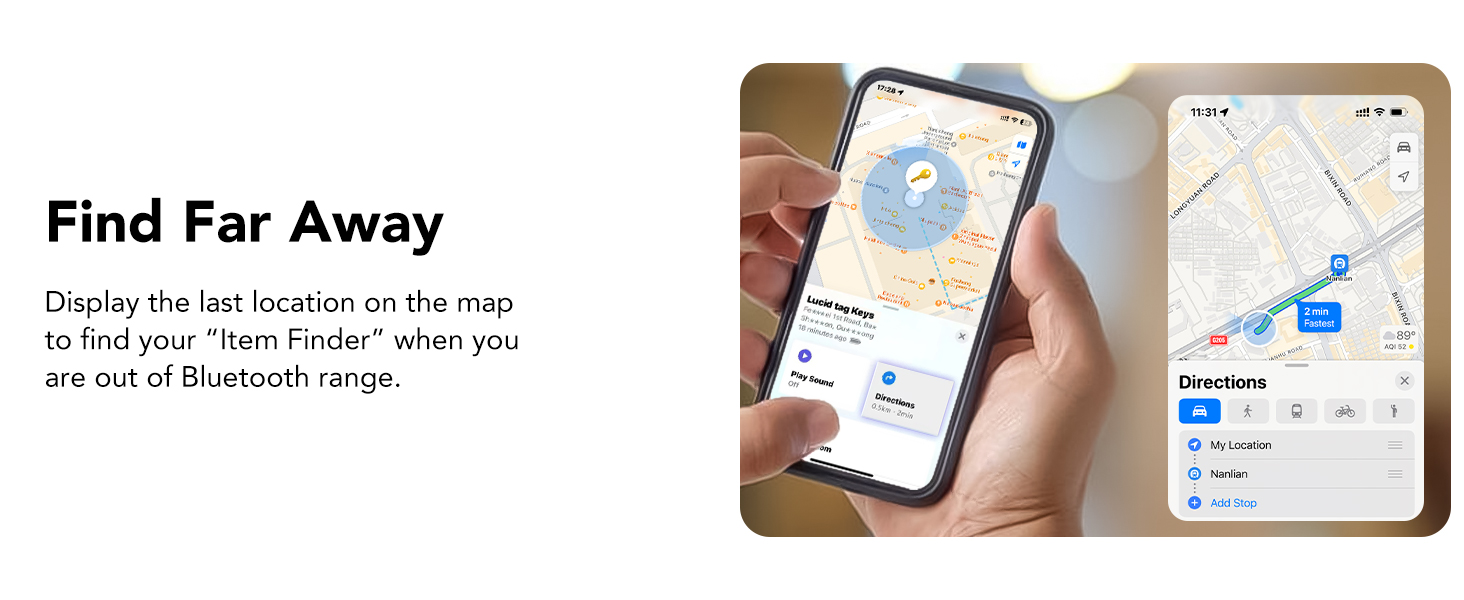
Image: Finding items that are far away using the Find My app.

Image: Activating Lost Mode for your tracker tag.
4.3 Ihe ncheta ekpe-azụ
Receive notifications if you accidentally leave your item behind:
- Nke "Chọta nke m" app can alert you when your tracker tag is no longer detected near your iOS device, showing its last known location.
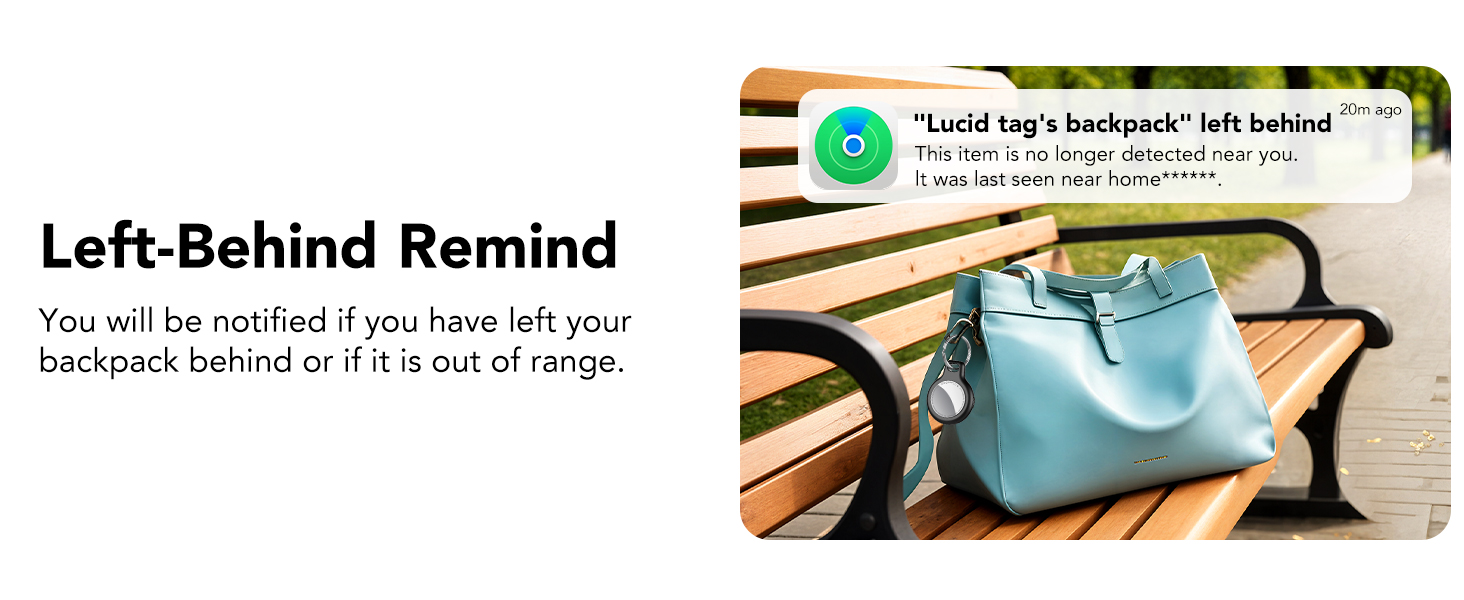
Image: Left-Behind Reminder notification.
4.4 Sharing Items
With iOS 17 or later, you can share your tracker tag's location with family and friends:
- N'ime "Chọta nke m" app, select the item and choose the option to "Kesaa Ihe A".
- You can share with up to 5 borrowers, allowing them to see the item's location on a map.
- Mara: Both parties must be using iOS 17, iPadOS 17, macOS 14, or later versions.
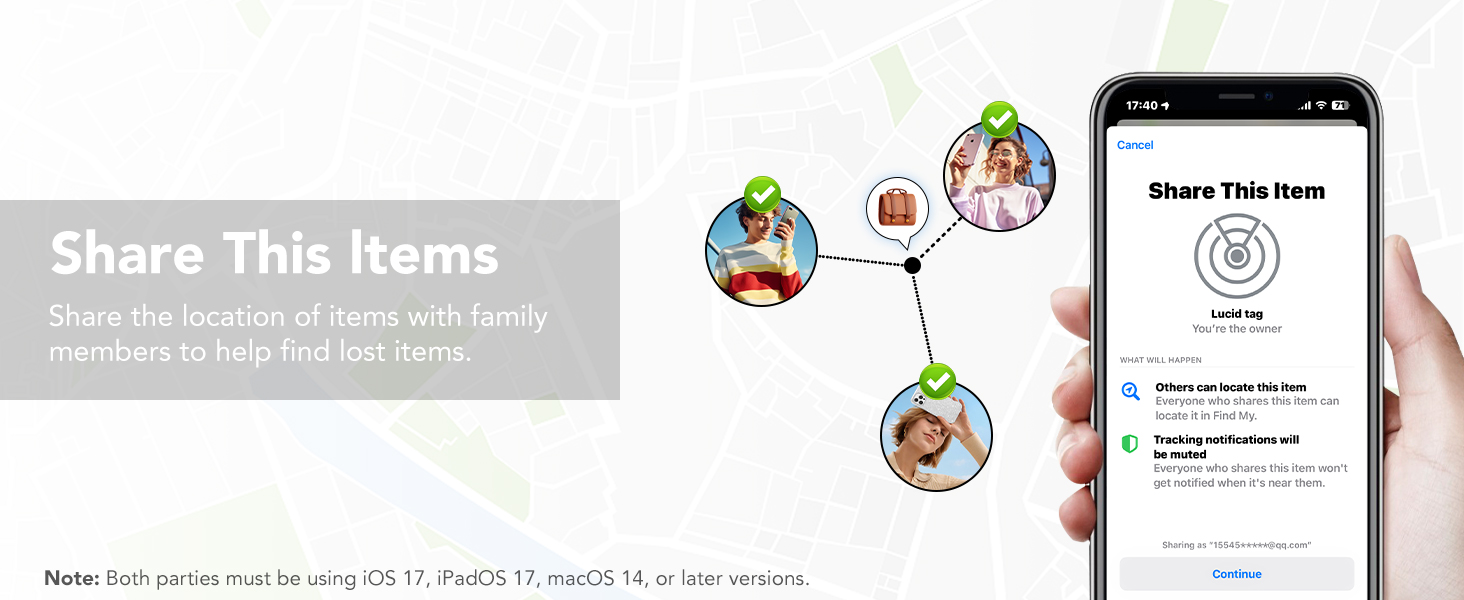
Image: Sharing item locations with others.
5. Ngbanwe batrị
The Tukio Tracker Tag uses a replaceable CR2032 battery, offering up to 1 year of use. The Find My app will notify you when the battery is low.
Steps to Replace the Battery:
- Hold the back cover with both thumbs and turn it counter-clockwise to open the back cover.
- Carefully remove the old CR2032 battery.
- Insert a new CR2032 battery with the positive (+) side facing up. Ensure the battery logo is facing up and the "+" sign is aligned with the power port.
- Locate the notch on the back cover, align it with the position on the left side of the tracker.
- Press the cover gently and turn it clockwise to secure it.
Video: Detailed instructions on how to replace the battery in your Tukio Lucid Tag.

Image: Visual guide for battery replacement.
6. Nlekọta
To ensure the longevity and optimal performance of your Tukio Tracker Tags, please follow these maintenance guidelines:
- Nhicha: Wipe the tracker tag jiri akwa dị nro, kpọrọ nkụ. Zere iji kemịkalụ siri ike ma ọ bụ ihe na-emebi emebi.
- Nguzogide mmiri: The tracker tag has an IP67 rating, meaning it can withstand immersion in water up to 3 feet for 30 minutes. However, it is recommended to avoid prolonged exposure to water or extreme conditions. Ensure the battery cover is securely closed after replacement to maintain water resistance.
- Nchekwa: Store the tracker tags n'ebe dị jụụ, kpọrọ nkụ mgbe ọ naghị eji ya ogologo oge.
- Lelee batrị: Regularly check the battery status in the Find My app and replace it when prompted to avoid unexpected power loss.
7. Nchọpụta nsogbu
If you encounter any issues with your Tukio Tracker Tag, refer to the following table for common problems and solutions:
| Nsogbu | Ihe nwere ike ime | Ngwọta |
|---|---|---|
| Tracker not connecting to Find My app | Bluetooth is off; Tracker is off; Incorrect pairing method | Ensure Bluetooth is on. Press and hold the tracker button for 2 seconds to power on. In Find My app, select "Other Supported Item". |
| No sound when trying to locate | Tracker is out of range; Battery is low; Sound is temporarily disabled | Check last known location on map. Replace battery if low. Ensure sound is enabled in Find My app. |
| Left-Behind Reminder not working | Feature not enabled; iOS device not updated | Enable "Notify When Left Behind" in Find My app settings for the item. Update iOS device to iOS 17/iPadOS 17/macOS 14 or above. |
| Cannot remove item from Find My app | Device is still active | In Find My app, select the item, scroll down and tap "Remove Item". Confirm removal. |
| Tracker not powering off | Ejideghị bọtịnụ ogologo oge | Press and hold the button until you hear 1 beep, followed by 2 consecutive beeps, and then 3 consecutive beeps. |

Image: Detailed functionality and troubleshooting table.
8. Nkọwapụta
- Ụdị: TX02
- Njikọta: Bluetooth 5.3
- ndakọrịta: iOS devices only (Apple MFi Certified)
- Ụdị batrị: CR2032 (included, replaceable)
- Ndụ batrị: Ruo 1 afọ
- Ọkwa ụda: 80-100dB
- Water & Dust Resistance: IP67 (withstands immersion in water up to 3 feet for 30 minutes)
- Akụkụ: 1.22 x 1.22 x 0.35 sentimita (30.9 x 30.9 x 8.9 mm)
- Arọ: 0.988 ounces (ihe dị ka 7g)
- Oke nsochi: Up to 55-60 meters (180-196 feet) Bluetooth range; Global tracking via Apple Find My network.

Image: Key specifications and dimensions of the tracker tag.
9. Akwụkwọ ikike & Nkwado
Tukio provides a 2-year warranty for its products. For any questions, technical support, or warranty claims, please contact our customer service team. Our after-sales team is always available to assist you.
- Ndị ọrụ nlekọta ndị ahịa: Available 24 hours.
- Nkwado kọntaktị: Please go to your order page, find the order number of the product, and contact the seller directly.
Maka ozi ndị ọzọ, gaa na Tukio Store on Amazon.