
Ngwaahịa gafereview
The HP OmniDesk Desktop PC M02-0127c is a high-performance computer designed for everyday computing and productivity. It features an AMD Ryzen 7 8700G processor, 32GB DDR5 memory, and a 1TB NVMe SSD, along with integrated AMD Radeon 780M Graphics. This manual provides essential information for setting up, operating, maintaining, and troubleshooting your device.
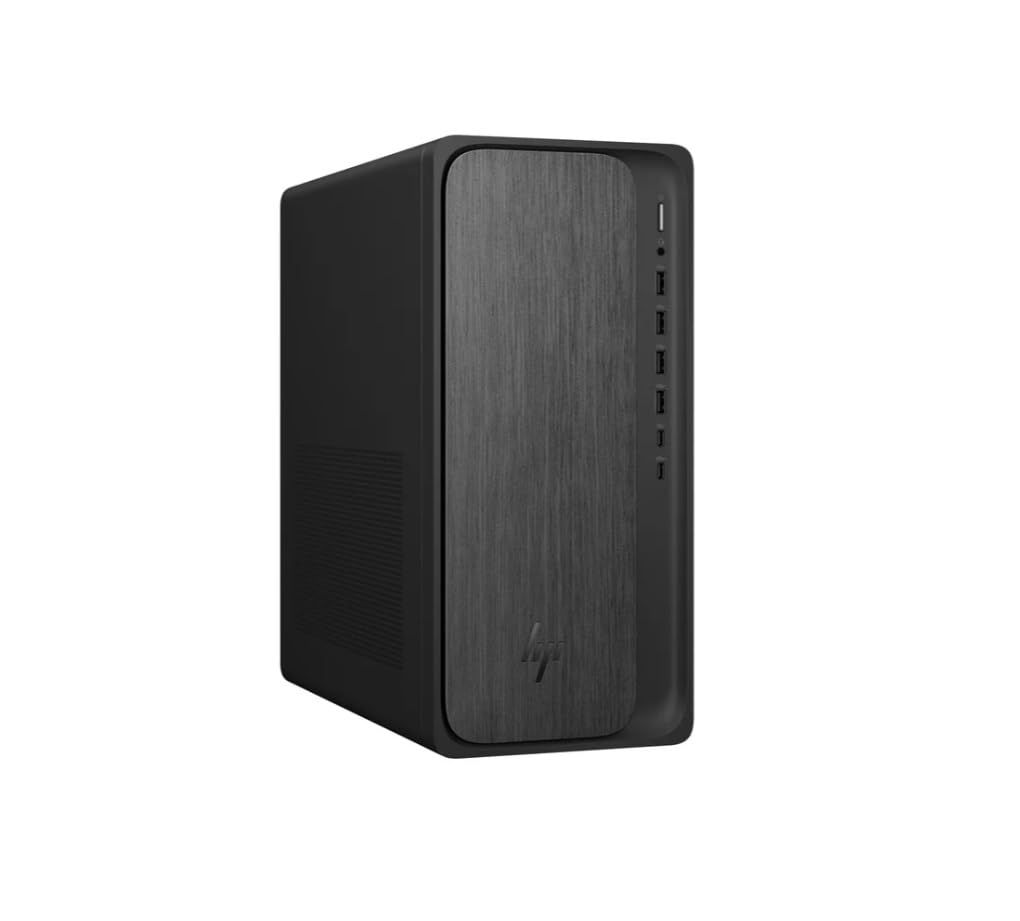
Ihu-aka nri view of the HP OmniDesk Desktop PC, showcasing its minimalist black design with a wood-inspired front panel.
1. Ntuziaka Nhazi
1.1 Unboxing na ntinye mbụ
Carefully remove all components from the packaging. Ensure the desktop tower, wireless keyboard, and wireless mouse are present. Place the desktop on a stable, flat surface with adequate ventilation.
1.2 Njikọta Peripherals
Connect your monitor, keyboard, mouse, and power cable to the appropriate ports on the desktop.
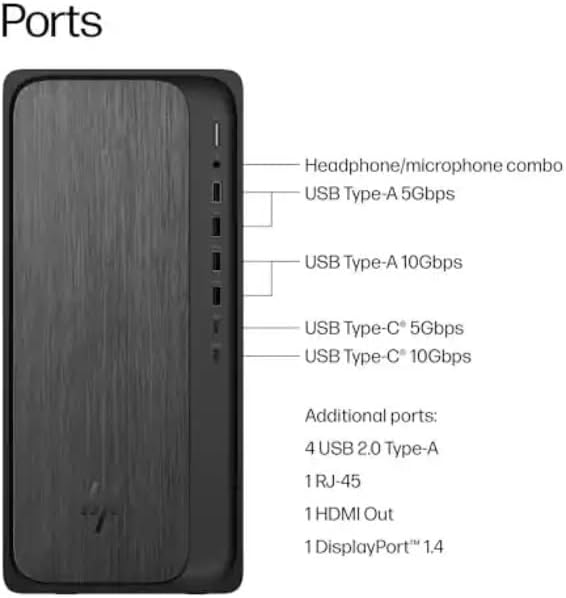
Diagram illustrating the various ports on the front and rear of the HP OmniDesk Desktop PC, including USB Type-A, USB Type-C, HDMI Out, RJ-45, and headphone/microphone combo.
- Njikọ ike: Connect the power cable to the power input on the rear of the desktop and then to a wall outlet.
- Nyochaa Njikọ: Use an HDMI cable to connect your monitor to the HDMI Out port on the rear of the desktop. The system also supports DisplayPort 1.4.
- Ahụigodo na òké: The included HP black wireless keyboard and mouse combo connect wirelessly. Insert the USB receiver into an available USB port on the desktop. Ensure batteries are installed in the keyboard and mouse.
1.3 Boot mbụ na Windows 11 Ntọala
Press the power button on the front of the desktop. The system will boot into the Windows 11 Home setup process. Follow the on-screen instructions to configure your operating system, including language, region, network connection, and user account.
2. Ntuziaka ọrụ
2.1 Ụdị Ike Gbanye/Gbanyụọ na Ụra
- Ike Na: Pịa bọtịnụ ike dị n'ihu desktọọpụ.
- Mechie: Pịa bọtịnụ Malite, wee pịa Power, wee họrọ "Mechie".
- Malitegharịa: Pịa bọtịnụ Malite, wee pịa Ike, wee họrọ "Malitegharịa".
- Ụra: Click the Start button, then Power, and select "Sleep". The system will enter a low-power state, allowing for quick resume.
2.2 Jikọọ na netwọkụ
- Wi-Fi: Click the network icon in the taskbar, select your Wi-Fi network, enter the password, and click "Connect". The system supports Wi-Fi 6 (802.11ax).
- Ethernet: Connect an Ethernet cable from your router or modem to the RJ-45 port on the rear of the desktop for a wired network connection.
2.3 Using Bluetooth Devices
Iji jikọọ ngwaọrụ Bluetooth, gaa na Ntọala > Bluetooth & ngwaọrụ. Ensure Bluetooth is turned on, then click "Add device" and follow the pairing instructions for your device. The system supports Bluetooth 5.4.
2.4 Utilizing the Copilot Key
The included keyboard features a dedicated Copilot key. Press this key to instantly access your AI Assistant for enhanced productivity and quick task management within Windows 11.
3. Nlekọta
3.1 Ihicha Desktọpụ Gị
Regularly clean the exterior of your desktop with a soft, dry, lint-free cloth. For dust accumulation in vents, use compressed air. Ensure the system is powered off and unplugged before cleaning.
3.2 Mmelite ngwanrọ
Keep your Windows operating system and drivers updated to ensure optimal performance and security. Go to Ntọala > Mmelite Windows iji lelee ma wụnye mmelite dị.
3.3 Njikwa nchekwa
The 1TB NVMe SSD provides fast storage. Regularly manage your files and uninstall unused applications to maintain free space and system performance.
3.4 Ihe gbasara gburugburu ebe obibi
The HP OmniDesk PC is designed with recycled materials and is EPEAT Gold Climate+ Registered and ENERGY STAR certified. Ensure proper disposal of electronic waste according to local regulations.
4. Nchọpụta nsogbu
4.1 Enweghị ike
Mgbaàmà: The desktop does not power on when the power button is pressed.
Ngwọta:
- Verify the power cable is securely connected to both the desktop and a working wall outlet.
- Jiri ngwaọrụ ọzọ nwalee oghere mgbidi ahụ iji hụ na o nwere ike.
- Ensure the power supply unit (PSU) switch (if present) is in the ON position.
4.2 Enweghị ngosi
Mgbaàmà: The desktop powers on, but nothing appears on the monitor.
Ngwọta:
- Check that the monitor is powered on and the video cable (HDMI) is securely connected to both the desktop and the monitor.
- Gbaa mbọ hụ na ahọpụtara isi mmalite ntinye ziri ezi na nleba anya gị.
- If possible, test with a different monitor or video cable.
4.3 System Not Booting (Advanced)
Mgbaàmà: The system powers on but fails to load the operating system, or displays error messages.
Ngwọta:
- Attempt to access the BIOS/UEFI settings (usually by pressing F10 or Delete during startup) to check boot order or run diagnostics.
- If installing a new operating system like Linux, ensure any existing drive encryption is disabled and consider updating the BIOS first, as noted by some users.
- If the issue persists, contact HP Support.
4.4 Okwu Njikọta
Mgbaàmà: Unable to connect to Wi-Fi, Bluetooth, or wired network.
Ngwọta:
- Wi-Fi/Bluetooth: Ensure wireless adapters are enabled in Windows settings. Restart your router/modem.
- Ethernet: Check cable connections. Verify router/modem status.
- Melite ndị ọkwọ ụgbọala netwọk ma ọ bụrụ na ọ dị mkpa.
5. Nka na ụzụ nkọwa
| Njirimara | Nkọwa |
|---|---|
| Aha Nlereanya | OmniDesk |
| Nọmba nlereanya | M02-0127c |
| Nhazi | AMD Ryzen 7 8700G (4.2GHz base, up to 5.1GHz max boost) with AMD Ryzen AI (16 NPU TOPS) |
| Sistemụ nrụọrụ | Microsoft Windows 11 Home (64-bit) |
| Ebe nchekwa | 32 GB DDR5-5200 MT/s (Max 64 GB) |
| Nchekwa | 1 TB PCIe Gen4 NVMe M.2 Solid State Drive |
| Eserese | AMD Radeon 780M Graphics (Agbakwunyere) |
| Njikọ ikuku | Wi-Fi 6 (2x2) 802.11ax, Bluetooth 5.4 |
| Njikọ ikuku | Ejikọtara 10/100/1000 GbE LAN |
| Ọdụ ụgbọ mmiri (N'ihu) | Headphone/microphone combo, USB Type-A 5Gbps, USB Type-A 10Gbps, USB Type-C 5Gbps, USB Type-C 10Gbps |
| Ọdụ ụgbọ mmiri (Azụ) | 4x USB 2.0 Type-A, 1x RJ-45, 1x HDMI Out, 1x DisplayPort 1.4 |
| Akụkụ (L x W x H) | 12.40" x 6.10" x 13.27" (31.5 cm x 15.5 cm x 33.7 cm) |
| Ibu | Pound 12.7 (5.76 n'arọ) |
| Akụkụ ndị dị n'akụkụ | HP black wireless keyboard and mouse combo |
6. Akwụkwọ ikike Ozi
This HP OmniDesk Desktop PC M02-0127c comes with a Akwụkwọ ikike dị afọ 1 from the date of purchase. This warranty covers defects in materials and workmanship under normal use. For specific terms and conditions, please refer to the warranty documentation included with your product or visit the official HP support websaịtị.
Biko dowe ihe akaebe nke ịzụrụ ihe maka akwụkwọ ikike.
7. Nkwado ndị ahịa
Maka enyemaka teknụzụ, nsogbu nchọpụta karịa akwụkwọ ntuziaka a, ma ọ bụ ọrụ akwụkwọ ikike, biko kpọtụrụ Nkwado Ndị Ahịa HP.
- Nkwado n'ịntanetị: Gaa na Nkwado HP gọọmentị website for drivers, manuals, and troubleshooting guides. nkwado.hp.com
- Nkwado ekwentị: Refer to the contact information provided in your product documentation for regional phone support numbers.
When contacting support, please have your product model number (M02-0127c) and serial number ready.