

1. Okwu mmalite
The PGST Smart WiFi Security Alarm System provides comprehensive protection for your home or office. This system integrates WiFi and GSM connectivity, allowing for remote control and notifications via a smartphone application, SMS, or calls. It includes a 1080p 360° camera, motion sensors, door/window sensors, and supports voice control through Amazon Alexa and Google Assistant.
This manual will guide you through the installation, operation, and maintenance of your security system to ensure optimal performance and reliability.
2. Ihe ngwugwu
Biko chọpụta na agụnyere ihe niile edepụtara n'okpuru na ngwugwu gị:
- 1 x Alarm Base Unit
- 4 x Door Sensors (with battery)
- 2 x Wireless PIR Detectors (with battery)
- 2 x Remote Controls (with battery)
- 2 x RFID Tags
- 1 x 360° Camera
- 1 x Wired Siren (120DB)
- 1 x Akwụkwọ ntuziaka onye ọrụ
- 1 x Charger (USB Type-C)
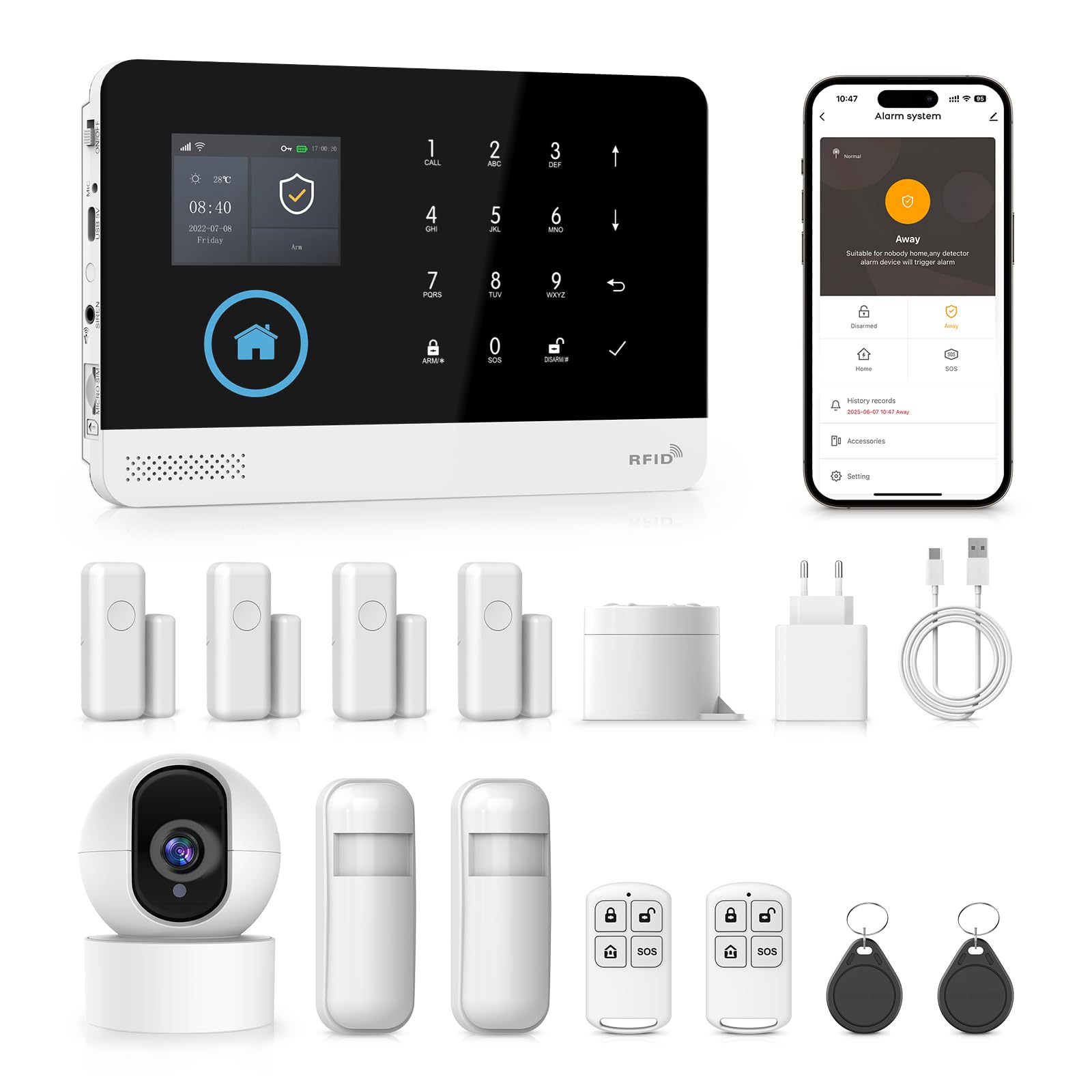
Foto: Ofeview of the PGST Smart Security System kit, showing the alarm panel, camera, sensors, and accessories.
3. Nkọwapụta
| Njirimara | Nkọwapụta |
|---|---|
| Ntinye Voltage | DC 5V (USB Ụdị-C) |
| Na-arụ ọrụ ugbu a | <250mA |
| Oti mkpu ugbu a | <650mA |
| Wireless RF Frequency | 433.92 MHz (ASK modulation) |
| Usoro ngbanwe | 1527/2262 (receive), 1527 or 2262 (transmit) |
| Nkwado GSM | 2G |
| Ọkọlọtọ WiFi | IEEE802.11b/g/n (2.4 GHz, 5G not supported) |
| Batrị ndabere | 3.7V/1000mAh Lithium Polymer |
| Okpomọkụ na-arụ ọrụ | -10℃ ruo 55℃ (14°F ruo 131°F) |
| Iru mmiri dị nso | <80% (anaghị ekpokọta ọnụ) |
| Akụkụ ngwaahịa | 185 x 125 x 14.7 mm (Length x Height x Thickness) |
| Ibu | 600 g |

Foto: Ihu na akụkụ view of the alarm panel, highlighting the 2.4 TFT display and physical dimensions.
4. Nhazi
4.1 Agbanye ike mbụ
- Connect the alarm base unit to a power source using the provided USB Type-C charger.
- The unit will power on automatically. The TFT display will illuminate.
4.2 SIM Card Installation (Optional for GSM Functionality)
- Locate the SIM card slot on the side of the alarm base unit.
- Insert a 2G compatible SIM card into the slot, ensuring correct orientation.
- The system will detect the SIM card and display network status on the screen.
4.3 Ntinye ngwa na njikọ WiFi
- Download the companion application (e.g., Tuya Smart App) from your smartphone's app store (iOS or Android).
- Debanye ma ọ bụ banye na akaụntụ gị.
- On the alarm base unit, navigate to the WiFi settings.
- Follow the in-app instructions to add a new device. This typically involves selecting your 2.4 GHz WiFi network and entering the password.
- The alarm unit will connect to your WiFi network. A confirmation message will appear on the display and in the app.
4.4 Adding Sensors and Camera
The system supports up to 99 wireless sensors and 3 wired zones.
- Ihe mmetụta ọnụ ụzọ/ime windo: Mount the two parts of the sensor on a door or window frame, ensuring they are aligned and within 1 cm of each other when closed. Pair them with the alarm unit via the app or panel settings.
- PIR Motion Detectors: Install PIR detectors in areas where motion detection is desired, such as hallways or living rooms. Ensure they have a clear line of sight. Pair them with the alarm unit.
- 360° Camera: Connect the camera to power. Follow the camera's specific instructions to connect it to your WiFi network and link it to your security system app.

Image: Diagram illustrating a home layout with various PGST security components installed, including the alarm host, door sensors, motion sensors, and an IP camera, demonstrating easy DIY installation.
5. Ntuziaka ọrụ
5.1 Ịkwado na ịtọpụ sistemu ahụ
- Via Alarm Panel: Use the keypad to enter your security code and press the 'Arm' or 'Disarm' button.
- Site na Njikwa Ime Obodo: Press the 'Arm' button (often a closed padlock icon) to arm the system, or the 'Disarm' button (open padlock icon) to disarm.
- Site na ngwa mkpanaka: Open the app and tap the 'Arm' or 'Disarm' icon.
- Scheduled Arming/Disarming: Set custom schedules through the app for automatic arming and disarming at specific times.
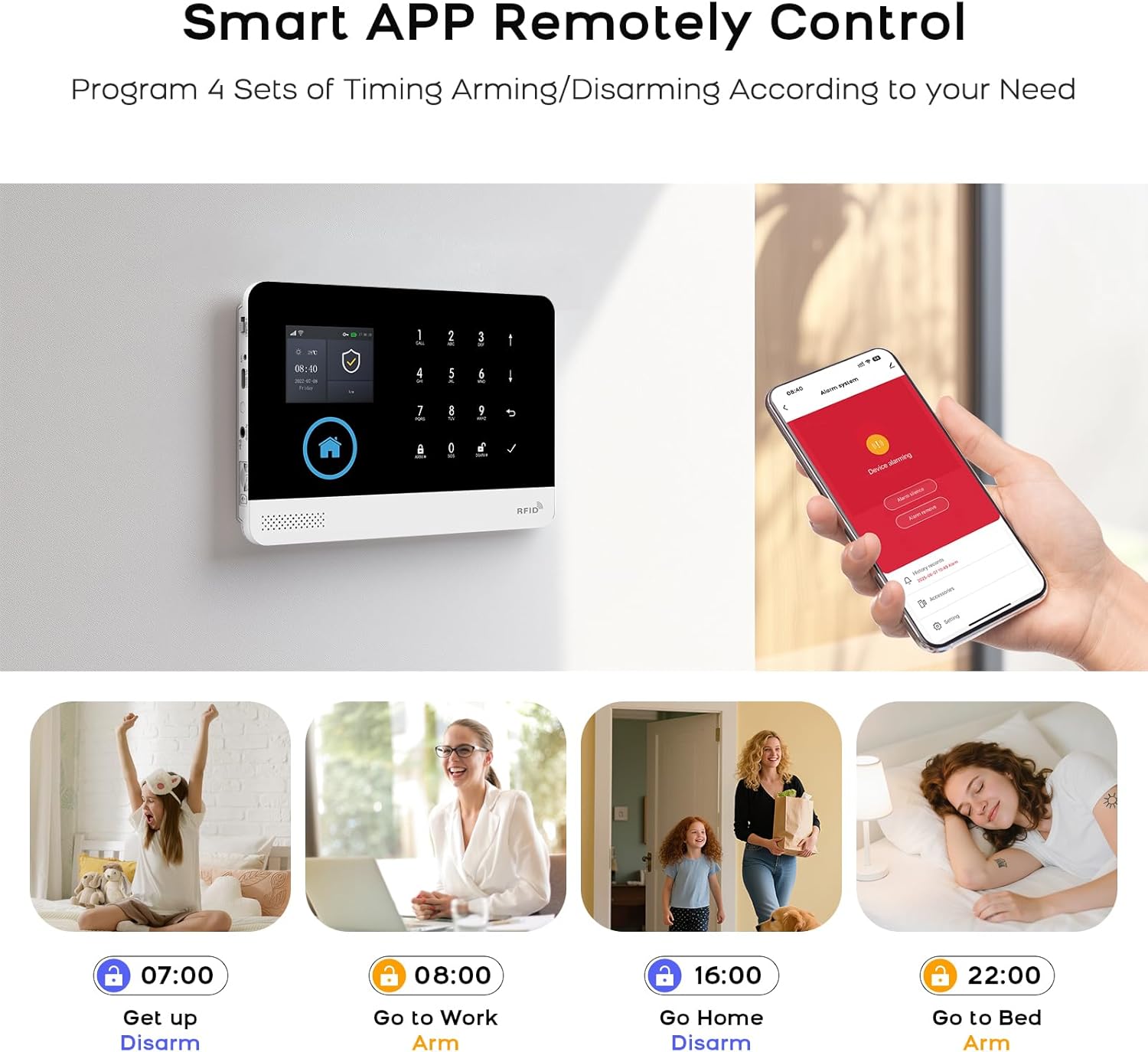
Image: Illustration of the mobile app interface for remote control, showing options for arming and disarming the system, along with examples of scheduled operations.
5.2 Two-Way Voice Intercom
The alarm base unit supports two-way voice communication. When an alarm is triggered or a call is initiated, you can speak and listen through the unit.
- Ịkpọ oku: Use the dialing buttons on the panel or the app to initiate a call.
- Ịnata oku: Answer incoming calls directly from the panel or through the app.

Image: Depiction of the two-way voice intercom feature, showing a child interacting with the alarm panel and an adult responding via a smartphone, illustrating remote communication.
5.3 njikwa olu olu
The system is compatible with Amazon Alexa and Google Assistant for convenient voice commands.
- Enable the PGST skill/action in your Alexa or Google Home app.
- Link your PGST account.
- Use commands such as "Alexa, arm my home" or "Hey Google, disarm the security system."
Image: Scene showing a user interacting with the alarm system using voice commands through an Amazon Alexa device, demonstrating smart home integration.
5.4 Igwefoto arụ ọrụ
The 1080p 360° camera provides live video feed and recording capabilities.
- Dị ndụ View: Access the camera's live feed through the mobile app at any time.
- Nchọpụta ngagharị: The camera can detect motion and send alerts to your phone.
- Audio Ụzọ Abụọ: Communicate through the camera using its built-in microphone and speaker.
- Ọhụụ abalị infrared: The camera automatically switches to night vision in low-light conditions.
- Mkpọgharị vidiyo: Review edekọ footage site na ngwa.

Image: A 360-degree home security WiFi camera on a table, with icons illustrating its features: 1080p resolution, motion detection, 2-way audio, video replay, infrared night vision, and app control.
6. Nlekọta
6.1 Battery Replacement for Sensors
The system will notify you via the app or panel display when sensor batteries are low.
- Identify the sensor with a low battery warning.
- Jiri nlezianya mepee ihe mmetụta ahụ casing.
- Replace the old battery with a new one of the same type (e.g., CR2032 for door sensors, AA for PIR detectors).
- Mechie casing securely. The system should automatically recognize the new battery.
Image: Visual representation of low battery warnings for wireless sensors (PIR and door sensor), and how these alerts are displayed on the alarm host and mobile app.
6.2 Nhicha
Wipe the alarm base unit, camera, and sensors with a soft, dry cloth. Avoid using abrasive cleaners or solvents that could damage the devices.
7. Nchọpụta nsogbu
- System not connecting to WiFi: Ensure your WiFi network is 2.4 GHz. Check your WiFi password and router signal strength. Restart the alarm unit and your router.
- Sensọ anaghị akpalite mkpu: Verify that sensors are correctly paired and have fresh batteries. Check their placement to ensure proper detection range and alignment.
- No GSM signal: Ensure the 2G SIM card is correctly inserted and active. Check for network coverage in your area.
- App notifications not received: Check your phone's notification settings for the app. Ensure the app has background data access and is not restricted by power-saving modes.
- Njikwa olu anaghị arụ ọrụ: Confirm that the PGST skill/action is enabled and linked in your smart assistant app (Alexa/Google Home). Ensure your voice commands are clear and match the supported phrases.
8. Akwụkwọ ikike na nkwado
PGST products are designed for reliability and performance. For specific warranty details, please refer to the warranty card included in your product packaging or visit the official PGST website. If you encounter any issues or require technical assistance, please contact PGST customer support through the contact information provided on our websaịtị ma ọ bụ n'ime ngwa mkpanaka.