
1. Okwu mmalite na gafereview
The Google Nest Hub Max is an interactive smart display designed to integrate seamlessly into your home environment. It features a 10-inch touchscreen and a speaker system, providing a central hub for various smart home functionalities, media consumption, and communication. Its design allows it to fit well in various settings, from a nightstand to a kitchen countertop.
This model supports multiple languages, including English, Spanish, French, and Japanese, and is designed for global compatibility with a universal power adapter.
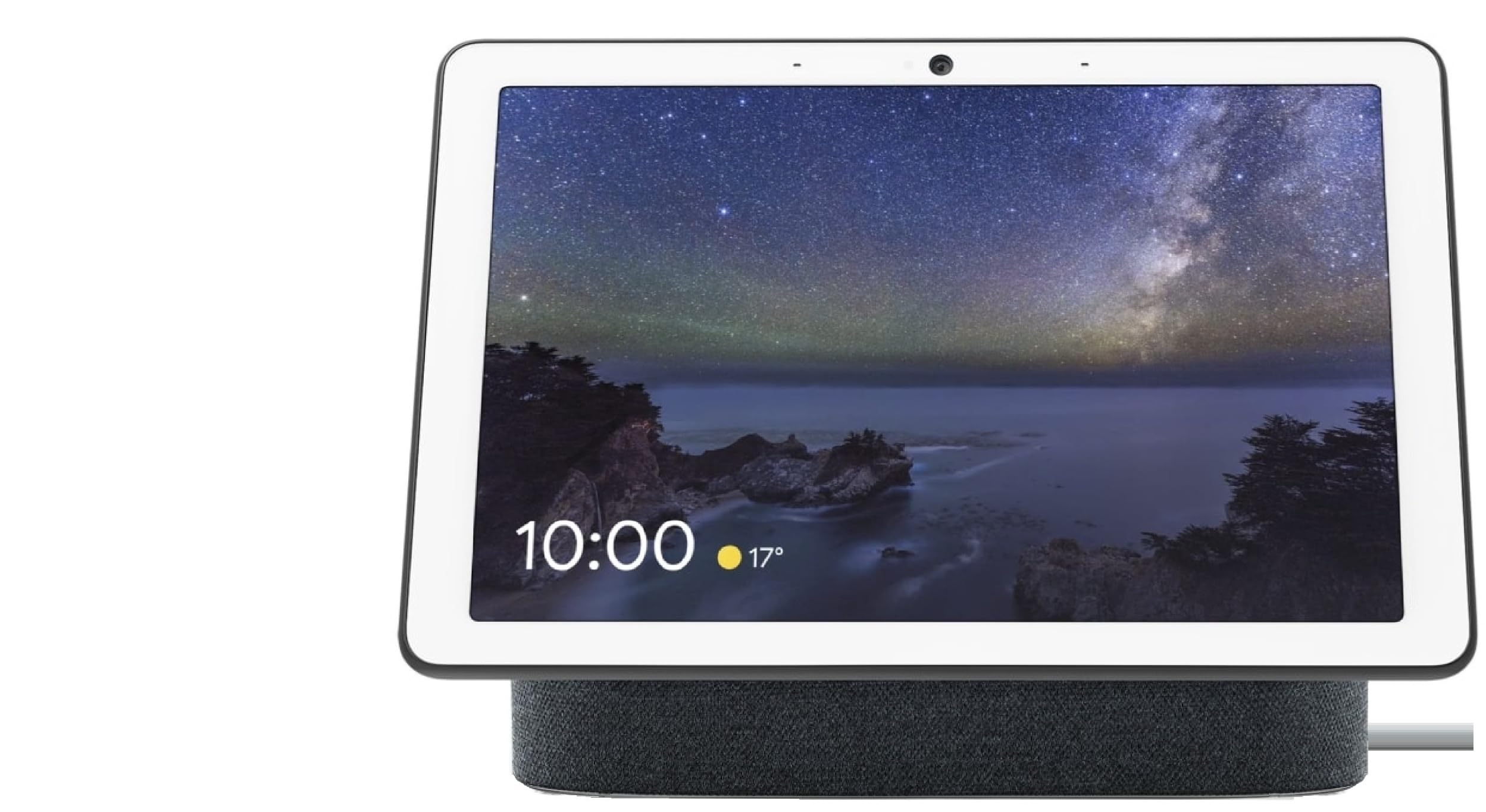
Figure 1: Google Nest Hub Max displaying time and weather.
2. Nhazi
Follow these steps for initial setup of your Google Nest Hub Max:
- Njikọ ike: Connect the provided universal power adapter to your Nest Hub Max and plug it into a power outlet.
- Initial Language Setup: Upon first connection, the device will automatically start in English. You can change language settings at any time through the device's interface.
- Njikọ netwọk: Follow the on-screen prompts to connect your Nest Hub Max to your home Wi-Fi network. This is crucial for accessing smart features and online services.
- Njikọ Akaụntụ Google: Sign in with your Google account to personalize your device and enable features like Google Assistant, Google Photos, and other integrated services.
- Ndenye Malite Guide: Refer to the included Quick Start Guide for additional setup details and troubleshooting tips specific to your region.
Video 1: Demonstrates the compact design and ease of setup for the Google Nest Hub Max.
3. Ntuziaka ọrụ
3.1 Basic Navigation and Voice Commands
The Nest Hub Max features a responsive touchscreen interface. Swipe left or right to access different cards like your daily routine, home control, media, and communication options. The primary interaction method is through Google Assistant voice commands. Simply say "Hey Google" followed by your command or question.
- Ihe Ngụkọ Oge na Mkpu: "Hey Google, set a timer for 10 minutes."
- Mmelite ihu igwe: "Hey Google, what's the weather like today?"
- Egwu na Mgbasa Ozi: "Hey Google, play music on Spotify." or "Hey Google, play videos on YouTube."
- Information Search: "Hey Google, how old is Brad Pitt?"
3.2 Mgbasa ozi
Enjoy various media content directly on your Nest Hub Max:
- YouTube: Access YouTube for videos, tutorials, and entertainment.
- Spotify & Other Services: Stream music and podcasts from compatible services.
- Photo Frame: Display your personal photos from Google Photos as a dynamic photo frame.
3.3 Nkwukọrịta
Stay connected with friends and family:
- Oku vidiyo: Make video calls using Google Duo.
- Oku ekwentị: Initiate phone calls to your contacts.
- Broadcasts: Send voice messages to other Google Assistant-enabled devices in your home.
3.4 Njikwa Ụlọ Amamihe
Manage your compatible smart home devices:
- Control lights, thermostats, and other smart appliances.
- View live feeds from compatible security cameras, such as Nest Cams or doorbells.
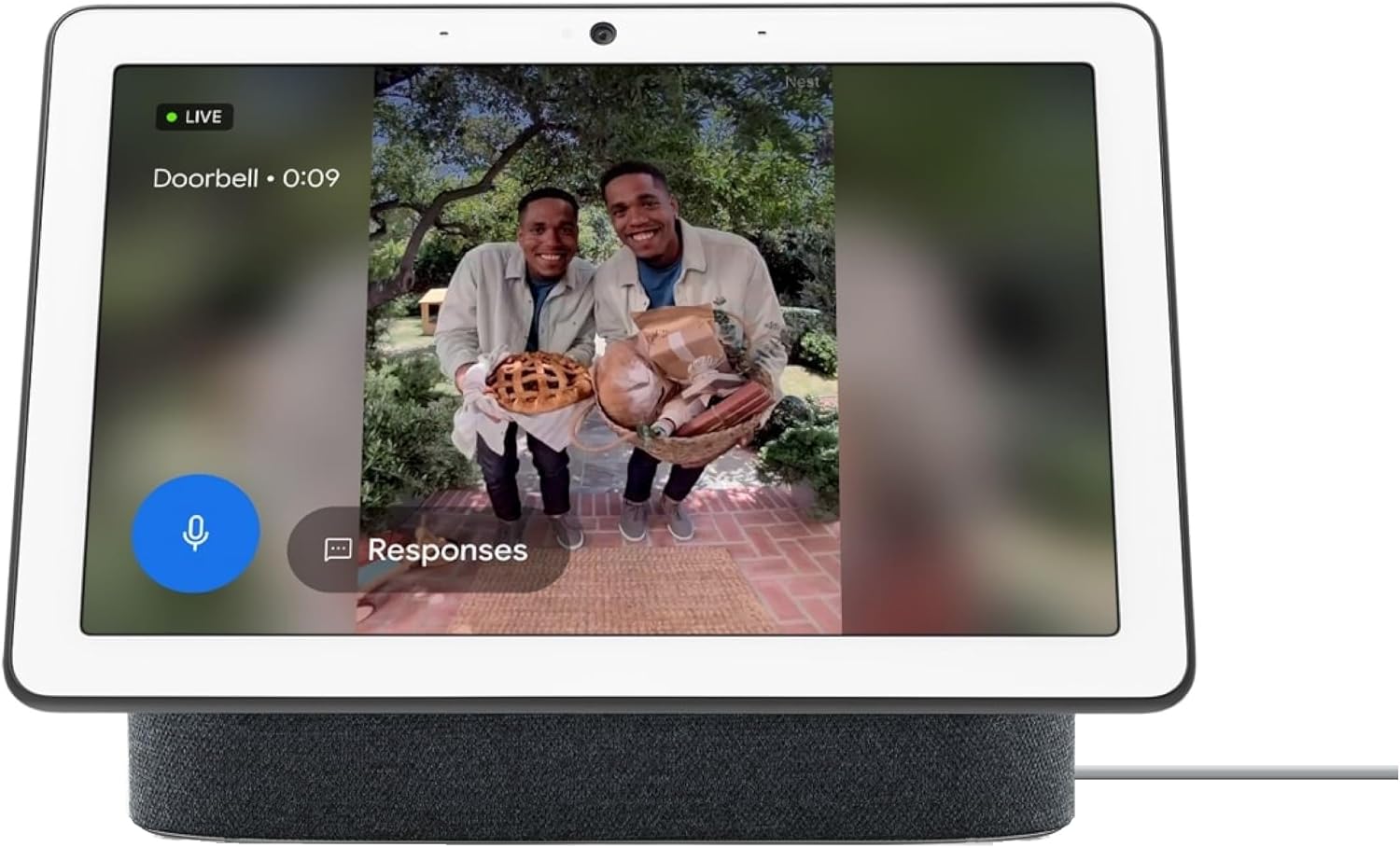
Figure 2: Nest Hub Max showing a live feed from a smart doorbell.
3.5 Privacy Controls
For privacy, the Nest Hub Max includes a physical switch to turn off the microphone and camera. This switch is located on the back of the device. When activated, a visual indicator on the screen confirms that the mic and camera are off.
3.6 Njikwa olu
Adjust the device volume using the physical buttons located on the side of the display.
Vidiyo 2: Agafeeview of the Google Nest Hub Max features, including smart home integration and communication.
4. Nlekọta
- Nhicha: Use a soft, dry, lint-free cloth to clean the screen and device body. Avoid abrasive cleaners or sprays.
- Mmelite ngwanrọ: Ensure your device is connected to Wi-Fi to receive automatic software updates, which provide new features and security enhancements.
- Ihe nkwụnye ọkụ: Use only the provided universal power adapter. Ensure the cable is not bent or damaged to prevent power issues.
5. Nchọpụta nsogbu
- Ngwaọrụ anaghị aza: If the device is unresponsive, try unplugging it from the power source, waiting 10 seconds, and plugging it back in.
- Okwu njikọ Wi-Fi: If the device cannot connect to your network, ensure your Wi-Fi router is working correctly and the Nest Hub Max is within range. You may need to restart your router or the Nest Hub Max.
- Ntọala asụsụ: If the device's language is incorrect or switches unexpectedly, navigate to the device settings to manually select your preferred language.
- Tọgharia Factory: As a last resort for persistent issues, you can perform a factory reset. This will erase all data and settings, returning the device to its original state. Consult the Google Support website for specific instructions on how to perform a factory reset.
6. Nkọwapụta
| Njirimara | Nkọwa |
|---|---|
| Ụdị | |
| Aha Nlereanya | GA00639 |
| Nọmba nlereanya | H2A-GA00639-JP |
| Agba | Unyi |
| Akụkụ ihe (LxWxH) | 11.22 x 9.06 x 5 sentimita asatọ |
| Ibu Ibu | 5.25 pound |
| Ụdị nkwụnye | Tabletop, Wall Mount |
| Ngwa dakọtara | Smartphones |
| Ndakọrịta Smart Home | Smart Home Compatible |
| Ihe mkpuchi | Plastic |
| UPC | 659680641920 |
| GTIN | 659680641920 |
7. Akwụkwọ ikike na nkwado
Akwụkwọ ikike: The Google Nest Hub Max (Model H2A-GA00639-JP) comes with a 1-year manufacturer's warranty. Please retain your proof of purchase for warranty claims.
Atụmatụ nchebe: Extended protection plans are available for purchase, including 2-Year, 3-Year, and Complete Protect options. These plans offer additional coverage beyond the standard manufacturer's warranty.
Nkwado ndị ahịa: For further assistance, technical support, or warranty inquiries, please visit the official Google Support website or contact their customer service. Detailed contact information can be found on the Google websaịtị ma ọ bụ na nkwakọ ngwaahịa gị.