
1. Okwu mmalite
Thank you for choosing the Tacens AEROSLIM500 MicroATX PC Case. This slim mini-tower is designed for efficient and compact PC builds, supporting MicroATX and Mini-ITX motherboards. It features optimized airflow, an integrated 500W TFX power supply, and modern connectivity. This manual provides essential information for safe installation, operation, and maintenance of your new PC case.
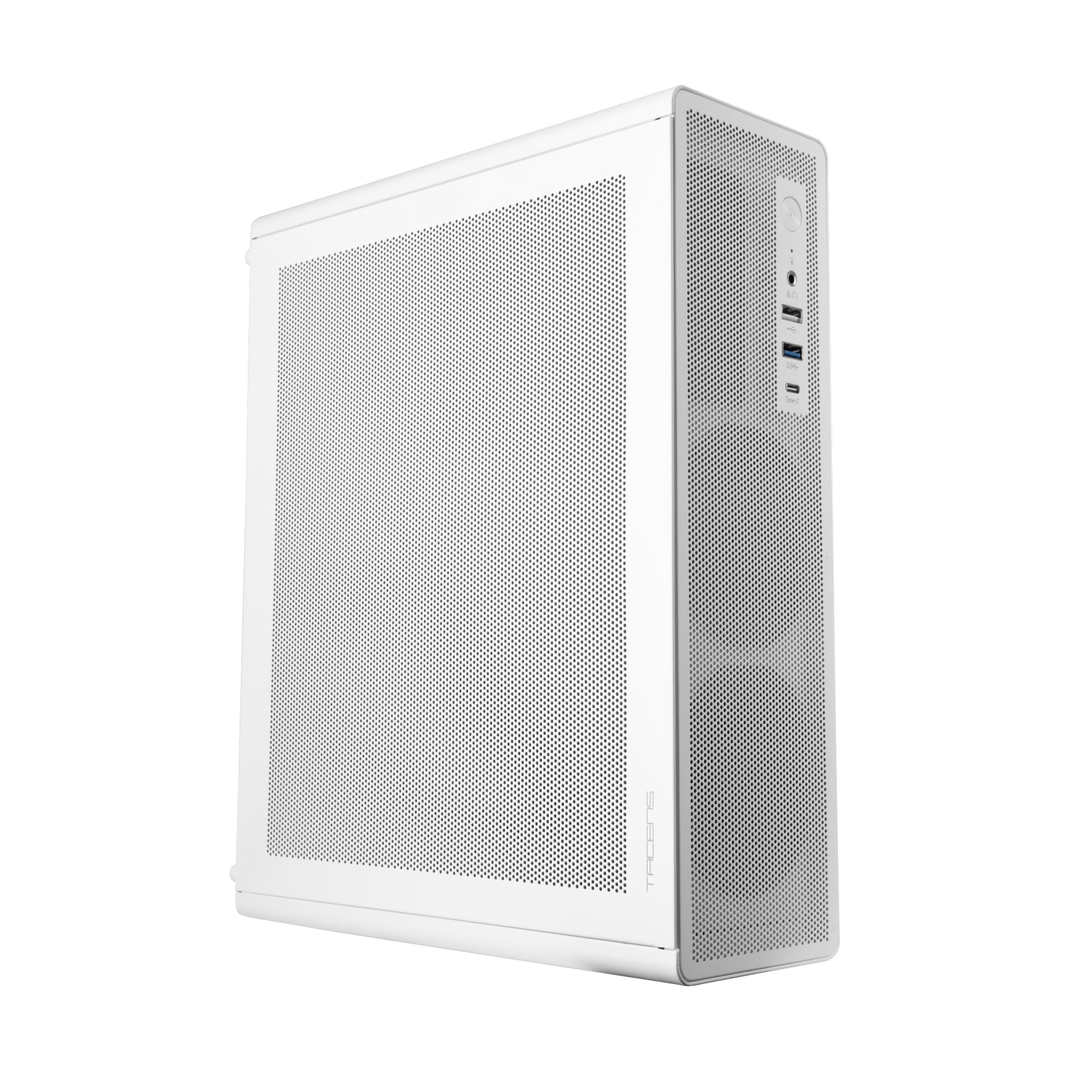
Figure 1: Tacens AEROSLIM500 MicroATX PC Case (Overall View)
2. Ozi nchekwa
Biko gụọ ma soro ntuziaka nchekwa ndị a iji gbochie mmebi ngwaahịa ahụ ma ọ bụ mmerụ ahụ nye onwe gị.
- Ịkwụsị ike: Always disconnect the power cable from the wall outlet before opening the case or performing any installation/maintenance.
- Eletrik Static: Discharge static electricity from your body before handling internal components. Use an anti-static wrist strap if available.
- Ọnụ dị nkọ: Be cautious of sharp edges inside the case during installation.
- Igwe ikuku: Ensure proper ventilation around the case. Do not block air vents.
- Mmiri na mmiri: Keep the case away from liquids and excessive moisture.
- Nwụnye ọkachamara: If you are unsure about any installation steps, seek assistance from a qualified technician.
3. Ihe ngwugwu
Verify that all items are present in your package. If any items are missing or damaged, contact your retailer.
- Tacens AEROSLIM500 MicroATX PC Case with integrated 500W TFX Power Supply
- Pre-installed 90mm FDB Front Fan
- Ngwa ngwa (skru, ihe mgbochi, eriri waya)
- Akwụkwọ ntuziaka (akwụkwọ a)
4. Akụrụngwa Ngwaahịa
The Tacens AEROSLIM500 PC case offers a range of features for a compact and efficient build:
- Integrated TFX 500W Power Supply: Ensures stable and efficient power delivery for your components.
- Ọjụjụ Dị Elu: Front and side ultra-fine mesh panels provide constant airflow and act as a dust barrier.
- Pre-installed Front Fan: Includes a 90mm FDB (Fluid Dynamic Bearing) fan for optimal cooling. Supports up to two 90mm front fans.
- Optimized Internal Space: Compatible with MicroATX (up to 210mm wide) and Mini-ITX motherboards.
- GPU Support: Accommodates low-profile GPUs up to 220mm long and 63mm wide.
- Nhọrọ nchekwa: Features 5 x 2.5" SSD drive bays.
- Oghere Mgbasawanye: Provides 3 expansion slots for MicroATX or 1-2 for Mini-ITX configurations.
- Njikọta zuru oke: Front panel includes USB-C, USB 3.0, USB 2.0 ports, and HD audio/microphone jacks.
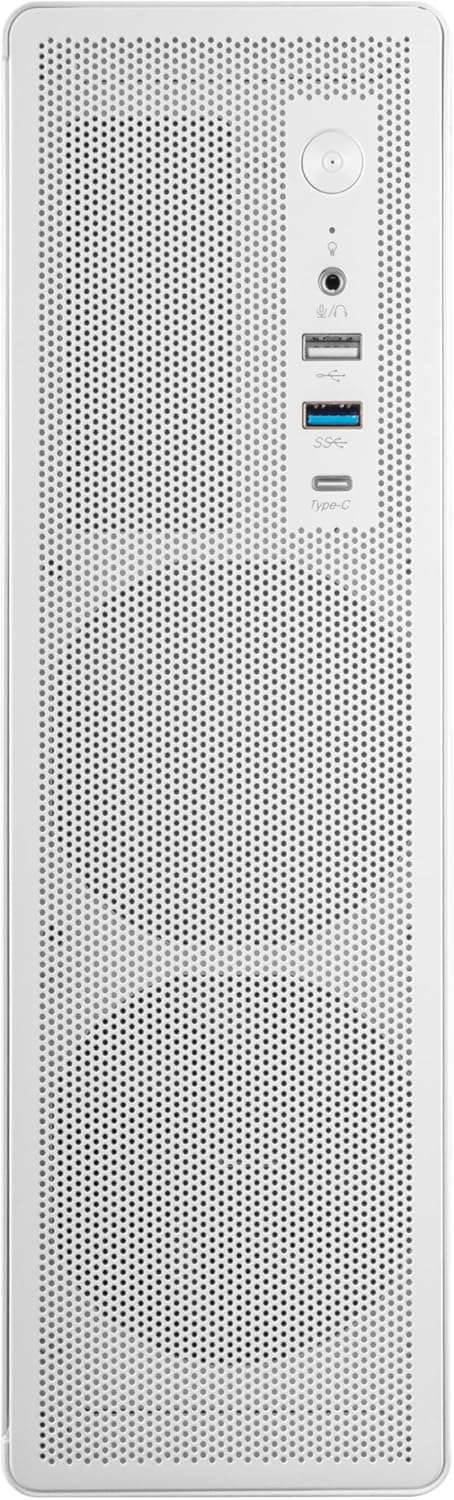
Figure 2: Front Panel Connectivity

Ọgụgụ 3: Zuru ezu View of Front I/O Ports
5. Ntọala na nwụnye
Follow these steps to install your components into the Tacens AEROSLIM500 PC case. Ensure the system is powered off and unplugged before beginning.
5.1. Imepe Okwu ahụ
- Debe akpa ahụ n'elu ebe dị larịị ma kwụsie ike.
- Locate the thumbscrews or standard screws on the rear panel securing the side panel(s).
- Remove the screws and carefully slide the side panel(s) backward, then lift them off.

Figure 4: Case Interior View with Pre-installed Fan
5.2. Nwụnye motherboard
- Install the CPU, CPU cooler (ensure it fits within the 73mm height limit), and RAM onto your MicroATX or Mini-ITX motherboard before placing it in the case.
- Align the motherboard with the pre-installed standoffs inside the case.
- Jiri skru kwesịrị ekwesị site na ngwa mgbakwunye ahụ kechie motherboard ahụ.

Figure 5: Motherboard Mounting Area
5.3. Storage Device Installation (2.5" SSD/HDD)
- Locate the 2.5" drive bays/mounting points. The case supports up to 5 x 2.5" drives.
- Secure your 2.5" SSDs or HDDs using the provided screws.
- Connect SATA data and power cables to the drives.

Figure 6: Power Supply and Drive Bay Area
5.4. Nwụnye Kaadị Mgbasawanye (GPU)
- Remove the necessary expansion slot covers from the rear of the case.
- Carefully insert your low-profile GPU (max 220mm length, 63mm width) into the PCIe slot on the motherboard.
- Secure the expansion card with a screw.
5.5. Ijikọ eriri Panel dị n'ihu
Connect the front panel cables (USB-C, USB 3.0, USB 2.0, HD Audio, Power Switch, Reset Switch, Power LED, HDD LED) to their corresponding headers on your motherboard. Refer to your motherboard manual for exact header locations.
5.6. Njikwa USB
Route cables neatly to improve airflow and aesthetics. Use the provided cable ties to secure bundles of cables.
5.7. Imechi ikpe
- Once all components are installed and cables are managed, reattach the side panel(s).
- Secure the side panel(s) with the thumbscrews or standard screws.
6. Ntuziaka ọrụ
After successful assembly, connect your peripherals (monitor, keyboard, mouse) and the power cable to the integrated TFX 500W power supply.
- Ike Na: Press the power button located on the front panel to turn on your computer.
- ọdụ ụgbọ mmiri USB: Use the front USB-C, USB 3.0, and USB 2.0 ports for connecting external devices.
- Jacks ọdịyo: Connect headphones or a microphone to the front audio jacks.
- Gbanyụọ: Shut down your computer through the operating system. For a hard shutdown, press and hold the power button for several seconds.
7. Nlekọta
Ndozi mgbe niile na-enyere aka hụ na arụmọrụ kacha mma yana ogologo ndụ nke akụrụngwa PC gị.
- Nhicha uzuzu: The mesh panels act as dust filters. Periodically clean the front and side mesh panels using compressed air or a soft brush to remove accumulated dust.
- Nchacha nke ime: Every 6-12 months, open the case (after disconnecting power) and use compressed air to clean dust from internal components, especially CPU coolers and GPU fans.
- Lelee njikwa eriri USB: Ensure cables remain neatly routed and do not obstruct airflow.
8. Nchọpụta nsogbu
Ọ bụrụ na ị zutere nsogbu, rụtụ aka na usoro nchọpụta nsogbu ndị a na-emekarị.
- Enweghị ike:
- Ensure the power cable is securely connected to both the wall outlet and the PC's power supply.
- Verify that the power supply switch (if present) is in the 'ON' position.
- Check all internal power connections (24-pin ATX, 8-pin CPU, GPU power) to the motherboard and components.
- Gbaa mbọ hụ na ejikọrọ eriri bọtịnụ ike ihu panel nke ọma na nkụnye eji isi mee motherboard.
- Enweghị Ngosipụta:
- Confirm your monitor is powered on and connected to the correct video output on your GPU or motherboard.
- Reseat your GPU and RAM modules.
- Oke mkpọtụ:
- Check if any cables are obstructing fan blades.
- Clean dust from fans (CPU, GPU, case fans, PSU fan).
- Ensure all screws are tightened to prevent vibrations.
- Ọdụ ụgbọ mmiri ihu n'ihu anaghị arụ ọrụ:
- Verify that the USB and audio cables from the front panel are correctly connected to the motherboard headers.
9. Nkọwapụta
| Ụdị | Tacens |
| Aha Nlereanya | AEROSLIM500 |
| Ndakọrịta Motherboard | Micro ATX, Obere ITX |
| Ụdị ikpe | Compact Desktop / Mini-Tower |
| Agba | Ọcha |
| Ihe onwunwe | Ọla |
| Ịnye ọkụ | Integrated TFX 500W |
| Usoro jụrụ oyi | Air (Pre-installed 90mm FDB front fan) |
| Oke oyi oyi CPU | Ihe ruru 73 mm |
| Oke Ogologo Ogologo GPU | Up to 220mm (low-profile naanị) |
| GPU Width Limit | Ihe ruru 63 mm |
| Ụgbọ okporo ígwè | 5 x 2.5" SSD/HDD |
| Oghere Mgbasawanye | 3 (MicroATX), 1-2 (Mini-ITX) |
| N'ihu I / O Ports | 1x USB-C, 1x USB 3.0, 2x USB 2.0, HD Audio (Headphone/Microphone) |
| Ibu Ibu | 2.25 kilogram |
10. Akwụkwọ ikike na nkwado
Tacens products are manufactured to the highest quality standards. For information regarding warranty coverage, terms, and conditions, please refer to the warranty card included with your product or visit the official Tacens websaịtị.
For technical support, troubleshooting assistance beyond this manual, or to inquire about replacement parts, please contact Tacens customer service through their official websaịtị ma ọ bụ ozi kọntaktị enyere na akwụkwọ ngwaahịa gị.
Official Tacens Websaịtị: www.tacens.com (Rịba ama: Nke a bụ ebe njide ihe URL. Please refer to your product packaging for the correct official websaịtị.)