
1. Okwu mmalite
This manual provides detailed instructions for the setup, operation, maintenance, and troubleshooting of your Jectse WiFi 6 4G/5G CPE LTE Router. Please read this manual carefully before using the device to ensure optimal performance and safety.
Akụkụ ndị bụ isi:
- Arụmọrụ dị elu: Connects up to 32 devices simultaneously, covering an area of approximately 300 square meters. Ideal for home or small office environments.
- Comprehensive 4G LTE Support: Compatible with a wide range of 4G LTE bands including FDD (B1, 3, 5, 7, 8, 20), TDD (B38, 40, 41), and WCDMA (B1, 5, 8), ensuring stable connectivity across various network providers.
- 6 Antenna Design: Equipped with six antennas for enhanced signal coverage and faster network speeds, providing a stable and consistent internet experience.
- Fast Internet Speeds: Achieves 4G download speeds up to 150 Mbps, upload speeds up to 50 Mbps, and wireless transfer rates up to 300 Mbps for smooth streaming, gaming, and browsing.
- Ntọlite dị mfe: Simply insert a standard SIM card to convert 4G LTE into a WiFi hotspot, allowing multiple devices to connect without complex installations.
2. Ihe ngwugwu
Biko lelee ngwungwu maka ihe ndị a:
- Jectse WiFi 6 4G/5G CPE LTE Router
- Ihe nkwụnye ọkụ
- eriri Ethernet
- Akwụkwọ ntuziaka (akwụkwọ a)

Image: Package contents including the router, power adapter, and Ethernet cable.
3. Ngwaahịa gafereview
Ihu na Top View:
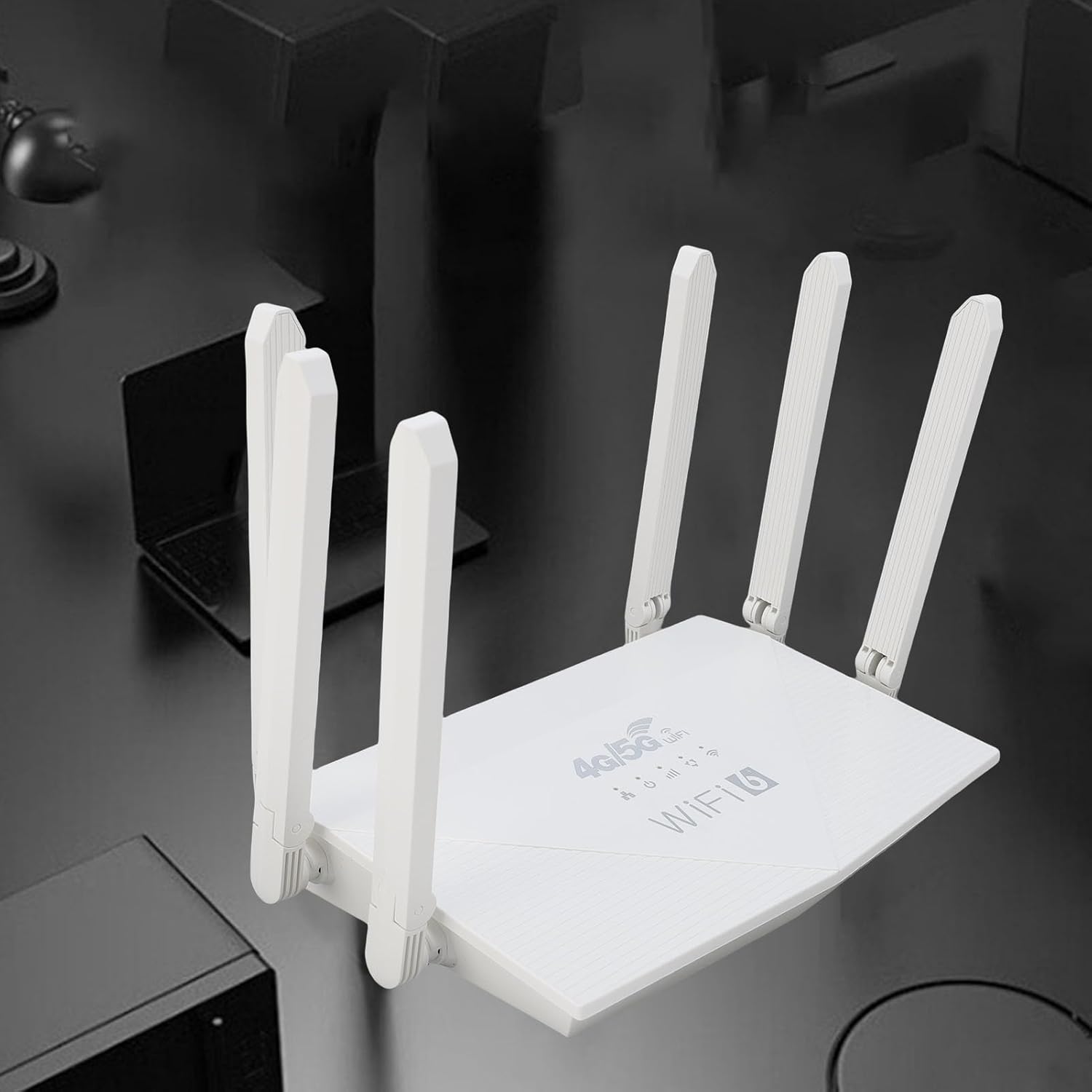
Foto: Top view of the router, showing the '4G/5G LTE WiFi 6' branding and six external antennas.
Rear Panel and Ports:

Foto: N'azụ view of the router, displaying the various ports and antenna connections.
- Tọgharịa bọtịnụ: Used to restore factory settings.
- Ụdị-C Port: For power input (if applicable, check power adapter type).
- Ike Port: Ntinye ike DC.
- Oghere kaadi SIM: For inserting a standard 4G/5G SIM card.
- ETH1-ETH4 Ports: Four Ethernet LAN ports for wired connections.

Image: Close-up of the reset button, Type-C port, power port, and SIM card slot.

Image: Close-up of the four Ethernet LAN ports (ETH1, ETH2, ETH3, ETH4).
Akara ala:
The bottom label contains important information such as the default WiFi name, WiFi key, IP address, and login credentials.

Image: Bottom label of the router with essential network details.
4. Nhazi ntuziaka
- Fanye SIM kaadị: Locate the SIM card slot on the rear panel. Gently insert a standard-sized 4G/5G SIM card until it clicks into place. Ensure the SIM card is correctly oriented.
- Njikọ Ike: Connect the provided power adapter to the router's power port and then plug the adapter into a power outlet.
- Ike Na: The router will automatically power on. Wait for the indicator lights to stabilize, which typically takes a few minutes.
- Jikọọ Ngwaọrụ:
- Njikọ ikuku: On your device (smartphone, tablet, laptop), search for available Wi-Fi networks. Select the network name (SSID) found on the router's bottom label. Enter the default Wi-Fi key (password) also found on the label.
- Njikọ waya: Connect one end of the Ethernet cable to any of the ETH1-ETH4 ports on the router and the other end to the Ethernet port on your computer or other wired device.
- Nweta Web Interface (Optional): Mepee a web browser and enter the default IP address (e.g., 192.168.0.1) found on the bottom label. Use the default username and password (e.g., admin/admin) to log in and configure advanced settings.
5. Ntuziaka ọrụ
Jikọọ na netwọk:
Once the router is powered on and the SIM card is active, your devices can connect to the internet:
- Wi-Fi: Use the SSID and password printed on the router's bottom label to connect your wireless devices.
- Ethernet: Connect devices directly to the ETH ports for a stable wired connection.
Managing Router Settings:
To customize your network, such as changing the Wi-Fi name or password, or configuring advanced features:
- Hụ na ejikọrọ ngwaọrụ gị na rawụta (site na Wi-Fi ma ọ bụ Ethernet).
- Mepee a web browser and enter the router's IP address (e.g., 192.168.0.1).
- Log in using the username and password from the bottom label.
- Navigate through the interface to adjust settings as needed.
6. Nlekọta
- Nhicha: Keep the router clean and free from dust. Use a soft, dry cloth. Do not use liquid cleaners.
- Igwe ikuku: Gbaa mbọ hụ na etinyere rawụta na mpaghara ikuku nke ọma iji gbochie ikpo oke ọkụ. Ekpuchila oghere ikuku.
- Mmelite femụwe: Lelee nke onye nrụpụta oge ụfọdụ website for firmware updates. Keeping your router's firmware up-to-date can improve performance and security.
- Na-amalitegharị: If you experience network issues, try restarting the router by unplugging the power adapter, waiting 10 seconds, and then plugging it back in.
7. Nchọpụta nsogbu
Enweghị njikọ ịntanetị:
- Check if the SIM card is correctly inserted and active.
- Verify that the router's indicator lights are stable.
- Malitegharịa rawụta ahụ na ngwaọrụ ejikọrọ gị.
- Ensure your SIM card has an active data plan.
- Nweta rawụta web interface to check the network status and APN settings.
Ọsọ Ịntanetị Dị Nwayọọ:
- Ensure the router is placed in an open area, away from obstructions and interference sources.
- Belata ọnụ ọgụgụ ngwaọrụ ejikọrọ ma ọ bụ mmemme na-akpa ike bandwidth.
- Check your 4G/5G signal strength in the router's web interface.
- Contact your mobile network provider to inquire about network congestion or data plan limits.
Enweghị ike ịnweta ntọala router:
- Gbaa mbọ hụ na ejikọrọ ngwaọrụ gị na netwọkụ nke rawụta.
- Verify you are entering the correct IP address (e.g., 192.168.0.1) in your browser.
- Confirm the username and password are correct (check the bottom label).
- Gbalịa ọzọ web browser or clear your browser's cache.
- If all else fails, perform a factory reset by pressing the reset button for 5-10 seconds (note: this will erase all custom settings).
8. Nkọwapụta
| Njirimara | Nkọwa |
|---|---|
| Ụdị | Jectse |
| Nọmba nlereanya | Jectse7yitc28aer |
| Agba | Ọcha |
| Sistemụ nrụọrụ | RouterOS |
| Teknụzụ Njikọta | LTE, Wi-Fi |
| Atụmatụ pụrụ iche | Integrated firewall, full 4G LTE support, fast internet speeds |
| Ngwa dakọtara | Smartphone, tablet, computer |
| Klaasị ugboro ugboro | Otu-band |
| Ikuku Communication Standard | 802.11b, 802.11g, 802.11n |
| Eji akwadoro | Home, Professional |
| 4G nbudata ọsọ | Ruo 150 Mbps |
| 4G mbulite ọsọ | Ruo 50 Mbps |
| Wireless Transfer Rate | Ruo 300 Mbps |
| Ngwa ejikọrọ kacha | 32 |
| Mpaghara mkpuchi | 300 |
| Ndị otu LTE akwadoro | FDD (B1, 3, 5, 7, 8, 20), TDD (B38, 40, 41), WCDMA (B1, 5, 8) |
| Antenna | 6 Antenna mpụga |
9. Akwụkwọ ikike na nkwado
Ozi akwụkwọ ikike:
This Jectse router comes with a Akwụkwọ ikike onye nrụpụta afọ 2. Biko dowe ihe akaebe nke ịzụrụ ihe maka akwụkwọ ikike. Akwụkwọ ikike ahụ na-ekpuchi ntụpọ dị na akụrụngwa yana arụ ọrụ n'okpuru ojiji nkịtị.
Nkwado ndị ahịa:
If you encounter any issues or have questions not covered in this manual, please contact Jectse customer support or your retailer for assistance. You may find contact information on the product packaging or the official Jectse websaịtị.