
Okwu mmalite
This user manual provides detailed instructions for setting up, operating, and maintaining your FIFINE AmpliGame H13BP Wired USB Gaming Headset. Please read this manual thoroughly before using the product to ensure optimal performance and longevity.
Kedu ihe dị na Igbe ahụ
- FIFINE AmpliGame H13BP Gaming Headset
- Igwe okwu enwere ike iwepu
- Akwụkwọ ntuziaka onye ọrụ

Image: The FIFINE AmpliGame H13BP headset, its detachable microphone, and the user manual as packaged.
Ngwaahịa gafereview
Ihe FIFINE AmpliGame H13BP headset features a robust design with comfortable earcups and an adjustable headband for extended gaming sessions. It includes a versatile USB control box for easy audio management.
Isi ihe:
- Ekweisi: Equipped with 50mm dynamic drivers for clear audio across all frequencies.
- Igwe okwu enwere ike iwepu: Features noise-canceling technology for clear communication.
- USB Control Box: In-line controls for volume, mic mute, 7.1 surround sound, EQ modes, and game/chat balance.
- RGB ọkụ: Customizable RGB effects on the earcups.
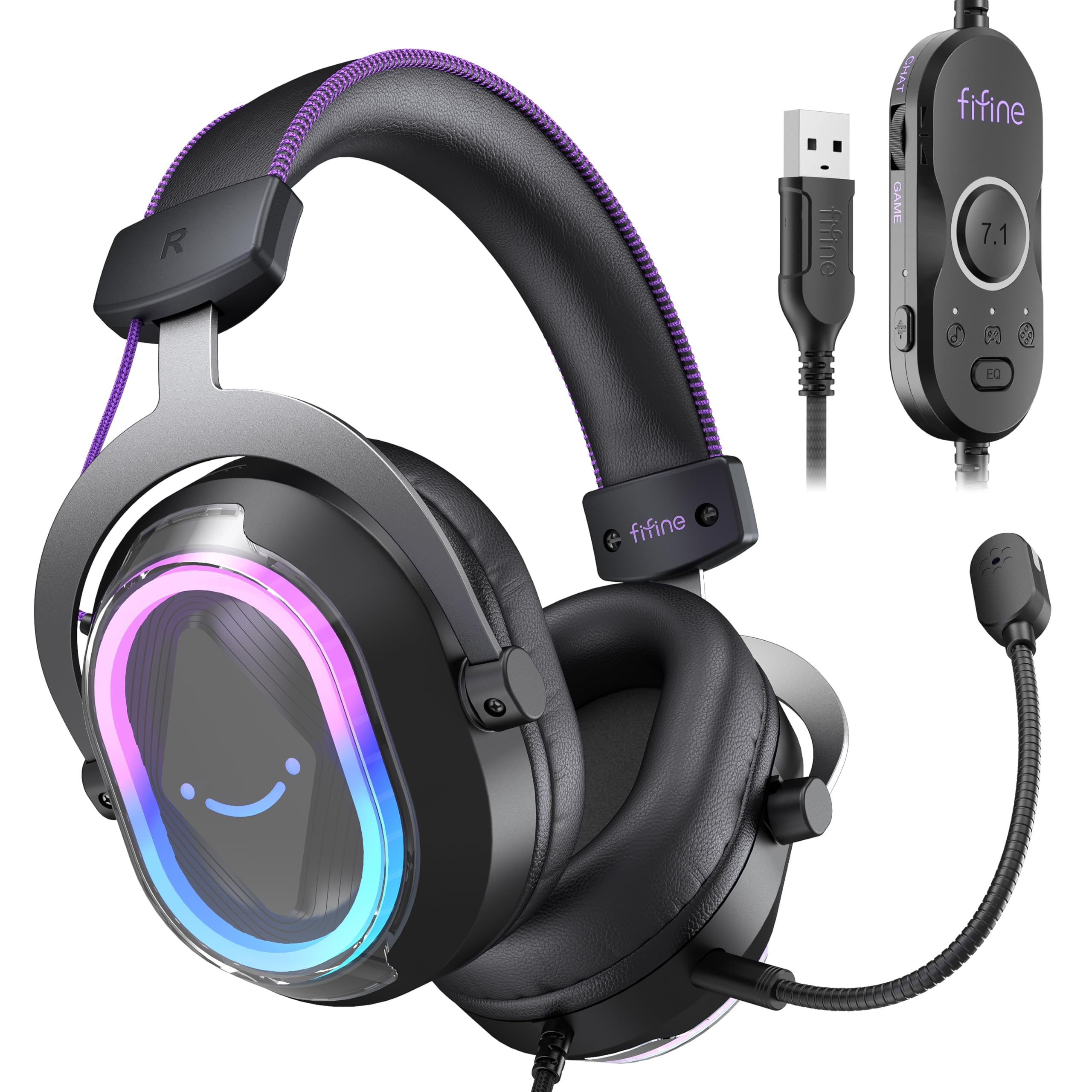
Foto: nkọwa zuru ezu view nke FIFINE AmpliGame H13BP Gaming Headset.

Image: Close-up diagram of the USB Control Box with labeled functions.
Melite
- Jikọọ ekweisi: Plug the USB-A connector of the headset into an available USB port on your PC, Mac, PS5, or PS4. No additional software is required for basic functionality.
- Tinye igwe okwu: Insert the detachable microphone into the designated port on the left earcup until it clicks into place.
- Hazie dabara: Adjust the headband and earcup positions for a comfortable and secure fit. The protein skin ear pads and memory foam cushions are designed for long-term comfort.

Image: Headset connected to various compatible devices.
Ntuziaka ọrụ
USB Control Box Functions:
- Headset Volume Control: Use the volume wheel on the side of the control box to adjust the overall headset volume.
- Mechie igwe okwu: Press the mic mute button on the control box to toggle the microphone on/off. The mic indicator light on the microphone will glow red when muted.
- Game/Chat Balance: Use the dedicated slider on the control box to prioritize game audio or chat audio. Slide towards 'CHAT' to increase chat volume relative to game volume, or towards 'GAME' to increase game volume.
- 7.1 gburugburu ụda: Press the 7.1 button on the control box to activate or deactivate 7.1 virtual surround sound.
- Ụdị EQ: Press the EQ button to cycle through four pre-set equalizer modes: Default (Balanced Audio), Music (Clear Vocal), Game (Powerful Bass), and Movie (Dynamic Enhancement). Long press the EQ button to return to default mode.

Image: Demonstrating the game/chat balancing feature.

Foto: Ofeview of the different EQ modes available.
Njikwa ọkụ RGB:
- Change RGB Modes: Press the dedicated button on the earcup to cycle through 11 different RGB lighting modes.
- Turn RGB On/Off: Long press the RGB button to turn the lighting on or off.

Image: Headset displaying various RGB lighting effects.
Atụmatụ igweokwu
The detachable microphone is designed for clear voice pickup and features noise-canceling capabilities to reduce background distractions, ensuring your teammates hear you clearly.

Image: The microphone with its noise-canceling indicator.
Nkasi obi na ịdịte aka
The H13BP headset is built for comfort during long gaming sessions. It features protein skin ear pads and soft memory foam cushions that conform to your ears. The adjustable headband ensures a snug fit for various head sizes. The durable construction includes metal and plastic components, and the braided cable enhances longevity.

Image: Close-up of the headset's comfortable earcups and adjustable headband.
Nkọwapụta
| Njirimara | Nkọwa |
|---|---|
| Ụdị | FIFINE |
| Nọmba nlereanya | H13BP |
| Teknụzụ Njikọta | Ekwenyere (USB-A) |
| Ntinye ntị | N'elu Ntị |
| Nha ọkwọ ụgbọ ala ọdịyo | 50 millimeters |
| Ụdị ọkwọ ụgbọ ala ọdịyo | Ọkwọ ụgbọala dị ike |
| Oke ugboro ugboro | 20Hz - 20,000Hz |
| Mgbochi | 32 ohms |
| Njikwa mkpọtụ | Nkagbu mkpọtụ mkpọtụ |
| Atụmatụ ndị ọzọ | 7.1 Surround Sound, Noise Canceling Mic, RGB Lighting |
| Ngwa dakọtara | PC, Mac, PS5/PS4 (Not compatible with Xbox) |
| Atụmatụ USB | Braided material cable (7.55ft) |
| Ụdị njikwa | Volume Control, Mic Mute, EQ Modes, 7.1 On/Off, Game/Chat Balance |
| Ihe onwunwe | Leather, Metal, Plastic |
Nchọpụta nsogbu
Enweghị ụda/igwe okwu Anaghị arụ ọrụ:
- Lelee njikọ: Hụ na etinyere njikọ USB-A nke ọma n'ime ọdụ ụgbọ mmiri ahụ.
- Verify Mute Status: Check the mic mute button on the control box and the mic indicator light. Ensure the headset volume is not at minimum.
- Ntọala sistemụ: Confirm that the FIFINE H13BP headset is selected as the default audio input and output device in your computer's or console's sound settings.
- ndakọrịta: Remember that the headset is not compatible with Xbox consoles.
Igwe ọkụ RGB anaghị arụ ọrụ:
- Lelee njikọ: Hụ na e ji eriri USB jikọọ ekweisi ahụ nke ọma.
- Toggle RGB: Long press the RGB button on the earcup to ensure the lighting is not simply turned off.
Akwụkwọ ikike na nkwado
For warranty information and detailed support, please refer to the official FIFINE website or contact their customer service. FIFINE offers product specialists assistance and free technical support for their products.
You can visit the FIFINE Store for more information: FIFINE Store on Amazon
Vidiyo ngwaahịa ngwaahịa
FIFINE H13 USB Gaming Headset Review
Vidiyo: Nyocha zuru okeview of the FIFINE H13 USB Gaming Headset, demonstrating its features and performance.
Testing This Colorful Headset Immersive High-Quality Sound!
Video: A demonstration of the headset's immersive sound quality and vibrant RGB lighting.