
1. Okwu mmalite
This manual provides detailed instructions for the setup, operation, maintenance, and troubleshooting of your NETUM RD-1950 2D QR Industrial Bluetooth Barcode Scanner. Please read this manual thoroughly before using the device to ensure proper functionality and to maximize its lifespan.
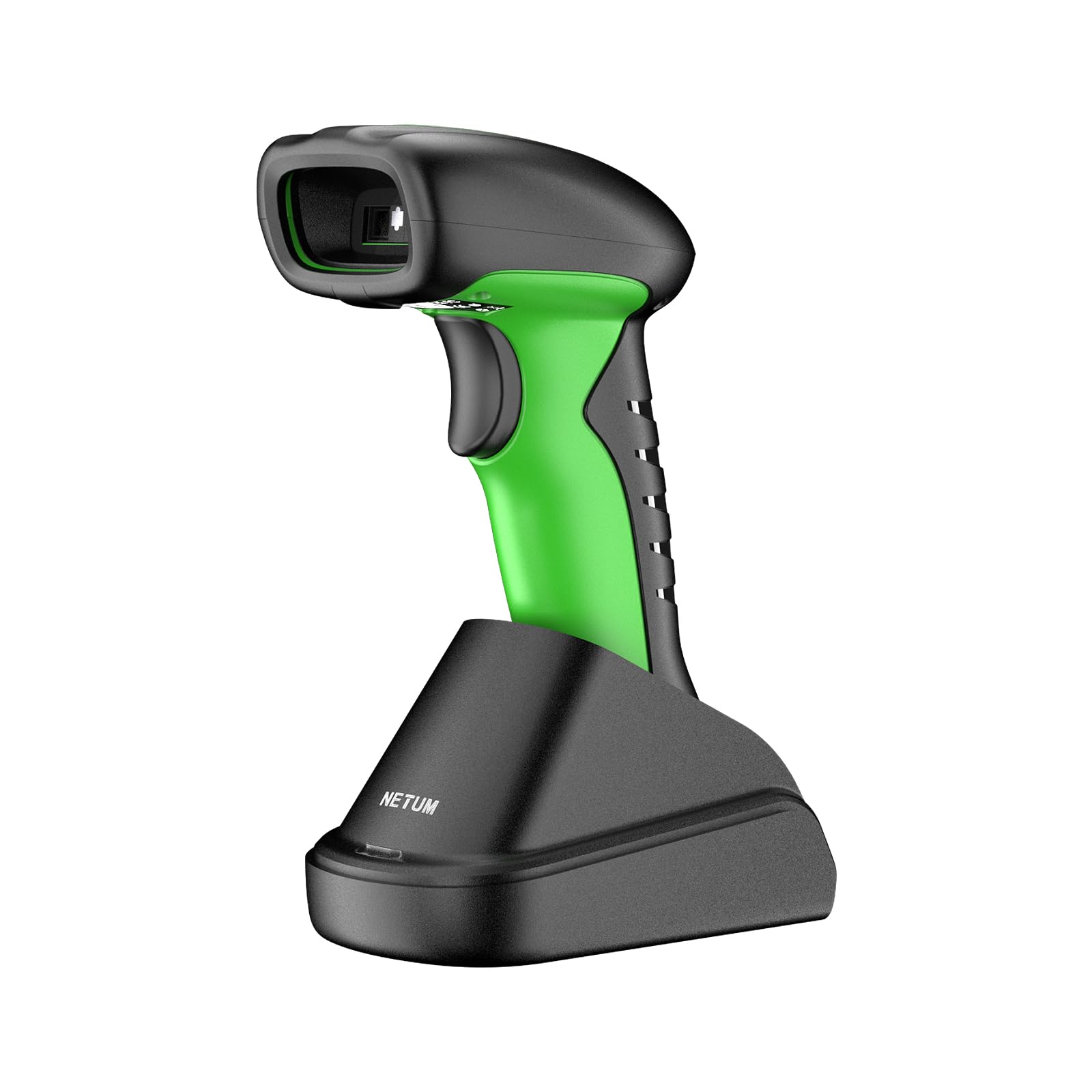
Image: The NETUM RD-1950 barcode scanner with its charging dock, showcasing nhazi ya na ihe mejupụtara ya.
2. Atụmatụ igodo
- Industrial-Grade Protection: The RD-1950 features an IP67 rating for dust, splash, and waterproof capabilities. Its rugged construction and durable silicone casing provide protection against drops from up to 12 ft (3.65 m), making it suitable for demanding industrial environments.
- Njikọta abụọ: Supports both 2.4G wireless and Bluetooth connections. The charging dock includes a built-in 2.4G receiver for plug-and-play operation. Bluetooth connectivity supports HID, SPP, and BLE modes for compatibility with various devices including laptops, PCs, smartphones, tablets, iPhones, iPads, and POS systems.
- Automatic Scanning & Storage Mode: Offers three scanning modes: manual trigger, continuous scanning, and auto-sensing for both handheld and hands-free use. A storage mode is available for offline operation, capable of storing up to 100,000 barcodes.
- Ike nyocha dị elu: Equipped with a 1280H × 800V (1M) CMOS sensor, providing fast scanning speeds up to 60 FPS. It accurately reads 1D barcodes ≥4 mil and 2D barcodes ≥5 mil (HD).
- Ndụ batrị agbatịkwuru: Powered by a 2600mAh battery, offering up to 30 days of use (based on 2,000 scans per day) on a full charge. The cradle serves as a charging station.
3. Ntuziaka Nhazi
3.1 Ịkwapụ ihe na ụgwọ mbụ
Carefully remove all components from the packaging. Before first use, ensure the scanner is fully charged. Place the scanner into the charging dock. Connect the charging dock to a power source using the provided USB cable.

Image: The barcode scanner docked in its charging station, illustrating the charging process and battery indicator.
3.2 2.4G Wireless Connection (via Charging Dock)
- Connect the charging dock's USB cable to your computer's USB port.
- The computer will automatically detect and install the necessary drivers.
- The scanner is now ready for use in 2.4G wireless mode.

Image: Diagram showing the barcode scanner wirelessly connected to a computer via the 2.4G USB receiver in the charging dock.
3.3 Njikọ Bluetooth
The RD-1950 supports HID, SPP, and BLE Bluetooth modes. Refer to the full user manual for specific configuration barcodes to switch between modes if needed. The default mode is typically HID (Human Interface Device).
- Ensure the scanner is powered on.
- On your host device (smartphone, tablet, PC), enable Bluetooth and search for available devices.
- Select "RD Barcode Scanner" from the list of found devices to pair.
- Once paired, the scanner is ready for use.

Image: The barcode scanner demonstrating wide compatibility with various operating systems and devices via Bluetooth connection.
Mara: Before using storage mode or specific advanced features, you may need to scan corresponding configuration barcodes found in the comprehensive user manual (not this summary).
4. Ọrụ
4.1 Ụdị nyocha
The scanner offers three primary scanning modes:
- Ụdị Mkpalite Aka: Press the trigger button to scan each barcode.
- Ụdị nyocha na-aga n'ihu: The scanner continuously emits a scan beam, reading barcodes as they pass through the field of view na-enweghị mkpa ịpị ihe mkpali ahụ.
- Ụdị nhụta akpaaka: The scanner automatically detects a barcode within its field of view and scans it without manual trigger activation. This mode is ideal for hands-free operation when placed in the charging dock.

Image: The barcode scanner in its multifunctional cradle, highlighting Auto-Sense and Continuous scanning modes, along with wireless charging and 2.4G wireless transmission capabilities.
4.2 Ụdị koodu barcode akwadoro
The RD-1950 is capable of reading a wide range of 1D and 2D barcodes:
- 2D Codes: Aztec, Data Matrix, Maxicode, PDF417, QR-Code, and more.
- 1D Codes: EAN, UPC, Code 39, Code 93, Code 128, UCC/EAN 128, Codabar, Interleaved 2 of 5, ITF-6, ITF-14, ISBN, ISSN, MSI-Plessey, GS1 Databar, Code 11, Industrial 25, Standard 25, Plessey, Matrix 2 of 5.

Image: The barcode scanner targeting a QR code on a package, with examples of various 1D and 2D barcode types it can read, including PDF417, Aztec, GS1 Code128, QR (7mils, 8mils), Data Matrix, HanXin, Maxi, Dotcode, Bank Code, Grid Matrix, and Composite codes.
4.3 Ọnọdụ nchekwa
When Bluetooth or 2.4G wireless connections are unavailable, the scanner can store up to 100,000 barcodes internally. To activate and manage storage mode, refer to the specific configuration barcodes in the full user manual.
5. Nlekọta
5.1 Na-ehicha ihe nyocha
To maintain optimal performance, keep the scanner's scanning window clean. Use a soft, lint-free cloth lightly dampened with water or a mild, non-abrasive cleaning solution. Do not use harsh chemicals or abrasive materials, as these can damage the scanning window or casing.
5.2 Nlekọta batrị
The scanner is equipped with a 2600mAh lithium-polymer battery. For best battery life:
- Charge the scanner fully before its first use.
- Avoid completely discharging the battery regularly.
- Store the scanner in a cool, dry place if not used for extended periods.
6. Nchọpụta nsogbu
6.1 Scanner Not Connecting
- Ikuku 2.4G: Ensure the charging dock's USB receiver is securely plugged into the computer. Verify the scanner is within range.
- Bluetooth: Check if Bluetooth is enabled on your host device. Ensure the scanner is in pairing mode and visible. Try unpairing and re-pairing the device.
- Batrị: Confirm the scanner has sufficient battery charge.
6.2 Scanning Issues
- No Scan: Ensure the scanner is in the correct scanning mode (manual, continuous, auto-sense). Check if the barcode is damaged or poorly printed.
- Nyocha na-ezighi ezi: Ensure the scanning window is clean. Position the scanner correctly over the barcode, allowing for proper focus.
- Specific Barcodes (e.g., Driver's Licenses): Some barcodes may require specific configuration settings (e.g., line feed characters). Refer to the full user manual or contact support for advanced configuration barcodes.
6.3 Bluetooth Latency
Some users may experience noticeable latency when using Bluetooth, especially in high-volume scanning environments. For faster, more consistent data transmission, consider using the 2.4G wireless connection via the charging dock.

Image: Illustration of the scanner's Bluetooth transmission range, showing reduced range with obstacles (10m/32ft) and extended range in barrier-free environments (20m/65ft).
7. Nka na ụzụ nkọwa
7.1 Scanning Performance
- Ihe mmetụta: 1280×800 CMOS (1M)
- Ọkụ: Ọcha ọkụ ọkụ
- Ebumnuche: Uhie uhie
- Ịgụzi Ihe nke Ọma: ≥4 mil (1D), ≥5 mil (2D, HD)
- Reading Depth of Field:
- EAN-13 (13 mil): 35mm - 420mm
- Code 39 (5 mil, 10 characters): 45mm - 165mm
- QR-Code (20 mil, 16 characters): 25mm - 330mm
- Data Matrix (10 mil, 20 characters): 40mm - 150mm
- PDF417 (6.67 mil, 7 characters): 25mm - 180mm
- Ntughari: ≥25%
- Scanning Angles: Rotation 360°, Tilt ± 55°, Skew ± 55°
- Ubi nke View: Kehoraizin 42°, vetikal 28°
7.2 Njirimara ikuku
- Teknụzụ redio: 2.4GHz, Bluetooth
- Ogologo nzikọrịta ozi: 30-100m (akara anya)
7.3 Electrical & Environmental
- Ike batrị: 2600mAh Lithium Polymer
- Ndụ batrị: Up to 20 hours of continuous scanning (or 30 days based on 2,000 scans/day)
- Oge nchaji: awa 4
- Ebe nchekwa: 2MB of flash storage (up to 100,000 barcodes)
- Okpomọkụ arụ ọrụ: -20°C ruo +50°C (-4°F ruo +122°F)
- Okpomọkụ nchekwa: -40°C ruo +70°C (-40°F ruo +158°F)
- Iru mmiri na-arụ ọrụ: 5% ruo 95% (na-abụghị condensing)
- Nguzogide ọkụ Ambient: 0 ruo 100,000 LUX
- Ogo nchekwa: IP67 (Dust, Splash, Waterproof)
- Dobe Nguzogide: Ruo 12 ft (3.65m)
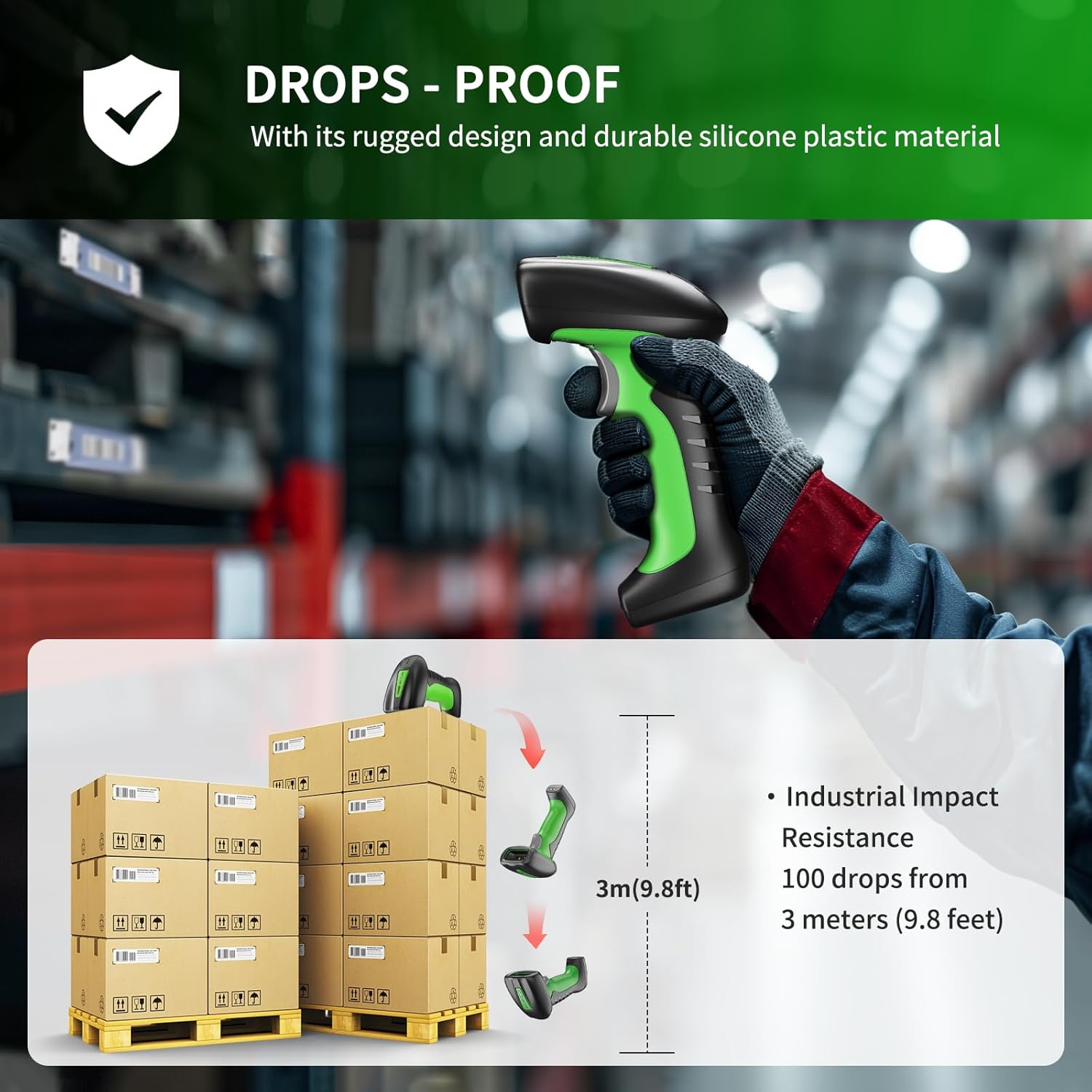
Image: Illustration demonstrating the scanner's drop-proof capability, showing it can withstand drops from 3 meters (9.8 feet).

Image: The barcode scanner partially submerged in water, demonstrating its IP67 waterproof rating and ability to pass a 30-minute waterproof resistance test.
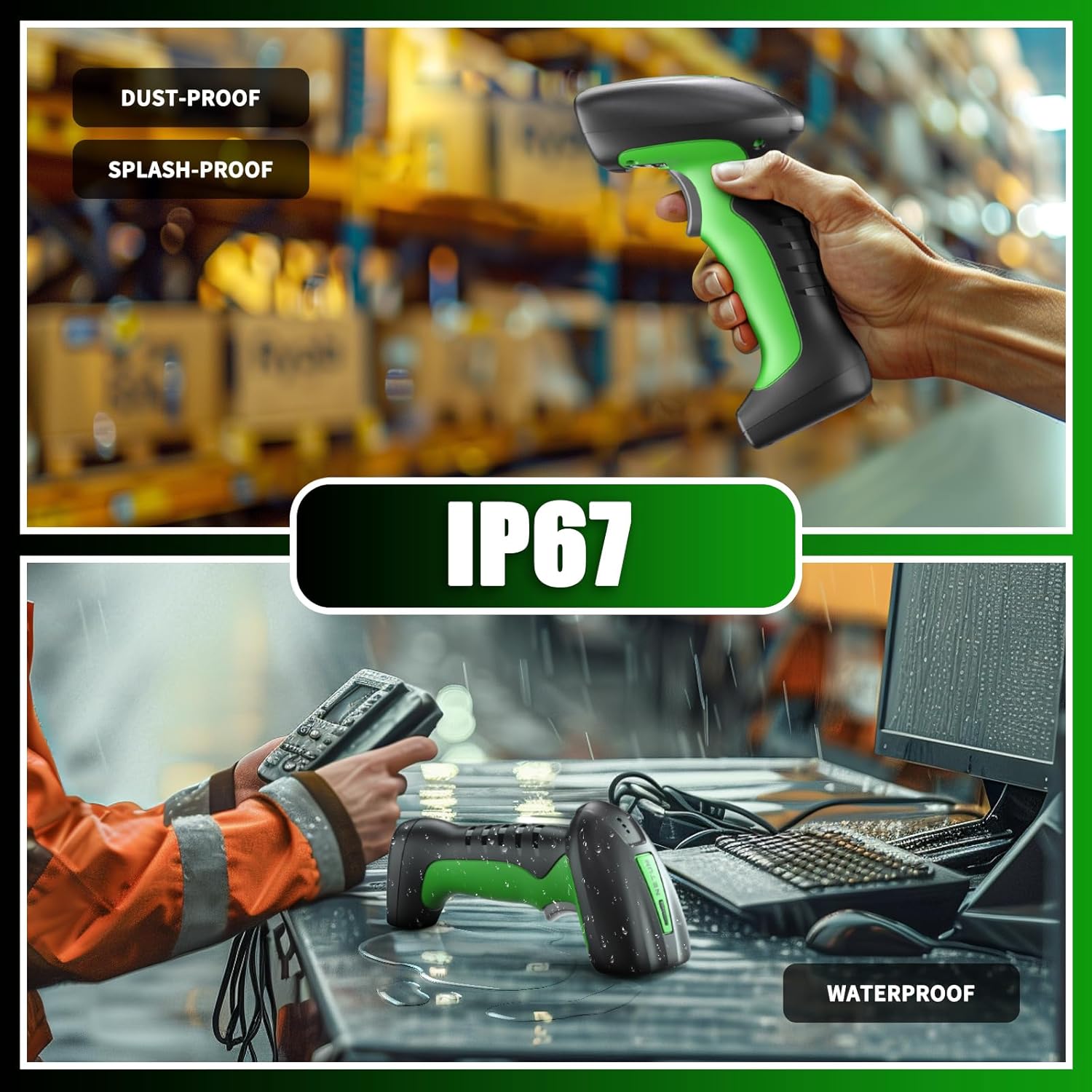
Image: Two scenes illustrating the scanner's IP67 rating, showing it being used in a dusty warehouse and on a wet desk, emphasizing its dust-proof, splash-proof, and waterproof capabilities.
7.4 ndakọrịta
- Ngwa dakọtara: Laptop, PC, Smartphone, Tablet, iPhone, iPad, POS System.
- Incompatible Software: This scanner is not compatible with Square POS, LightSpeed, Clover, or Shopify.
8. Akwụkwọ ikike & Nkwado
The NETUM RD-1950 Barcode Scanner comes with a 1-afọ akwụkwọ ikike site na ụbọchị ịzụrụ. Akwụkwọ ikike a na-ekpuchi ntụpọ n'ichepụta ma hụ na ngwaahịa ahụ tozuru ụkpụrụ arụmọrụ akọwapụtara.
For technical assistance, troubleshooting, or warranty claims, please contact NETUM customer support. Refer to the contact information provided with your product packaging or visit the official NETUM websaịtị maka nkọwa nkwado.