1. Ngwaahịa gafereview
The ProtoArc EM03 NL is an ergonomic wireless trackball mouse designed for comfort and efficiency. It features an index finger-controlled trackball, multi-device connectivity, quiet clicking, adjustable DPI settings, and a rechargeable battery, making it suitable for various computing environments.
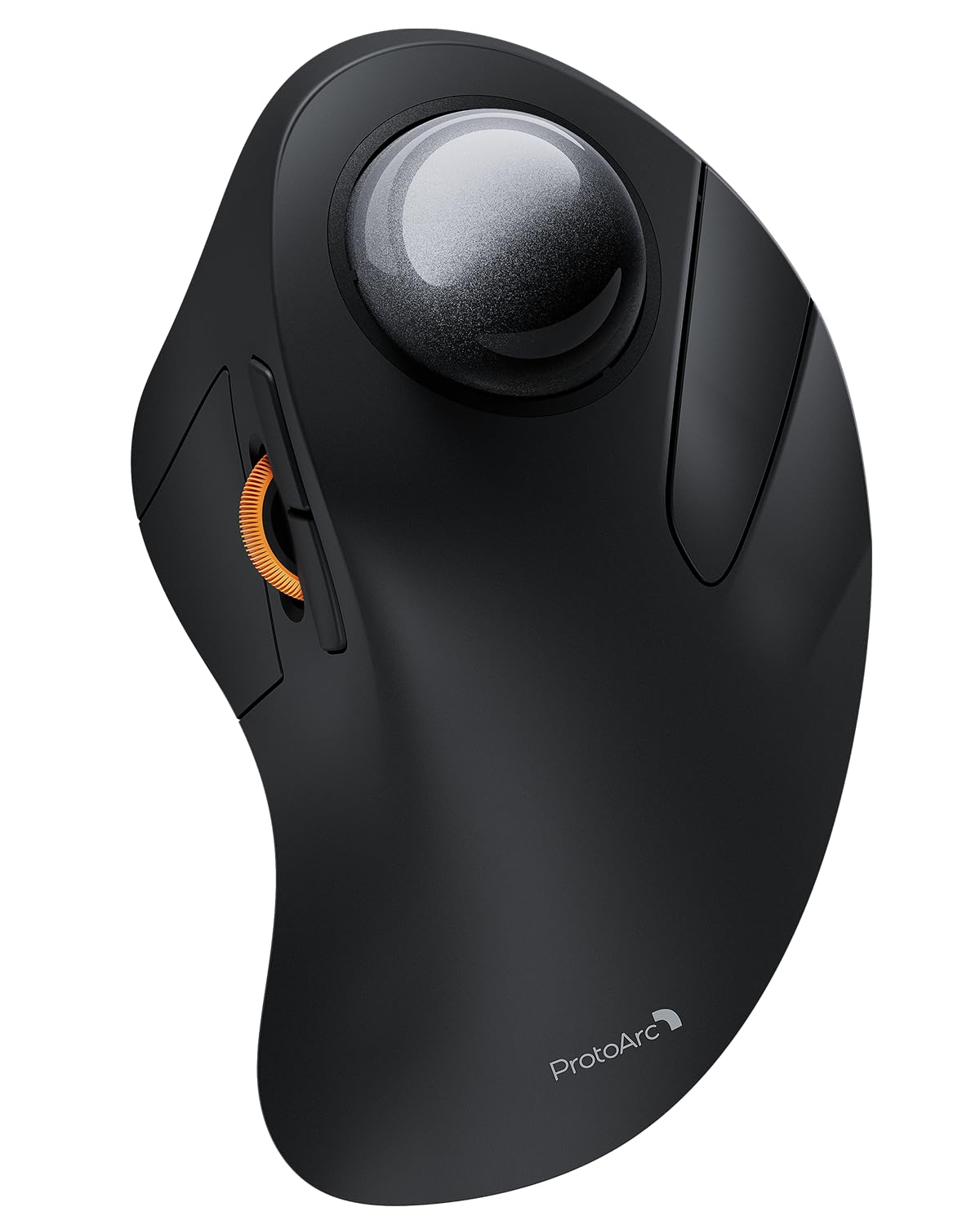
Image 1: The ProtoArc EM03 NL Wireless Bluetooth Trackball Mouse in gray, showcasinnhazi ergonomic ya.
2. Kedu ihe dị na Igbe ahụ
- ProtoArc EM03 NL Trackball Mouse
- Akwụkwọ ntuziaka onye ọrụ
- USB nnata
- Ịchaji eriri (USB-C)
3. Atụmatụ igodo
- Ergonomic Index Finger Trackball: Sculpted to fit the hand naturally, promoting a comfortable wrist posture and precise control with its 44mm trackball.
- Njikọ ọtụtụ ngwaọrụ: Connects to up to 3 devices via 2.4G USB receiver or Bluetooth (BT1, BT2), allowing seamless switching.
- Pịa jụụ: Smooth frosted surface and quiet clicks for a better user experience without disturbing others.
- DPI nwere ike imeghari: 5 DPI levels (200/400/800/1200/1600 DPI) for customizable cursor sensitivity and precise tracking.
- Batrị enwere ike ịchaji: Built-in 930mAh lithium battery provides up to 60 days of power on a single full charge. Features auto-sleep mode to conserve battery.
- Nchekwa oghere: Stationary trackball design frees up desk space, ideal for small workstations or minimalist setups.

Image 2: A hand resting comfortably on the ProtoArc EM03 NL mouse, highlighting its ergonomic design for all-day comfort.

Image 3: Close-up of the ProtoArc EM03 NL trackball mouse, emphasizing the large 44mm trackball designed for index finger control and precise handling.

Image 4: The ProtoArc EM03 NL trackball mouse shown in different usage scenarios: an office desk, an aircraft cabin, and a library, illustrating its versatility and space-saving design.
4. Ntuziaka Nhazi
4.1. USB Receiver Connection (2.4G Wireless)
- Chọta ihe nnata USB echekwara n'ime oghere dị n'ala òké ahụ.
- Tinye eriri USB n'ọdụ ụgbọ mmiri dị na kọmputa gị.
- Gbanwee òké site na iji mgba ọkụ na ala.
- Switch the channel selector on the bottom of the mouse to the '2.4G' position (usually indicated by a USB icon or '1'). The mouse should connect automatically.
4.2. Njikọ Bluetooth (BT1 / BT2)
- Gbanwee òké site na iji mgba ọkụ na ala.
- Switch the channel selector on the bottom of the mouse to either 'BT1' or 'BT2' position.
- Press and hold the channel button for 3 seconds until the corresponding indicator light flashes quickly, indicating pairing mode.
- On your device (PC, iPad, Mac, etc.), go to Bluetooth settings and search for new devices.
- Select 'ProtoArc EM03 NL' from the list of available devices to connect. The indicator light will turn solid once connected.

Image 5: Diagram illustrating the multi-device connection options (2.4G, BT1, BT2) on the underside of the ProtoArc EM03 NL mouse, showing how to switch between devices.
5. Ntuziaka ọrụ
5.1. Ọrụ bọtịnụ

Image 6: Labeled diagram of the ProtoArc EM03 NL mouse, showing the positions of the trackball, left button, right button, scroll wheel, forward button, backward button, DPI button, channel switch, power switch, and USB receiver slot.
- Bọtịnụ aka ekpe: Ọrụ aka ekpe ọkọlọtọ.
- Bọtịnụ aka nri: Ọrụ pịa nri ọkọlọtọ.
- Mpempe akwụkwọ mpịakọta: Scroll up and down pages.
- Bọtịnụ mbugharị: Gaa n'ihu banye web ihe nchọgharị ma ọ bụ file ndị na-eme nchọpụta.
- Bọtịnụ azụ: Gaa azụ banye web ihe nchọgharị ma ọ bụ file ndị na-eme nchọpụta.
- Bọọlụ egwu: Control cursor movement with your index finger.
5.2. DPI mmezi
The DPI button is located on the bottom of the mouse. Press it to cycle through the 5 available DPI levels (200/400/800/1200/1600 DPI) to adjust cursor speed and precision according to your preference.
5.3. Mgbanwe ọtụtụ ngwaọrụ
Use the channel switch on the bottom of the mouse to seamlessly switch between the 2.4G USB receiver connection and the two Bluetooth connections (BT1, BT2).
6. Nlekọta
6.1. Nhicha bọọlụ egwu
To ensure smooth operation, periodically clean the trackball:
- Gently push the trackball from the bottom opening to remove it.
- Use a soft, lint-free cloth to wipe any dust or debris from the trackball and the inside of the trackball cavity.
- Reinsert the trackball into its slot.

Image 7: Step-by-step visual guide on how to remove, clean with a soft cloth, and reinsert the trackball of the ProtoArc EM03 NL mouse.
6.2. Ịchaji
Connect the provided USB-C charging cable to the charging port on the mouse and to a USB power source. The mouse can be used while charging. A full charge takes approximately 3.5 hours and provides up to 60 days of use.

Image 8: Visual representation of the USB-C charging port on the ProtoArc EM03 NL mouse and an illustration of the 5 adjustable DPI modes.
7. Nchọpụta nsogbu
- Òké anaghị aza: Ensure the mouse is turned on and fully charged. Check the connection mode (2.4G or Bluetooth) and ensure it matches your device's connection. For 2.4G, ensure the USB receiver is securely plugged in. For Bluetooth, re-pair the device if necessary.
- Ntugharị cursor na-adịghị agbanwe agbanwe ma ọ bụ na-arapara n'ahụ: Clean the trackball and its cavity as described in the Maintenance section.
- Nsogbu njikọ Bluetooth: Ensure your device's Bluetooth is enabled. Try forgetting the device in your Bluetooth settings and re-pairing. Ensure the mouse is in pairing mode (flashing indicator light).
- DPI anaghị agbanwe: Press the DPI button firmly on the bottom of the mouse to cycle through settings.
8. Nkọwapụta
| Njirimara | Nkọwa |
|---|---|
| Ụdị | ProtoArc |
| Nlereanya | EM03 NL |
| Teknụzụ Njikọta | 2.4G, Bluetooth |
| Teknụzụ nchọpụta ngagharị | Bọọlụ egwu |
| Ọkwa DPI | 200/400/800/1200/1600 |
| Ike batrị | 930mAh batrị lithium |
| Oge Nchaji | Ihe ruru. awa 3.5 |
| Oge Njikere | Ruo ụbọchị 60 |
| Atụmatụ pụrụ iche | Ergonomic Design, Rechargeable, Soundless |
| Ibu Ibu | 13.1 ounces |
| Akụkụ ngwugwu | 6.89 x 4.92 x 3.27 sentimita asatọ |
9. Official Product Video
Video 1: An official product video from ProtoArc showcasing the features and benefits of the Wireless Bluetooth Trackball Mouse. This video highlights the ergonomic design, multi-device connectivity, and overall user experience.
10. Akwụkwọ ikike na nkwado
For warranty information, technical support, or customer service, please refer to the contact details provided in the included User Manual or visit the official ProtoArc website. ProtoArc aims to deliver innovative workspace solutions that enhance comfort, boost productivity, and foster overall wellness.
Ị nwekwara ike ịga na ProtoArc Store on Amazon maka ngwaahịa na ozi ndị ọzọ.


