
Xbox EP2-29563
Xbox Wireless Controller Storm Breaker Special Edition
Ụdị: EP2-29563
ika: Xbox
Okwu mmalite
The Xbox Wireless Controller Storm Breaker Special Edition is designed to provide an enhanced gaming experience across multiple platforms. This controller features a unique aesthetic with classic grays and blacks, offset with whites, along with textured grips for improved handling. It offers seamless connectivity and customizable controls to optimize your gameplay.
Atụmatụ igodo
- Storm Breaker Special Edition Design: Features a distinctive gray, black, and white pattern.
- Textured Triggers: Provides enhanced grip and control during gameplay.
- Rubberized Grips: Located on the back cases for secure handling.
- Wireless & Bluetooth Connectivity: Easily pairs with Xbox consoles, PCs, and mobile devices.
- Bọtịnụ Ekekọrịta: Seamlessly capture and share screenshots and game recordings.
- Maapụ bọtịnụ enwere ike ịhazi: Personalize controls using the Xbox Accessories app.
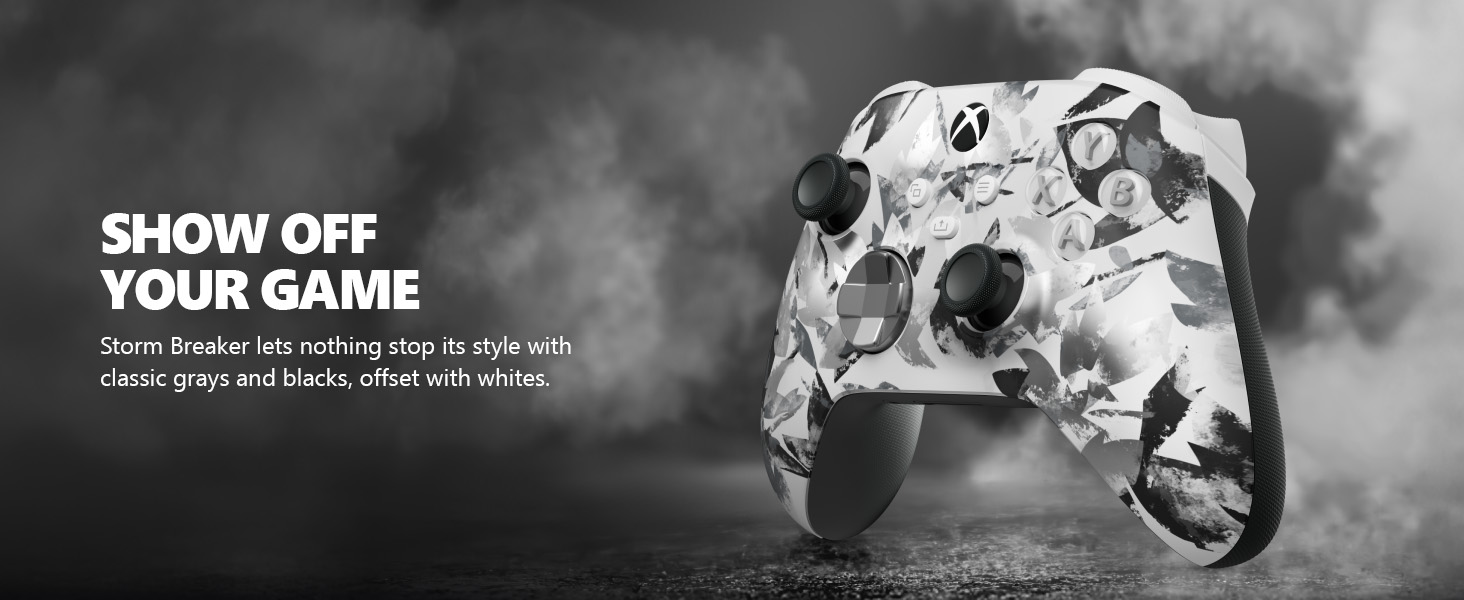
Image: The Xbox Wireless Controller Storm Breaker Special Edition showcasing its distinctive color scheme.
Melite
1. Ntinye batrị
The controller requires two AA batteries (included). To install:
- Chọta ebe batrị dị n'azụ ihe njikwa ahụ.
- Press the small tab and lift the battery cover.
- Tinye batrị AA abụọ ahụ, hụ na polarity ziri ezi (+ na -).
- Dochie mkpuchi batrị ruo mgbe ọ pịrị n'ime ebe.
2. Ijikọta na ngwaọrụ
The controller supports both Xbox Wireless and Bluetooth for versatile connectivity.
- For Xbox Console:
- Gbanye njikwa Xbox gị.
- Press the Xbox button on your controller to turn it on.
- Pịa ma jide bọtịnụ Mmakọ (⏚) on the top of the controller until the Xbox button flashes rapidly.
- Press the Pair button on your Xbox console (usually near the USB port or on the front).
- The Xbox button on the controller will become solid when connected.
- For PC (Windows 10/11) via Bluetooth:
- Jide n'aka na kọmputa gị nwere Bluetooth.
- Press the Xbox button on your controller to turn it on.
- Pịa ma jide bọtịnụ Mmakọ (⏚) on the top of the controller until the Xbox button flashes rapidly.
- Na PC gị, gaa na Ntọala> Ngwaọrụ> Bluetooth na ngwaọrụ ndị ọzọ.
- Select "Add Bluetooth or other device" and then "Bluetooth".
- Choose "Xbox Wireless Controller" from the list and follow on-screen prompts.
- Maka Ngwaọrụ Mkpanaka (Android/iOS):
- Kwado Bluetooth na ekwentị mkpanaaka gị.
- Press the Xbox button on your controller to turn it on.
- Pịa ma jide bọtịnụ Mmakọ (⏚) on the top of the controller until the Xbox button flashes rapidly.
- On your mobile device, search for Bluetooth devices and select "Xbox Wireless Controller" to pair.
Vidiyo: Efereview of the Xbox Wireless Controller, demonstrating its physical features and ports, useful for understanding setup.
Na-arụ ọrụ njikwa
1. Njikwa ntọala
- Aka mkpịsị aka: Use for movement and camera control.
- D-Pad: Ideal for precise directional input in games and menu navigation.
- Bọtịnụ A, B, X, Y: Primary action buttons for in-game commands.
- Triggers (LT/RT) & Bumpers (LB/RB): Used for various actions like shooting, accelerating, or menu selection.
2. Share Button
The dedicated Share button (⤓) allows you to quickly capture and share your gaming moments:
- Press once to take a screenshot.
- Press and hold to record the last 30 seconds of gameplay.
3. Jack ekweisi
A 3.5mm audio jack is located at the bottom of the controller, allowing you to connect compatible headsets for in-game audio and chat.
4. Customization with Xbox Accessories App
Download the Xbox Accessories app on your Xbox console or Windows PC to customize button mapping and create personalized controller profiles.
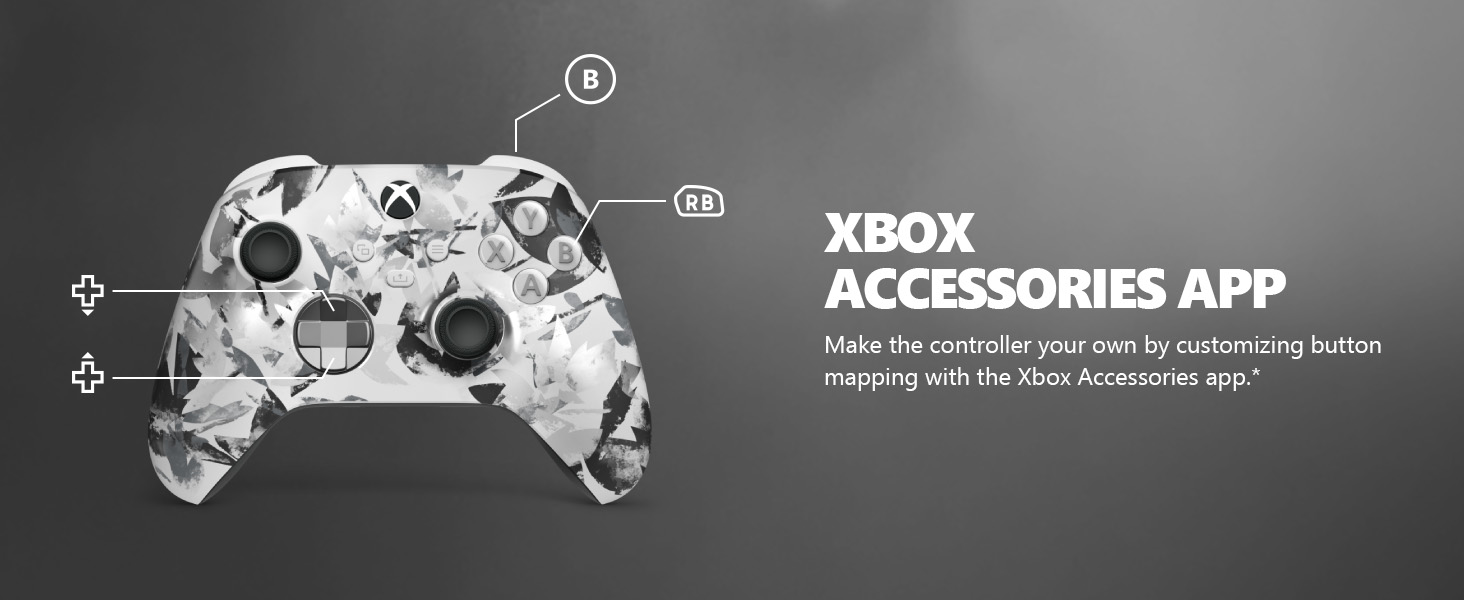
Image: The Share button and an illustration of button mapping customization via the Xbox Accessories app.
Nlekọta
- Nhicha: Use a soft, dry cloth to clean the controller. Avoid abrasive cleaners or solvents.
- Nlekọta batrị: Remove batteries if the controller will not be used for an extended period to prevent leakage.
- Nchekwa: Chekwaa onye njikwa ahụ n'ebe dị jụụ, kpọrọ nkụ na-adịghị na ìhè anyanwụ kpọmkwem na oke okpomọkụ.
Nchọpụta nsogbu
- Njikwa Anaghị ejikọta:
- Gbaa mbọ hụ na etinyere na chajị batrị nke ọma.
- Re-attempt the pairing process as described in the Setup section.
- Lelee maka ndabichi ọ bụla sitere na ngwaọrụ ikuku ndị ọzọ.
- Update controller firmware via the Xbox Accessories app.
- Bọtịnụ anaghị anabata:
- Hichaa gburugburu bọtịnụ iji wepụ ihe mkpofu ọ bụla.
- Test the controller with another device or game to isolate the issue.
- Ndụ obere batrị:
- Jiri batrị AA ọhụrụ dị elu.
- Consider using a rechargeable battery pack (sold separately) for extended play.
Nkọwapụta
| Njirimara | Nkọwa |
|---|---|
| Nọmba nlereanya | EP2-29563 |
| Njikọta | Xbox Wireless, Bluetooth |
| Ndakọrịta | Xbox Series X|S, Xbox One, Windows 10/11, Android, iOS |
| Isi Iyi Ike | 2 batrị AA (gụnyere) |
| Ọdụ ọdịyo | 3.5mm headset Jack |
| Akụkụ | 6.91 x 5.61 x 2.76 sentimita asatọ |
| Ibu | 14.1 ounces |
| Onye nrụpụta | Microsoft |
Akwụkwọ ikike na nkwado
For warranty information and technical support, please refer to the documentation included with your product or visit the official Xbox support websaịtị. Debe ihe akaebe nke ịzụrụ maka akwụkwọ ikike.
Nkwado n'ịntanetị: nkwado.xbox.com
Ask a question about this manual
Ask about setup, troubleshooting, compatibility, parts, safety, or missing instructions. Manuals+ will review the question and use this page’s manual context to help answer it.