
1. Okwu mmalite
Thank you for choosing the Technoview CY900 Smart Projector. This manual provides essential information for setting up, operating, and maintaining your projector to ensure optimal performance and longevity. The CY900 is designed to deliver a high-quality visual experience with its Full HD 1080P resolution, 4K support, and integrated Android 13 operating system.
Key features include electronic focus, auto keystone correction, 300 ANSI lumens brightness, dual-band WiFi, Bluetooth connectivity, and a built-in 5W speaker, making it a versatile solution for home entertainment, presentations, and gaming.
2. Ozi nchekwa dị mkpa
- Elela anya ozugbo na oghere projector mgbe lamp is on. The intense light can cause eye damage.
- Ensure proper ventilation around the projector. Do not block ventilation openings.
- Jiri naanị ihe nkwụnye ike enyere na ihe ngosi ahụ.
- Keep the projector away from water, moisture, and extreme temperatures.
- Agbalịla ịkwatu ma ọ bụ rụzie ihe onyonyo ahụ n'onwe gị. Nye ndị ọrụ ruru eru ọrụ niile.
- Place the projector on a stable, level surface to prevent it from falling.
3. Ihe ngwugwu
Biko lelee na ihe niile dị na ngwugwu gị:
- 1 x Technoview CY900 Smart Projector
- 1 x Njikwa anya
- 1 x nkwụnye ọkụ
- Akwụkwọ ntuziaka onye ọrụ 1 x (akwụkwọ a)
4. Ngwaahịa gafereview
4.1 Ihe Ndị Na-egosi Ihe Nlereanya
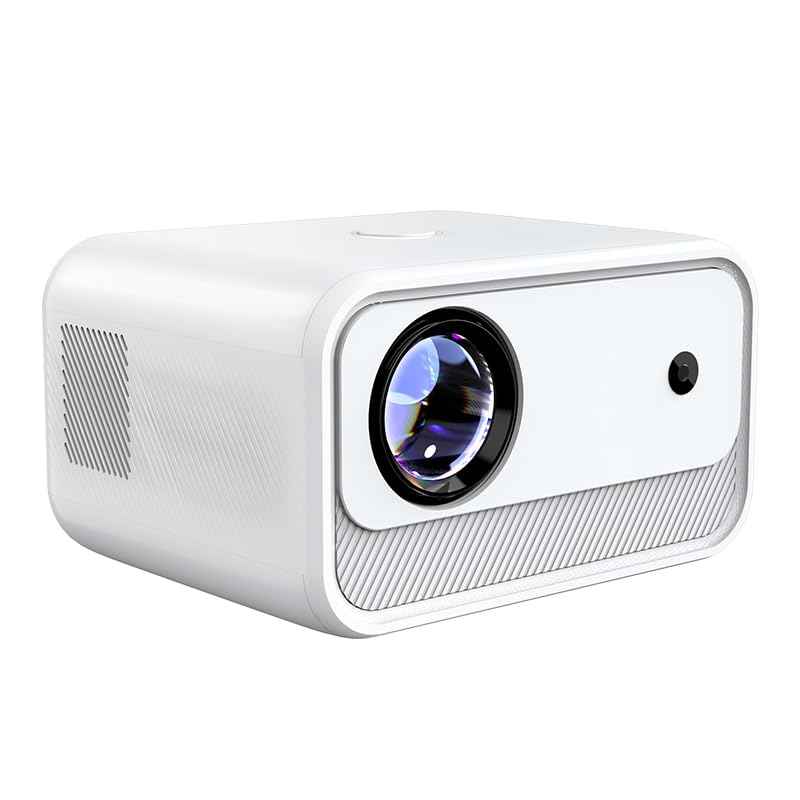
Foto 4.1: N'ihu View
Shows the projector lens and front sensor. The sleek white design integrates well into various environments.

Foto 4.2: Akụkụ View
Illustrates the ventilation grilles on the side, crucial for heat dissipation and maintaining optimal operating temperature.

Ọgụgụ 4.3: N'azụ View ya na ọdụ ụgbọ mmiri
Displays the various input/output ports including HDMI, USB, and AV, allowing for diverse connectivity options.
4.2 Interface Ports
- Ọdụ ụgbọ mmiri HDMI: Connect to laptops, gaming consoles, Blu-ray players, and other HDMI-enabled devices.
- Ọdụ ụgbọ mmiri USB: Connect USB drives for media playback or external devices.
- Ọdụ ụgbọ mmiri AV: Connect to older devices using an AV cable.
- Ntinye ike: Jikọọ ihe nkwụnye ọkụ ewepụtara.
5. Nhazi
5.1 Ntinye
Place the projector on a stable, flat surface. Ensure there is adequate space around the projector for ventilation. The optimal projection distance ranges from 4 feet to 15 feet, depending on the desired screen size.
5.2 Njikọ ike
- Jikọọ ihe nkwụnye ọkụ na ọdụ ụgbọ mmiri ntinye ike nke projector.
- Tinye nkwụnye ọkụ n'ime oghere mgbidi.
- Pịa bọtịnụ ike na projector ma ọ bụ remote control ka ịgbanwuo ya.
5.3 Initial Focus and Keystone Correction
The Technoview CY900 features electronic focus and auto keystone correction for a clear and properly aligned image.
- Mgbado eletrọnịkị: The projector will automatically adjust the focus. If manual adjustment is needed, use the remote control's focus buttons.
- Ndozi isi okwu na akpaaka: The projector automatically corrects image distortion caused by angled projection. For fine-tuning, manual horizontal and vertical keystone correction options are available in the settings menu.

Figure 5.1: Keystone Correction
Illustrates how keystone correction adjusts the image to be rectangular, even when the projector is not perfectly centered.
6. Ntuziaka ọrụ
6.1 Android 13 Smart OS
The projector runs on Android 13, providing a smart TV experience. You can access pre-installed applications like Netflix, YouTube, and Prime Video directly. Connect to your Wi-Fi network to enable online streaming.

Figure 6.1: Powerful Chip and Memory
Highlights the internal hardware that ensures smooth operation and low latency for streaming and applications.
6.2 Ngosipụta ihuenyo
Share content from your smartphone or tablet directly to the projector screen.
- Ensure your mobile device and the projector are connected to the same Wi-Fi network.
- Select the 'Screen Mirroring' or 'Cast' option on the projector's home screen.
- On your mobile device, enable screen mirroring (e.g., 'Smart View' for Android, 'Screen Mirroring' for iOS) and select the projector from the list of available devices.

Figure 6.2: Screen Mirroring Functionality
Shows how to cast content from both Android and iOS devices to the large projector screen.
6.3 Mmepụta ọdịyo
The projector features a built-in 5W speaker for integrated audio. For an enhanced audio experience, you can connect external speakers or headphones via Bluetooth.

Figure 6.3: High-Fidelity Speaker
Illustrates the integrated speaker system, providing clear audio without the need for external speakers.
7. Njikọta
7.1 Njikọ Wi-Fi
The projector supports dual-band Wi-Fi (2.4GHz and 5GHz) for stable and fast internet access.
- Go to 'Settings' on the projector's home screen.
- Họrọ 'Netwọk na Ịntanetị'.
- Gbanwuo Wi-Fi wee họrọ netwọk ịchọrọ na listi ahụ.
- Tinye paswọọdụ ma ọ bụrụ kpaliri wee jikọọ.
7.2 Njikọ Bluetooth
Connect Bluetooth-enabled devices such as soundbars, headphones, or game controllers.
- Go to 'Settings' on the projector's home screen.
- Select 'Connected Devices' or 'Bluetooth'.
- Turn on Bluetooth and put your device into pairing mode.
- Select your device from the list and confirm pairing.
7.3 Wired Connections (HDMI, USB, AV)
To use external devices:
- Connect your device (e.g., laptop, USB drive) to the corresponding port on the projector.
- On the projector's home screen, select the appropriate input source (e.g., HDMI, USB, AV).
8. Nlekọta
8.1 Ihicha oghere
Use a soft, lint-free cloth specifically designed for optical lenses. Gently wipe the lens to remove dust or smudges. Do not use abrasive cleaners or excessive force.
8.2 Ịhicha Ahụ Ihe Nlereanya
Jiri ákwà dị nro ma kpọọ nkụ hichaa mpụta ihe ngosi ahụ. Maka akara siri ike, jiri obere d hichaa ya.amp cloth can be used, followed by a dry cloth. Avoid using harsh chemicals.
8.3 Mgba ikuku
Regularly check that the ventilation openings are clear of dust and debris to prevent overheating. Do not obstruct the airflow during operation.
9. Nchọpụta nsogbu
| Nsogbu | Ihe nwere ike ime | Ngwọta |
|---|---|---|
| Enweghị ike | Ejikọghị eriri ọkụ eletrik; Ọkpọ ọkụ eletrik nwere nsogbu | Ensure power cable is securely connected; Try a different power outlet. |
| Enweghị onyonyo | Incorrect input source; Device not connected; Projector in standby | Select correct input source (HDMI, USB, AV); Check cable connections; Press power button to wake. |
| Onyonyo na-agba agba | Edozighị anya | Use the remote control to adjust electronic focus. |
| Image distorted (trapezoid) | Keystone not corrected | Allow auto keystone correction to run; Adjust manual keystone in settings. |
| Enweghị ụda | Volume too low; Muted; External audio device not connected/selected | Increase volume; Unmute; Check Bluetooth connection or external audio settings. |
| Nsogbu njikọ Wi-Fi | Paswọọdụ na-ezighi ezi; Nsogbu rawụta; Nkwụsị mgbaàmà | Re-enter Wi-Fi password; Restart router; Move projector closer to router. |
10. Nkọwapụta
- Akara: TECHNOVIEW
- Ụdị: CY900
- Mkpebi obodo: 1920 x 1080 (HD zuru ezu)
- Ngosipụta kacha elu: 3840 x 2160 (4K Supported)
- Icha ọkụ: 300 ANSI Oghere
- Ọdịiche dị iche: 1000:1
- Sistemụ nrụọrụ: Android 13
- Njikọta: Dual Wi-Fi, Bluetooth, HDMI, USB, AV
- Ọkà okwu: Ọkà okwu 5W arụnyere n'ime ya
- Atụmatụ pụrụ iche: Electronic Focus, Auto Keystone Correction, 180° Rotation
- Ndụ na-arụ ọrụ isi iyi: Awa 50,000
- Ogologo Obere Opekempe: 4 ụkwụ
- Ogologo Ntuba Kachasị: 15 ụkwụ
- Akụkụ ihe (L x W x H): 20.7 x 16.5 x 12.2 centimita
- Ibu ihe: 1.53 kilogram
11. Akwụkwọ ikike na nkwado
The Technoview CY900 Smart Projector comes with a standard manufacturer's warranty. Please refer to the warranty card included in your package for specific terms and conditions.
For technical support, troubleshooting assistance, or warranty claims, please contact Technoview ọrụ ndị ahịa site n'aka ndị ọrụ gọọmentị ha website or the contact information provided with your purchase. Please have your model number (CY900) and purchase details ready when contacting support.