
1. Okwu mmalite
Thank you for choosing the PRIXTON Prado XL 15.6-inch Digital Photo Frame. This manual provides essential information for setting up, operating, and maintaining your device. Please read it carefully before use to ensure optimal performance and longevity of your digital photo frame.
The PRIXTON Prado XL features a vibrant 15.6-inch Full HD IPS touchscreen display, offering clear and vivid image reproduction. With built-in Wi-Fi, 32GB of internal memory, and support for both photos and videos, it allows you to easily share and display your cherished memories. The frame also includes integrated speakers and multiple input options, including USB Type-C, USB-A, and an SD card slot, providing versatile ways to manage your content.
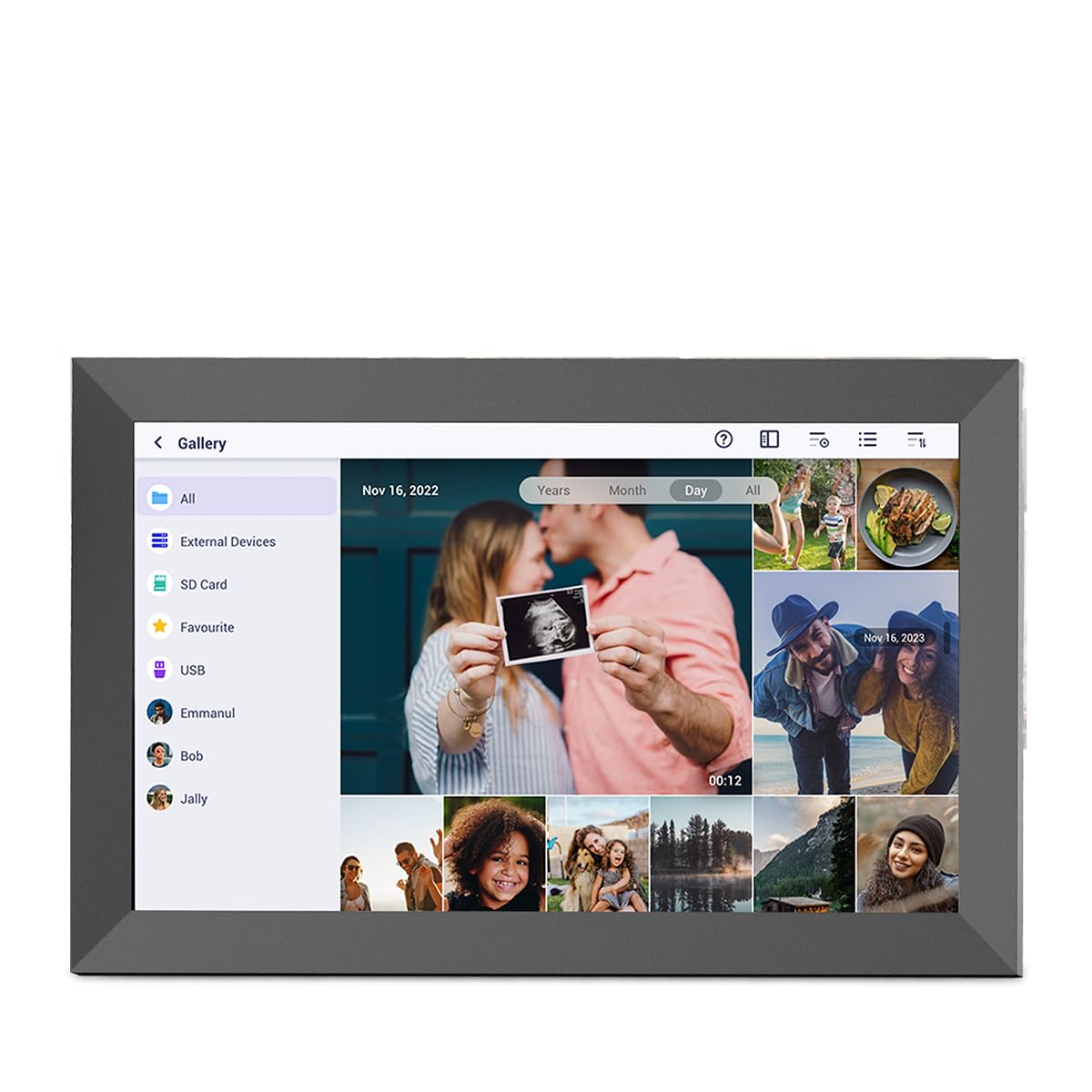
Image: The PRIXTON Prado XL digital photo frame showcasing a family picture.
2. Ihe ngwugwu
Biko lelee igbe maka ihe ndị a:
- PRIXTON Prado XL 15.6-inch Digital Photo Frame
- Ihe nkwụnye ọkụ
- Akwụkwọ ntuziaka (akwụkwọ a)
3. Ngwaahịa gafereview
Familiarize yourself with the various ports and controls on your digital photo frame.

Image: Back panel of the frame, highlighting the power button, USB-A, USB-C, SD card slot, and headphone jack.
Isi ihe:
- Bọtịnụ ike: Located on the back, used to turn the frame on/off or put it into sleep mode.
- Ọdụ ụgbọ mmiri USB-A: For connecting USB flash drives to transfer photos and videos.
- Ọdụ ụgbọ mmiri Ụdị-C: For connecting compatible devices or for data transfer.
- Oghere kaadị SD: For inserting SD cards to display or transfer media.
- Jack ekweisi: Maka ijikọ ngwaọrụ ọdịyo mpụga.
- Ntinye ike DC: Maka ijikọ nkwụnye ọkụ.
- Oghere Ugwu Mgbidi: N'ihi na arịọnụ eku na a mgbidi.
4. Nhazi
4.1 Na-agbanye ike
- Connect the power adapter to the DC Power Input port on the back of the frame.
- Tinye nkwụnye ọkụ n'ime oghere mgbidi.
- The frame will automatically power on. If not, press and hold the Power Button for a few seconds.
4.2 Nhazi izizi
Upon first startup, you will be guided through the initial setup process:
- Họrọ Asụsụ: Họrọ asụsụ ọkacha mmasị gị na listi ahụ.
- Jikọọ na Wi-Fi: Select your Wi-Fi network and enter the password. A stable internet connection is required for app functionality and software updates.
- Tọọ ụbọchị & Oge: Configure the correct date, time, and time zone.
4.3 Connecting with the Uhale App
The Uhale app allows you to easily send photos and videos directly to your frame from your smartphone.
- Budata ngwa: Chọọ maka "Uhale" in your smartphone's app store (iOS or Android) and install it.
- Mepụta akaụntụ: Open the Uhale app and follow the instructions to create a new user account.
- Pair the Frame: On your digital photo frame, navigate to the "Settings" menu and find the "Bind Device" or "Add Device" option. This will display a unique code or QR code.
- Enter Code/Scan QR: In the Uhale app, select "Add Device" and either manually enter the code displayed on your frame or use your phone's camera to scan the QR code.
- Once paired, you can start sending photos and videos to your frame.

Image: A smartphone screen showing the Uhale app interface next to the digital photo frame.
5. Ịrụ ọrụ na etiti ahụ
5.1 Nsoro Ihuenyo Mmetụ Aka
The Prado XL features a responsive touchscreen for easy navigation:
- Kpatụ: Họrọ ihe ma ọ bụ mepee menu.
- Mịpụta: Navigate through photos, menus, or lists.
- Tụọ-gaa-mbugharị: Zoom in or out on photos (if supported by software).
5.2 Na-agbakwụnye foto na vidiyo
There are several ways to add media to your frame:
5.2.1 Via Uhale App
- Open the Uhale app on your paired smartphone.
- Họrọ foto ma ọ bụ vidiyo ịchọrọ izipu.
- Tap the "Send" or "Share" button to transfer them to your frame.
- The media will appear on your frame shortly, provided it is connected to Wi-Fi.
5.2.2 Via USB Drive or SD Card
- Insert a USB flash drive into the USB-A port or an SD card into the SD card slot.
- The frame will detect the external storage. Navigate to the "Gallery" or "Files" section.
- Select the desired photos or videos and choose to copy them to the frame's internal memory.

Image: User interacting with the Uhale app to send content to the digital photo frame.
5.3 Managing Content and Slideshows
- Osisi: Access all your stored photos and videos. You can view them individually or start a slideshow.
- Hichapụ: Select unwanted media and choose the delete option.
- Ntọala ihe ngosi slide: Customize slideshow duration, transition effects, and playback order in the settings menu.

Image: The digital photo frame displaying a lively birthday party scene.
6. Ntọala Ntọala
Access the settings menu by tapping the gear icon on the home screen. Here you can configure various aspects of your frame:
- Ngosipụta: Adjust brightness, screen sleep time, and display mode.
- Wi-Fi: Jikwaa njikọ netwọk gị.
- Ụbọchị & Oge: Manually set or synchronize date and time.
- Nchekwa: View internal storage usage and manage external storage devices.
- Banyere: View device information, including software version and model number.
7. Nlekọta
7.1 Na-ehicha ihuenyo ahụ
To clean the touchscreen, gently wipe it with a soft, lint-free cloth. For stubborn smudges, slightly dampJiri mmiri ma ọ bụ ihe nhicha dị mma kpuchie ákwà ahụ. Zere iji kemịkalụ siri ike ma ọ bụ ihe ndị na-eme ka ọ dị nro.
7.2 Mmelite ngwanrọ
Ensure your frame is connected to Wi-Fi to receive automatic software updates. Updates provide new features, performance improvements, and bug fixes. You can manually check for updates in the "Settings" > "About" menu.
8. Nchọpụta nsogbu
| Okwu | Ngwọta enwere ike |
|---|---|
| Frame does not turn on. | Ensure the power adapter is securely connected to both the frame and a working power outlet. Try a different outlet. |
| Enweghị ike ijikọ na Wi-Fi. | Check if your Wi-Fi router is on and working. Re-enter the Wi-Fi password carefully. Move the frame closer to the router. |
| Foto/vidio anaghị apụta. | Verify that the media has been successfully uploaded via the app or copied from USB/SD. Check file formats for compatibility. Ensure the frame is connected to Wi-Fi if using the app. |
| Touchscreen is unresponsive. | Restart the frame by holding the power button. Ensure the screen is clean and free of debris. |
| Frame is slow or freezes. | Restart the frame. Clear some internal storage if it is nearly full. |
9. Nkọwapụta
| Njirimara | Nkọwa |
|---|---|
| Nọmba nlereanya | 10006183 |
| Ngosipụta nha | 15.6 sentimita asatọ |
| Ụdị ngosi | IPS Touchscreen |
| Mkpebi | 1920 x 1080 HD zuru ezu |
| Ebe nchekwa | 32GB Flash |
| RAM | 1 GB |
| Njikọta | Wi-Fi |
| ọdụ ụgbọ mmiri | USB Type-C, USB-A, SD Card Slot, Headphone Jack |
| Audio | Ndị na-ekwu okwu ọnụ |
| Akụkụ (L x W x H) | 14 x 21 x 2.51 cm |
10. Akwụkwọ ikike na nkwado
PRIXTON products are designed and manufactured to the highest quality standards. For information regarding warranty coverage, please refer to the warranty card included with your product or visit the official PRIXTON websaịtị.
If you encounter any issues or have questions not covered in this manual, please contact PRIXTON customer support for assistance. You can find contact details on the PRIXTON websaịtị ma ọ bụ site na ikpo okwu ịzụrụ ihe.
Nkwado n'ịntanetị: Visit the PRIXTON Store on Amazon