
1. Okwu mmalite
Thank you for choosing the roborock Q10 S5 Robot Vacuum and Mop Cleaner. This manual provides essential information for setting up, operating, and maintaining your device to ensure optimal performance and longevity. Please read this manual thoroughly before using the product and keep it for future reference.
2. Ozi nchekwa
To reduce the risk of injury, electric shock, fire, or damage, please observe the following safety precautions:
- Enwere ike iji ngwa a ụmụaka ndị gbara afọ 8 na karịa yana ndị nwere ike anụ ahụ, mmetụta uche ma ọ bụ nke uche ma ọ bụ enweghị ahụmahụ na ihe ọmụma ma ọ bụrụ na enyerela ha nlekọta ma ọ bụ ntụziaka gbasara iji ngwa ahụ n'ụzọ dị nchebe ma ghọta ihe egwu dị na ya. .
- Ekwesịrị ilekọta ụmụaka ka ha hụ na ha ejighi ngwa eji egwu egwu egwu.
- Ụmụaka agaghị eme nhicha na nlekọta onye ọrụ na-enweghị nlekọta.
- Ejila robot ahụ n'ebe ọkụ na-enwu enwu ma ọ bụ ihe ndị na-adịghị ike.
- Ensure the charging dock is placed on a level surface against a wall.
- Only use the original power adapter provided with the device.
- Do not expose the robot to direct sunlight or moisture.
- Tupu ị sachaa ya, wepụ eriri ọkụ eletrik, obere ihe, na ihe ndị na-adịghị ike n'ala.
3. Ngwaahịa gafereview
Familiarize yourself with the components of your roborock Q10 S5 robot vacuum.
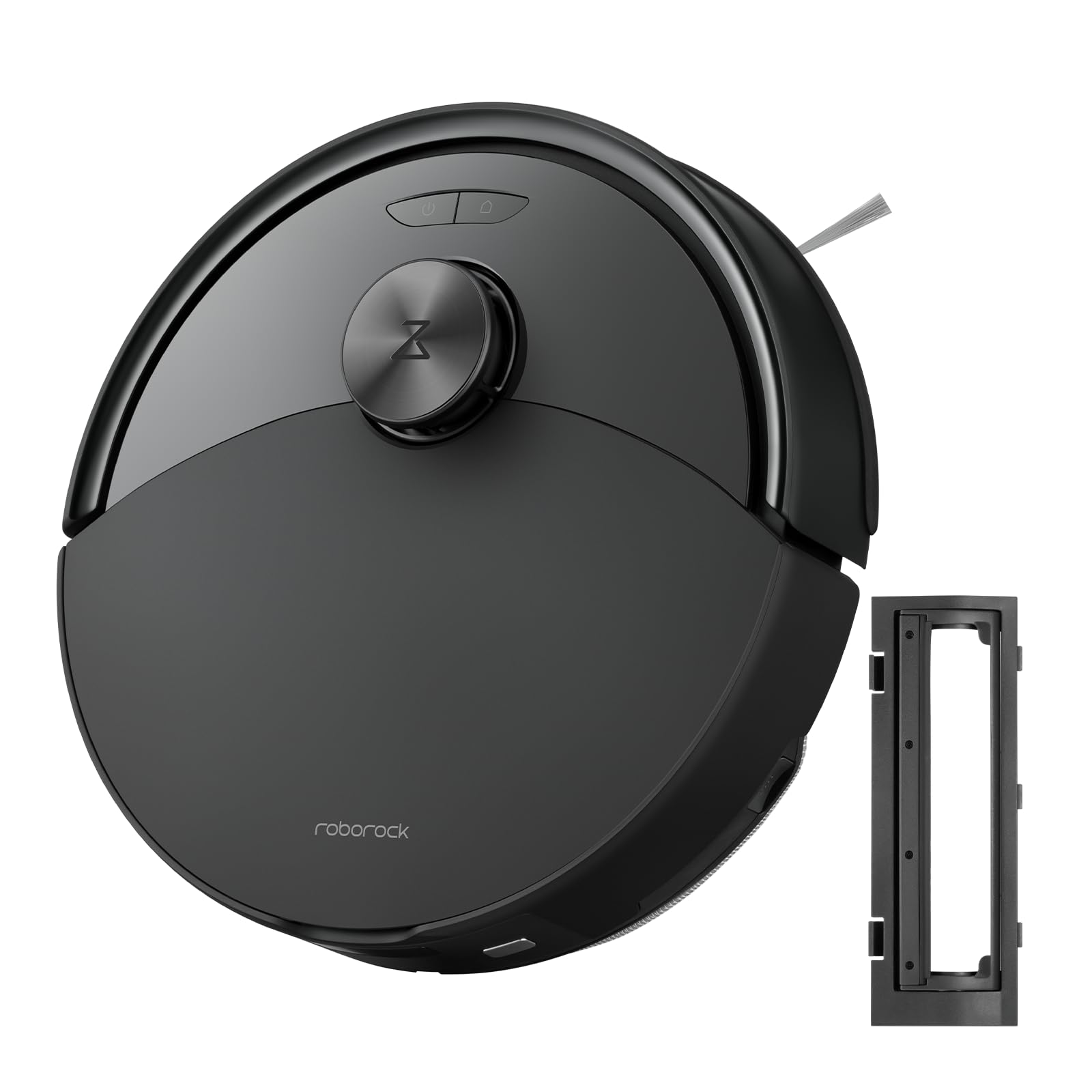
Foto 1: The roborock Q10 S5 Robot Vacuum and Mop Cleaner. This image shows the top view of the robot, highlighting its sleek black design and main control buttons.
Ngwa robot:
- Ihe mkpuchi kachasị: Lifts to reveal the dustbin and Wi-Fi indicator.
- Ikike/Bọtịnụ dị ọcha: Press to start/pause cleaning, hold to turn on/off.
- Dock/Spot Clean Button: Press to send the robot back to the dock, hold for spot cleaning.
- LDS Sensor: For navigation and mapping.
- Ihe mgbochi: Na-achọpụta ihe mgbochi.
- Ahịhịa akụkụ: Sweeps debris from edges and corners.
- Isi ahịhịa: Collects dirt and debris from floors. Features a floating design for better contact.
- wiil Omnidirectional: For movement.
- Kọntaktị na-akwụ ụgwọ: Connects with the charging dock.
- Ihe mmetụta Cliff: Na-egbochi rọbọt ahụ ịda site na steepụ.
- Water Tank & Mop Pad: Maka ọrụ mopping.
Nchaji ọdụ ụgbọ mmiri:
- Dock Location Beacon: Helps the robot locate the dock.
- Kọntaktị na-akwụ ụgwọ: Transfers power to the robot.
- Power Cable Port: Na-ejikọta ihe nkwụnye ọkụ.
4. Nhazi
- Mepee Robot: Carefully remove the robot and all accessories from the packaging. Remove any protective films or shipping materials.
- Install the Side Brush: Press the side brush onto its post until it clicks into place.
- Debe ọdụ ụgbọ mmiri chaja:
- Place the charging dock on a hard, level surface against a wall.
- Ensure there is at least 0.5 meters (1.6 feet) of clear space on both sides and 1.5 meters (4.9 feet) in front of the dock.
- Connect the power cable to the charging dock and plug it into a wall outlet.
- Ebube mbụ: Place the robot on the charging dock. The robot will automatically turn on and begin charging. For first-time use, fully charge the robot before operation (approximately 4-6 hours). The power indicator light will breathe white during charging and turn solid white when fully charged.
- Budata ngwa: Chọọ maka "Roborock" in the App Store or Google Play Store, or scan the QR code on the packaging to download and install the app.
- Jikọọ na Wi-Fi:
- Open the Roborock app and follow the on-screen instructions to add your device.
- Gbaa mbọ hụ na ejikọrọ ekwentị gị na netwọk Wi-Fi 2.4 GHz.
- Pịa ma jide Ụgbọ mmiri na Ike buttons simultaneously for 3 seconds until you hear the "Resetting Wi-Fi" voice alert.
- Soro ntuziaka ngwa ahụ iji mechaa njikọ ahụ.
5. Ntuziaka ọrụ
Ịmalite Ịsachasị:
- Site na Robot: Pịa Ike button once. The robot will start cleaning.
- Site na ngwa: Open the Roborock app and tap the "Clean" button.
Pausing/Resuming/Stopping:
- Kwụsị: Press any button on the robot or tap "Pause" in the app.
- malite: Pịa Ike button or tap "Resume" in the app.
- Kwụsị: To stop a cleaning cycle, press the Ụgbọ mmiri button to send the robot back to the charging dock, or tap "Stop" in the app.
Ọrụ mopping:
- Jupụta tank mmiri: Open the water tank cover, fill with clean water, and close securely.
- Tinye Mop Pad: Wet the mop pad and wring it out. Slide it into the mop pad slot until it is securely attached.
- Start Mopping: The robot will automatically detect the mop module and switch to mopping mode. You can adjust water flow levels in the app.
Njirimara ngwa:
- Njikwa Maapụ: Create and save maps, set no-go zones, virtual walls, and invisible barriers.
- Selective Room Cleaning: Choose specific rooms to clean.
- Nhazi ahaziri: Set cleaning schedules for different times and days.
- Custom Cleaning Modes: Adjust suction power and water flow levels.
- Njikwa anya: Jiri aka chịkwaa mmegharị nke robot ahụ.
6. Nlekọta
Regular maintenance ensures your roborock Q10 S5 operates efficiently. Always turn off the robot and unplug the charging dock before performing any maintenance.
Dustbin and Filter (Weekly):
- Lift the top cover of the robot.
- Wepu ihe mkpofu.
- Mepee mkpuchi ihe mkpofu ma wụsa ihe dị n'ime ya n'ime ihe mkpofu.
- Remove the filter. Tap it gently to remove dust. The filter can be rinsed with water; ensure it is completely dry before reinstallation (allow 24 hours).
- Rinse the dustbin with water if necessary and allow it to dry completely.
- Reinstall the dry filter and dustbin.
Main Brush (Weekly):
- Tụgharịa robọt ahụ.
- Press the tabs to remove the main brush cover.
- Welie ahịhịa isi ahụ.
- Use the cleaning tool (if provided) or scissors to cut and remove any hair or debris tangled around the brush.
- Reinstall the main brush and cover, ensuring it clicks into place.
Side Brush (Monthly):
- Unscrew the side brush.
- Remove any hair or debris.
- Reattach and tighten the screw.
Sensors and Charging Contacts (Monthly):
- Wipe all sensors (cliff sensors, wall sensor, LDS sensor window) and the charging contacts on both the robot and the dock with a soft, dry cloth.
Mop Pad (After Each Use):
- Wepu mpempe akwụkwọ mpempe akwụkwọ na tank mmiri.
- Rinse thoroughly with water and allow it to air dry completely before next use.
7. Nchọpụta nsogbu
If you encounter issues with your robot, please refer to the following table before contacting support.
| Nsogbu | Ihe nwere ike ime | Ngwọta |
|---|---|---|
| Robot anaghị agbanye. | Batrị dị ala ma ọ bụ na ọ naghị agbaze. | Place the robot on the charging dock and ensure it is charging. |
| Robot enweghị ike ijikọ na Wi-Fi. | Incorrect Wi-Fi password, 5GHz network, or poor signal. | Ensure correct 2.4GHz Wi-Fi, reset Wi-Fi on robot, move closer to router. |
| Robot na-arapara ọtụtụ oge. | Obstacles, tangled cables, or dirty sensors. | Clear floor, clean sensors, use no-go zones in app. |
| Arụmọrụ nhicha na-adịghị mma. | Full dustbin, dirty filter, tangled brushes. | Empty dustbin, clean/replace filter, clean main/side brushes. |
| Robot na-eme mkpọtụ pụrụ iche. | Debris in main brush, side brush, or wheels. | Inspect and clean all brushes and wheels for obstructions. |
If the problem persists, please refer to the Roborock app for more detailed error messages or contact customer support.
8. Nkọwapụta
| Njirimara | Nkọwa |
|---|---|
| Nlereanya | Q10 S5 |
| Akụkụ | Ihe dị ka 353 x 350 x 96.5 mm (13.9 x 13.8 x 3.8 sentimita asatọ) |
| Ibu | Ihe ruru. 3.7 n'arọ (8.16 lbs) |
| Batrị | Lithium-Ion (Capacity not specified, typical for robot vacuums) |
| Enyere ike | Approx. 60W (Typical for robot vacuums) |
| Ikike Dustbin | Approx. 470 ml (Typical for robot vacuums) |
| Ike tank mmiri | Approx. 300 ml (Typical for robot vacuums) |
| Ike imi | Up to 10,000 Pa (HyperForce Suction Power from feature bullets) |
| Njikọ Wi-Fi | 2.4 GHz |
Mara: Nkọwapụta ga-agbanwe na-enweghị ọkwa.
9. Akwụkwọ ikike na nkwado
roborock products are manufactured to the highest quality standards. For detailed warranty information, please refer to the warranty card included in your product packaging or visit the official roborock website. For technical support, troubleshooting assistance, or to purchase replacement parts, please contact roborock customer service through the app or their official websaịtị.
Ndị ọchịchị Websaịtị: www.roborock.com