
1. Okwu mmalite
This user manual provides detailed instructions for the Bemi Cognita Tab 6+ E-Reader. Please read this manual carefully before using your device to ensure proper operation and to maximize your reading experience. Keep this manual for future reference.
Ihe ngwugwu 1.1
- Bemi Cognita Tab 6+ E-Reader
- Igwe nchaji USB
Hụ na ihe niile dị ma dị mma mgbe ị na-emepe igbe ahụ.
2. Ngwaọrụ gafereview
Familiarize yourself with the physical components of your Bemi Cognita Tab 6+ E-Reader.

Foto 2.1: N'ihu view of the Bemi Cognita Tab 6+ E-Reader. The device features a 6-inch E-Ink display with the Bemi logo and model name visible. The screen is designed to mimic paper for a comfortable reading experience.

Foto 2.2: Ihu na azụ view of the Bemi Cognita Tab 6+ E-Reader. This image highlights the device's thin design and the textured back cover, which provides a secure grip.

Foto 2.3: Akụkụ view of the Bemi Cognita Tab 6+ E-Reader, illustrating the location of the power button and a small LED indicator. This button is used for turning the device on/off and waking it from sleep.
2.1 Key Components:
- 6-inch E-Ink Touchscreen: Glare-free display for comfortable reading.
- Bọtịnụ ike: Located on the side for turning the device on/off and sleep/wake.
- Ọdụ USB-C: Maka ịchaji na ịnyefe data.
- Oghere Kaadị MicroSD: Expandable storage up to 256GB.
- Side Control Buttons: For page turning and navigation.
- SMARTlight: Adjustable front light for reading in various conditions.
3. Nhazi
3.1 Nchaji izizi
Before first use, fully charge your Bemi Cognita Tab 6+ E-Reader. Connect the provided USB cable to the device's USB-C port and the other end to a compatible USB power adapter (not included) or a computer's USB port.
- Ụgwọ zuru ezu na-ewekarị awa 2-3.
- Ìhè nchaji ga-egosi ọkwa nchaji.
3.2 Gbanyụọ/ gbanyụọ
- Iji gbanye: Press and hold the Power button (refer to Figure 2.3) for a few seconds until the screen activates.
- Iji gbanyụọ: Press and hold the Power button until a power-off menu appears, then select "Power Off".
- Ịrahụ Ụra/Teta: Pịa obere bọtịnụ Ike iji tinye ngwaọrụ ahụ n'ọnọdụ ụra ma ọ bụ teta ya.
3.3 Njikọ Wi-Fi
Connecting to Wi-Fi allows you to download books, transfer files, and access online services.
- From the home screen, tap the Ntọala akara ngosi.
- Họrọ Wi-Fi.
- Gbanwee mgba ọkụ Wi-Fi ka ọ bụrụ On.
- The device will scan for available networks. Select your desired network from the list.
- Tinye paswọọdụ ma ọ bụrụ kpaliri, wee pịa Jikọọ.
3.4 Nhazi izizi
Upon first power-on, you may be guided through initial setup steps, including language selection and time zone settings. Follow the on-screen prompts.
4. Ntuziaka ọrụ
4.1 Ịnyagharịa na Interface
The Bemi Cognita Tab 6+ features a touch-sensitive E-Ink screen and physical side buttons for navigation.
- Mmegharị aka: Tap to select, swipe to scroll, pinch to zoom (where supported).
- Bọtịnụ akụkụ: Use the physical buttons on the side to turn pages forward or backward during reading.
- G-ihe mmetụta: The device automatically rotates the screen orientation based on how you hold it, accommodating both right and left-handed users.
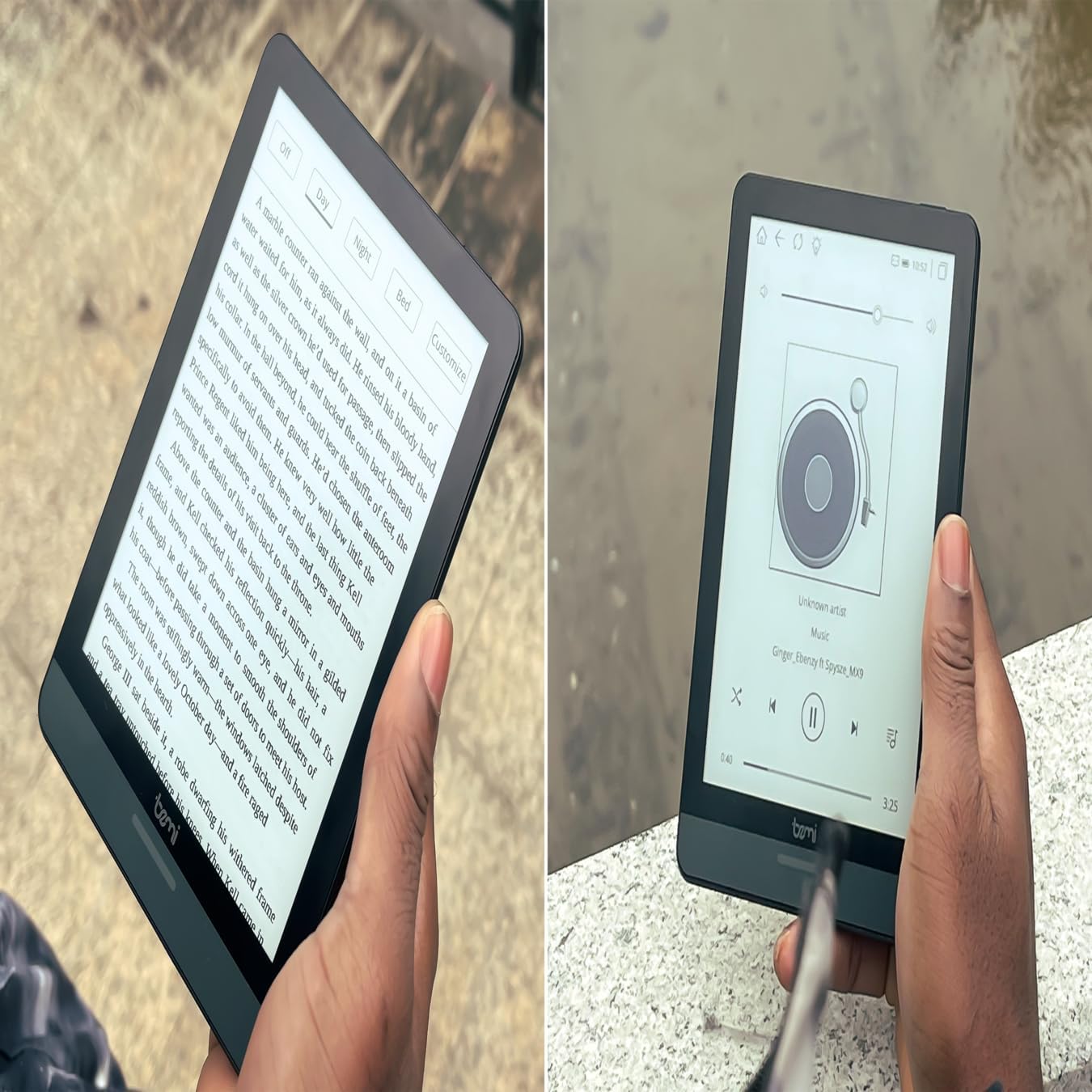
Foto 4.1: User holding the Bemi Cognita Tab 6+ E-Reader while reading. The image shows the clear text display on the E-Ink screen, highlighting the device's readability.
4.2 Akwụkwọ Ọgụgụ
Iji mepee ma gụọ akwụkwọ:
- From the home screen, tap on the Ụlọ akwụkwọ or Akwụkwọ akara ngosi.
- Browse your collection or use the search function to find a book.
- Tap on the book cover to open it.
- Use the touch screen or side buttons to turn pages.
4.3 Adjusting SMARTlight
The SMARTlight feature allows you to adjust both the brightness and color temperature of the screen's front light.
- During reading, tap the center of the screen to bring up the reading menu.
- Chọọ maka Ìhè or SMARTlight akara ngosi.
- Adjust the sliders for brightness (intensity) and color temperature (warm to cool) to your preference.
4.4 Nyefee Files
You can transfer e-books and other supported files to your device via Wi-Fi or USB cable.
- Site na Wi-Fi: If your device supports cloud services or direct Wi-Fi transfer, follow the specific application instructions.
- Site na eriri USB:
- Connect your E-Reader to a computer using the provided USB cable.
- The device will appear as a removable storage drive on your computer.
- Drag and drop your desired files (e.g., EPUB, PDF, MOBI) into the appropriate folders on the E-Reader (e.g., "Books" folder).
- Safely eject the device from your computer before disconnecting the cable.
4.5 Using MicroSD Card
To expand storage, insert a microSD card (up to 256GB) into the designated slot.
- Gently insert the microSD card with the gold contacts facing down until it clicks into place.
- To remove, gently push the card inward until it springs out.
- Files on the microSD card will be accessible through the device's file manager or library.
5. Nlekọta
5.1 Na-ehicha ngwaọrụ
- Jiri ákwà dị nro, nke na-enweghị lint hichaa ihuenyo na ahụ nke ngwaọrụ ahụ nke ọma.
- Maka isi ike smudges, ntakịrị dampen akwa na mmiri ma ọ bụ ihe nchacha ihuenyo ahaziri maka ngwá electronic.
- Zere iji kemịkalụ siri ike, ihe ndị na-emebi emebi, ma ọ bụ oke mmiri mmiri.
5.2 Nlekọta batrị
- Ka ịgbatị ndụ batrị ogologo, zere ịchaji batrị ugboro ugboro.
- Chekwaa ngwaọrụ ahụ n'ebe dị jụụ, kpọrọ nkụ mgbe ọ naghị eji ya ogologo oge.
- Charge the device regularly, even if not used, to prevent deep discharge.
5.3 Nchekwa
When not in use, store your E-Reader in a protective case to prevent scratches and damage to the screen.
6. Nchọpụta nsogbu
If you encounter issues with your Bemi Cognita Tab 6+, refer to the following common solutions:
| Nsogbu | Ngwọta |
|---|---|
| Ngwaọrụ anaghị agbanwu. | Ensure the battery is charged. Connect the device to a power source for at least 30 minutes. If it still doesn't turn on, try a hard reset by holding the power button for 10-15 seconds. |
| Ihuenyo ahụ akpọnwụọla ma ọ bụ anaghị anabata ya. | Perform a soft reset by holding the power button for 5-7 seconds until the device restarts. If the issue persists, try a hard reset. |
| Enweghị ike ijikọ na Wi-Fi. | Check if Wi-Fi is enabled in settings. Verify the Wi-Fi password. Restart your E-Reader and your Wi-Fi router. Ensure you are within range of the Wi-Fi signal. |
| Books are not appearing in the library. | Gbaa mbọ hụ na files are in a supported format (e.g., EPUB, PDF). If transferred via USB, ensure they are in the correct folder. Try refreshing the library or restarting the device. |
| Batrị na-agbapụ ngwa ngwa. | Reduce screen brightness. Turn off Wi-Fi and Bluetooth when not in use. Close background applications. Ensure the device is not constantly searching for networks. |
7. Nkọwapụta
| Njirimara | Nkọwa |
|---|---|
| Aha Nlereanya | Bemi Cognita Tab 6+ |
| Nha ihuenyo | 6 Inches (E-Ink Carta, 1024x758, 212 ppi) |
| Ebe nchekwa | 32 GB |
| Nchekwa enwere ike ịgbasa | MicroSD card slot, up to 256 GB |
| Njikọta | Wi-Fi, Bluetooth |
| Sistemụ nrụọrụ | Android 8.1 |
| Ntinye Interface mmadụ | Touchscreen, Side Control Buttons |
| Atụmatụ pụrụ iche | Adjustable SMARTlight, G-Sensor for auto-rotation, Glare-Free & Eye-Friendly E-Ink Display |
| Akụkụ (Ihe dị ka) | 7 mm ọkpụrụkpụ |
| Ngwa gụnyere | eriri USB |
8. Akwụkwọ ikike na nkwado
8.1 Ozi akwụkwọ ikike
Your Bemi Cognita Tab 6+ E-Reader comes with a standard manufacturer's warranty. Please refer to the warranty card included in your product packaging or visit the official Bemi websaịtị maka nkọwa zuru ezu usoro na ọnọdụ gbasara mkpuchi mkpuchi na ogologo oge.
Enwere ike ịnweta atụmatụ nchekwa nhọrọ maka mkpuchi ogologo oge. Biko lelee na onye na-ere ahịa gị maka nkọwa ndị ọzọ.
8.2 Nkwado ndị ahịa
For technical assistance, troubleshooting beyond this manual, or warranty claims, please contact Bemi customer support:
- Websaịtị: www.bemi-electronics.com
- Email: Refer to the Bemi websaịtị maka kọntaktị email.
- Ekwentị: Refer to the Bemi websaịtị maka nọmba ekwentị kọntaktị.
When contacting support, please have your device model (Cognita Tab 6+) and purchase information ready.